
MineBrush publication
Fix Minecraft Map Resource Packs: Missing Textures, Sounds & Server Downloads
Restore a map’s textures, custom items and sound clues. Follow practical Java and Bedrock fixes for missing packs, server downloads, pack order and version mismatches.
A map’s resource pack can be part of the adventure itself. It may turn an ordinary item into a key, put readable symbols on a puzzle wall, add a narrator’s voice or give a horror map its atmosphere. If those details disappear, the map can become confusing even though the world still opens.
This guide helps you restore the intended experience in Java or Bedrock. Start with the symptom below, then follow the section for your edition. You need the pack supplied or recommended for that particular map and game version; an unrelated texture pack with a similar look cannot replace its custom clues.
Find the right starting point
| What you see | Try this first |
|---|---|
| The map looks like ordinary Minecraft | Check that its required pack is active. On a server, check whether you declined its download. |
| Purple-and-black surfaces or missing item models | Check the map’s supported game version, required pack and any named visual mods. |
| Some textures work, but others look wrong | Temporarily turn off your optional cosmetic packs and shaders, keeping the map’s required components. |
| The pack is missing from the list | Java: check the active profile’s resource-pack folder. Bedrock: check whether the import completed. |
| Only speech, music or sound clues are missing | Check volume categories and subtitles, then confirm that the map’s sound pack is loaded. |
Before replacing a world or changing its required components, make a copy of your save. Keep your original download too. If you are still installing the world, use our Java and Bedrock map installation guide.
Java: load the pack in the profile you actually play
- Start the Minecraft version the map creator supports. If you use several launchers or mod profiles, open the one containing this map.
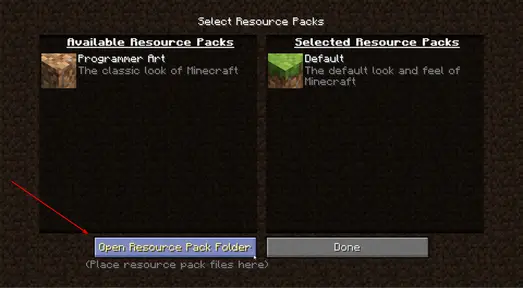
- Open Options → Resource Packs → Open Pack Folder. Some versions call the last button Open Resource Pack Folder. This opens the correct profile’s folder, which avoids guessing where your launcher stores it.
- For a separately supplied resource-pack ZIP, put that ZIP in this folder. Do not put it in
mods,shaderpacksor the world’sdatapacksfolder. - Return to the resource-pack menu. Move the map’s pack from the available list to the selected list, then select Done and let the reload finish.
- Re-enter the map and check a feature its creator shows: a custom key, a lobby sign, a special block or a sound cue. A different title-screen background alone does not confirm that the map’s own assets are working.
What if there is no separate pack download?
Some Java maps include a file named resources.zip inside the world folder. It loads with that world. Keep it beside the world’s level.dat; do not remove it when copying the save. If it was accidentally omitted, recover it from the same map release you downloaded. The creator may instead supply a separate pack or special installation instructions, so check the map page before adding a second copy.
If a separate ZIP never appears in the pack menu, open it to inspect its top level. A Java resource pack normally contains pack.mcmeta and its asset folders there. A download bundle may instead contain the actual pack ZIP inside another folder. Use that inner pack as the author instructs. You should not have to write metadata or change version numbers to play a correctly packaged map.
Pack order and version warnings
When Java packs replace the same asset, the higher-priority pack wins. Put the required map pack above your optional visual packs unless the author specifies a different arrangement. For a quick check, leave only the map’s required packs selected. If the missing clue returns, add your optional packs back one at a time.
An “older/newer version” warning is a compatibility clue, not a problem fixed by renaming the ZIP. Use the pack release matching the map and Minecraft version. Do not update an older adventure to the newest game release merely to remove a warning: its commands or mechanics may also depend on the older version.
Java multiplayer: restore a declined server pack
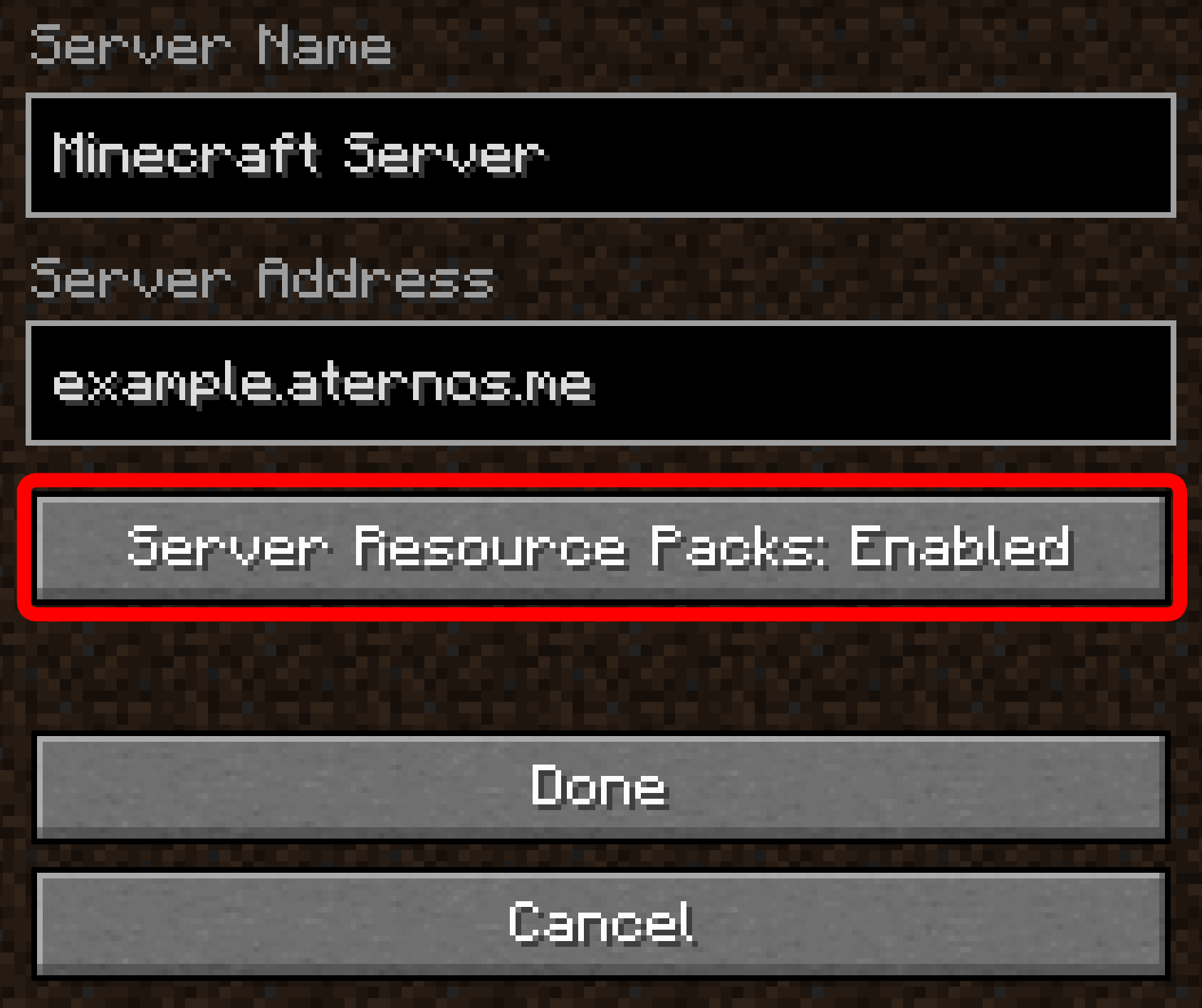
A server can offer its own pack when you join. Accept it when it belongs to the server you intended to play, and wait for the download and reload. If you previously declined, leave the server, select it in Multiplayer, choose Edit, then change Server Resource Packs from Disabled to Prompt or Enabled. Save and reconnect. Prompt asks before loading; Enabled permits that server’s packs to load automatically.
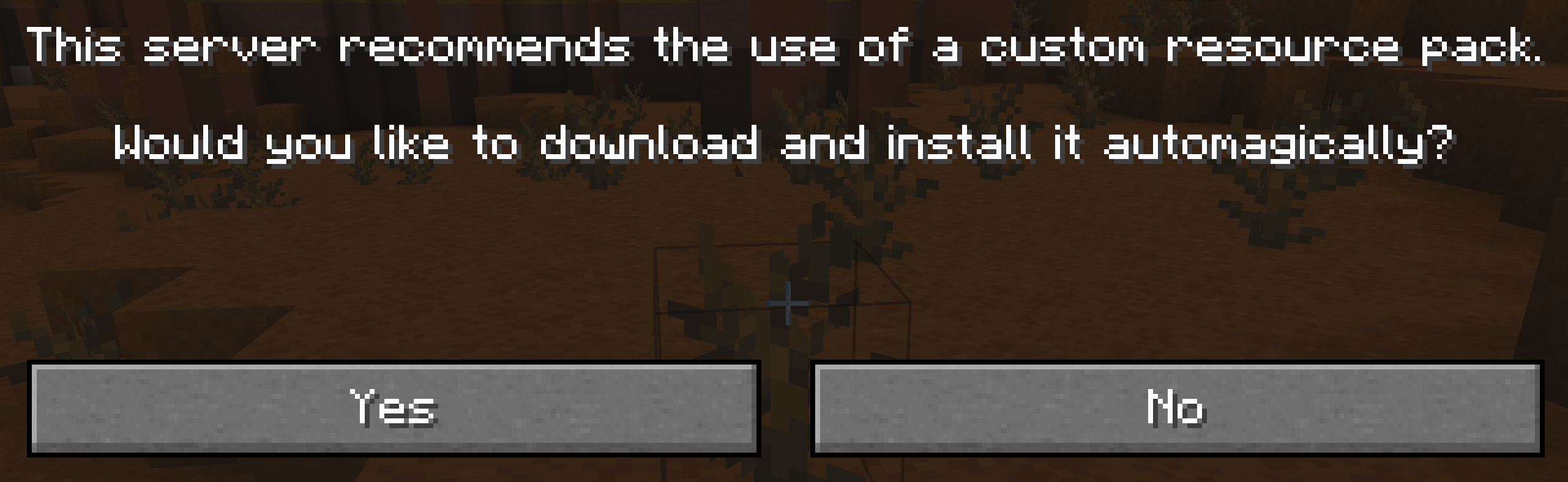
If the download repeatedly fails, reconnect once and ask the server owner whether the pack is currently available. Changing your local texture packs cannot repair the server’s download link. Packs that require a visual mod still need that mod on your computer; accepting a server pack does not install it.
Bedrock: activate the pack for this world
A downloaded .mcpack must finish importing into Minecraft before you can activate it. A .mcworld may already include the map’s packs. Open the world’s edit settings, then Resource Packs → My Packs, select the required pack and choose Activate. Confirm that it appears under Active before entering the world. Menu layouts vary across devices and releases.
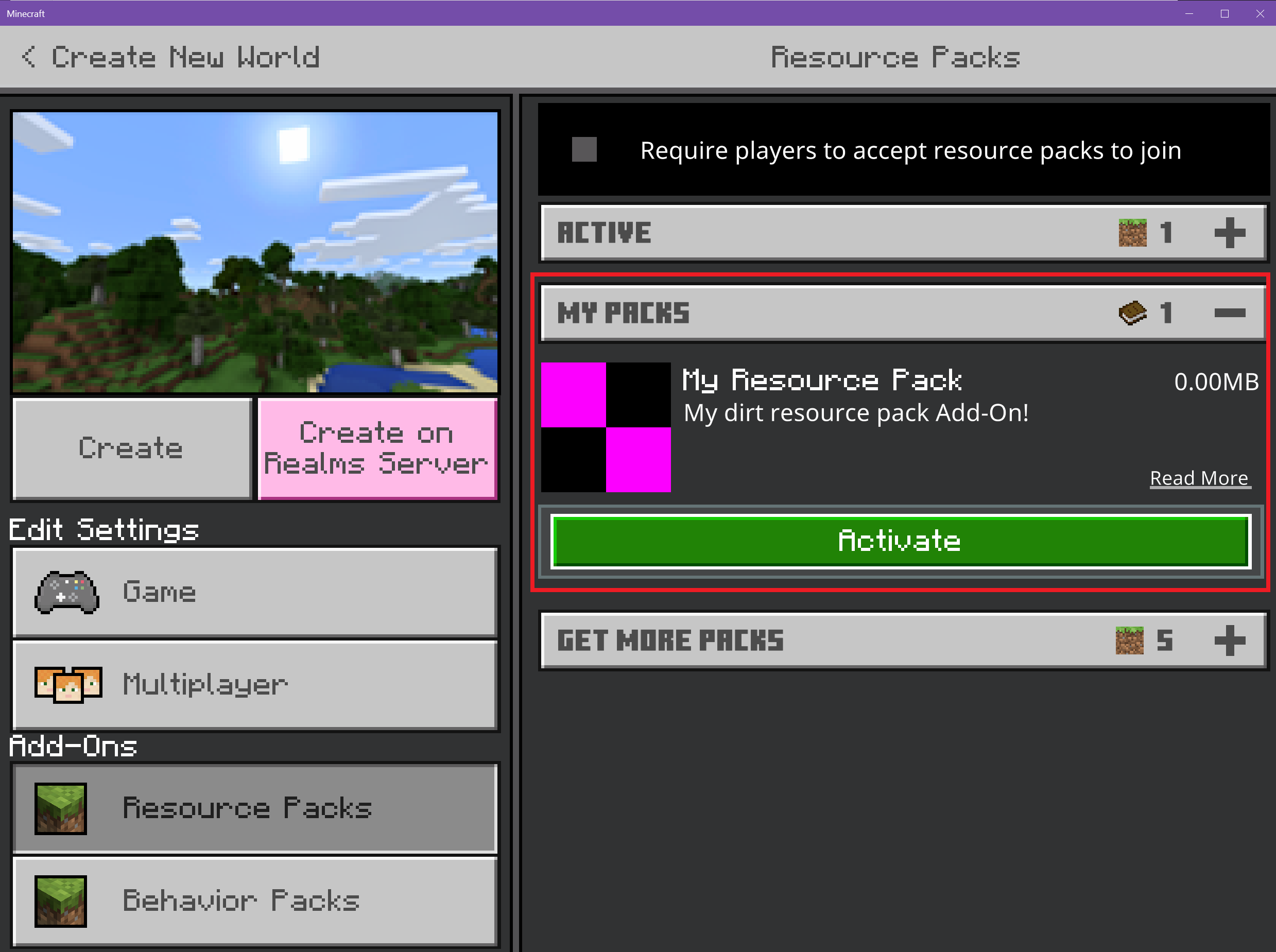
Check Behavior Packs too when the author requires one: a texture pack alone does not supply the map’s custom behavior. Keep required companions enabled. If another optional pack overrides the map’s textures, adjust priority or temporarily deactivate that optional pack on your copied world.
If importing reports a duplicate, first see whether the correct pack is already available. If it reports a missing dependency or an unsupported version, return to the creator’s release instructions for the matching files. Editing the pack’s identity can break its relationship with the world; it is not a normal installation step.
Global Resources affect your broader setup, whereas a map can bring its own world-specific packs. Check the world’s Active list rather than assuming a global selection covers it. Console players should use supported Marketplace, Realm or server delivery routes; desktop file-manager instructions do not describe console installation.
Textures are fixed, but the adventure still feels wrong
- No narration or sound clue: check Master Volume, then the individual sound categories. Test with optional sound packs disabled. Enable subtitles if available, but remember that a custom sound needs suitable subtitle support to show useful text.
- Wrong-looking entities or missing animations: read the map’s named requirements. Some visual features need additional mods; ordinary textures working does not prove those features are installed.
- Different lighting from the creator’s gallery: check whether the screenshots used shaders. A resource pack does not automatically reproduce the creator’s lighting setup.
- Unreadable puzzle labels or symbols: try the creator’s recommended language and required pack combination. Avoid replacing its font or interface with an optional UI pack while solving the puzzle.
- Lag after enabling the pack: try the author’s lower-resolution option if one exists, disable optional shaders and reduce viewing distance. Keep essential map assets. Repeated reloads do not reduce an oversized pack’s ongoing demands.
- Everything looks correct, but buttons or checkpoints fail: check the map’s game version, game mode, command requirements and required behavior/data packs. Visual assets and gameplay logic are different parts of the map.
Check the result before returning to your adventure
Revisit one place where something was missing. Can you recognize the intended item, read the sign and hear the cue? Then reopen the world once to make sure the setup persists. In co-op, ask each player to check their own view: your working textures do not prove everybody accepted the pack.
If you still need help, send the creator the map name, your Minecraft edition/version, the exact on-screen error and one useful screenshot. That gives them a clear problem to solve. For the next part of the adventure, see our guide to map rules, checkpoints, puzzles and co-op.
Sources and image credits
Written by MineBrush Editorial Team using Legopitstop’s Java pack installation guide, LPSMods’ world-bundled pack instructions, Aternos’ server-pack documentation and Microsoft Learn’s Bedrock pack guide. Source images retain their original annotations. The MineBrush cover is an editorial illustration.
More from MineBrush.
Understand Minecraft 26, tell normal releases from test builds, and choose the right version for friends, servers and mods. Clear Java and Bedrock examples without the technical clutter.
- Topic
- Choosing your Minecraft version
- Scope
- None
- Evidence
- Official Minecraft sources · checked 9 Sep 2026
A shared “26” prefix never proves cross-edition compatibility.
MineBrush · News
Minecraft Versions Made Simple
Understand Minecraft 26, tell normal releases from test builds, and choose the right version for friends, servers and mods. Clear Java and Bedrock examples without the technical clutter.
A shared “26” prefix never proves cross-edition compatibility.
- Compatibility confidence
- Source claimed
- Card evidence statement
- Official policy and indexes checked 9 Sep 2026; client display NOT_OBSERVED.
- Card delivery statement
- Choose a version for everyday play or testing
- Card limitation note
- A shared “26” prefix never proves cross-edition compatibility.
- Edition applicability
- Java + Bedrock
- News topic
- Choosing your Minecraft version
- Public news evidence label
- Official Minecraft sources · checked 9 Sep 2026
- Delivery state
- No file
- Lifecycle state
- Current
- News evidence type
- Official Minecraft source
CubeCraft offers EggWars teamwork, quick SkyWars fights, unpredictable Lucky Islands and lasting Skyblock projects. Choose the right Java or Bedrock route, invite friends and start with a clear plan.
- Edition
- Java + Bedrock
- Modes
- Minigames
- Region
- None
Choose the same edition as your friends
Minecraft · Server
CubeCraft
CubeCraft offers EggWars teamwork, quick SkyWars fights, unpredictable Lucky Islands and lasting Skyblock projects. Choose the right Java or Bedrock route, invite friends and start with a clear plan.
Choose the same edition as your friends
- Minecraft version
- Java 1.21.8+ · Bedrock 1.21.120+
- Game edition
- Cross-edition
- Loader / platform
- Not applicable
- License
- CubeCraft rules and terms
- Server address
- play.cubecraft.net
- Server modes
- Minigames
- Platform family
- Cross-edition
- Supported devices
- Java on PC/Mac; Bedrock on Windows, mobile and consoles
- Install format
- Java server address or Bedrock Featured Servers
- Touch readiness
- Not required
- Resource type
- Server
- Last verified at
- Sep 14, 2026
- Compatibility confidence
- Source claimed
- Card evidence statement
- Official CubeCraft guides and game updates
- Card delivery statement
- Join Java or Bedrock using the guide
- Card limitation note
- Choose the same edition as your friends
- Edition applicability
- Java + Bedrock
- Bedrock address copy availability
- Copy unavailable
- Java address copy availability
- Copy available
- Java server address
play.cubecraft.net- Delivery state
- No file
- Lifecycle state
- Current
Share a Minecraft Seed — Help friends find the same place: copy the seed, match Java or Bedrock and the version, read XYZ coordinates and describe a useful route with screenshots.
- Edition
- Cross-edition
- Difficulty
- Beginner
- Time
- A short check
A seed recreates terrain, not your builds
MineBrush · Guide
Share a Minecraft Seed
Share a Minecraft Seed — Help friends find the same place: copy the seed, match Java or Bedrock and the version, read XYZ coordinates and describe a useful route with screenshots.
A seed recreates terrain, not your builds
- Minecraft version
- Java and Bedrock; match your world version
- Game edition
- Cross-edition
- Platform family
- Cross-edition
- Supported devices
- PC, console and mobile
- Install format
- No installation needed
- Touch readiness
- Not required
- Resource type
- Guide
- Compatibility confidence
- Not applicable
- Card evidence statement
- Find the seed and read coordinates
- Card delivery statement
- Versions, directions and screenshots
- Card limitation note
- A seed recreates terrain, not your builds
- Edition applicability
- Java + Bedrock
- Estimated time
- A short check
- Guide difficulty
- Beginner
- Delivery state
- No file
- Lifecycle state
- Current
Bring a Bedrock adventure, parkour course or survival map to Android, iPhone or iPad. Find the download, import the world or template, start playing and keep your progress separate from the original file.
- Edition
- Bedrock Edition
- Difficulty
- Intermediate
- Time
- None
Keep your progress separate from the original map
MineBrush · Guide
Import Bedrock Maps on Mobile
Bring a Bedrock adventure, parkour course or survival map to Android, iPhone or iPad. Find the download, import the world or template, start playing and keep your progress separate from the original file.
Keep your progress separate from the original map
- Game edition
- Bedrock Edition
- Platform family
- Bedrock & Mobile
- Supported devices
- Android / iPhone / iPad
- Install format
- .mcworld / .mctemplate
- Touch readiness
- Check guide
- Resource type
- Guide
- Compatibility confidence
- Source claimed
- Card evidence statement
- Worlds, templates and first steps
- Card delivery statement
- Import and start playing
- Card limitation note
- Keep your progress separate from the original map
- Edition applicability
- Bedrock
- Guide difficulty
- Intermediate
- Delivery state
- No file
- Lifecycle state
- Current
Player discussion 0
Questions, discoveries and help from other players.