
MineBrush publication
How to Install Minecraft Maps: Java, Bedrock & Your First Playthrough
Install a downloaded Minecraft map and start playing: find the right Java saves folder, import a Bedrock .mcworld, activate required packs and fix a missing world. Includes Windows, Mac, Linux and mobile routes with original tutorial images.
A downloaded Minecraft map lets you play someone else's adventure, explore a finished build or start a survival challenge. Installation adds a separate world to your list. The right method depends on your edition: Java uses an extracted world folder, while Bedrock normally imports a .mcworld file.
Choose a map from Java maps or Bedrock maps, read its version and requirements, then follow the matching section below. This guide does not need a separate download.
Choose the right file before installing
| What you downloaded | What to do with it |
|---|---|
| Java world ZIP | Extract it and put the actual world folder into your Java profile's saves folder. |
Bedrock .mcworld |
Open it with Minecraft on Windows or a supported mobile device, then wait for import to finish. |
Bedrock .mctemplate |
Import the template, then create a new world from it. It is not the same as an already playable world entry. |
.mcpack or .mcaddon |
This is pack/add-on content or a bundle. A pack alone is not a complete adventure map. |
| A schematic or structure file | Use the creator's instructions for placing that structure. It is not a whole world to put in the normal world list. |
Java and Bedrock saves are different formats. Renaming a Java ZIP to .mcworld does not convert it. Windows can run either edition, so “for PC” is not enough: check which game the map actually requires. Minecraft on macOS and Linux normally means Java Edition; Minecraft on phones and consoles is Bedrock.
Check the author's game version, required mods or packs and intended player count. Use a fresh copy of the map in that setup. A story map built around older commands may load in a newer version and still have broken puzzles or checkpoints. Keep the original download so you can start again without losing the clean map.
Java Edition: install the world on Windows, Mac or Linux
- Download and extract the archive. A ZIP needs to become a folder before Java can list it as a world.
- Find the real world folder. Open the extracted folder. The folder you install should contain
level.datand the map's other world data. If it contains only another folder with the map's name, open that inner folder. - Open the correct profile's game folder. Use your launcher's folder button or the installation's game-directory setting, especially with modpacks. Open its
savesfolder. - Close Minecraft and copy the whole map folder into saves. Keep each world in its own folder. If a same-named folder already exists, give the new copy a different folder name instead of merging or replacing it.
- Launch the author's recommended version and profile. Choose Singleplayer, find the map and open it. Its displayed world name may differ from the ZIP filename.
A simple example of the correct folder depth is saves/MyAdventure/level.dat. The extra wrapper in saves/Download/MyAdventure/level.dat is a common reason the map does not appear. Do not copy only level.dat: the rest of the folder contains the actual world and its progress.
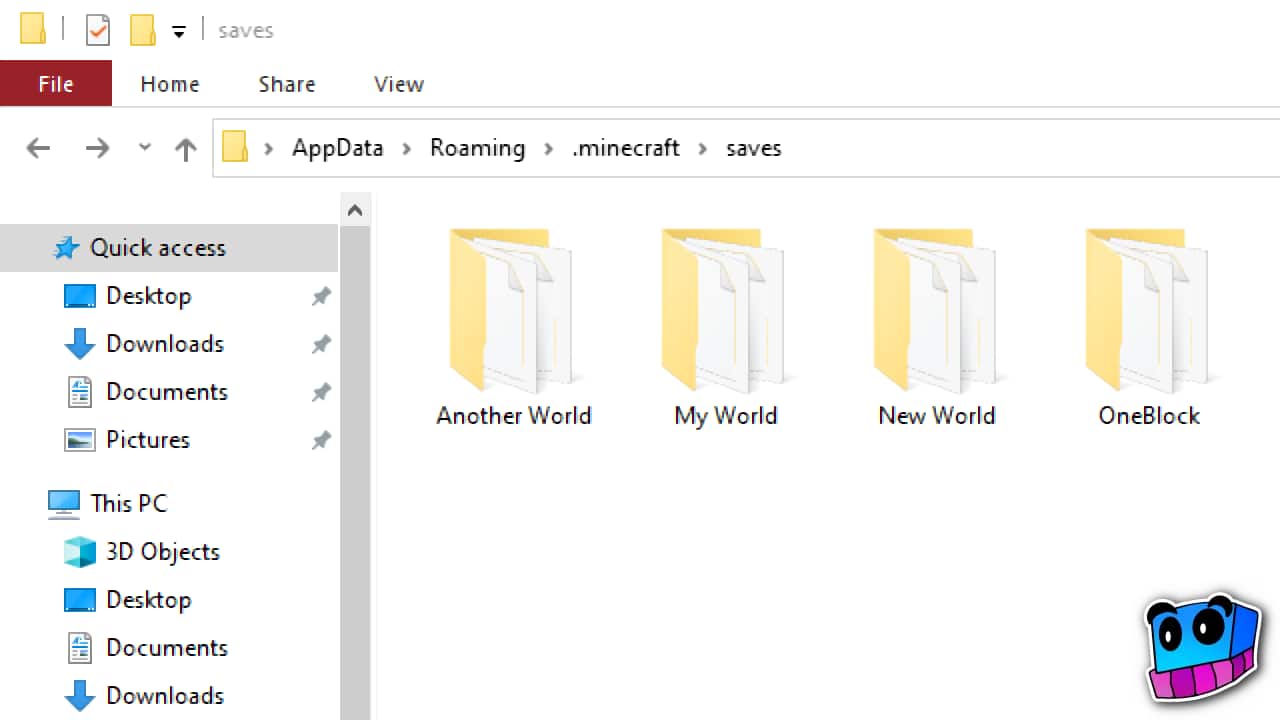
saves represents a separate world. Original image by IJAMinecraft, from a 2024 tutorial. The Windows interface is older, but the folder relationship is the point. The author's original mark is preserved.Default Java saves locations
These paths apply to the ordinary default game directory. A launcher instance or modpack can use a different location; its own folder button takes priority.
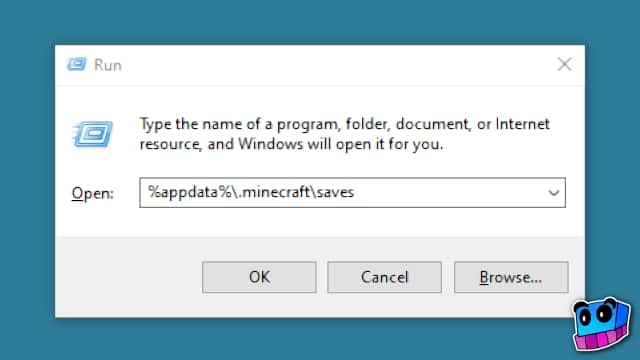
- Windows: press Windows + R, enter
%appdata%\.minecraft\savesand press Enter. - macOS: in Finder, use Go → Go to Folder and enter
~/Library/Application Support/minecraft/saves. - Linux: open
~/.minecraft/saves. Show hidden files if the.minecraftfolder is not visible.
If the saves folder is empty: check that you opened the same profile you actually play. For a newly created profile, starting the game and creating a temporary world can also help you identify its real save location. Do not scatter copies through several guessed directories.
Bedrock Edition: import a .mcworld file
Windows
- Save the completed
.mcworlddownload in a folder you can find. - Double-click it, or use Open with and choose Minecraft. Use the normal Bedrock game for a normal release map rather than an unrelated application or Editor session.
- Wait for Minecraft's import result. Opening the game is only the first step; look for a successful import message.
- Open Play and find the new local world. Read the map's instructions before changing its game mode, experiments or packs.
iPhone, iPad and Android
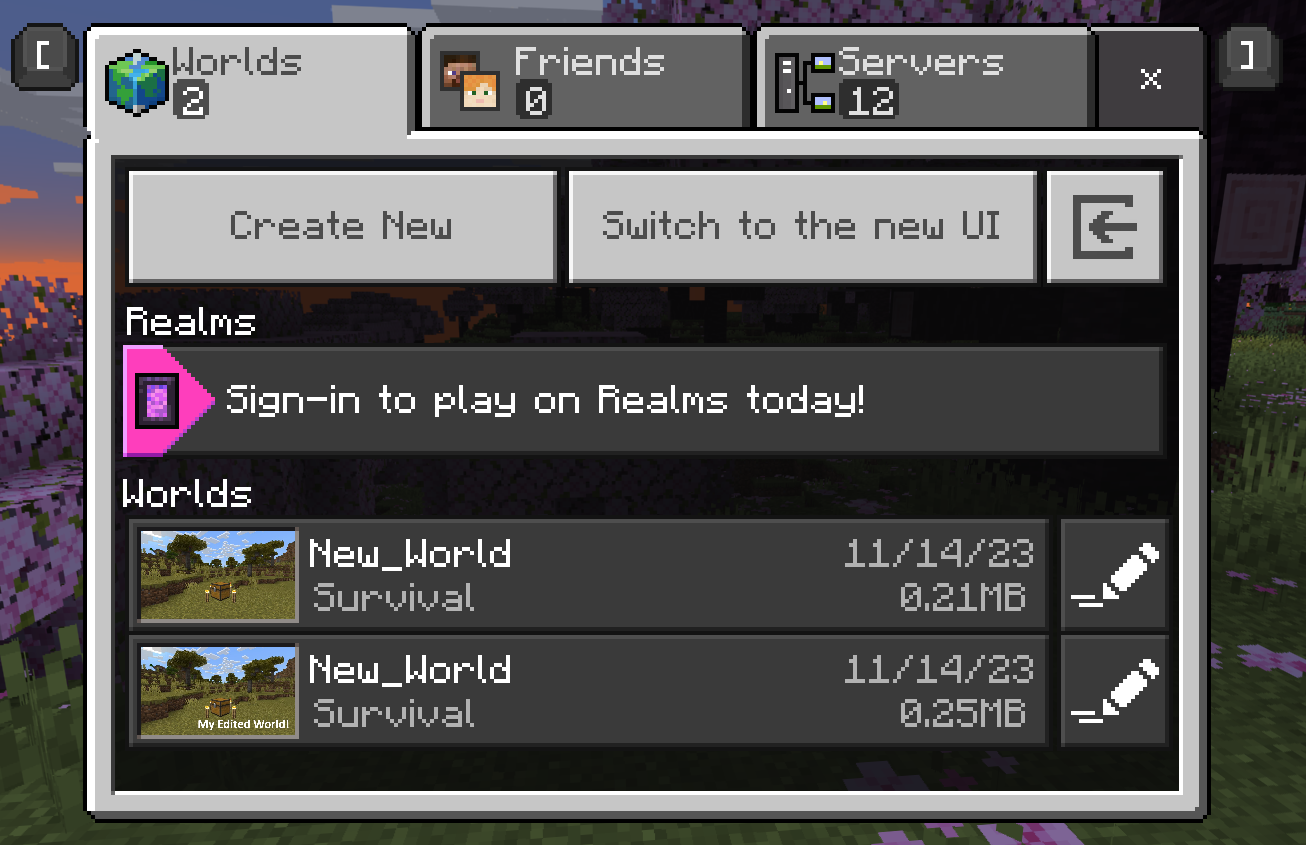
Download the complete file, then locate it in Files or your device's file manager. Use Open with or Share → Minecraft when your device offers that action. Let Minecraft finish importing, then find the world in Play. On iPhone and iPad, make sure a cloud-stored file has downloaded to the device before sharing it.
File-manager behaviour varies. If Minecraft is missing from the choices, check the filename really ends in .mcworld and that Minecraft is installed and has been opened at least once. Do not uninstall the game to repair a missing share option: local worlds can be lost. Our mobile world-import guide covers the phone-specific route in more detail.
If the Bedrock download is a ZIP
First check what the author supplied. A ZIP may be an outer package containing a ready .mcworld, instructions and optional packs. Extract the outer package and open the actual world file inside. A raw Bedrock world archive can be packaged differently, so follow the creator's instructions rather than renaming every ZIP you find. Java worlds, resource packs and incomplete downloads will not become Bedrock worlds just because their extension changes.
What about consoles?
Xbox, PlayStation and Switch do not use the desktop file-opening steps above. Marketplace worlds are created through the game's content interface. For a compatible custom Bedrock world imported on another device, a Bedrock Realm can provide a transfer route: the owner uploads the world, then accesses or downloads it on the destination device with the same account. Realms needs the appropriate access/subscription; preserve any existing Realm world before replacing its slot. Check the map's support before choosing this route, especially for experimental or add-on-heavy maps.
Make the map look and play as intended
Use the map's own instructions first. A parkour course may need checkpoints and a particular game mode; an adventure may rely on custom sounds, textures or commands. Randomly changing difficulty, adding your usual packs or enabling experiments can change the experience.
- Java resource pack: if the creator provides a separate required pack, place it in the same profile's resource-pack folder and enable it in Options → Resource Packs. Keep a map's bundled files in place. A ZIP texture pack goes into
resourcepacks, notsaves. - Java mods: use the named loader, game version and dependencies. A world download by itself does not install a modpack.
- Bedrock packs: open the world's edit settings and check Resource Packs and Behavior Packs. Use the packs required by that world; an extra pack imported into Minecraft may still need activation for the world.
- Experiments and cheats: keep the author's intended setup. Enable extra settings only when the map specifically needs them, not as a general cure for a failed import.
Start playing, save progress and restart cleanly
On your first visit, read the spawn signs or welcome book before leaving the starting area. Try the opening objective or checkpoint, then use Save & Quit and reopen the world. Once the map behaves as expected, continue with that play copy.
For an adventure, preserve the author's rules and start point. For a parkour course, learn how its checkpoint/reset controls work before changing your spawn. For a build showcase, make a separate copy before experimenting with major edits. A fresh map import is useful when you want a second playthrough without erasing the first.
In Java, close the game and copy the complete world folder to a backup location before a major change. In Bedrock, use the world's Copy/Duplicate World or Export World option where available. An in-game duplicate is convenient for trying things, while an exported copy stored elsewhere also survives loss of the local installation.
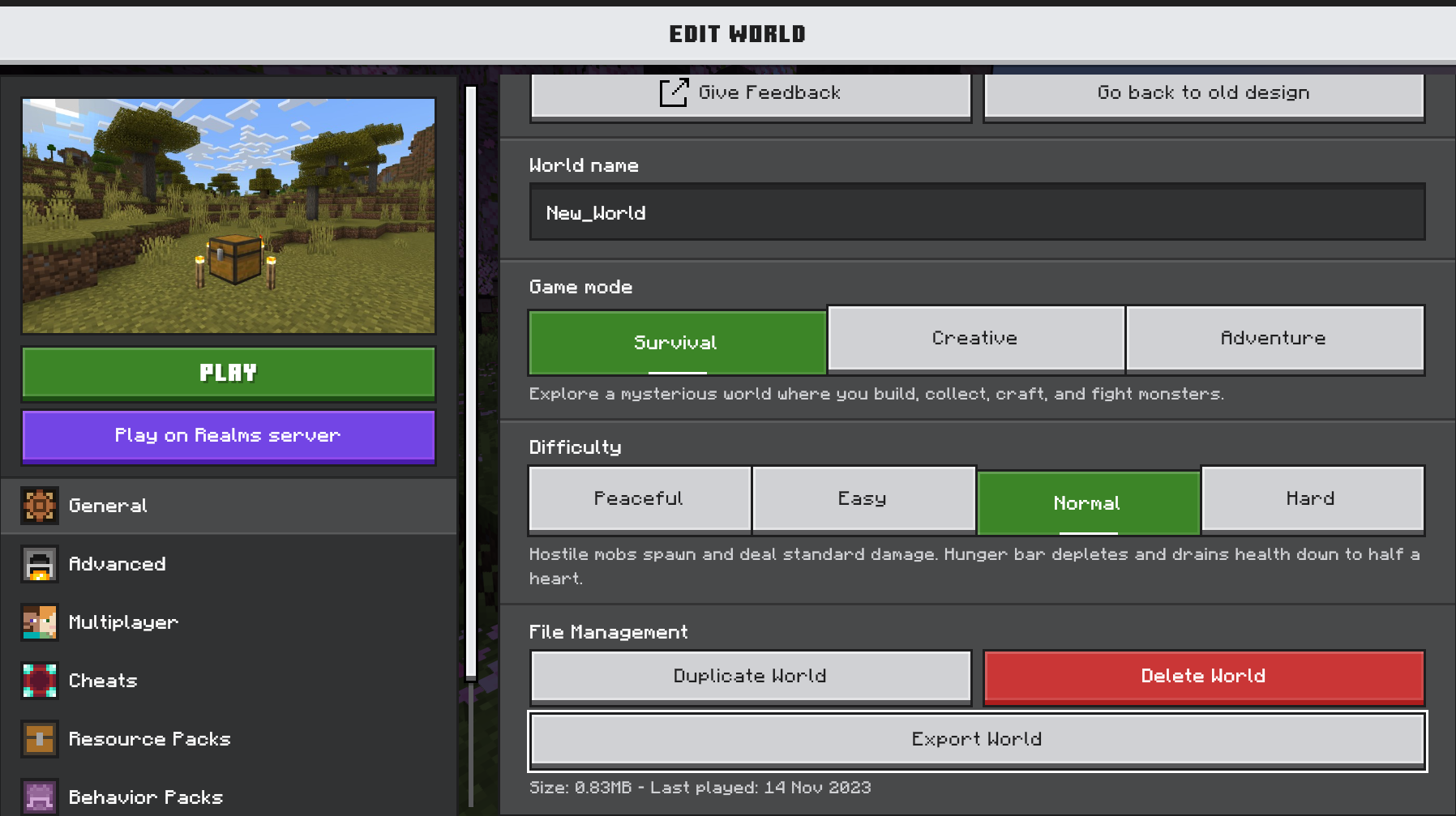
If the map does not work
| What you see | Try this first |
|---|---|
| Java map missing from Singleplayer | Extract the ZIP, check the level.dat folder depth, confirm the launcher profile and scroll through the world list for a different display name. |
| Minecraft opens but the Bedrock world is absent | Check the import result. A template belongs in the create-world flow; a pack appears in pack settings rather than as a playable world. |
| World import failed | Download a fresh complete copy, check Bedrock compatibility and free storage, then use the actual .mcworld from the package. Do not delete unrelated worlds or the whole game folder. |
| World asks for a newer version | Compare its requirements with your installed game. Keep a backup and use a compatible version; do not expect an older game to open a newer save. |
| The map opens but textures or sounds are wrong | Enable its required resource pack and temporarily disable unrelated packs that may override it. |
| Puzzles, mobs or checkpoints are broken | Check the exact game version, required mods/packs and intended settings. Try a fresh copy before continuing a save already changed by the wrong setup. |
| A friend cannot join | Check the map's multiplayer support, matching edition/version and the hosting method. Two people importing separate copies creates two separate games. |
Do not downgrade your only copy of a world. If you accidentally opened it in a newer version and need the older one, restore a compatible backup or reimport the clean download. Reinstalling Minecraft is rarely the right first step for a map placed in the wrong folder.
Sources and image credits
This guide combines IJAMinecraft's map-installation instructions, the creator's Java saves-folder tutorial, Microsoft's Bedrock file-format reference and world import/export examples, plus official guidance on activating Bedrock packs and moving to another device. Images remain credited to IJAMinecraft and Microsoft/Mojang; the MineBrush cover is an editorial illustration. Reviewed 15 September 2026.
More from MineBrush.
Understand Minecraft 26, tell normal releases from test builds, and choose the right version for friends, servers and mods. Clear Java and Bedrock examples without the technical clutter.
- Topic
- Choosing your Minecraft version
- Scope
- None
- Evidence
- Official Minecraft sources · checked 9 Sep 2026
A shared “26” prefix never proves cross-edition compatibility.
MineBrush · News
Minecraft Versions Made Simple
Understand Minecraft 26, tell normal releases from test builds, and choose the right version for friends, servers and mods. Clear Java and Bedrock examples without the technical clutter.
A shared “26” prefix never proves cross-edition compatibility.
- Compatibility confidence
- Source claimed
- Card evidence statement
- Official policy and indexes checked 9 Sep 2026; client display NOT_OBSERVED.
- Card delivery statement
- Choose a version for everyday play or testing
- Card limitation note
- A shared “26” prefix never proves cross-edition compatibility.
- Edition applicability
- Java + Bedrock
- News topic
- Choosing your Minecraft version
- Public news evidence label
- Official Minecraft sources · checked 9 Sep 2026
- Delivery state
- No file
- Lifecycle state
- Current
- News evidence type
- Official Minecraft source
Share a Minecraft Seed — Help friends find the same place: copy the seed, match Java or Bedrock and the version, read XYZ coordinates and describe a useful route with screenshots.
- Edition
- Cross-edition
- Difficulty
- Beginner
- Time
- A short check
A seed recreates terrain, not your builds
MineBrush · Guide
Share a Minecraft Seed
Share a Minecraft Seed — Help friends find the same place: copy the seed, match Java or Bedrock and the version, read XYZ coordinates and describe a useful route with screenshots.
A seed recreates terrain, not your builds
- Minecraft version
- Java and Bedrock; match your world version
- Game edition
- Cross-edition
- Platform family
- Cross-edition
- Supported devices
- PC, console and mobile
- Install format
- No installation needed
- Touch readiness
- Not required
- Resource type
- Guide
- Compatibility confidence
- Not applicable
- Card evidence statement
- Find the seed and read coordinates
- Card delivery statement
- Versions, directions and screenshots
- Card limitation note
- A seed recreates terrain, not your builds
- Edition applicability
- Java + Bedrock
- Estimated time
- A short check
- Guide difficulty
- Beginner
- Delivery state
- No file
- Lifecycle state
- Current
Bring a Bedrock adventure, parkour course or survival map to Android, iPhone or iPad. Find the download, import the world or template, start playing and keep your progress separate from the original file.
- Edition
- Bedrock Edition
- Difficulty
- Intermediate
- Time
- None
Keep your progress separate from the original map
MineBrush · Guide
Import Bedrock Maps on Mobile
Bring a Bedrock adventure, parkour course or survival map to Android, iPhone or iPad. Find the download, import the world or template, start playing and keep your progress separate from the original file.
Keep your progress separate from the original map
- Game edition
- Bedrock Edition
- Platform family
- Bedrock & Mobile
- Supported devices
- Android / iPhone / iPad
- Install format
- .mcworld / .mctemplate
- Touch readiness
- Check guide
- Resource type
- Guide
- Compatibility confidence
- Source claimed
- Card evidence statement
- Worlds, templates and first steps
- Card delivery statement
- Import and start playing
- Card limitation note
- Keep your progress separate from the original map
- Edition applicability
- Bedrock
- Guide difficulty
- Intermediate
- Delivery state
- No file
- Lifecycle state
- Current
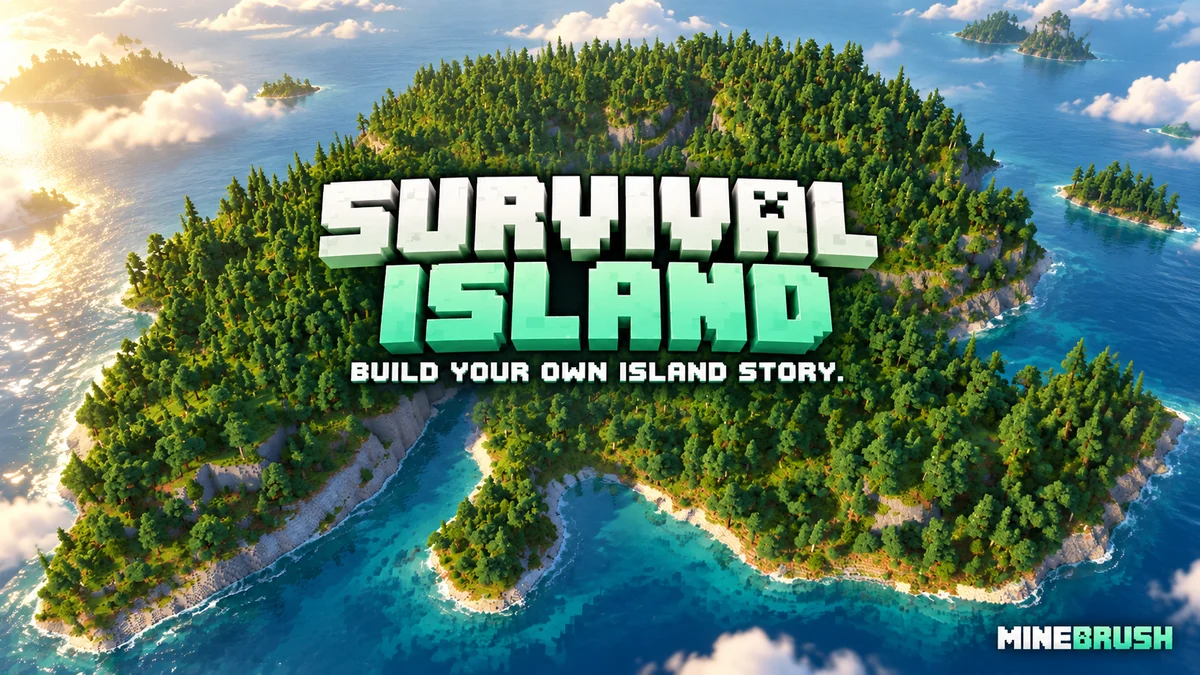
Survival Island
v1.5Make a forested island your next survival home. Explore cliffs and waterways, choose a base, switch the supplied world to Survival and download the Java map.
- Minecraft
- 1.21.9–1.21.11
- Genre
- Survival
- Players
- Solo or co-op
Choose Survival mode and difficulty before starting
Java · Map
Survival Island
Make a forested island your next survival home. Explore cliffs and waterways, choose a base, switch the supplied world to Survival and download the Java map.
Choose Survival mode and difficulty before starting
- Minecraft version
- 1.21.9–1.21.11
- Game edition
- Java Edition
- Loader / platform
- Vanilla
- Map genre
- Survival
- Recommended players
- Solo or co-op
- Platform family
- Java & PC
- Supported devices
- Java Edition on Windows, macOS and Linux
- Install format
- Extract the world folder into saves; choose Survival and difficulty
- Resource type
- Map
- Project version
- v1.5
- Last verified at
- Sep 14, 2026
- Compatibility confidence
- Source claimed
- Card evidence statement
- Forested island with cliffs, waterways and room for a survival base
- Map landmark
- Forested cliffs and sheltered waterways
- Map import route
- Extract the folder containing level.dat into your Java saves folder
- Card delivery statement
- Java world v1.5 · local ZIP download
- Card limitation note
- Choose Survival mode and difficulty before starting
- Edition applicability
- Java
- Delivery state
- Direct download
- Lifecycle state
- Current
Player discussion 0
Questions, discoveries and help from other players.