
Java 1.21.9 player guide
Minecraft Java 1.21.9: Copper, Farms, F3 and Comfort Controls
Build a useful copper workshop, understand the removal of spawn chunks, customize F3, save chat drafts and adjust comfort controls. Practical Java 1.21.9 advice for an existing world.
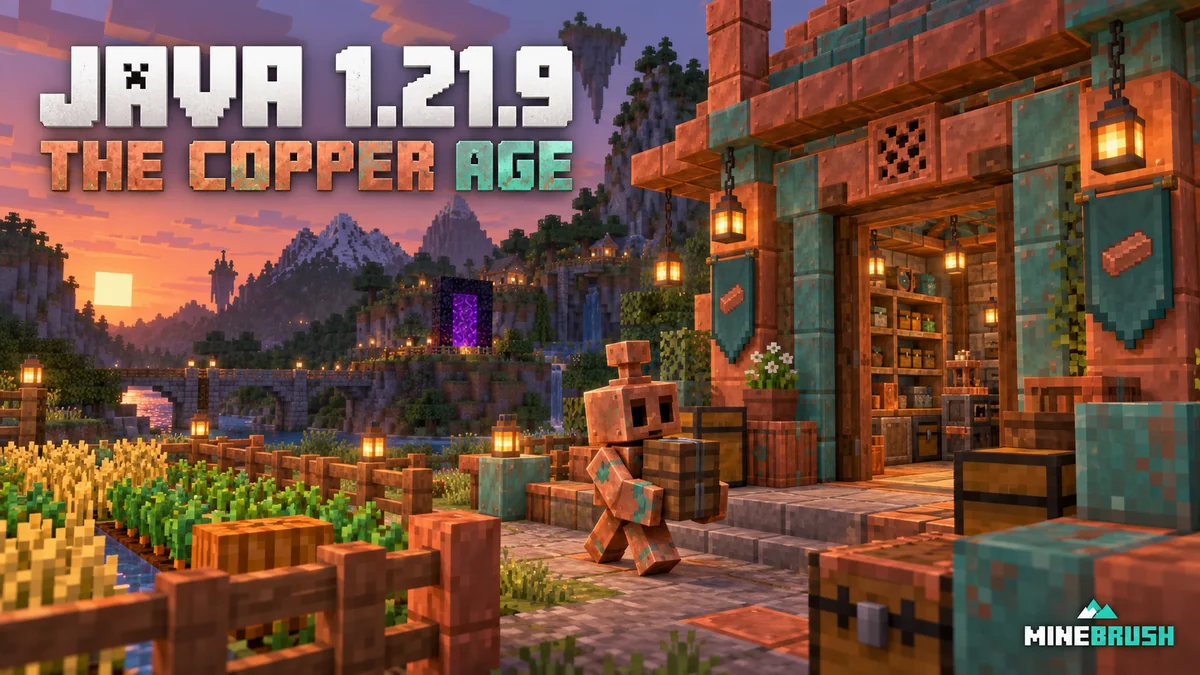
Java 1.21.9 makes copper useful around a base—and changes how an existing Java world behaves. A copper golem can handle everyday sorting, shelves can exchange a tool kit with your hotbar, and copper gear gives an early survival world another equipment choice. Beyond the workshop, this release changes spawn-area loading, the F3 screen, chat drafts and several comfort controls.
The Copper Age released on September 30, 2025. This is a guide to that historical Java release for Windows, macOS and Linux; Bedrock’s corresponding version is 1.21.111. Newer supported releases already include its features. Choose historical 1.21.9 only when your server or modpack specifically needs it, and follow the version required by that setup.
Give the copper in your storage a practical job
For a first evening, build a small sorting corner and a tool shelf. This improves a base you already use without requiring a new world or a large automated warehouse.
- Summon a copper golem with a carved pumpkin or jack o’lantern on a full copper block. You also receive its first copper chest.
- Use that copper chest as the input. Nearby ordinary or trapped chests are the destinations.
- Put a sample of the intended item in each destination—for example, cobblestone in one and oak logs in another. The golem matches actual contents, not signs.
- Keep its walking route short and the destination chests usable. An empty destination can accept other items, so keep sample stock in dedicated chests.
- Wax a working golem with honeycomb. An unwaxed, fully oxidized golem eventually becomes a statue.
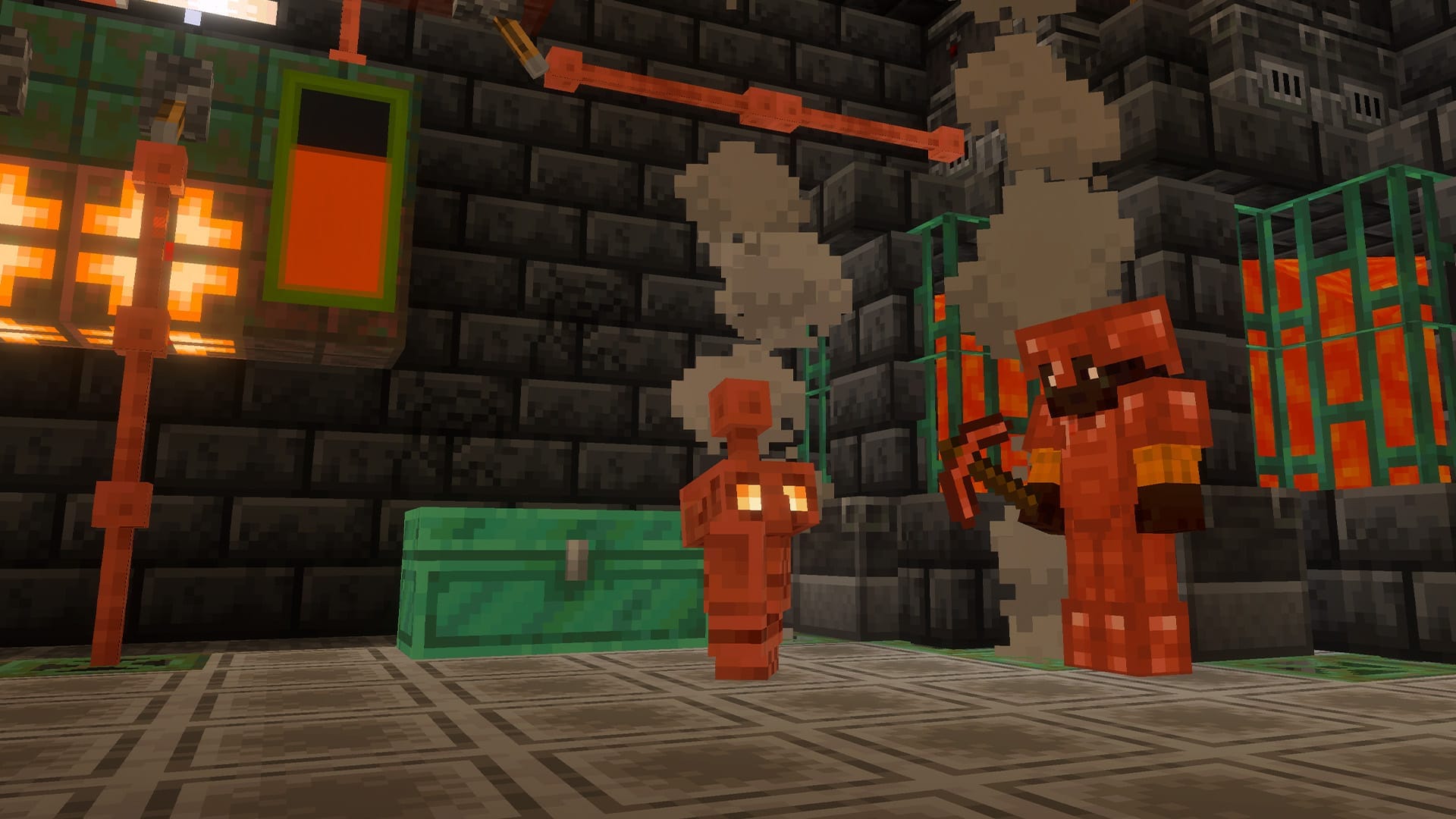
Craft shelves using six matching stripped logs, stems or stripped bamboo blocks in the top and bottom crafting rows. An unpowered shelf exchanges one displayed slot with your main hand. A powered shelf exchanges the three rightmost hotbar slots; two connected powered shelves exchange six slots, and three exchange all nine.
Useful first kit: put a pickaxe, torches and food on one shelf, then power it. Before mining, exchange it with the rightmost three hotbar slots. This is a swap: the items already in those slots go onto the shelf. It does not duplicate items or refill a partly used stack.
Our complete Copper Age workshop guide covers sorting limits, misdirected deliveries, oxidation, shelf layouts, copper equipment and building palettes. The rest of this page focuses on the Java changes that can otherwise surprise an established player.
Why a farm near world spawn may stop working while you are away
Java 1.21.9 removes the old fixed spawn chunks. Being built near world spawn no longer gives a farm permanent activity by itself. If an older tutorial relied on that behavior, its loading assumption needs review even when you copied the blocks correctly.
There are two separate questions: is the area active, and does the farm’s mechanic have the conditions it needs? A loaded area is not a promise that every crop grows or every mob farm produces without a nearby player. Do not buy into a “universal fix” that treats all farm types as identical.
Check an existing farm without rebuilding it blindly
- Start while standing nearby. Confirm that the machine works in ordinary active play and that its output storage has room.
- Read the original design’s requirements. Look for dependence on spawn chunks, player proximity, portal loading or server-specific behavior.
- Separate sorting from production. A copper golem with no matching destination is a storage problem; an inactive area is a loading problem. Adding more chests does not keep a distant area active.
- For a simple survival base, work nearby. Keeping your storage, crafting area and everyday jobs together can be easier than adding a loader you do not need.
- If remote operation is essential, use a design verified for this version and your server. Check its loading method and the farm mechanic together, preferably on a world copy.
Portal activity, ender pearls and deliberately forced chunks are among the loading mechanisms recognized by the new system. The release also loads relevant areas before play begins, rather than treating the old spawn area as the universal starting point. These facts do not make an arbitrary portal or thrown pearl a complete reliable loader: the arrangement and continued activity still matter.
The world-loading screen now shows the area you are about to enter and a progress bar. Seeing a different loading picture after upgrading is expected; it is not proof that your world spawn moved.
Make the F3 screen show the information you actually need
Press F3 for the debug overlay. In 1.21.9, press F3 + F6 to open Debug Options. Older development-version instructions may say F3 + F5; that shortcut changed before the final release.
The new overlay starts with less clutter. You can choose whether individual entries are hidden, appear only with the overlay, or remain visible during normal play. Your choices are saved between launches.
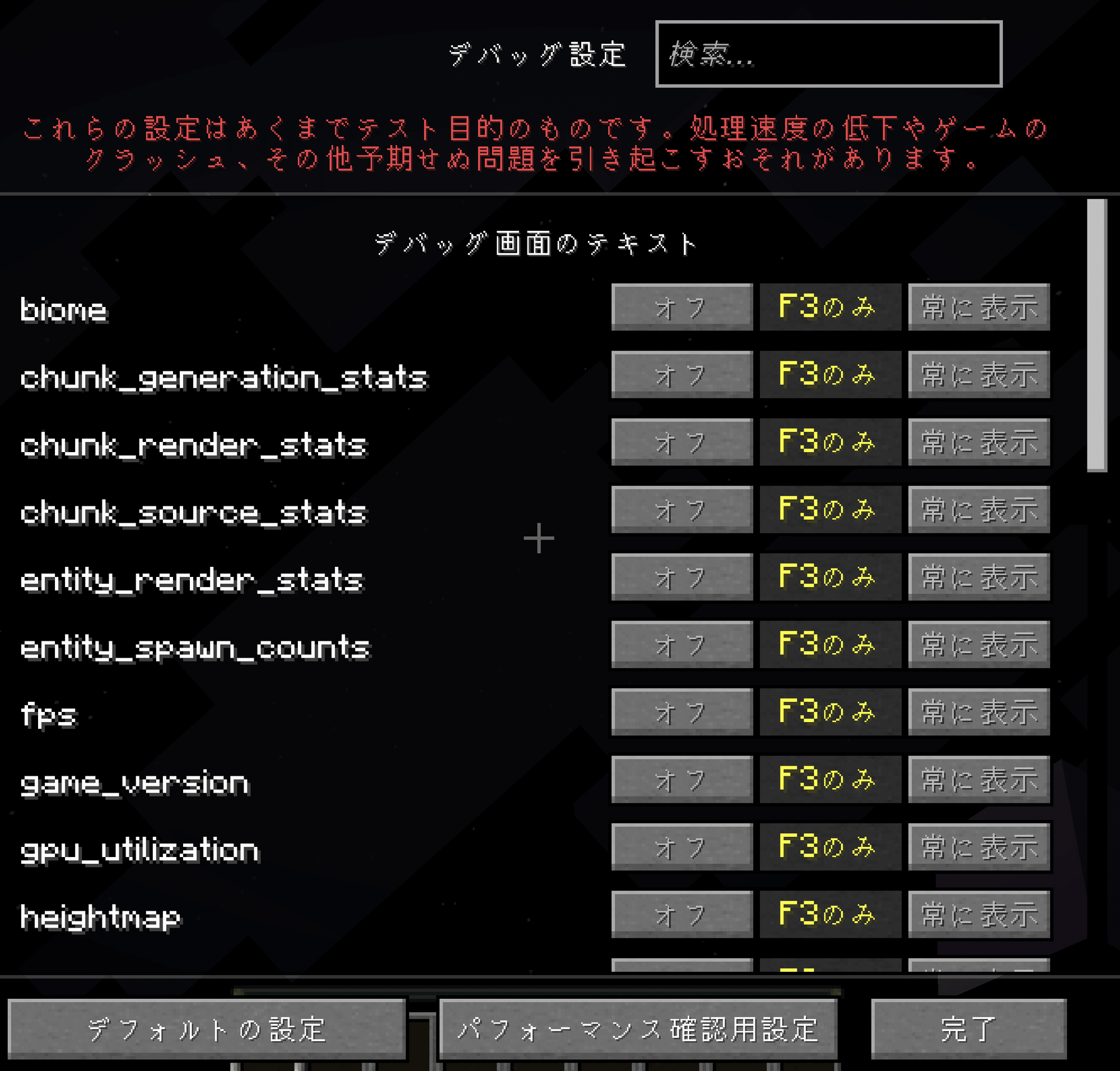
- Open Debug Options. Choose the text entries relevant to your current task rather than turning on every diagnostic view.
- For exploration, keep useful location information available. Set it to appear with F3 when you only need an occasional check, or always visible if you deliberately want it during a route.
- For a quick smoothness check, use Performance. This preset includes an FPS meter that stays visible, without filling the screen with every debug field.
- For a clean start, choose Default. It resets the debug configuration. It does not reset your world, inventory or all game settings.
Example: comparing a busy animal pen and an empty hillside. Use the Performance preset, walk both places and observe camera movement as well as the FPS reading. The release improves entity rendering and skips particles outside the view, so scenes with many entities can benefit more than a distant landscape. A better reading in one scene is not a guarantee of the same gain everywhere.
Chunk borders and entity hitboxes can also be switched through Debug Options. They are useful for understanding a build or an entity’s boundaries, but you do not need every debug renderer for everyday play. If the view becomes distracting, switch off the particular visualization you enabled.
For a screenshot of your building, turn off always-visible entries as well as the usual overlay if they remain on screen. A deliberately persistent FPS counter is not a broken F3 key.
Reduce button holding and find the moved settings
The Controls screen adds Hold or Toggle behavior for Attack/Destroy and Use Item/Place Block. Toggle is useful when repeatedly holding a button is uncomfortable: try it on a harmless block in a safe area first, and learn how to stop the action before using it near animals, villagers or a carefully decorated build.
A practical mining choice: Toggle can reduce continuous holding during a long excavation, while Hold gives direct release-to-stop behavior. Pick the control that feels more reliable to you; this is an input preference, not an automatic mining route.
Sprint Window changes the time allowed between forward-key taps to activate sprint. If your normal walking input accidentally starts sprinting, review this setting. The value is a timing adjustment; it does not make sprinting faster or remove hunger use.
- Auto-Jump, Sneak and Sprint: look in Controls. These controls were removed from Accessibility Settings, which now includes a button leading to Controls.
- Closed Captions: this is the renamed Show Subtitles setting. The change of name does not require an extra download.
- Invert Mouse X: reverses horizontal mouse movement. It is separate from vertical inversion.
- Allow Cursor Changes: disables the new context-sensitive cursor shapes if you prefer a consistent pointer.
Multiple actions assigned to the same key can now work together, and the duplicate-key warning becomes yellow. That can support a deliberate combined input, but it can also explain an unexpected jump or sideways step after changing bindings. Review duplicate assignments before blaming movement on the world or network.
Sound sliders can play previews outside a world. Adjust the relevant category there before joining a busy server; you can judge a sound without loading into a dangerous location just to test the volume.
Keep a message when travel or a menu interrupts you
If chat is closed by an interruption such as dying or another dialog opening, an unsent message is retained as a chat draft. Open chat again and the draft is pre-filled in gray.
- Continue editing: type, move the cursor, click the draft or select text to restore it as normal editable text.
- Send it immediately: Enter sends the unrestored draft like an ordinary message.
- Discard it immediately: Backspace on an unrestored draft deletes it.
Example: you are writing directions to a friend and a screen interrupts you. Reopen chat, check that the destination is still correct, and continue the message. Read before pressing Enter: a preserved message may no longer fit what happened while chat was closed.
If you also want drafts when you close chat yourself, enable the corresponding option in Chat Settings. That is a separate choice from the default protection against forced closure. Chat can now open inside a Nether portal and remains open through a dimension transfer, which makes coordinating a portal trip less awkward.
The End’s purple flashes have an accessibility setting
The End gains occasional sky flashes and rumbling. During a flash, purple skylight can brighten the landscape; the effect is reduced while the Ender Dragon’s fog is active.
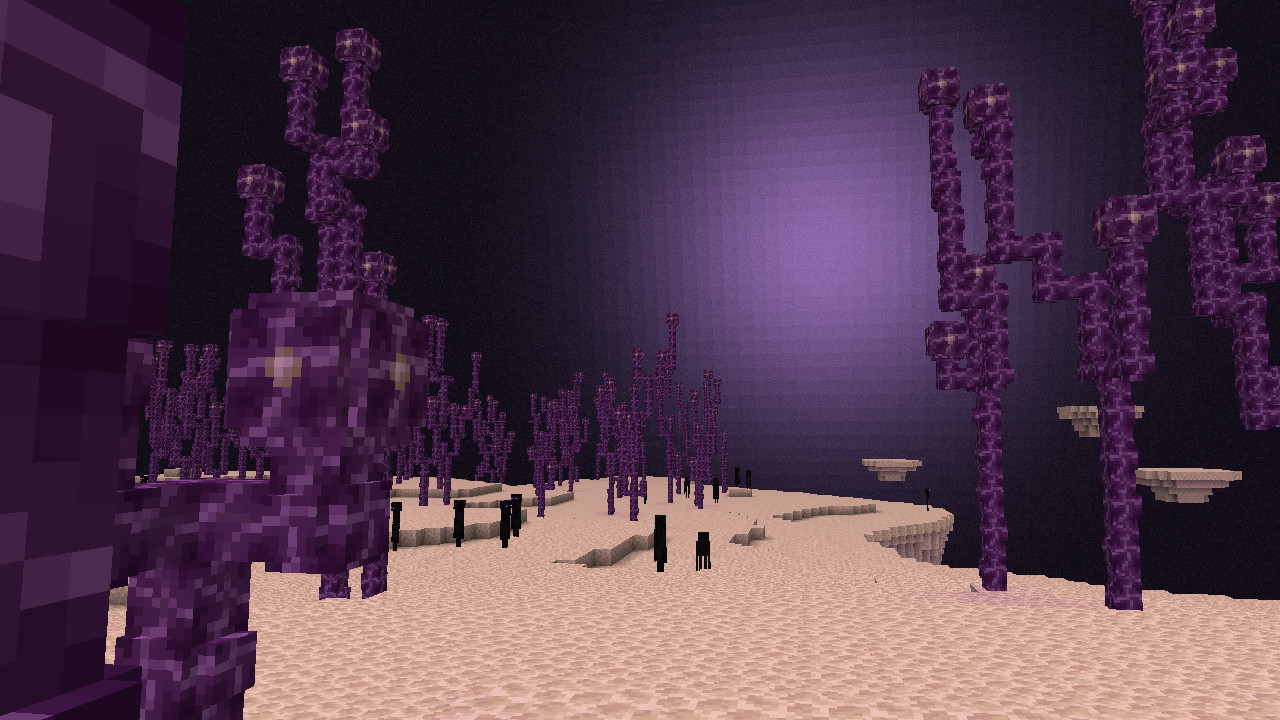
Use Hide Sky Flashes in Accessibility Settings if you do not want the flash to light the world. This is the renamed and expanded Hide Lightning Flashes option. The flash source can still be visible in the sky and its sound can still play, so the setting is not a promise of complete silence or a completely featureless sky.
Before a long End-city trip, adjust it somewhere safe and decide whether the resulting effect is comfortable. Increasing render distance or changing a resource pack is not the direct control for this new lighting behavior.
Small changes worth checking on a shared world
A server can now present an in-game Code of Conduct on connection. Read it before accepting. Choosing not to see the same rules again does not make them disappear permanently: changed rules can be presented again.
Some former server properties move to game rules, allowing an owner to change them while the server runs. For this historical release, examples include pvp, spawnMonsters, allowEnteringNetherUsingPortals and commandBlocksEnabled. Ordinary players do not need to change them to use copper equipment.
Cooperative-world example: an authorized owner can inspect /gamerule pvp before deciding whether accidental player damage should be disabled. Record the existing value before changing shared behavior. Disabling PvP does not remove environmental hazards or turn the world into Creative mode.
These are 1.21.9-era names. Later Java releases rename game rules; use our Java 1.21.11 world-command guide if an older command does not match your newer game. Use the suggestions for the version actually running instead of copying a command across versions blindly.
Resource-pack and data-pack selection screens gain search boxes. Search for a pack’s name when maintaining a larger collection, then check the pack author’s compatible version. Finding a pack in the list is not the same as confirming that it supports 1.21.9.
Update the game while keeping a usable return point
- Match the server or modpack. Confirm the required game version and loader before changing an established setup.
- Close the game and keep a complete separate world copy. Store the original outside the working version’s save directory.
- Use the official launcher. If you specifically need 1.21.9, choose it in a separate installation and game directory. For ordinary current play, use the supported release appropriate to your setup.
- Check the places you depend on. Visit storage, farms, portals and an important build. Pay particular attention to older farms that relied on spawn chunks.
- Keep the untouched copy. Opening a converted world in an older release is not a substitute for a pre-update backup.
This release requires OpenGL 3.3 at runtime. If it fails to start on older hardware, check the official system requirements and graphics-driver support rather than downloading an unofficial replacement game archive. There is no separate Copper Age installer: use the official Minecraft Launcher.
Sources and image credits
MineBrush Editorial checked the mechanics and controls against the final Java 1.21.9 release notes and the shortcut change against Pre-release 4. The Debug Options screenshot is from maaku’s October 4, 2025 guide; its Japanese interface is identified in the caption. Workshop and End images are Mojang/Microsoft material, with source and retained-original links. The MineBrush cover is an editorial illustration. Suggested checks and projects are practical guidance, not a claim that we benchmarked your computer or tested every farm.
More for your Java setup.
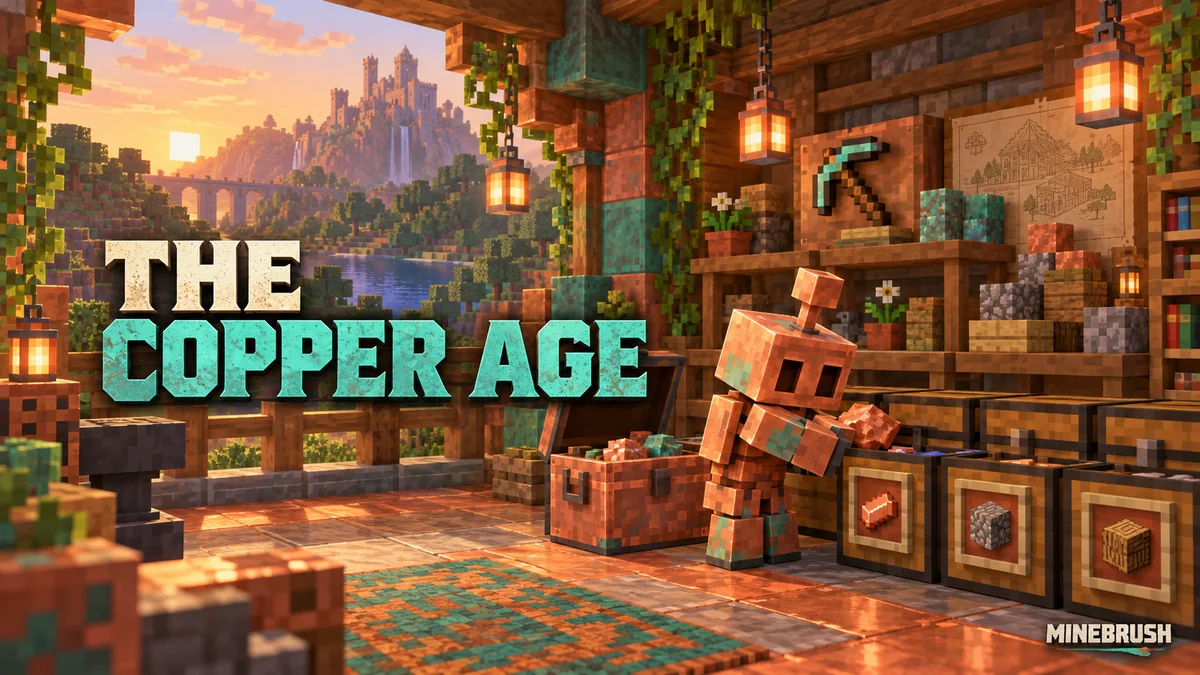
Build a copper-golem sorting room, swap tool kits with powered shelves and put copper equipment and decorations to work. Practical recipes, examples and official images for Java 1.21.9 and Bedrock 1.21.111.
- Game released
- Java
- 1.21.9 · Stable
- Bedrock
- 1.21.111 · Stable
Focus Copper golem sorting, quick tool swaps and copper builds
Topic The Copper Age
Install Included in the game update
Back up before updating
Java + Bedrock · Release
The Copper Age
Build a copper-golem sorting room, swap tool kits with powered shelves and put copper equipment and decorations to work. Practical recipes, examples and official images for Java 1.21.9 and Bedrock 1.21.111.
Back up before updating
- Update type
- Major release
- Release channel
- Java & Bedrock
- Official release date
- 2025-09-30
- World safety
- Back up before updating
- Player impact
- Copper golem sorting, quick tool swaps and copper builds
- Related major release
- The Copper Age
- Platform family
- Cross-edition
- Supported devices
- Java on PC, Mac and Linux; Bedrock on supported phones, consoles and Windows PCs
- Install format
- Official game update
- Touch readiness
- Check guide
- Resource type
- Update
- Last verified at
- Sep 16, 2026
- Update state
- historical
- Compatibility confidence
- Source claimed
- Bedrock version/build
- 1.21.111
- Card delivery statement
- Included in the game update
- Edition applicability
- Java + Bedrock
- Java version/build
- 1.21.9
- Shared update topic
- The Copper Age
- Delivery state
- No file
- Lifecycle state
- Superseded
- Java update channel
- Stable
- Bedrock update channel
- Stable
Plan a mounted expedition, choose texture filtering and graphics presets, find changed Mac controls and update old world commands. Java 1.21.11 explained with practical projects and advancement goals.
- Java
- Java 1.21.11
- Release type
- Release
- Game released
Focus Mount expeditions, graphics, controls and world rules
Install Official launcher update
Back up before updating
Java · Release
Minecraft Java 1.21.11: Mounts of Mayhem
Plan a mounted expedition, choose texture filtering and graphics presets, find changed Mac controls and update old world commands. Java 1.21.11 explained with practical projects and advancement goals.
Back up before updating
- Minecraft version
- Java 1.21.11
- Game edition
- Java Edition
- Update type
- Major release
- Release channel
- Java Edition
- Official release date
- 2025-12-09
- World safety
- Back up before updating
- Player impact
- Mount expeditions, graphics, controls and world rules
- Related major release
- Mounts of Mayhem
- Platform family
- Java PC
- Last verified at
- Sep 17, 2026
- Update state
- historical
- Compatibility confidence
- Source claimed
- Card delivery statement
- Official launcher update
- Edition applicability
- Java
- Delivery state
- No file
- Lifecycle state
- Superseded
Plan a camp-map expedition, invite friends to a Realm and find the new LAN settings. Java 26.3 explained: practical first steps, transparency choices, Mac controls and safe world updates.
- Java
- 26.3
- Release type
- Release
- Game released
Focus Camp-map expeditions, Realms invitations, LAN settings and building materials
Install Install through the official Minecraft Launcher
Back up worlds; check mod and pack support before updating
Java · Release
Minecraft Java 26.3
Plan a camp-map expedition, invite friends to a Realm and find the new LAN settings. Java 26.3 explained: practical first steps, transparency choices, Mac controls and safe world updates.
Back up worlds; check mod and pack support before updating
- Minecraft version
- 26.3
- Game edition
- Java Edition
- Update type
- Major release
- Release channel
- Java Edition
- Official release date
- 2026-09-15
- World safety
- Back up before updating
- Player impact
- Camp-map expeditions, Realms invitations, LAN settings and building materials
- Related major release
- Wilderness Bound
- Platform family
- Java PC
- Last verified at
- Sep 16, 2026
- Update state
- current
- Compatibility confidence
- Source claimed
- Card delivery statement
- Install through the official Minecraft Launcher
- Card limitation note
- Back up worlds; check mod and pack support before updating
- Edition applicability
- Java
- Delivery state
- No file
- Lifecycle state
- Current
Player discussion 0
Questions, discoveries and help from other players.