
MineBrush publication
JEI Guide: Search, Recipes, Bookmarks & Practical Uses
Find items faster, follow crafting chains and discover uses for spare materials with JEI. Learn search filters, recipe transfer and bookmarks, with original author screenshots and a NeoForge 26.2 download.
JEI turns a confusing modpack into a recipe book you can explore. Search for a machine you want to build, discover the ingredients it needs, or find a use for the unfamiliar material sitting in your chest. This guide shows how to search efficiently, follow crafting chains, keep useful bookmarks and prepare recipes without repeatedly leaving Minecraft.
Your first useful minute with JEI
- Open your inventory and find the item list beside it.
- Search for
hopper, then hover over the result and press R to see how to make it. - Hover over an ingredient in that recipe and press R again to work backwards.
- Hover over an item you already own and press U to discover what you can make with it.
- At the appropriate crafting screen, use the recipe's + button to place available ingredients into the grid.
Download below: JEI 30.29.0.201 for Java 26.2 + NeoForge. The search and recipe-reading techniques are also useful on older JEI branches, but their files and server requirements differ.
What JEI does for your game
JEI lists items and displays recipes supplied by Minecraft and installed mods. It is especially useful when a pack contains many similar-looking materials, several ways to process an ore, or a machine whose ingredients require other machines first. The recipes available in your actual pack are more useful than a generic recipe copied from a different version.
Use it as a planning tool: choose your goal, work back to resources you can obtain, and craft the intermediate parts in order. Use it as a discovery tool: inspect the uses of an unfamiliar drop before deciding it is junk. Builders can also browse blocks from one mod and narrow the list to stairs, lamps or a particular material.
JEI does not add all the items shown in screenshots from someone else's modpack. Those items require their own mods. Nor does an item being listed prove that it is obtainable in survival: packs can remove recipes, gate progression or keep decorative and creative-only items visible.
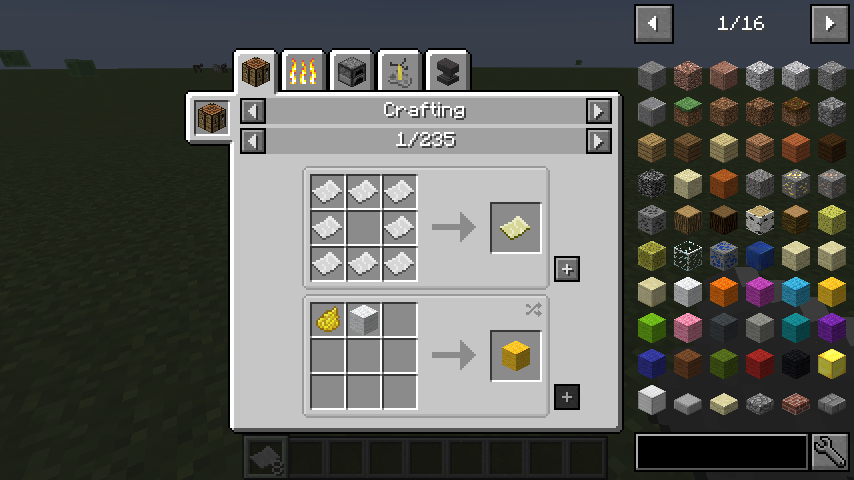
The controls you will actually use
| Goal | Default control |
|---|---|
| How do I make this item? | Hover over it, then R |
| What can I use this item for? | Hover over it, then U |
| Focus search | Click the search field or Ctrl + F |
| Clear the search | Right-click the search field |
| Restore the item list | Ctrl + O |
| Browse recipe or item pages | Mouse wheel over that area |
| Fill the crafting grid | Click +; Shift-click for multiple sets |
These are the defaults in the author's controls guide. A modpack can change bindings. If a key does something else, open Options → Controls → Key Binds, find the JEI action and resolve its conflict. Click outside the search field before using item hotkeys, so your key does not simply become search text.
Search examples worth remembering
Start with a short, recognisable part of an item's name. Search in the language your game uses. If you are following an English guide in another language, a mod-name filter is often a better first step than repeatedly guessing the translated item name.
| Type this | What to use it for |
|---|---|
hopper |
Find hopper-related items quickly. |
@minecraft |
Browse vanilla items without the rest of a large pack. |
@create shaft |
Find shafts belonging to Create, if Create is installed. |
@create -shaft |
Explore that mod while excluding shaft matches. |
"iron chest" |
Look for that phrase rather than unrelated matches for its separate words. |
wrench|hammer |
Look for either tool family in one search. |
#energy |
Find matching tooltip text when tooltip searching is enabled. |
%building |
Search creative-tab names when that search mode is enabled. |
Combine one mod filter with one item term first. For example, a broad search for gear can mix several mods' ingredients; adding the source mod helps you choose the right one. Exclusions are useful when a large family dominates the results. The vertical bar is useful when either of two tools would solve your problem.
No results? Clear the whole query, try a known vanilla item, then add one condition at a time. Advanced prefix searches depend on JEI's search settings and branch. A tooltip search cannot find text that the item does not provide. Older tutorials also mention Ore Dictionary searches; do not assume their tag names work unchanged in a modern pack.
Read a recipe as a route, not just a picture
- Start with the result you want. Find it and open its recipes.
- Check the category. Crafting, smelting, brewing and modded machines are different routes. A machine recipe will not work in a crafting table.
- Inspect unfamiliar ingredients. Hover for their names, then open their recipes. Repeat until you reach materials you know how to collect.
- Compare alternatives. Other tabs or pages may offer another route. If an ingredient cycles between alternatives, check the accepted choices rather than copying the first icon you see.
- Read quantities and conditions. Where the integration provides them, look for output counts, fluids, processing time or machine requirements. Do not assume every machine recipe is fully explained by a 3×3 grid.
- Craft from the bottom of the chain upwards. Make the intermediate parts, then return to your original goal.
Example: an automated collection point. Search for a hopper, inspect its recipe, then follow the chest ingredient if you need to make one. Once you have a hopper, press U on it to discover recipes that use it in your installed pack. This links a practical goal to the resources you need without requiring you to memorise a wiki.
Example: a new machine in a technology pack. Work backwards from the machine to its casing, plates and other parts. If making a plate requires a processing machine, that is a prerequisite to plan for. Check the pack's quests or the mod's in-game book for progression rules, power setup and operating instructions that a recipe screen cannot explain.
Use the + button without wasting time
Open the correct crafting table or supported machine, view the recipe, then hover over + before clicking. JEI can transfer ingredients you already have into a supported input area. It does not collect materials from the world or conjure missing resources. Shift-clicking requests multiple sets; how many fit depends on available ingredients and the crafting interface.
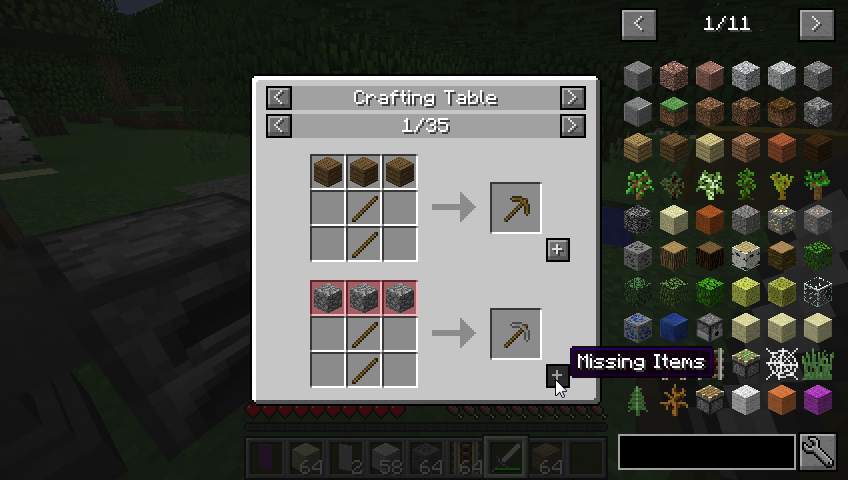
If + is missing or unavailable, first check the screen you opened and its tooltip. You may be in a player inventory with a small grid, missing ingredients, or using a machine without recipe-transfer support. Ingredients stored in a distant chest are not automatically available to every crafting interface. Storage-network integrations have their own rules.
On a multiplayer server, recipe viewing and ingredient transfer can have different requirements. Do not repeatedly reinstall the client just because one server does not support a transfer action.
Keep a project list with bookmarks
Look up Bookmark in JEI's key bindings and use the assigned action while hovering over an item. Keep the final machine and its hard-to-remember ingredients together in the bookmark area. This gives you a compact reference while you move between storage and crafting screens.
For a building project, save the main blocks, lighting and decorative variants you plan to use. For a processing line, save the machines and repeated intermediate parts. Remove completed or abandoned goals so the list remains useful. Bookmark behaviour and recipe-bookmark features vary by JEI version; read your installed controls rather than relying on a shortcut from a different pack.
Discover uses for spare materials and brewing ingredients
When you find an unfamiliar ore, drop or plant, press U on it. Inspect several categories before throwing it away. It may be used directly in crafting, processed into another material or consumed by a machine. The same habit helps you compare ordinary smelting with a processing route available in your modpack.
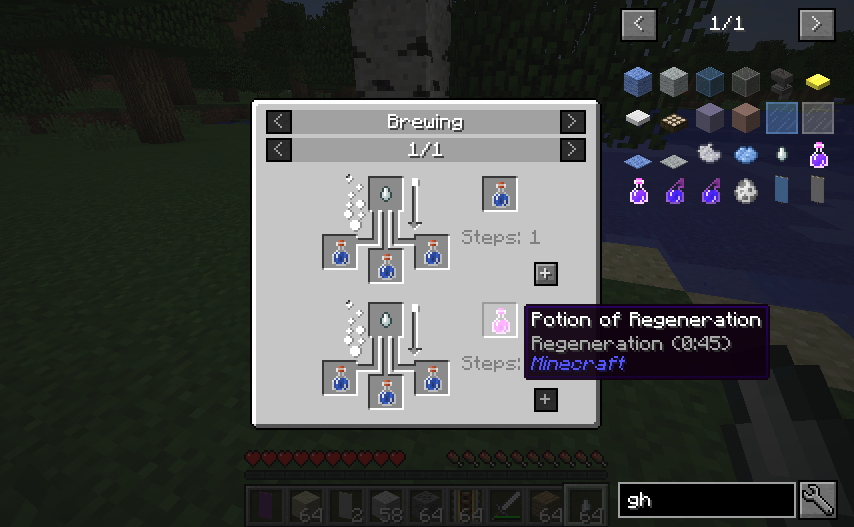
For brewing, inspect the potion's full name and effects, then follow the ingredients shown in its brewing category. Similar-looking bottles can have different durations or effects. JEI is useful for checking the recipe; the tooltip is useful for checking that the result is the potion you intended to make.
Download and install the current NeoForge example
JEI 30.29.0.201 · Minecraft Java 26.2 · NeoForge 26.2.0.67 or newer. This is a release-channel file, not one of the newer beta builds. Choose it only for that game and loader combination. It is not a Bedrock add-on and is not the file for Fabric, Forge or Minecraft 1.21.1.
- Select a Java 26.2 NeoForge instance in your launcher. Keep the launcher's Java runtime suitable for that Minecraft version.
- Close Minecraft. Open that instance's
modsfolder and place the downloaded JAR there without extracting it. - Keep one JEI version in that folder. If a modpack already includes JEI, update through the pack's supported process instead of adding another copy.
- Launch the instance and open your inventory. Search for a familiar item and check R and U.
Using another branch? Choose the matching game version and loader from the author's version list. Keep your existing modpack on its intended Minecraft version. A recipe guide is not a reason to upgrade the whole pack.
Multiplayer: why the same setup can behave differently
The author's FAQ distinguishes older and newer Minecraft versions. On 1.21.1 and earlier, client-only JEI can work with a vanilla server, with some features unavailable. For 1.21.2 and later, the author asks for JEI and the matching loader on the server to synchronise recipes. Ask the server owner to check the server installation if recipes are missing on the 26.2 branch.
Keep the client and server on the pack's intended versions. A server can change recipes or progression, so a recipe from a different single-player pack is not proof of what should work there. Reading recipes does not require enabling cheat mode; keep normal recipe-viewing mode for survival play.
Quick fixes when JEI is not helping
- The whole panel disappeared: use the overlay toggle, then check GUI scale if there is little room beside the inventory.
- Search looks empty: right-click to clear it; remove mod filters and advanced prefixes before testing a simple item name.
- R or U triggers another mod: resolve the conflicting binding and move focus out of the text field.
- An item exists but has no recipe: check whether it is loot-only, creative-only, hidden by progression or missing an integration. Consult the pack's guide.
- Only one server has missing recipes: check server-side JEI and the server's recipe changes with its owner.
- Items vanished after editing the list: check JEI's item-list edit/hide settings. Hiding an entry and removing its crafting recipe are different actions.
- The game fails to launch after installation: check the Minecraft version, loader and duplicate JARs first. For an unresolved error, use the matching crash report with the author's issue tracker.
A useful habit: R answers “how do I get it?”, U answers “what can I do with it?”, and a bookmark keeps your next goal close at hand. Combine those three with your pack's quests or manual, and JEI becomes a practical companion throughout a playthrough.
JEI is developed by mezz and contributors. Controls, release information and original illustrations come from the official project, its gallery and source repository. MineBrush's project examples and editorial cover accompany those materials.
More from MineBrush.
Understand Minecraft 26, tell normal releases from test builds, and choose the right version for friends, servers and mods. Clear Java and Bedrock examples without the technical clutter.
- Topic
- Choosing your Minecraft version
- Scope
- None
- Evidence
- Official Minecraft sources · checked 9 Sep 2026
A shared “26” prefix never proves cross-edition compatibility.
MineBrush · News
Minecraft Versions Made Simple
Understand Minecraft 26, tell normal releases from test builds, and choose the right version for friends, servers and mods. Clear Java and Bedrock examples without the technical clutter.
A shared “26” prefix never proves cross-edition compatibility.
- Compatibility confidence
- Source claimed
- Card evidence statement
- Official policy and indexes checked 9 Sep 2026; client display NOT_OBSERVED.
- Card delivery statement
- Choose a version for everyday play or testing
- Card limitation note
- A shared “26” prefix never proves cross-edition compatibility.
- Edition applicability
- Java + Bedrock
- News topic
- Choosing your Minecraft version
- Public news evidence label
- Official Minecraft sources · checked 9 Sep 2026
- Delivery state
- No file
- Lifecycle state
- Current
- News evidence type
- Official Minecraft source
Cut your Minecraft player out of a recorded scene for intros, overlays and thumbnails. Download EntityMask 1.0 for Java 1.20–1.21.8, see the author's real mask previews, and learn how to align two recordings and keep the player with an inverted luma matte.
- Format
- Workflow
- Path
- Replay → normal recording + mask → video editor
- Output
- Player cutout for an intro, title effect or thumbnail
Version 1.0 beta; Java 26.x support is not listed.
MineBrush · Creator
EntityMask 1.0
Cut your Minecraft player out of a recorded scene for intros, overlays and thumbnails. Download EntityMask 1.0 for Java 1.20–1.21.8, see the author's real mask previews, and learn how to align two recordings and keep the player with an inverted luma matte.
Version 1.0 beta; Java 26.x support is not listed.
- Minecraft version
- Java 1.20–1.21.8
- Game edition
- Java Edition
- Loader / platform
- Not applicable
- License
- MIT
- Creator resource format
- Workflow
- Platform family
- Java & PC
- Supported devices
- Minecraft Java on desktop
- Install format
- ZIP → shaderpacks
- Touch readiness
- Not required
- Resource type
- Shader
- Last verified at
- Sep 18, 2026
- Compatibility confidence
- Source claimed
- Card evidence statement
- Record matching color and mask clips; combine them in your editor.
- Card delivery statement
- Shader ZIP · Iris or OptiFine required
- Card limitation note
- Version 1.0 beta; Java 26.x support is not listed.
- Edition applicability
- Java
- Tested environment
- Java with Iris or OptiFine; replay recorder and matte-capable video editor
- Example artifact path
- Replay → normal recording + mask → video editor
- Creator output
- Player cutout for an intro, title effect or thumbnail
- Estimated time
- 8 min read; recording time varies
- Guide difficulty
- Intermediate
- Delivery state
- Direct download
- Lifecycle state
- Current
Fresh Animations
1.10.5 Beta / 1.10.4 BetaGive familiar mobs more expressive poses and movement. See creator examples, choose the right Fresh Animations version, and set up EMF + ETF for villages, farms and exploration.
- Minecraft
- Java 26.1–26.2 / 1.20–1.21.11
- Scope
- Entities
- Runtime
- Multiple dependencies
Requires EMF + ETF or matching OptiFine
Java · Pack
Fresh Animations
Give familiar mobs more expressive poses and movement. See creator examples, choose the right Fresh Animations version, and set up EMF + ETF for villages, farms and exploration.
Requires EMF + ETF or matching OptiFine
- Minecraft version
- Java 26.1–26.2 / 1.20–1.21.11
- Game edition
- Java Edition
- Loader / platform
- Fabric
- License
- Creator terms; original notices preserved
- Visual resolution
- 16x
- Platform family
- Java PC
- Supported devices
- Windows · macOS · Linux · Java Edition
- Install format
- Pack ZIP in resourcepacks; EMF and ETF JARs in mods
- Touch readiness
- Yes
- Resource type
- Add-on
- Project version
- 1.10.5 Beta / 1.10.4 Beta
- Last verified at
- Sep 14, 2026
- Compatibility confidence
- Source claimed
- Resource-pack scope
- Entities
- Required runtime
- Multiple dependencies
- Pack load order
- Top
- Resource-pack preview mode
- Single cover
- Resource-pack setup guide
- Available
- Card evidence statement
- Expressive mobs for villages, farms and exploration
- Card delivery statement
- Two pack branches + Fabric 26.2 setup
- Card limitation note
- Requires EMF + ETF or matching OptiFine
- Edition applicability
- Java
- Delivery state
- Direct download
- Lifecycle state
- Current
Minecraft Town
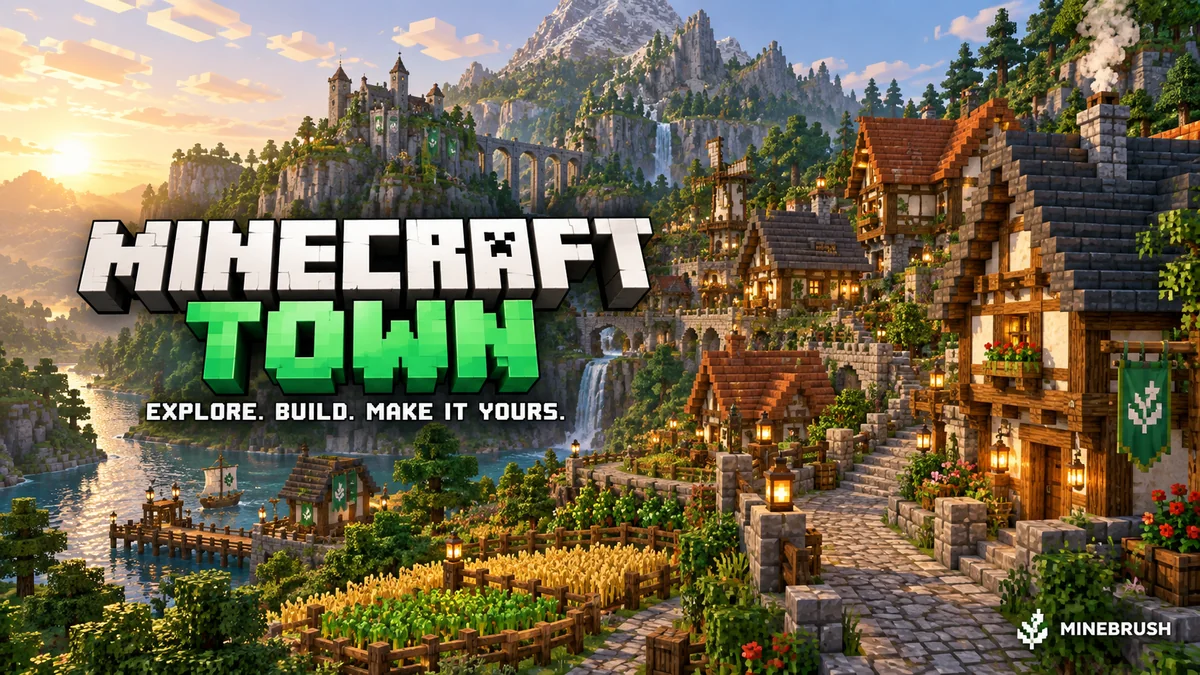
v1.21Minecraft Town is a medieval Java world with winding paths, farmland, detailed buildings and a dramatic rocky skyline. Explore it, extend the town or turn its centre into a meeting place for friends. Includes five author screenshots, practical setup and lobby ideas. Creator price: USD 4; the MineBrush ZIP contains links only.
- Minecraft
- Java 1.21–26.2 (listed releases below)
- Genre
- Creative
- Players
- Solo, friends or server lobby
Author map USD 4; free MineBrush ZIP contains creator links only
Java · Map
Minecraft Town
Minecraft Town is a medieval Java world with winding paths, farmland, detailed buildings and a dramatic rocky skyline. Explore it, extend the town or turn its centre into a meeting place for friends. Includes five author screenshots, practical setup and lobby ideas. Creator price: USD 4; the MineBrush ZIP contains links only.
Author map USD 4; free MineBrush ZIP contains creator links only
- Minecraft version
- Java 1.21–26.2 (listed releases below)
- Game edition
- Java Edition
- Loader / platform
- Vanilla
- Map genre
- Creative
- Recommended players
- Solo, friends or server lobby
- Platform family
- Java PC
- Supported devices
- Windows · macOS · Linux · Minecraft Java Edition
- Install format
- TXT creator links in ZIP — not a Minecraft world
- Resource type
- Map
- Project version
- v1.21
- Last verified at
- Sep 16, 2026
- Compatibility confidence
- Source claimed
- Card evidence statement
- Medieval town, custom cliffs, farmland and detailed interiors
- Required dependency
- No required building mod listed; Axiom is optional
- Map landmark
- Medieval town and landscaping project
- Map import route
- Buy author world, extract into Java saves
- Card delivery statement
- Creator-link ZIP only; map USD 4 at BuiltByBit; no map included
- Card limitation note
- Author map USD 4; free MineBrush ZIP contains creator links only
- Edition applicability
- Java
- Delivery state
- External source
- Lifecycle state
- Current
Player discussion 0
Questions, discoveries and help from other players.