
MineBrush publication
EntityMask 1.0: Cut Out Minecraft Players for Videos and Thumbnails
Cut your Minecraft player out of a recorded scene for intros, overlays and thumbnails. Download EntityMask 1.0 for Java 1.20–1.21.8, see the author's real mask previews, and learn how to align two recordings and keep the player with an inverted luma matte.
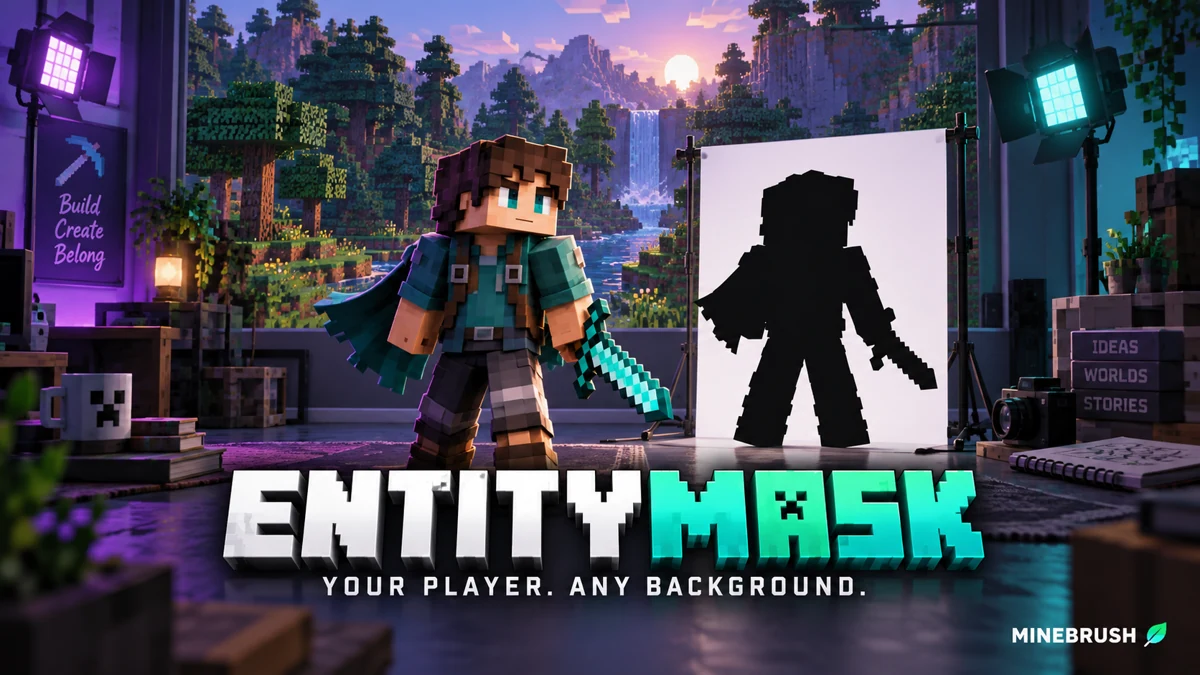
EntityMask helps you cut a Minecraft player out of a recorded scene so you can place them over another background, add a character to an intro, or make text pass behind their body. Instead of building a green-screen room, you record the same shot twice: once normally and once as a black-and-white mask.
The shader supplies the mask. Your video editor combines it with the normal picture to create the cutout. You still need a repeatable recording and an editor with a track-matte or equivalent feature; simply turning on EntityMask does not export a transparent video.
What to make · Download and requirements · Record both views · Combine them · Fix rough edges
What can you make with it?
- A character introduction: isolate your player waving or turning, then place the cutout over a title card for a survival series.
- A presenter beside a build: record a short player gesture and place the cutout beside footage of the house or farm you are explaining.
- Text behind the player: put the original scene at the bottom of your edit, a title above it, and the isolated player on top. The title appears behind the character while the world stays visible.
- A thumbnail pose: use a matched still frame from the normal shot and mask to isolate the character for a composition. Check the silhouette at full size before placing it over a different scene.
These are editing ideas using the mask, not built-in templates. EntityMask is aimed at the player cutout shown by its author; do not assume it offers a menu for separately selecting any mob, particle or object.
Understand the black-and-white preview
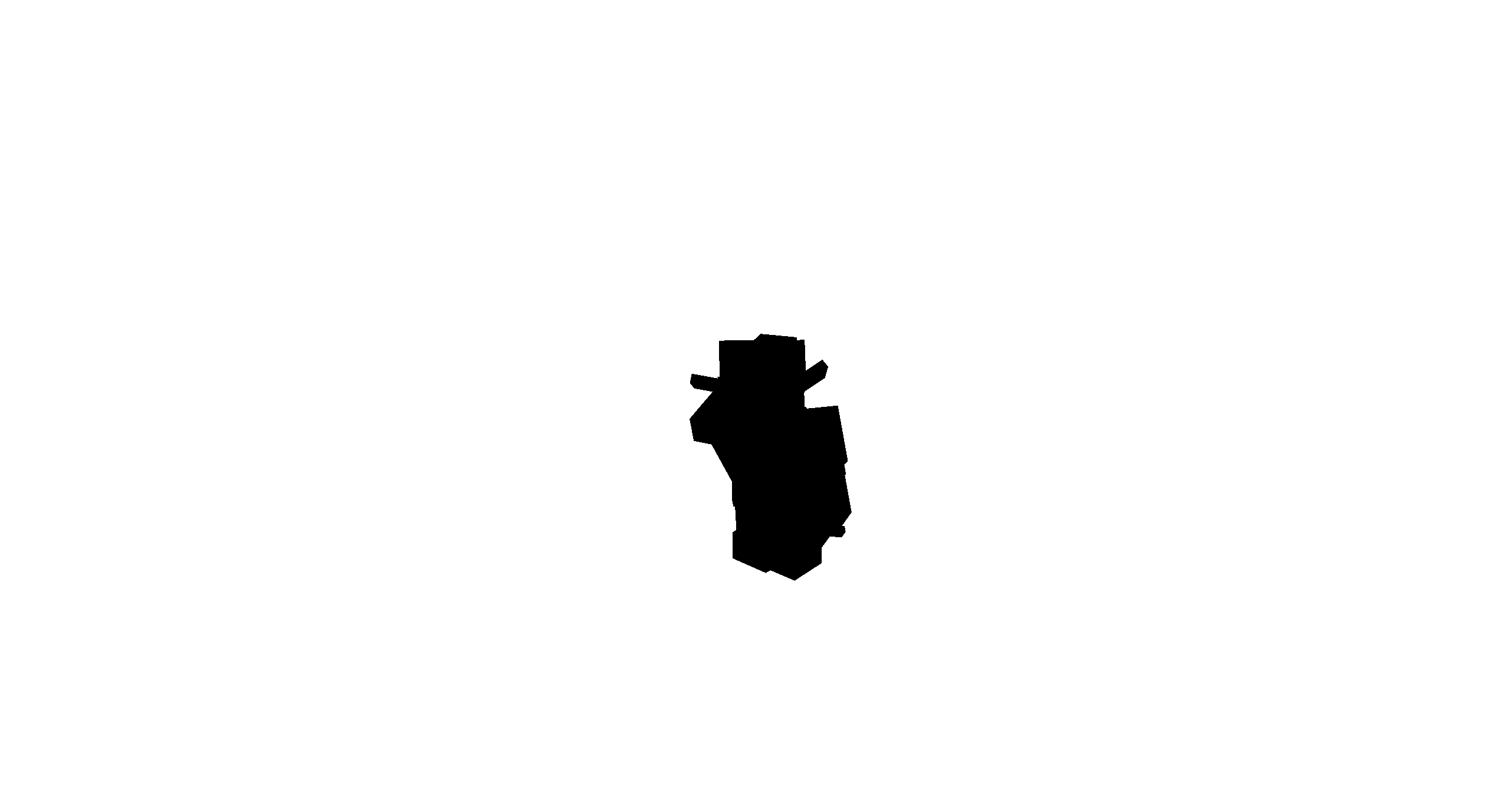
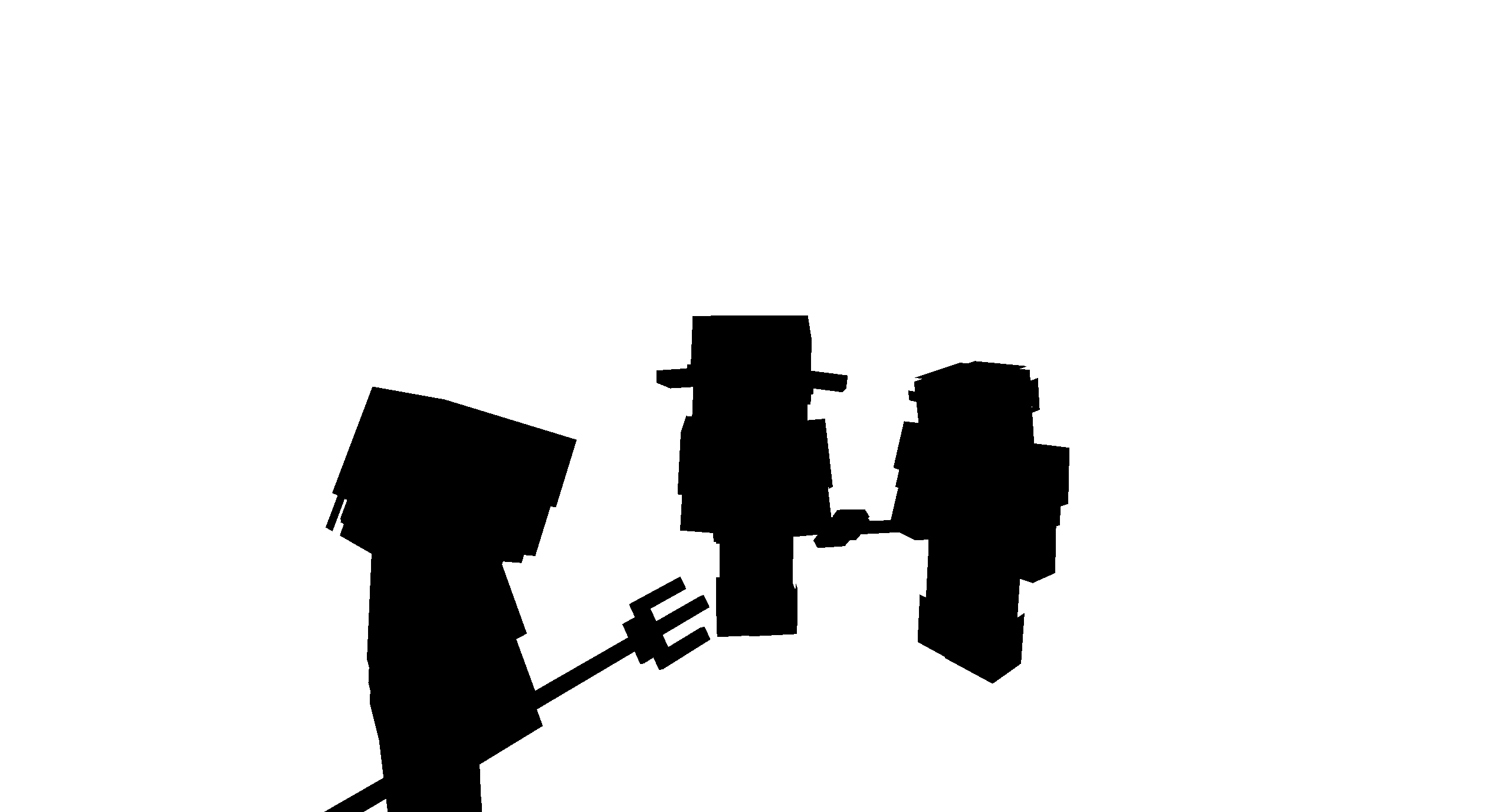
That black player matters: a normal luma matte keeps bright areas and removes dark ones. To keep the character from this preview, use the editor's inverted luma / Reverse option. If your first attempt keeps the scenery but removes the player, check inversion before changing the recording.
The black-and-white recording is not automatically an alpha-channel video. Choose a brightness-based mask in the editor, rather than assuming the file already contains transparency.
Download EntityMask 1.0 and choose a compatible setup
EntityMask 1.0 is a beta release for Minecraft Java 1.20–1.21.8, listed by the author for Iris and OptiFine. Its latest listed release remains from August 2025. The author does not list Java 26.x support for this file. Use a supported recording profile instead of assuming your newest Minecraft installation will work.
You need three separate pieces:
- A shader loader: Iris or OptiFine for your chosen Minecraft version. These are alternatives; do not install both as a requirement for this shader.
- A recording tool: the author suggests ReplayMod or Flashback. Choose a release compatible with the same Minecraft version and your loader setup.
- A video editor with a matte feature: a separate video track must be able to control which part of the normal footage is visible. The Premiere example below uses Track Matte Key.
The download above contains the shader only. It does not include Minecraft, the recording mod or editing software.
Install the shader ZIP
- Launch the compatible Java profile with your chosen shader loader installed.
- Open its shader menu: with Iris, look under Options → Video Settings → Shader Packs; OptiFine uses its Shaders menu.
- Open that profile's shader-pack folder and place EntityMask shader.zip inside, keeping the ZIP intact.
- Select EntityMask and apply it when recording the mask. Disable it for the normal colored recording.
This ZIP belongs in shaderpacks, not mods or resourcepacks. If you need the general loader workflow, see our Iris guide, but select Iris and its dependencies for EntityMask's older supported game version, not the newest files shown there.
Record one shot twice, with matching movement
Start with a short shot: your character turns, waves or walks a few steps in an open area. A simple first attempt makes timing problems easier to spot than a long camera fly-through with particles, water and several players.
- Record the action once with your replay tool. Save that replay and choose its camera path and start/end points.
- Render the normal view with EntityMask disabled. This is the colored footage you want to keep inside the character's outline.
- Render the same view with EntityMask enabled. Keep the same replay, camera, field of view, start/end points, output size and frame rate.
- Compare the clips before editing. Check a still frame and a frame during fast arm movement. The character should occupy the same position in both recordings.
Do not try to repeat the action manually for the second recording. Even a slightly different turn or camera movement creates a drifting outline. Keep particles, changing equipment and other unpredictable visual changes out of the first test; introduce them after the simple shot works.
Combine the recordings in Premiere
Adobe's Track Matte Key workflow uses three tracks. For an EntityMask shot, arrange them like this:
- V1: your replacement background.
- V2: the normal colored Minecraft recording.
- V3: the matching black-and-white EntityMask recording.
Apply Video Effects → Keying → Track Matte Key to the normal clip on V2. In its controls, choose Video 3 as the matte and Matte Luma as the interpretation. For the author's black-player/white-background mask, enable Reverse so the player remains visible and the original background is removed.
Keep both source clips aligned and at the same scale. If you resize or reposition the result, apply the transformation to the combined cutout rather than stretching only the mask. In another editor, look for the equivalent track matte, luma matte or inverted-luma setting; the exact button names differ.
Use a bright temporary background while checking edges. A leftover strip of scenery is much easier to see against a contrasting color than against another forest. Then replace that test background with the intended scene.
Fix the problem you see
The player disappears and the background stays
Reverse the luma matte. The author's previews have a black character, so the usual white-keeps-content interpretation selects the wrong region.
I only see the black-and-white recording
Check that the mask is assigned as a matte for the normal footage, rather than simply displayed as the top picture. The effect belongs on the normal clip; its source points to the mask track.
A bright outline follows the player
Pause during motion and compare the two source frames. Check start time, frame rate, camera position and scaling. Fix alignment before adding blur: a blurred, offset mask can still leave a visible halo.
Hands, armor or transparent details look wrong
Inspect a short sample containing the exact equipment you need. Try a simpler pose and ordinary gear to separate a feature-specific problem from an alignment problem. Do not assume every transparent surface, effect or occluded part will produce a clean edge.
The shader is missing or the screen looks wrong
Confirm that the ZIP is in the active profile's shaderpacks folder and that you have a supported game version with Iris or OptiFine. Test EntityMask without another shader selected. If it fails, return to your previous shader and check the author's project page rather than replacing your entire setup.
Finish the edit and return to normal play
Review the cutout near the start, middle and end, including the fastest movement. For a thumbnail, inspect the chosen still at its final crop. For a video, watch the result in motion: a single clean frame does not reveal a one-frame timing drift.
When you are done, turn off EntityMask or reselect your usual shader before playing normally. Keep the replay and both original clips if you may change the background later. If you need a transparent video file for another editing project, choose an export format that supports alpha in your editor; a normal video export does not automatically preserve transparency.
Author and sources
EntityMask is published by ShlakoBlock / Ramochnick; the project credits Kreo_gen for page design. Official project and instructions · EntityMask 1.0 release · ReplayMod documentation · Adobe Track Matte Key tutorial · Adobe keying controls.
The gallery images are the author's actual mask previews. The MineBrush cover is an illustration of the editing idea; it is not a captured final composite.
More from MineBrush.
Turn your Minecraft build, challenge or mod video into a clear thumbnail idea. Get a finished designer-brief example, a visual composition comparison, practical feedback tips and a free editable text template.
- Format
- Brief
- Path
- Choose the scene → complete the brief → review the design
- Output
- Editable brief and practical design feedback
Promise only what the video actually delivers.
MineBrush · Creator
Minecraft Thumbnail Brief
Turn your Minecraft build, challenge or mod video into a clear thumbnail idea. Get a finished designer-brief example, a visual composition comparison, practical feedback tips and a free editable text template.
Promise only what the video actually delivers.
- Minecraft version
- For Java and Bedrock video creators
- Game edition
- Cross-edition
- Loader / platform
- Not applicable
- License
- MineBrush original editorial content
- Creator resource format
- Brief
- Platform family
- Cross-edition
- Supported devices
- Desktop and mobile review surfaces
- Install format
- ZIP containing an editable TXT template
- Touch readiness
- Not required
- Resource type
- Guide
- Last verified at
- Sep 18, 2026
- Compatibility confidence
- Not applicable
- Card evidence statement
- Build, challenge and mod-video examples
- Card delivery statement
- Free brief template with a completed example
- Card limitation note
- Promise only what the video actually delivers.
- Edition applicability
- Edition-neutral
- Tested environment
- Text editor for the brief; your preferred image editor for the design
- Example artifact path
- Choose the scene → complete the brief → review the design
- Creator output
- Editable brief and practical design feedback
- Estimated time
- 8 min read; complete at your own pace
- Guide difficulty
- Beginner
- Delivery state
- Direct download
- Lifecycle state
- Current
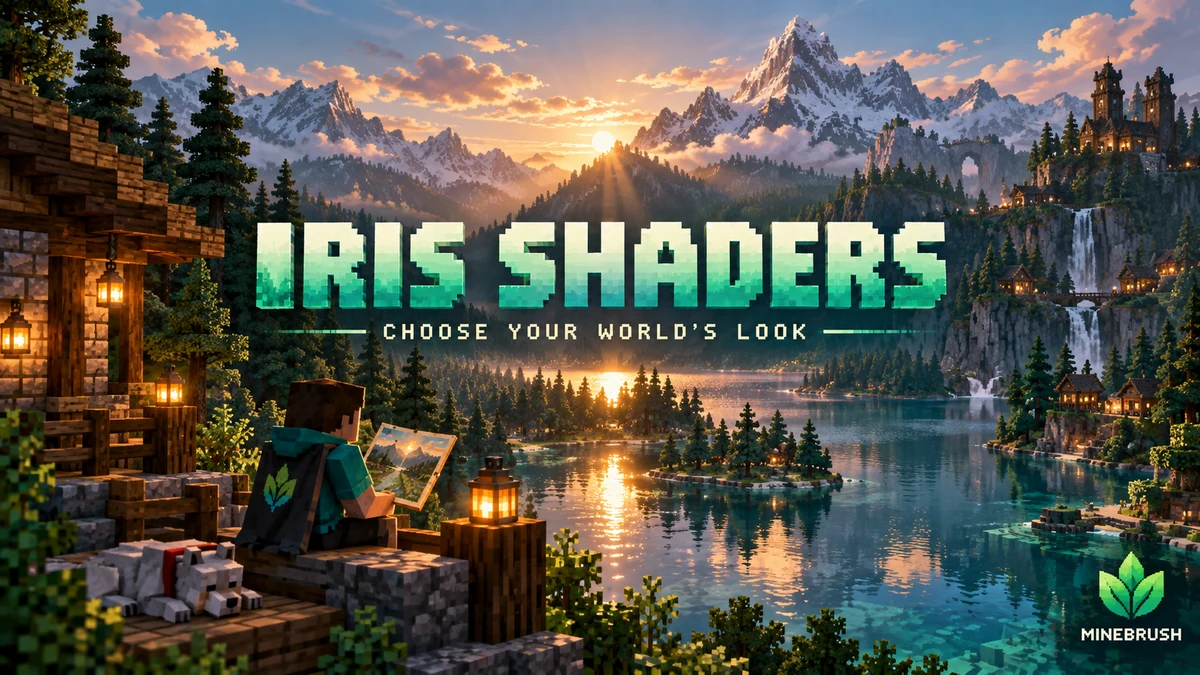
Iris Shaders
1.11.6 / 1.11.4Give your Java world the lighting you want. Download matching Iris and Sodium files, add a shader pack, tune it for survival or screenshots, and solve common setup problems with illustrated guidance.
- Minecraft
- 26.3 Fabric · 26.2 Fabric / NeoForge
- Runtime
- Iris
- Performance
- Performance not tested
Choose one matching pair; add a separate shader pack
Java · Shader
Iris Shaders
Give your Java world the lighting you want. Download matching Iris and Sodium files, add a shader pack, tune it for survival or screenshots, and solve common setup problems with illustrated guidance.
Choose one matching pair; add a separate shader pack
- Minecraft version
- 26.3 Fabric · 26.2 Fabric / NeoForge
- Game edition
- Java Edition
- Loader / platform
- Fabric
- License
- LGPL-3.0-only
- Performance expectation
- Depends on setup
- Platform family
- Bedrock & Mobile
- Supported devices
- Windows · macOS · Linux (Java Edition; GPU support varies)
- Install format
- Iris + Sodium JARs in mods; shader ZIP in shaderpacks
- Touch readiness
- Not required
- Resource type
- Mod
- Project version
- 1.11.6 / 1.11.4
- Last verified at
- Sep 18, 2026
- Compatibility confidence
- Source claimed
- Java shader runtime
- Iris
- Shader preview mode
- Single cover
- Performance evidence
- Depends on your shader pack, preset and GPU
- Notable feature
- Load shader packs and adjust their visual settings
- Shader performance tier
- Performance not tested
- Shader settings guide
- Available
- Card limitation note
- Choose one matching pair; add a separate shader pack
- Edition applicability
- Java
- Delivery state
- Direct download
- Lifecycle state
- Current
Understand Minecraft 26, tell normal releases from test builds, and choose the right version for friends, servers and mods. Clear Java and Bedrock examples without the technical clutter.
- Topic
- Choosing your Minecraft version
- Scope
- None
- Evidence
- Official Minecraft sources · checked 9 Sep 2026
A shared “26” prefix never proves cross-edition compatibility.
MineBrush · News
Minecraft Versions Made Simple
Understand Minecraft 26, tell normal releases from test builds, and choose the right version for friends, servers and mods. Clear Java and Bedrock examples without the technical clutter.
A shared “26” prefix never proves cross-edition compatibility.
- Compatibility confidence
- Source claimed
- Card evidence statement
- Official policy and indexes checked 9 Sep 2026; client display NOT_OBSERVED.
- Card delivery statement
- Choose a version for everyday play or testing
- Card limitation note
- A shared “26” prefix never proves cross-edition compatibility.
- Edition applicability
- Java + Bedrock
- News topic
- Choosing your Minecraft version
- Public news evidence label
- Official Minecraft sources · checked 9 Sep 2026
- Delivery state
- No file
- Lifecycle state
- Current
- News evidence type
- Official Minecraft source
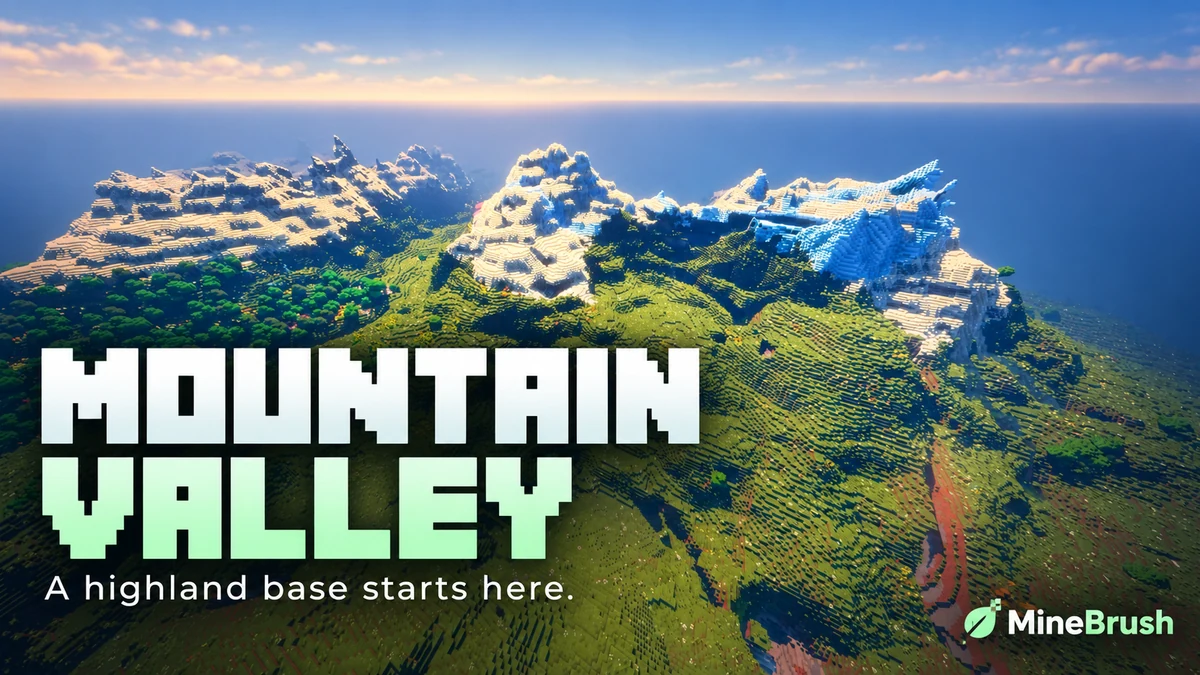
Mountain Range Village — Plan a highland base around a snowy mountain landscape. Copy the Java 1.21.11 seed, see the author's original image and follow the coordinates to the reported village area.
- Minecraft
- 1.21.11
- Seed
61925845031280000- Feature
- Mountain landscape and reported village
Destination away from spawn; source image uses Bliss shaders
Java · Seed
Mountain Range Village
Mountain Range Village — Plan a highland base around a snowy mountain landscape. Copy the Java 1.21.11 seed, see the author's original image and follow the coordinates to the reported village area.
Destination away from spawn; source image uses Bliss shaders
- Minecraft version
- 1.21.11
- Game edition
- Java Edition
- Loader / platform
- Not applicable
- License
- Seed shared by its discoverer; image credited to OkBreadfruit3797
- Key coordinates
- Mountain village · X -1939, Y 199, Z -857 · Overworld
- Platform family
- Java & PC
- Supported devices
- Minecraft Java Edition on Windows, macOS and Linux
- Install format
- Enter the seed in Create New World
- Touch readiness
- Not required
- Resource type
- Seed
- Seed value
- 61925845031280000
- Last verified at
- Sep 14, 2026
- Compatibility confidence
- Source claimed
- Card evidence statement
- Java 1.21.11 report by the discoverer
- Card delivery statement
- Copy seed · create a new world
- Card limitation note
- Destination away from spawn; source image uses Bliss shaders
- Copy availability
- Copy available
- Java seed feature
- Mountain landscape and reported village
- Edition applicability
- Java
- Delivery state
- No file
- Lifecycle state
- Current
61925845031280000Player discussion 0
Questions, discoveries and help from other players.