
MineBrush publication
EMI: Find Recipes, Plan Your Crafts & Gather the Right Materials
Find recipes, discover uses for your loot and plan complex crafts before gathering supplies. Learn EMI search, favourites, recipe trees and crafting tools, then download the right setup for Java 1.21.1.
Find out how to make an item, what it is used for and what to gather before you start. EMI puts a searchable item catalogue beside your inventory and turns complicated crafting chains into a plan. It is especially useful in modpacks where a machine, tool or decorative block has several intermediate ingredients.
What can you do with EMI?
- Learn a new modpack: inspect unfamiliar items and follow their recipes instead of guessing which machine or ingredient comes next.
- Use what you already found: look up the uses of an ore, crop or component before deciding whether to keep it.
- Prepare for a build: save the blocks you need, compare recipes and calculate a useful crafting batch.
- Plan a machine or equipment upgrade: follow the recipe tree down to basic supplies, then work through the intermediate parts.
EMI does not add the catalogue's content to the world. Its entries come from Minecraft, your installed mods and their integrations. Browsing a recipe is also different from receiving the item: ordinary crafting still needs the right ingredients and workstation.
Download EMI for Java 1.21.1
The current official EMI 1.1.24 releases for Minecraft Java 1.21.1 were published on 13 May 2026. Choose the file for your existing loader. The official project does not list a 26.2 or 26.3 release, so these files should not be placed into those profiles.
Fabric / Quilt
The author lists this EMI file for Fabric and Quilt. For the straightforward Fabric route, use a Minecraft 1.21.1 Fabric profile and Fabric API below. A Quilt profile needs its matching API setup; keep the components already required by your modpack rather than mixing API replacements.
NeoForge
Use this file in a Minecraft 1.21.1 NeoForge profile. Fabric API is not needed for this route. JEI is optional compatibility software, not a basic requirement for EMI.
Fabric API for the Fabric route
Fabric API 0.116.17+1.21.1, released 1 September 2026, is the matching API included here. Use it with the Fabric setup, not NeoForge.
The project also maintains releases for other older Minecraft versions, including Forge branches. Choose them by game version in the official release history; a Forge 1.20.1 file is not a substitute for the NeoForge 1.21.1 file above.
Your first useful session
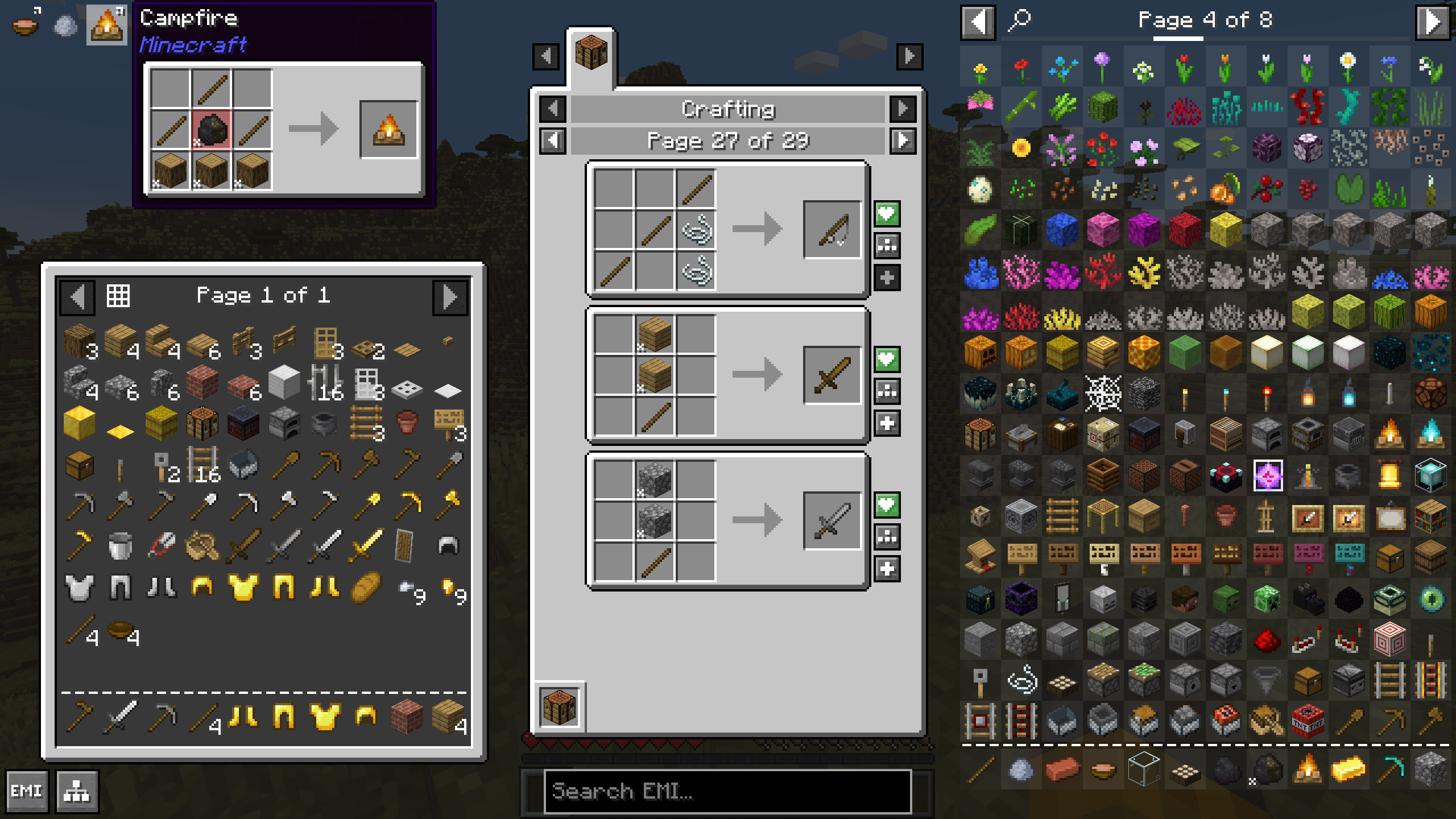
- Open your inventory or a crafting table. Look for the item index and the Search EMI field.
- Search for something you want to make, such as a hopper. Hover its entry and press R to see how it is made.
- Hover one of its ingredients and press R again to follow that ingredient's recipe. Use Backspace to return to the previous recipe page.
- Hover a material and press U to see recipes that use it. This answers a different question from R: what you can make with an item.
- Hover an item you want to keep handy and press A to add it to favourites.
- When you have the ingredients, open the required workstation and use the recipe's fill control where supported.
Start with an ordinary crafting recipe before trying a modded machine. The category and workstation shown by a recipe matter: a crafting table cannot perform a crusher, furnace or brewing recipe just because EMI can display it.
Useful default controls
| Control | What it does |
|---|---|
| R over an item | Show recipes that produce it. |
| U over an item | Show its uses. |
| A over an item | Add or remove a favourite. |
| Ctrl + F | Focus the search field. |
| Ctrl + O | Show or hide the EMI interface. |
| Backspace in recipe navigation | Go back to the previous recipe page. |
On macOS, the game's control modifier normally corresponds to Command. Modpacks can rebind controls, and typing in the search field is different from hovering an item. Check EMI's configuration when a shortcut does something unexpected. Recipe-tree shortcuts are unassigned by default in this release: use the visible tree buttons or assign your own key instead of relying on a shortcut from another guide.
Search a large modpack without scrolling forever
Begin with a plain item name. Add a filter when there are too many results. These examples use English item names; use the names shown by your selected language when appropriate.
| Example | Use it for |
|---|---|
hopper |
Find a familiar item by name. |
@minecraft hopper |
Limit that search to Minecraft's own entries. |
@modname |
Browse an installed mod by its name or ID; replace “modname” with the real mod. |
#planks |
Find entries through an ingredient tag. |
$sharpness |
Search tooltip text, for example a displayed enchantment description. |
planks -oak |
Exclude results matching a word. |
iron | gold |
Match either search rather than requiring both words. |
Spaces combine search terms. Quotation marks keep a phrase together. Clear filters if an expected item disappears, and remember that an uninstalled mod cannot contribute its items. Search settings can also include tooltips, mod names and tags by default.
Keep the right favourites
Use favourites as a small working list: the building blocks for today's roof, components for your next machine or equipment for an expedition. Remove finished goals so the sidebar stays useful.
An item favourite and a recipe favourite serve different purposes. Saving the item makes it easy to find again. Saving a particular recipe keeps a chosen way of making it, useful when a modpack offers several machines or alternative inputs. Use the recipe's favourite control and follow its tooltip for the current binding.
If EMI keeps choosing a recipe you do not want, set the preferred recipe with the default-recipe control beside it. For example, prefer a process your base can already perform instead of planning around an advanced machine you have not built yet.
Turn a complicated craft into a shopping list
- Choose the result and recipe. Open the desired item's recipe and select its View Recipe Tree control.
- Read down the branches. Each intermediate item connects to the ingredients needed to make it. Pan and zoom when the chain gets large.
- Resolve unwanted routes. Left-click a node to choose a different recipe for that step. A default recipe can guide future trees; a choice for this tree can stay specific to the current plan.
- Adjust the batch size. Scroll its quantity control; Shift adjusts in larger steps. Check the result count of the recipe, since one crafting operation can produce several items.
- Read Total Cost and Leftovers. Gather the basic materials for the selected routes and allow for intermediate recipes that produce extra pieces.
- Switch to crafting mode when ready. The toggle near Total Cost shows progress and adds temporary step entries to the favourites sidebar. Use those entries to work through what remains.
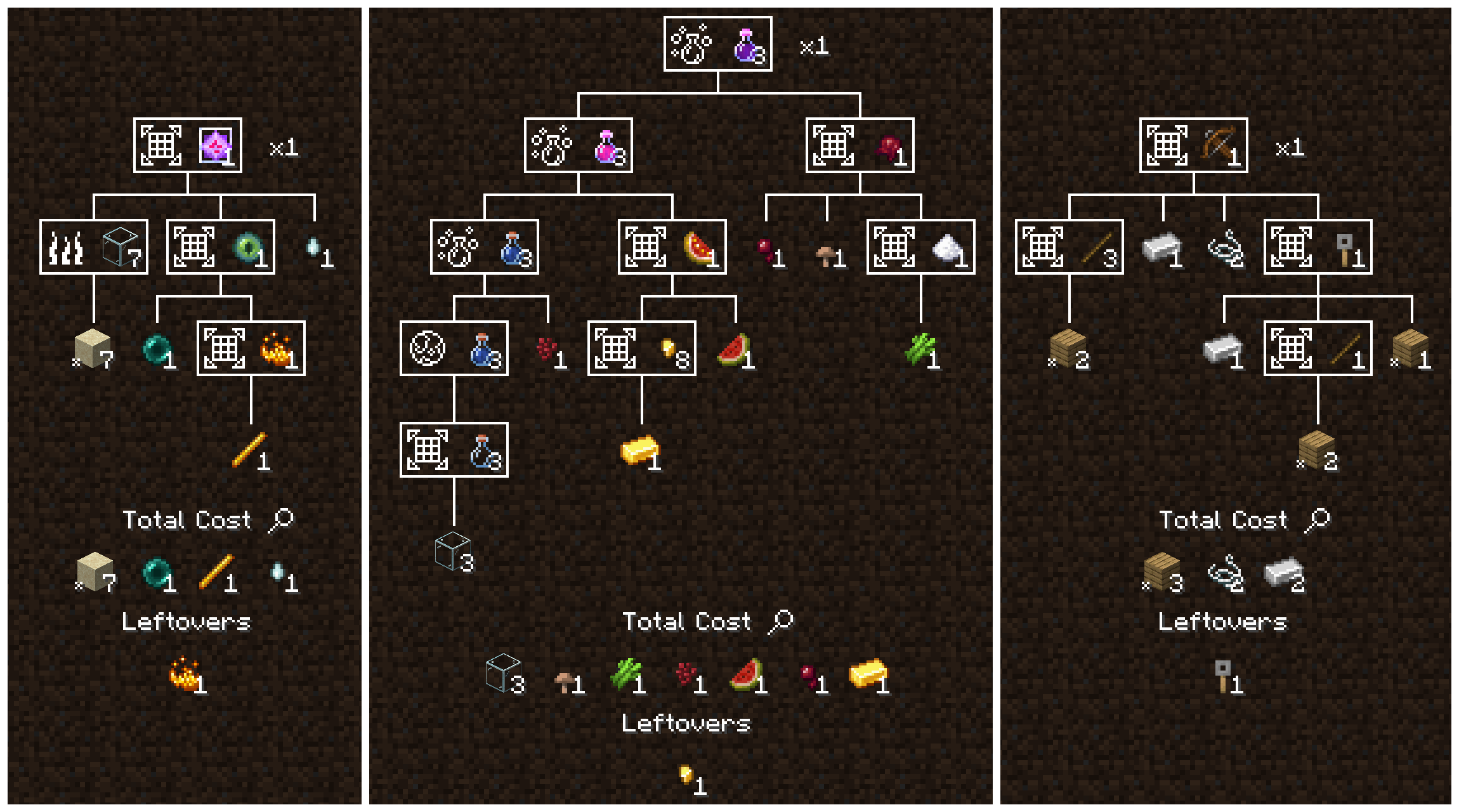
A crossbow is a useful first exercise: follow sticks and the tripwire hook back to their ingredients, then compare the tree's totals with the recipe output sizes. In a technology pack, apply the same process to one machine before planning a whole production line.
You can temporarily fold a recipe branch with right-click. Shift + right-click clears its chosen recipe; this is useful when correcting a route. Treat a tree as a plan based on available recipe information, not a machine that mines resources, supplies fuel or runs every processing step automatically.
Craftable mode and filling a recipe
The Craftables sidebar helps answer “What can I make with the supplies available here?” It is a good starting point when you have returned from gathering but have not chosen your next task. EMI's settings can make an empty search show craftable entries.
At a supported workstation, use Fill Recipe to arrange available ingredients. Quick-craft actions can work with recipe favourites and craftable entries; the default single action fills for one result, while Shift can request as many as possible. Read the control tooltip before a large batch so you do not spend a supply intended for something else.
If filling fails, check three things: enough matching ingredients, the correct workstation and a large enough crafting grid. Modded screens also need compatible recipe handlers. A displayed recipe does not guarantee automated transfer into every machine, and client/server integration can affect a particular transfer action.
EMI, JEI and multiplayer
EMI can browse recipes on the client. You do not need to install a new server solely to view its catalogue. Server-side EMI support and individual integrations can help recipe-transfer features, but the server still controls the recipes and items actually available.
The author supports running JEI alongside EMI to share recipe integrations; JEI's visible interface is hidden in that arrangement. This can help a modpack with JEI-based recipe support. Use versions for the same Minecraft and loader, and keep the pack's chosen setup when it already works. Adding several overlapping interfaces without a specific missing feature usually makes troubleshooting harder.
Normal recipe browsing and filling are not item spawning. Cheat actions are separate and do not grant permissions on a server. For ordinary survival play, leave those actions out of your workflow and use EMI to plan and craft with your own materials.
Make the interface comfortable
- Small screen: adjust sidebar size and placement in EMI configuration before lowering the game's overall interface scale too far.
- Busy inventory: keep a short favourites list and hide EMI temporarily with its visibility shortcut when you want a clear view.
- Many modded ingredients: enable the search fields you actually use and learn the mod-name filter first.
- Conflicting keys: rebind EMI's action in its own configuration and check the other mod that uses the same key.
- Different modpacks: decide whether you want a shared global EMI configuration or separate settings for each instance.
Installation and quick fixes
- Close Minecraft and choose your Java 1.21.1 Fabric or NeoForge profile.
- Place its matching EMI JAR in that instance's
modsfolder. Replace an older EMI JAR instead of keeping duplicates. - For Fabric, add the matching Fabric API. Follow the pack's specific API setup if using Quilt.
- Start the profile, open an inventory and search for a familiar item. Check R, U and favourites before moving on to a complicated recipe tree.
| Problem | Useful check |
|---|---|
| The item panel is missing | Try the visibility shortcut, check EMI is installed in the launched profile and inspect sidebar settings. |
| Search finds nothing | Clear the filters, check the installed mod and search using the displayed item name. |
| R, U or A does not work | Move focus out of the search box, hover the item and check key conflicts or changed bindings. |
| A recipe category is missing | Check the mod's EMI or JEI integration, the server's recipe changes and the pack's intended viewer setup. |
| The tree has the wrong ingredient route | Choose the desired recipe at that node and review default-recipe preferences. |
| Fill Recipe cannot complete the craft | Check ingredients, workstation, grid size and support for that screen. Follow any integration or server message shown. |
| The game fails after adding EMI | Check the Minecraft/loader pair, remove duplicate EMI files and add the Fabric API only on its matching route. |
Author and sources
EMI is developed by Emily Ploszaj / Emi and contributors under the MIT licence. The interface images belong to the author. MineBrush provides this practical guide and its original editorial cover.
- EMI 1.1.24 for Fabric / Quilt — official release
- EMI 1.1.24 for NeoForge — official release
- Fabric API 0.116.17 for 1.21.1
- Release source: controls, search, recipe trees and transfer behaviour
- Author's project description and JEI compatibility notes
- Official image gallery
- Author's additional gallery on CurseForge
More for your Java setup.
Understand Minecraft 26, tell normal releases from test builds, and choose the right version for friends, servers and mods. Clear Java and Bedrock examples without the technical clutter.
- Topic
- Choosing your Minecraft version
- Scope
- None
- Evidence
- Official Minecraft sources · checked 9 Sep 2026
A shared “26” prefix never proves cross-edition compatibility.
MineBrush · News
Minecraft Versions Made Simple
Understand Minecraft 26, tell normal releases from test builds, and choose the right version for friends, servers and mods. Clear Java and Bedrock examples without the technical clutter.
A shared “26” prefix never proves cross-edition compatibility.
- Compatibility confidence
- Source claimed
- Card evidence statement
- Official policy and indexes checked 9 Sep 2026; client display NOT_OBSERVED.
- Card delivery statement
- Choose a version for everyday play or testing
- Card limitation note
- A shared “26” prefix never proves cross-edition compatibility.
- Edition applicability
- Java + Bedrock
- News topic
- Choosing your Minecraft version
- Public news evidence label
- Official Minecraft sources · checked 9 Sep 2026
- Delivery state
- No file
- Lifecycle state
- Current
- News evidence type
- Official Minecraft source
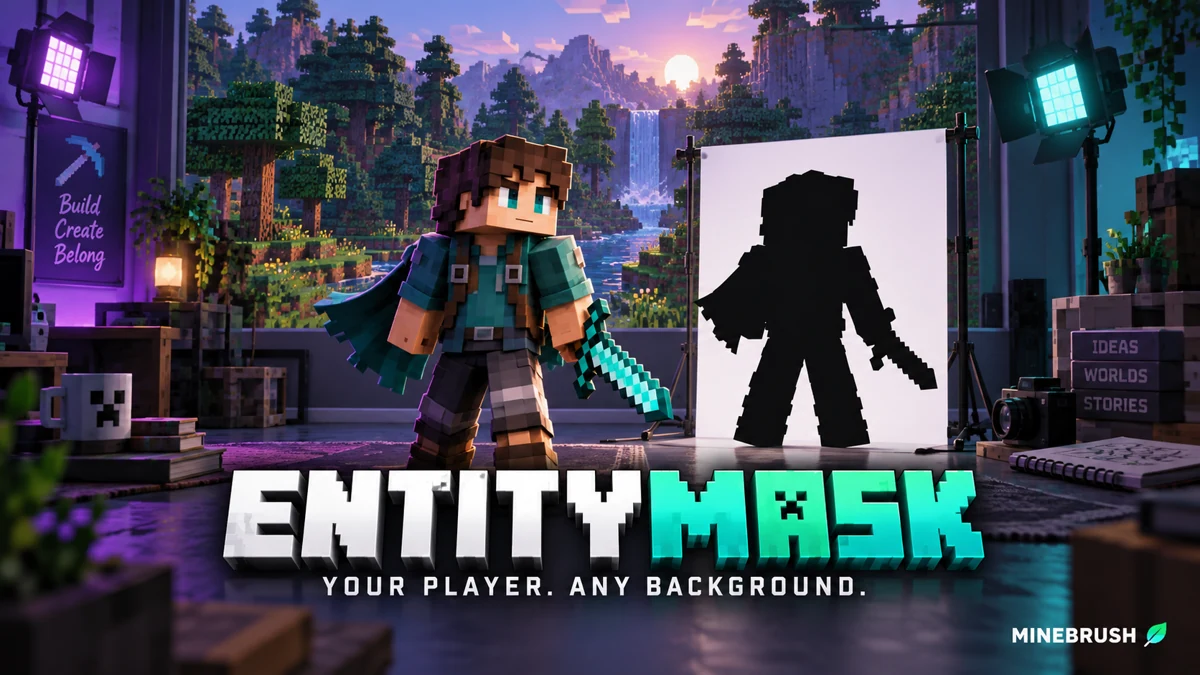
Cut your Minecraft player out of a recorded scene for intros, overlays and thumbnails. Download EntityMask 1.0 for Java 1.20–1.21.8, see the author's real mask previews, and learn how to align two recordings and keep the player with an inverted luma matte.
- Format
- Workflow
- Path
- Replay → normal recording + mask → video editor
- Output
- Player cutout for an intro, title effect or thumbnail
Version 1.0 beta; Java 26.x support is not listed.
MineBrush · Creator
EntityMask 1.0
Cut your Minecraft player out of a recorded scene for intros, overlays and thumbnails. Download EntityMask 1.0 for Java 1.20–1.21.8, see the author's real mask previews, and learn how to align two recordings and keep the player with an inverted luma matte.
Version 1.0 beta; Java 26.x support is not listed.
- Minecraft version
- Java 1.20–1.21.8
- Game edition
- Java Edition
- Loader / platform
- Not applicable
- License
- MIT
- Creator resource format
- Workflow
- Platform family
- Java & PC
- Supported devices
- Minecraft Java on desktop
- Install format
- ZIP → shaderpacks
- Touch readiness
- Not required
- Resource type
- Shader
- Last verified at
- Sep 18, 2026
- Compatibility confidence
- Source claimed
- Card evidence statement
- Record matching color and mask clips; combine them in your editor.
- Card delivery statement
- Shader ZIP · Iris or OptiFine required
- Card limitation note
- Version 1.0 beta; Java 26.x support is not listed.
- Edition applicability
- Java
- Tested environment
- Java with Iris or OptiFine; replay recorder and matte-capable video editor
- Example artifact path
- Replay → normal recording + mask → video editor
- Creator output
- Player cutout for an intro, title effect or thumbnail
- Estimated time
- 8 min read; recording time varies
- Guide difficulty
- Intermediate
- Delivery state
- Direct download
- Lifecycle state
- Current
Tom's Simple Storage
2.11.3 Fabric / 2.11.2 NeoForgeFind supplies across your chests, craft from shared storage and fetch blocks while building. Set up Tom's Simple Storage for Java 26.2, organise materials with filters and choose the right Fabric or NeoForge download.
- Minecraft
- Java 26.2
- Loader
- Fabric
- Runtime
- Both
Choose Fabric or NeoForge; install on client and server
Java · Mod
Tom's Simple Storage
Find supplies across your chests, craft from shared storage and fetch blocks while building. Set up Tom's Simple Storage for Java 26.2, organise materials with filters and choose the right Fabric or NeoForge download.
Choose Fabric or NeoForge; install on client and server
- Minecraft version
- Java 26.2
- Game edition
- Java Edition
- Loader / platform
- Fabric
- License
- MIT
- Platform family
- Java & PC
- Supported devices
- Windows · macOS · Linux
- Install format
- JAR in the client and server mods folders
- Touch readiness
- Not required
- Resource type
- Mod
- Project version
- 2.11.3 Fabric / 2.11.2 NeoForge
- Last verified at
- Sep 15, 2026
- Secondary guide action
- Setup & fixes
- Compatibility confidence
- Source claimed
- Java mod loader
- Fabric
- Java runtime side
- Both
- Required dependency
- Fabric API for Fabric; none extra for NeoForge
- Card delivery statement
- Search shared storage, craft from supplies and add wireless access
- Card limitation note
- Choose Fabric or NeoForge; install on client and server
- Edition applicability
- Java
- Delivery state
- Direct download
- Lifecycle state
- Current
Hypixel brings Bed Wars, Build Battle, SkyWars and long-term SkyBlock progression to Java players. Copy the official address, choose a mode, join friends and use the right version and server pack.
- Edition
- Java
- Modes
- Minigames
- Region
- None
SkyBlock: modern Java and required server resource pack
Minecraft · Server
Hypixel
Hypixel brings Bed Wars, Build Battle, SkyWars and long-term SkyBlock progression to Java players. Copy the official address, choose a mode, join friends and use the right version and server pack.
SkyBlock: modern Java and required server resource pack
- Minecraft version
- Java; SkyBlock recommends 26.2
- Game edition
- Java Edition
- Loader / platform
- Not applicable
- License
- Hypixel server rules and terms
- Server address
- mc.hypixel.net
- Server modes
- Minigames
- Platform family
- Java & PC
- Supported devices
- Minecraft Java Edition on PC and Mac
- Install format
- Join using the server address
- Touch readiness
- Not required
- Resource type
- Server
- Last verified at
- Sep 14, 2026
- Compatibility confidence
- Source claimed
- Card evidence statement
- Official join guide and current SkyBlock announcement
- Card delivery statement
- Copy mc.hypixel.net and join in Java Edition
- Card limitation note
- SkyBlock: modern Java and required server resource pack
- Edition applicability
- Java
- Bedrock address copy availability
- Copy unavailable
- Java address copy availability
- Copy available
- Java server address
mc.hypixel.net- Delivery state
- No file
- Lifecycle state
- Current
Player discussion 2
Questions, discoveries and help from other players.