
Bedrock 1.21.111 player guide
Minecraft Bedrock 1.21.111: Copper Shelves, Controls and World Fixes
Build a copper sorting corner and quick-swap tool shelves, use shelf signals, and understand touch controls, Vibrant Visuals and Realms fixes in Bedrock 1.21.111.
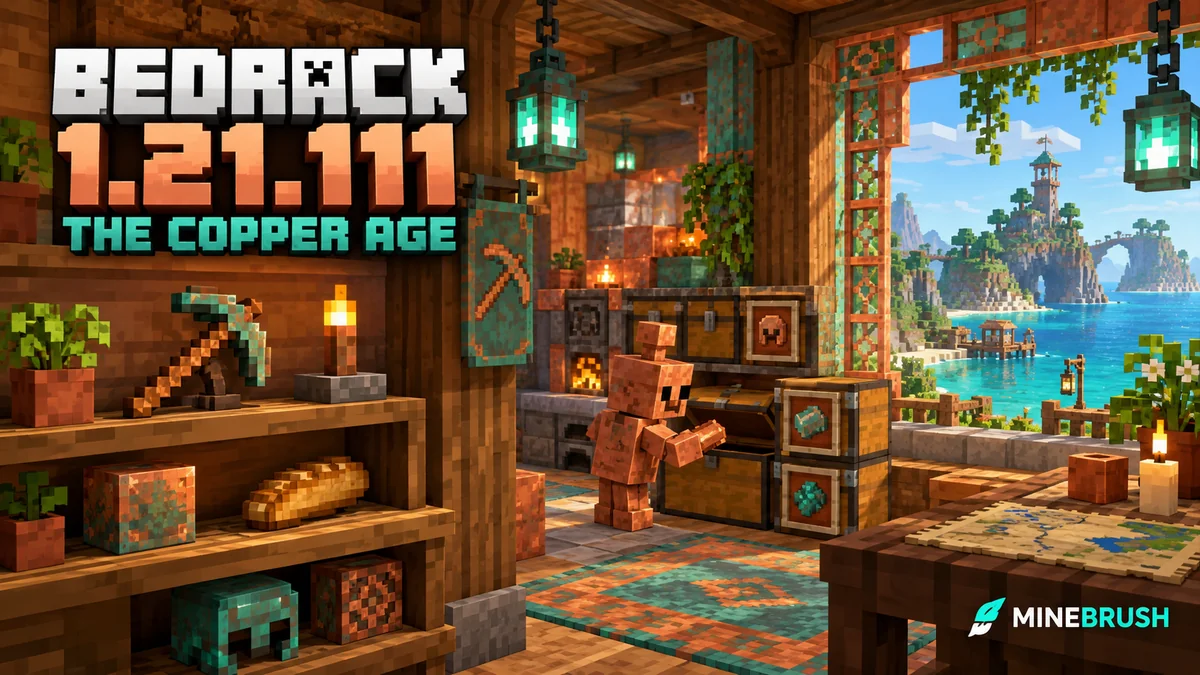
Bedrock 1.21.111 turns copper into useful equipment, storage helpers and workshop decoration. The Copper Age also improves everyday play on touchscreens, consoles and Windows: portal arrivals, furnace displays, Realms invitations and several Vibrant Visuals details receive attention.
The stable release arrived on September 30, 2025. This page explains that historical Bedrock version; Java’s corresponding release is 1.21.9. Newer supported releases already include the copper features. You do not need a Preview world, a copper add-on or a separate game archive to build with them.
Start with a small workshop you will use every day
A useful first project is a return-from-mining corner: an input chest for materials, clearly marked destination chests and a shelf holding the tools for the next trip.
- Make the helper. Put a carved pumpkin or jack o’lantern on a full copper block to summon a copper golem and obtain its first copper chest.
- Define the destinations with contents. Put a sample stack of cobblestone in one ordinary chest and oak logs in another. The golem matches items inside; an “Oak Logs” sign is only a label for people.
- Feed the copper input chest. Add more of those materials there. The golem takes up to 16 items from one stack and looks for an empty or matching ordinary/trapped chest.
- Keep space and access. Make the first room compact, with usable chest lids and a clear route. Leave room inside each destination.
- Maintain the worker. Wax it with honeycomb if you want to prevent further oxidation. An unwaxed, fully oxidized golem eventually becomes a statue.
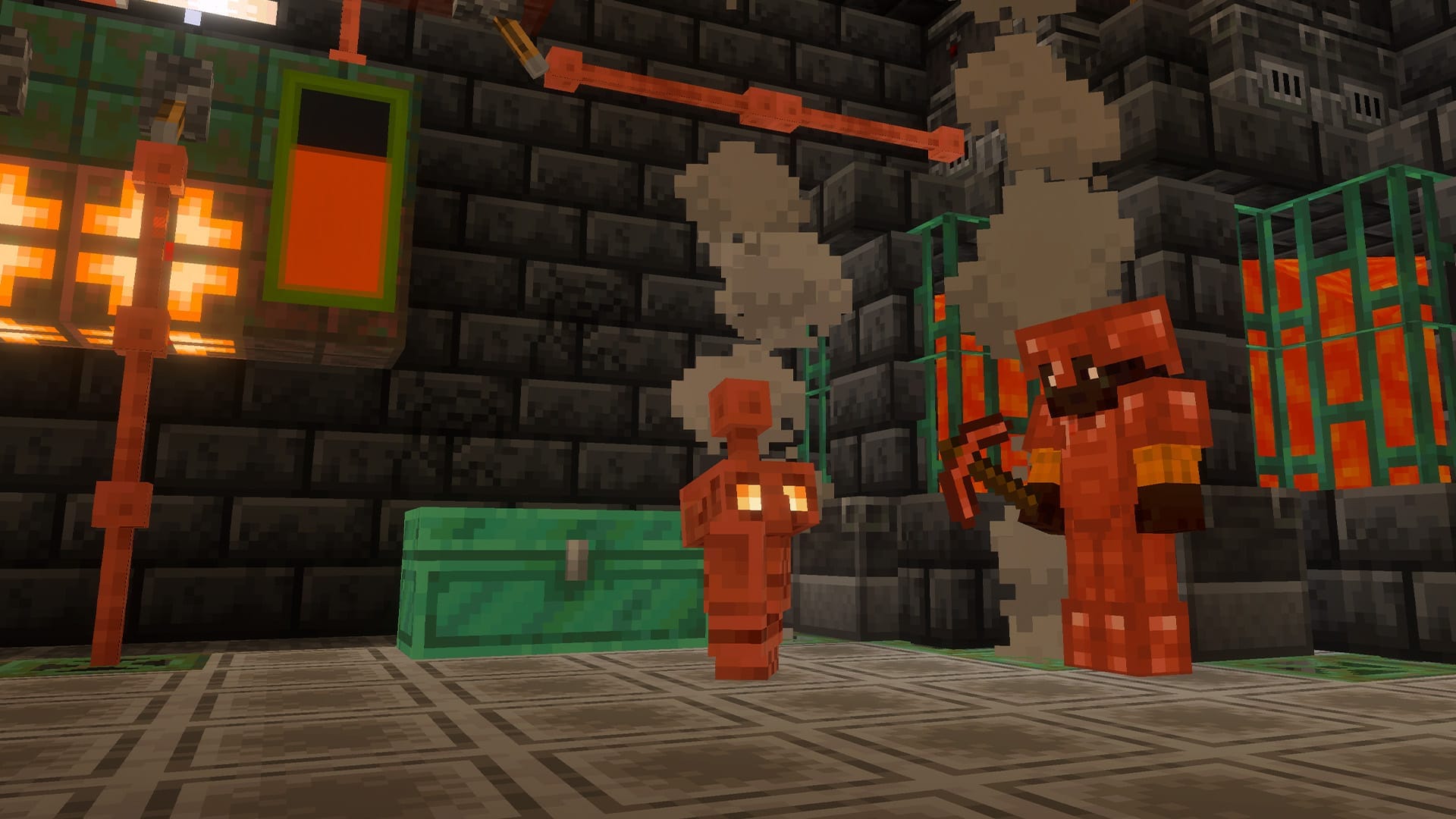
Why did dirt enter my wood chest? If you emptied that chest completely, it became a valid destination for other items. Keep some sample stock in dedicated destinations. A deliberately empty overflow chest is general storage, not a permanent filter.
The golem checks a limited sequence of candidate chests and pauses if it cannot find a match. A short pause is not automatically a fault. Before expanding, watch a few deliveries and make sure the basic arrangement works while you are present.
For the full sorting range, statue restoration, equipment choices and building palettes, use our complete Copper Age workshop guide. This Bedrock page adds shelf-signal examples and the platform-specific changes worth checking after an update.
Make a visible tool kit instead of opening another chest
Six matching stripped logs, stripped stems or stripped bamboo blocks in the top and bottom crafting rows make six shelves. Each shelf has three item slots. Unpowered, it exchanges the slot you point at with the item in your main hand; an empty hand retrieves that displayed item.
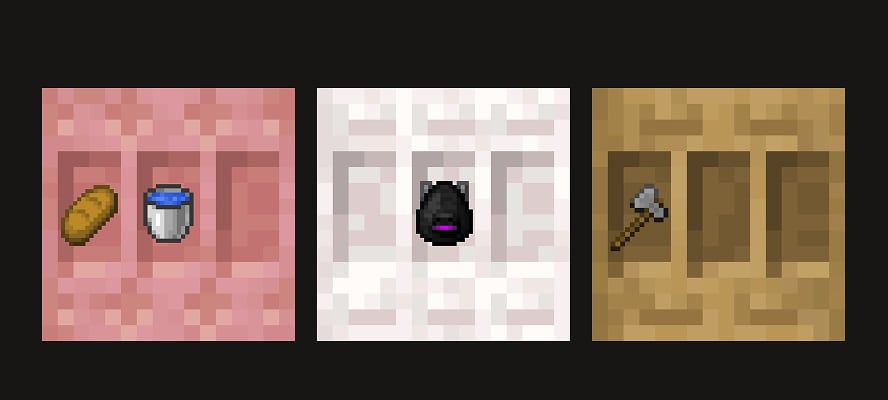
Power changes the interaction. One powered shelf swaps the three rightmost hotbar slots. Two connected powered shelves swap six, and three swap all nine. Keep connected shelves facing the same way and check their powered appearance.
Mining kit: while the shelf is unpowered, load a pickaxe, torches and food. Power it, then interact to exchange that kit with the rightmost three hotbar slots. The previous hotbar items move onto the shelf. When you return, another swap exchanges the two sets again.
Building kit: use two connected shelves for six materials and tools, keeping the three leftmost hotbar slots for the essentials you want to retain. A three-shelf station exchanges everything, including a weapon or food you may normally expect to stay in place.
On touch or controller, aim carefully at the intended slot when the shelf is unpowered. When it is powered, you are choosing a multi-slot exchange rather than a single-item pickup. Remove power before rearranging individual displayed supplies.
This is not automatic replenishment: a stack returns with whatever remains, and damaged tools remain damaged. Keep spare food, torches and repair supplies nearby if the station is meant to prepare you for longer trips.
A shelf can tell redstone which slots are occupied
In Bedrock 1.21.111, a comparator reading a shelf responds to the occupied slots. Think of each slot as a separate contribution to the output, rather than a chest-style fullness gauge.
- No occupied slots: signal 0.
- First slot only: signal 1.
- Second slot only: signal 2.
- Third slot only: signal 4.
- All three occupied: signal 7.
With several occupied slots, their contributions add together. For example, the first and third give 5. You do not need binary notation to use the feature: the practical point is that which positions contain items matters.
Project idea: a “tools present” light
Use a comparator to read an unpowered shelf, then carry its output through a repeater to a nearby redstone lamp. Keep the wiring from accidentally powering the shelf if you want normal single-slot access. Any occupied slot produces a nonzero output; taking the last item leaves zero.
This simple light means something is on the shelf, not “the complete kit is ready.” A single torch can light it, and a worn-out tool still occupies its slot. A complete-kit detector needs a circuit that distinguishes the all-three-occupied output from lower values, plus your own check that the right items are present.
Useful applications: mark whether a communal tool shelf has been emptied, build an item-position combination puzzle, or use a shelf as a visible input panel in a workshop. A stack count changing inside an already occupied slot is not the same event as that slot becoming empty.
Touch controls and accessibility: check the action that changed
The update fixes two specific touch-control behaviors:
- Invert Y-Axis works for spectators. If you use inverted vertical looking while inspecting a Creative build in Spectator mode, the setting should now apply there as intended.
- Swap Jump And Sneak no longer moves swim/fly-up buttons. If an older layout behaved differently, try walking, swimming and flying separately before changing every control.
A short control check: in a safe area, walk and jump, enter shallow water, then test Creative flight in a separate practice world if you use that mode. You are checking distinct actions; a correct jump button does not tell you whether the upward swimming control is where you expect.
All Dressing Room pages gain text-to-speech support. Dye icons also use more distinct shapes to help distinguish colors. Those changes can make choosing an appearance or sorting dyes easier without depending entirely on the color itself.
The new Minecraft Profile Pic is based on your character’s appearance and replaces the Xbox Gamerpic on Minecraft profile, player-list and Realms screens. If a familiar friend’s icon changes, check the displayed name instead of assuming you joined with the wrong account.
Vibrant Visuals: clearer building details, with device limits
Vibrant Visuals receives fixes to portal effects, signs, held items, candles, particles and weather lighting. Colored writing on signs should no longer look dark for the specific issue fixed in this release, and block-selection outlines become thicker—useful when selecting details around an elaborate build.
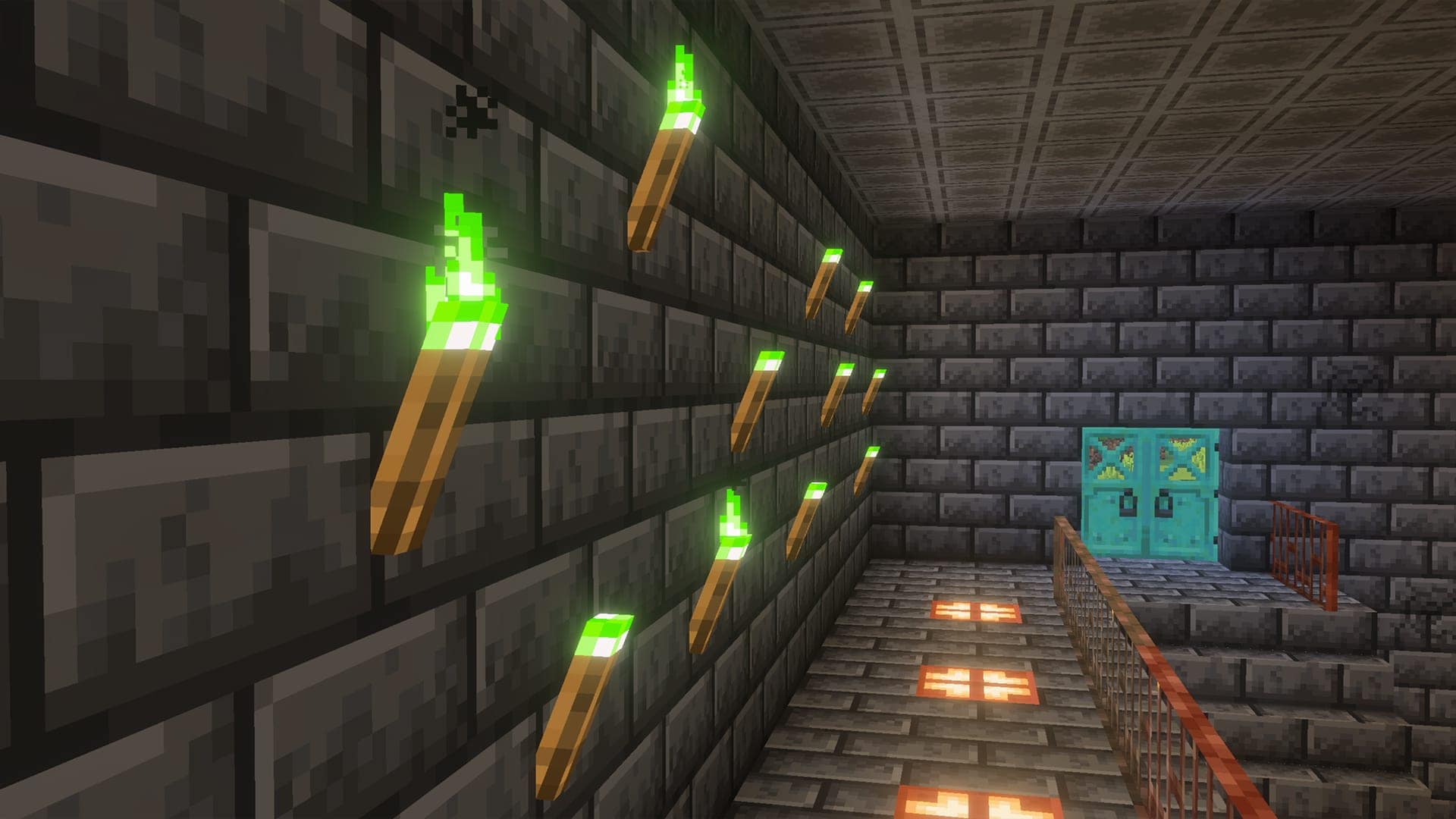
Workshop check: look at a colored storage sign, select a block near a railing, then hold a chest or bow. These are concrete places where the release’s visual fixes may be noticeable. Use the same scene and graphics mode for a fair comparison; changing the resource pack at the same time makes the cause harder to identify.
On PC, the maximum render distance for Vibrant Visuals becomes 28 chunks in this release. That is a ceiling, not a recommended setting for every computer—and not a promise that every phone or console gets the same slider range. Choose a distance that keeps camera movement comfortable around your actual base.
PC volumetric-fog settings are adjusted to provide more consistent quality/performance steps. If a scene is uncomfortable to play, compare one setting at a time rather than maximizing fog and distance together. The update does not make every older device compatible with Vibrant Visuals.
End exploration: Hide Sky Flashes is available for the End when playing with Vibrant Visuals. Review it before a long trip if the lighting effect is uncomfortable. This Bedrock feature should not be confused with the Java F3 controls in the separate Java guide.
What the fixes mean when you return to an existing world
- Nether portal arrivals: entities should no longer arrive halfway outside the portal because of the listed positioning bug. Keep the exit platform safe anyway; the fix does not build a protective landing area for you.
- Furnaces, blast furnaces and smokers: the progress arrow no longer stays stuck as though processing continues when it has stopped. Check fuel, a valid input and output space when deciding why a furnace is idle.
- Ender Dragon completion: the listed end-of-death freeze is fixed so the dragon can finish dying and create the portal. Do not assume a screenshot of the old stuck state describes intended behavior.
- Multiplayer paintings: a high-latency joining issue that broke paintings is fixed. Check a decorated shared build after reconnecting if you encountered it before.
- Legacy terrain and frozen rivers: blending fixes address specific terrain problems. Keep a backup before investigating an old area rather than deleting chunks as the first response.
For Realms, the update addresses several crashes, the endlessly loading invitation page on PS4/PS5 and unclear open/close instructions in Realms Stories settings. Leaving a Realm now removes it from the Play-screen list. That is a membership/list action, not the same thing as deleting the owner’s world.
Xbox also receives a fix for a crash while downloading a multiplayer world’s packs. If your problem involves one particular add-on, still check that pack’s supported version; a general crash fix does not certify every third-party pack.
Continue through your device’s normal update route
Use Minecraft’s official store or launcher route for your platform and check the version required by your Realm or server. Bedrock does not provide the same historical release selection as Java’s launcher, so this guide is a record of what 1.21.111 introduced—not a recommendation to hunt for an old APK.
- Keep a copy of an important world. Use the available world-copy/export or backup option for your platform before changing a valued setup.
- Check required add-ons and packs. Preserve the original arrangement and try a working copy if a pack affects blocks, entities or world generation.
- Start with familiar places. Visit your portal, storage and furnace area, then check the touch or controller actions you use.
- Build one small copper project. A working shelf kit or compact sorter provides an immediate benefit without rebuilding the entire base.
For the game itself, use Minecraft’s official download and platform links. The copper features require neither a separate game file from MineBrush nor experimental settings.
Sources and image credits
MineBrush Editorial used the final Bedrock 1.21.111 release notes and the official Copper Age overview and gallery. Images are Mojang/Microsoft feature illustrations, with originals and source links retained; they are not presented as a measured before/after test of a particular device. The MineBrush cover is an editorial illustration. The workshop and signal-light projects are practical suggestions, not a claim that every world or device was tested.
More for your Bedrock world.
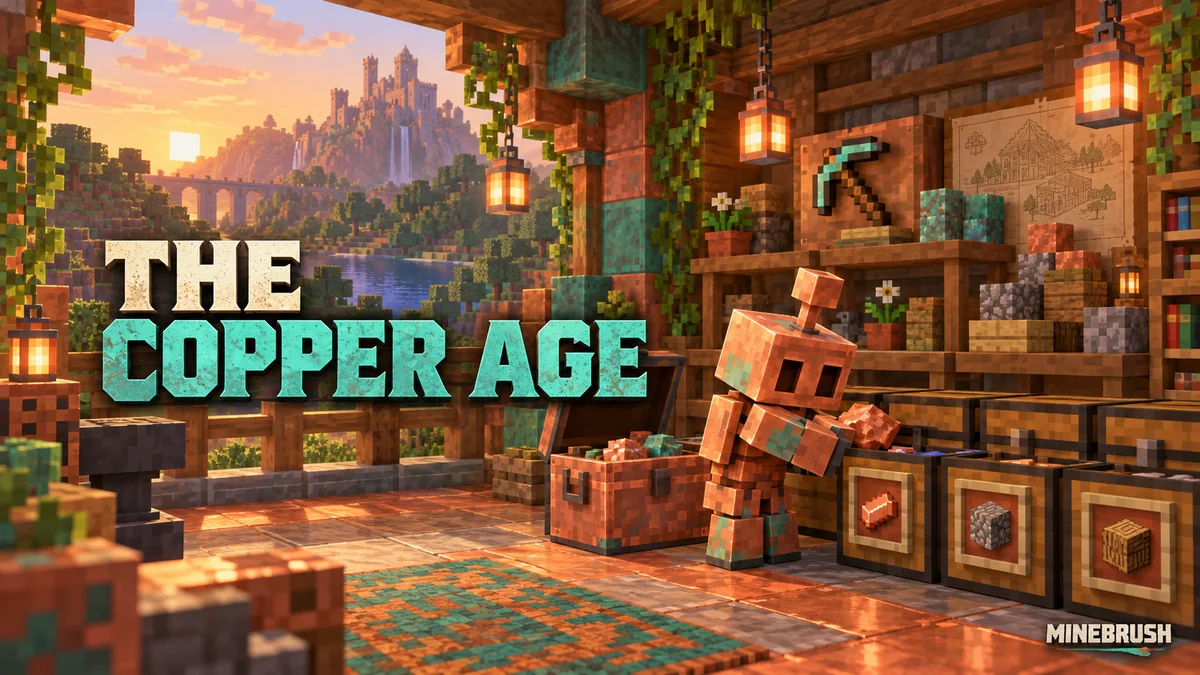
Build a copper-golem sorting room, swap tool kits with powered shelves and put copper equipment and decorations to work. Practical recipes, examples and official images for Java 1.21.9 and Bedrock 1.21.111.
- Game released
- Java
- 1.21.9 · Stable
- Bedrock
- 1.21.111 · Stable
Focus Copper golem sorting, quick tool swaps and copper builds
Topic The Copper Age
Install Included in the game update
Back up before updating
Java + Bedrock · Release
The Copper Age
Build a copper-golem sorting room, swap tool kits with powered shelves and put copper equipment and decorations to work. Practical recipes, examples and official images for Java 1.21.9 and Bedrock 1.21.111.
Back up before updating
- Update type
- Major release
- Release channel
- Java & Bedrock
- Official release date
- 2025-09-30
- World safety
- Back up before updating
- Player impact
- Copper golem sorting, quick tool swaps and copper builds
- Related major release
- The Copper Age
- Platform family
- Cross-edition
- Supported devices
- Java on PC, Mac and Linux; Bedrock on supported phones, consoles and Windows PCs
- Install format
- Official game update
- Touch readiness
- Check guide
- Resource type
- Update
- Last verified at
- Sep 16, 2026
- Update state
- historical
- Compatibility confidence
- Source claimed
- Bedrock version/build
- 1.21.111
- Card delivery statement
- Included in the game update
- Edition applicability
- Java + Bedrock
- Java version/build
- 1.21.9
- Shared update topic
- The Copper Age
- Delivery state
- No file
- Lifecycle state
- Superseded
- Java update channel
- Stable
- Bedrock update channel
- Stable
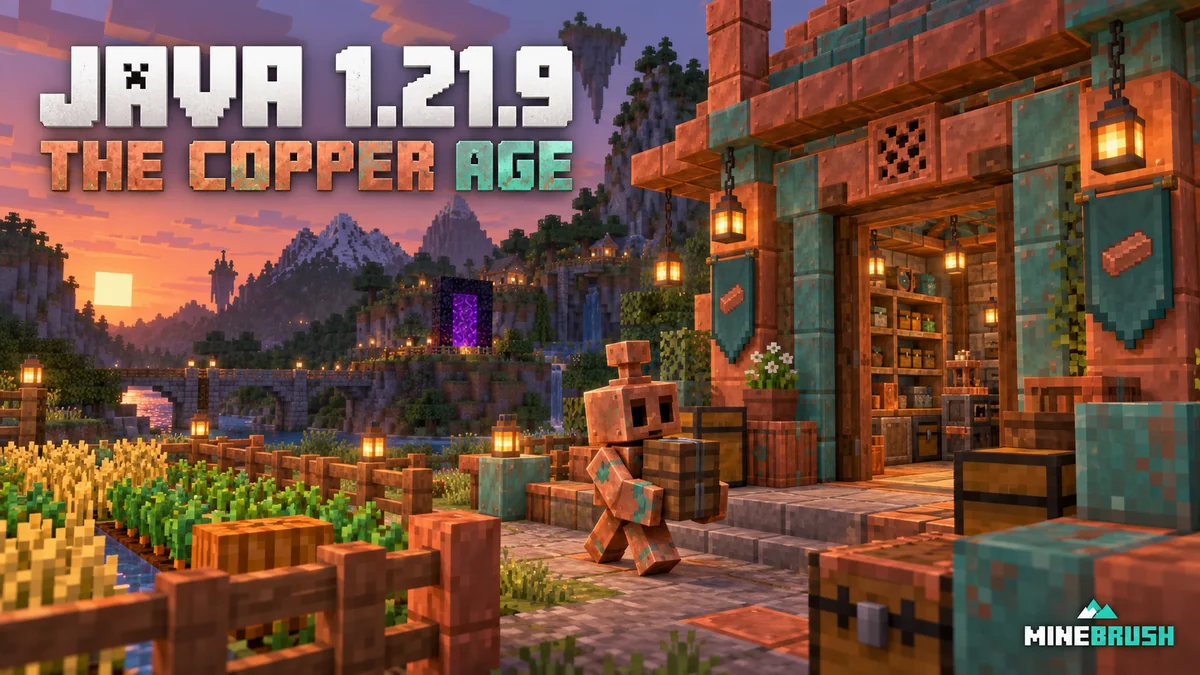
Build a useful copper workshop, understand the removal of spawn chunks, customize F3, save chat drafts and adjust comfort controls. Practical Java 1.21.9 advice for an existing world.
- Java
- Java 1.21.9
- Release type
- Release
- Game released
Focus Copper workshop, spawn chunks, F3, chat and comfort controls
Install Official launcher
Back up before updating
Java · Release
Java 1.21.9 — Copper, Farms & F3
Build a useful copper workshop, understand the removal of spawn chunks, customize F3, save chat drafts and adjust comfort controls. Practical Java 1.21.9 advice for an existing world.
Back up before updating
- Minecraft version
- Java 1.21.9
- Game edition
- Java Edition
- Update type
- Major release
- Release channel
- Java Edition
- Official release date
- 2025-09-30
- World safety
- Back up before updating
- Player impact
- Copper workshop, spawn chunks, F3, chat and comfort controls
- Related major release
- The Copper Age
- Platform family
- Java PC
- Last verified at
- Sep 17, 2026
- Update state
- historical
- Compatibility confidence
- Source claimed
- Card delivery statement
- Official launcher
- Edition applicability
- Java
- Delivery state
- No file
- Lifecycle state
- Superseded

Plan a nautilus trip, learn spear actions and make Bedrock’s camera and touch controls more comfortable. Mounts of Mayhem explained with river travel, desert encounters and existing-world tips.
- Bedrock
- Bedrock 1.21.130
- Release type
- Release
- Game released
Focus Nautilus journeys, camera comfort, touch and world changes
Install Official game update
Enrollment None required
Back up before updating
Bedrock · Release
Minecraft Bedrock 1.21.130: Mounts of Mayhem
Plan a nautilus trip, learn spear actions and make Bedrock’s camera and touch controls more comfortable. Mounts of Mayhem explained with river travel, desert encounters and existing-world tips.
Back up before updating
- Minecraft version
- Bedrock 1.21.130
- Game edition
- Bedrock Edition
- Update type
- Major release
- Release channel
- Bedrock Edition
- Official release date
- 2025-12-09
- World safety
- Back up before updating
- Player impact
- Nautilus journeys, camera comfort, touch and world changes
- Related major release
- Mounts of Mayhem
- Platform family
- Bedrock & Mobile
- Supported devices
- Supported Android, iOS, Windows and consoles
- Touch readiness
- Check guide
- Last verified at
- Sep 17, 2026
- Update state
- historical
- Compatibility confidence
- Source claimed
- Card delivery statement
- Official game update
- Edition applicability
- Bedrock
- Bedrock enrollment route
- None required
- Delivery state
- No file
- Lifecycle state
- Superseded
Player discussion 0
Questions, discoveries and help from other players.