
Java 26.1 player guide
Minecraft Java 26.1: Tiny Takeover, World Upgrades and Settings Guide
Keep baby pets, craft name tags and put old deepslate to work. Java 26.1 explained: Upgrade and Play, World Options, chat restrictions, lighting changes and safe modded-world preparation.
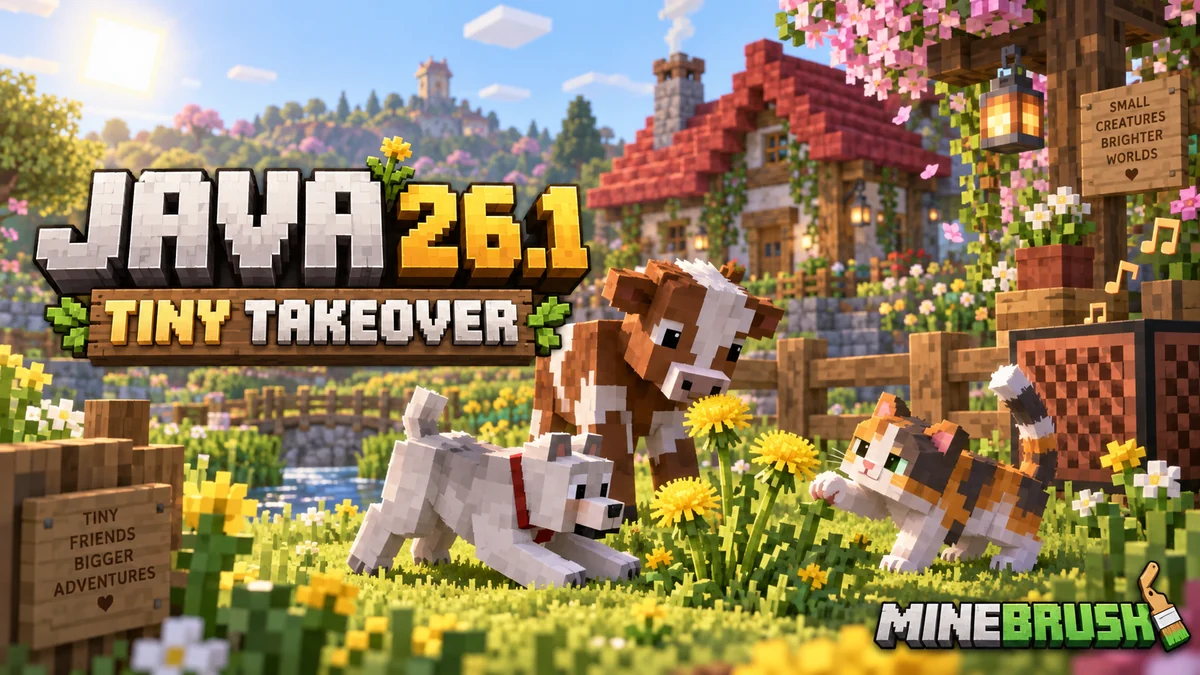
Minecraft Java 26.1 makes a familiar world feel different in two ways: your animals gain expressive new looks, while world upgrades, settings and lighting change behind the scenes. Tiny Takeover is useful for a pet-filled cottage or village build, but there are also things to check before opening an older survival save.
The stable release arrived on March 24, 2026, for Windows, macOS and Linux. This is a historical guide: Java 26.3 is newer. You can enjoy Tiny Takeover's released features in later supported versions; choose 26.1 specifically only when your server, modpack or saved setup requires it. Bedrock's corresponding drop is 26.10.
A first session that uses the new features
Start at home. Breed a familiar animal, choose one baby for a permanent nursery, name it and add a small musical entrance to its enclosure. This gives you a concrete project without requiring a long search for a new biome.
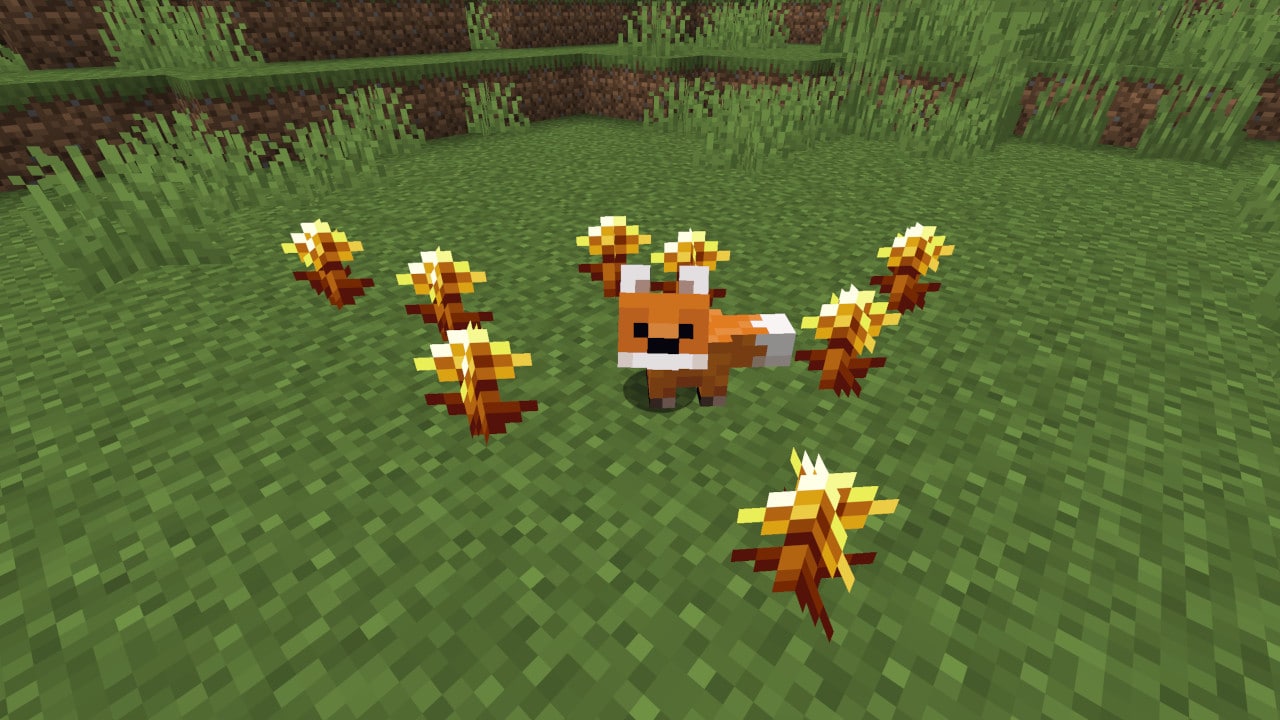
- Craft a golden dandelion: put an ordinary dandelion in the center of a crafting table and surround it with eight gold nuggets.
- Use it on the baby: interact rather than attack. Downward green particles show that aging has paused. Another golden dandelion restarts aging, shown by upward particles; it does not instantly make the animal an adult.
- Give the pet a name: craft a tag with one paper and one metal nugget, rename the tag in an anvil, then use it on the mob. Pay the experience cost shown by the anvil.
- Add a trumpet greeting: place copper directly below a note block, keep the space above the note block clear, tune it and trigger it with a button or redstone pulse. Oxidation changes the trumpet's character; wax the copper at the stage you want to keep.
The flower cannot be used on baby villagers or undead babies. It does not tame an animal, reverse an adult into a baby or keep every nearby creature young. Keep your adult breeding herd separate from the babies you want as permanent residents.
Our Tiny Takeover guide explains the broader animal redesign, nursery layout and music projects. This page focuses on Java's additional changes and the questions an existing-world player is likely to encounter.
Recheck small enclosures and old animal displays
The update is mostly a redesign of existing babies, not a collection of entirely new species. It includes farm animals, pets, mounts, aquatic mobs and hostile babies. A new face does not change a creature into a safe companion.
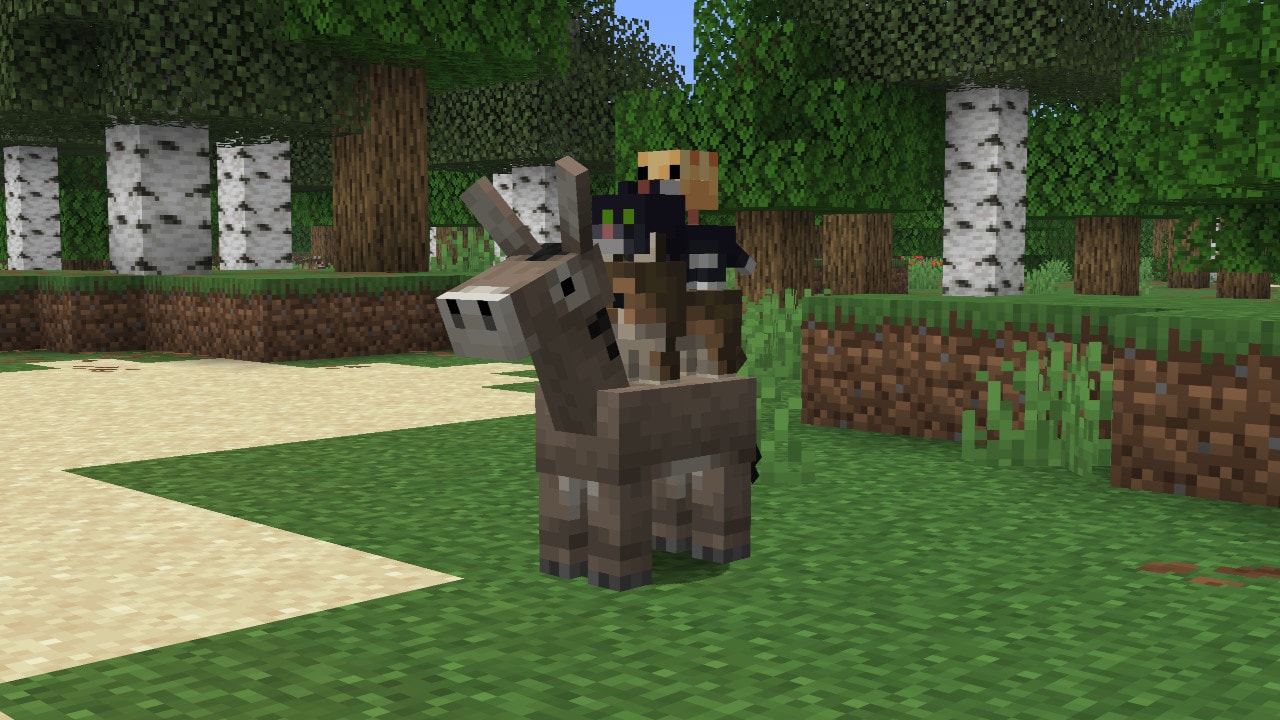
Several babies have adjusted body sizes or collision boxes. If you built a tight transport channel, decorative gap or compact pen around the old model, inspect it after updating. Start with one animal in a safe copy or a contained test area rather than moving your whole breeding herd through an untested gap.
- Cats and horses: baby cats are larger, matching baby ocelots, and baby horses are slightly larger. Check narrow display spaces instead of assuming every old arrangement looks identical.
- Equipment displays: armor no longer renders on baby wolves, and saddles no longer render on baby pigs and camels. An old decorative scene may therefore look different without its resource pack being broken.
- Rabbits: adults and babies have new animations. Give a rabbit garden a viewing area where their movement is visible, rather than packing many into a tiny pen.
- Sounds: baby wolves, cats, pigs, horses and chickens have new sounds. Some adults receive randomly assigned sound variants, so two similar animals need not sound identical.
Useful nursery rule: label the babies whose growth should remain paused. On a shared world, a second well-intentioned flower reverses the effect. Naming and age control are separate actions, so a name alone will not keep a baby small.
Less busywork for builders and pet owners
Use Silk Touch deepslate directly
The stonecutter now turns plain deepslate into cobbled, polished, brick and tile variants. Stone also gains direct access to cobbled variants. If a mining trip left you with stacks of Silk Touch deepslate, check the stonecutter before placing and breaking it all again.
Workshop idea: put a stonecutter beside your stone storage and keep a small sample wall nearby. Select the form you need for the next part of the build instead of converting every block into one type at the start. It keeps a large roof or basement project easier to organize.
Plan name tags around crafting, not an old librarian tutorial
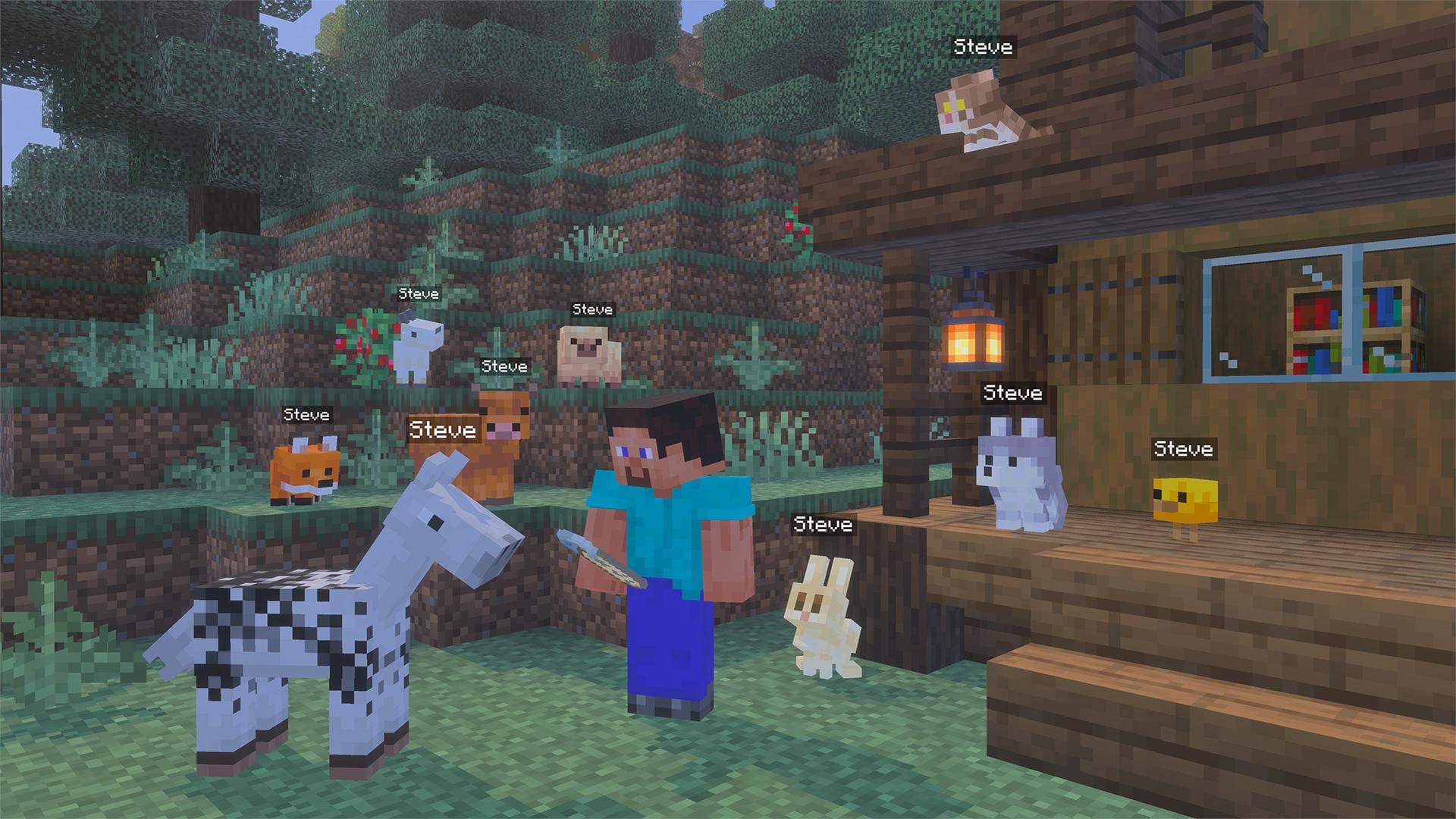
Master librarians stop offering name tags in this release, and tags are removed from ancient-city and woodland-mansion chest loot. Crafting gives you a direct route for naming many pets. Wandering traders gain a one-emerald tag offer, but you do not need to wait for a trader just to name your first calf.
Librarian trade generation also changes internally: repeated trade selection still produces a sequence of offers, but that sequence is tied to the world seed. This does not justify promising that the next attempt will produce a particular enchantment. Keep useful trades you have deliberately secured rather than treating an update as a guaranteed shortcut.
The release's note about always offering an enchanted-book trade at master level specifically concerns the Villager Trade Rebalance experiment. Do not apply that experimental detail as a universal promise about every ordinary survival librarian.
Why does my world say Upgrade and Play?
Java 26.1 changes how a world is stored. An older save that needs conversion shows Upgrade and Play, and Edit World and Re-Create World remain unavailable until that upgrade is complete. The progress screen is part of the conversion, not proof that your save has disappeared.
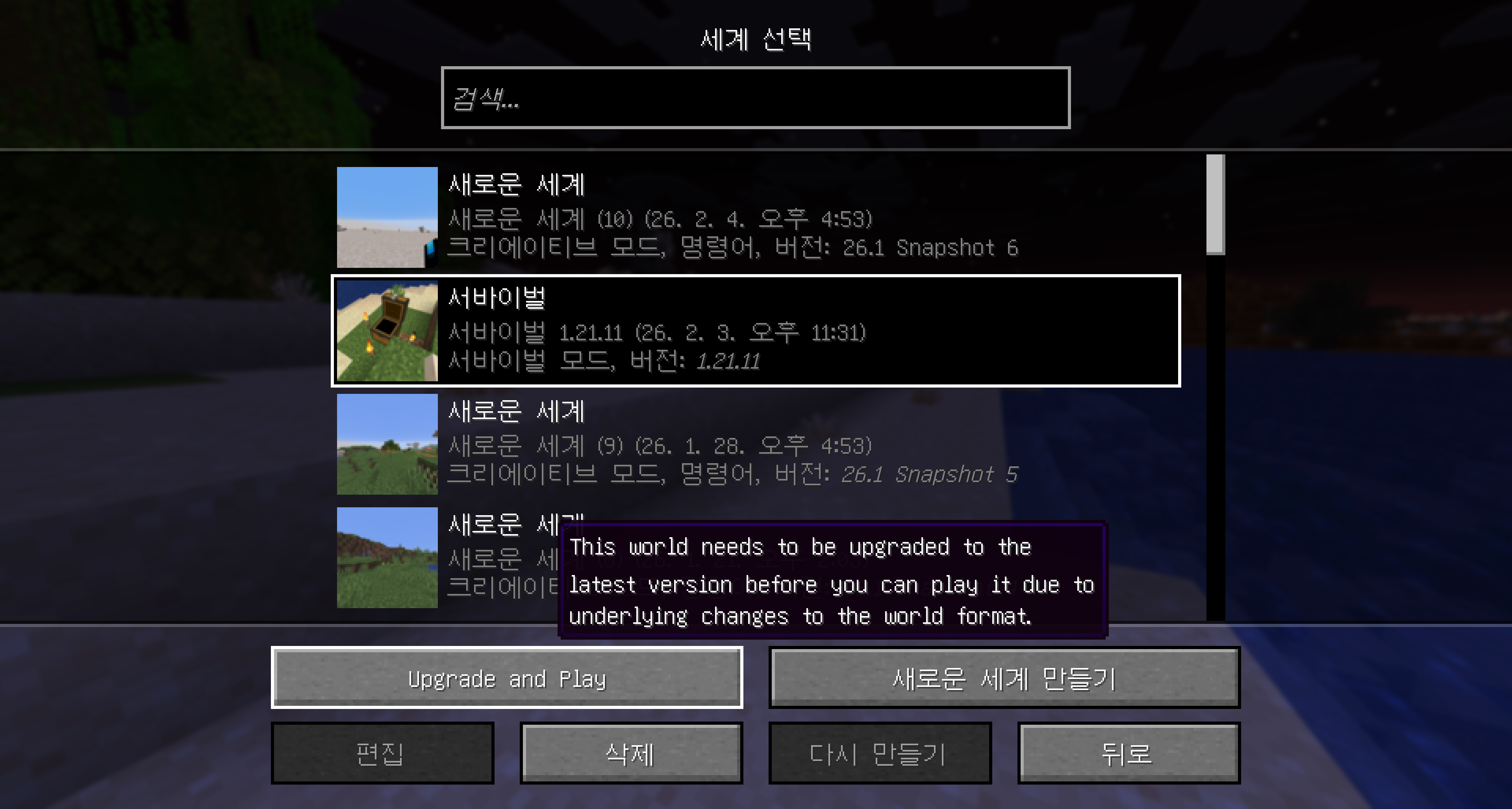
- Stop and preserve the original. Before loading the save in 26.1, close the game and keep a separate copy of the entire world folder. Give the copy a clear pre-update name or date.
- Use a compatible setup. For a modded world, confirm the loader, content mods and data packs support the target release before attempting conversion.
- Upgrade a working copy. Let the progress finish. Do not run the same save in two game instances or edit its files while the game is converting it.
- Inspect what matters. Check your base, inventory, Ender Chest, important animals, portals, maps and the farms or add-on features you use.
- Keep the backup after the first successful load. A world opening once is not a reason to discard your only pre-upgrade copy.
Why the whole folder? This release reorganizes dimension and player data. Copying only terrain files or following an older guide that backs up selected subfolders can miss important parts of the world. You do not need to rearrange folders manually to play; let the game do the conversion.
If a mapping, backup or editing tool expects the old layout, update that tool before letting it modify the converted world. A tool failing to find the old directory is not a reason to move files back by hand.
If the upgrade fails: keep the untouched backup, close other programs that are using that save, check available disk space and try a fresh working copy with the intended game installation. If the problem repeats, retain the error message and seek help for that failure rather than repeatedly altering the only copy.
Going back means using the old backup with its matching old setup. Do not rely on opening a converted 26.1 world in an older version. See our world-backup guide for the wider modded-world preparation process.
Find difficulty and game rules in World Options
The pause menu's former difficulty button now opens World Options. From there you can reach difficulty and Game Rules. Game Rules is available to operators; a disabled button for a regular multiplayer member is a permissions distinction, not necessarily a bug.
The rule screen gains a search bar that matches a rule's name, identifier, category or description. For a creative community build, search for the behavior you want to change, read the matching description and note its current value before applying a change.
Example: your group wants a building session with a different world rule, but nobody wants to browse the whole list. The operator opens World Options, searches for the relevant behavior and explains the proposed change to the group. A player without operator permission asks the host instead of trying to repair their installation.
Rules affect the shared world. Make one deliberate change at a time, especially in a challenge map whose instructions rely on specific settings. This screen is not a replacement for reading that map's rules.
The chat opens, but I still cannot send messages
In 26.1 the chat screen can open even when settings restrict chat. Opening it does not remove those restrictions. Messages above the chat box and input explain what is unavailable, and related information is accessible from the world settings interface.
Use that explanation first. Check whether the restriction concerns sending messages, receiving certain message types, account permissions or the current server. Do not assume a working text box means every chat action is allowed.
Client notices such as a screenshot confirmation can still appear when player or server messages are restricted. That combination is expected. Changing chat settings can hide restricted message types and discard new ones of those types, so an apparently empty chat does not prove that everyone stopped talking.
Typing with an input method on Windows or Mac
Supported input methods can show their character candidates inside the game above the active text field. This is useful for languages that build characters through an input method rather than entering them directly with one key.
If text entry behaves differently from movement controls, first make sure the intended text field is selected. The game cancels input-method entry when no text field is active. Also check the fullscreen choice below if candidate selection stops working in exclusive fullscreen.
Why do caves, Night Vision or fullscreen look different?
Night Vision does not mean the old colors
The light-to-screen brightness calculation was rewritten. With Night Vision, completely dark areas no longer become brighter than areas already lit by blocks or the sky. Darkness and the Wither fight's darkening also behave consistently across dimensions.
Compare the same location with the same effects before concluding that a world or texture pack is damaged. If you use shaders or a custom resource pack, compare a clean vanilla view in a safe test profile. A changed visual response is not the same as missing blocks or a failed world upgrade.
For an underground build: inspect it once without Night Vision and once with the effect you actually use. That avoids designing the entire lighting arrangement around an older screenshot whose brightness behavior no longer matches.
Exclusive Fullscreen needs a restart in 26.1
The new Exclusive Fullscreen display option controls whether fullscreen takes over the monitor. It is off by default, and changing it in this release applies after restarting the game. If nothing changes immediately, restart before deciding that the switch did not save.
Mojang warns that exclusive fullscreen can interfere with input methods. If you need character-candidate entry for chat or signs, favor the non-exclusive mode when the exclusive mode prevents it from working. Later releases change fullscreen behavior again, so follow the instructions for the version you are actually running.
Launcher, memory and mod compatibility: only what you need to know
Use the official Minecraft Launcher. For an intentional historical setup, create/select a Java installation for release 26.1 and give it its own game directory. Latest Release now selects a newer game; it is not a permanent shortcut to 26.1.
The official installation includes the required Java 25 runtime. A third-party launcher or manually managed server must also use a compatible runtime. An old Java installation can prevent startup even when your world itself is fine; you do not need to install random replacement launchers to solve that mismatch.
The release raises the default game memory allocation from 2 GB to 4 GB. This default matters on a low-memory computer; it is not a statement that every setup needs exactly that amount. Avoid assigning all of your computer's memory to the game. If the defaults cause a startup problem, follow Mojang's memory-allocation help for your installation rather than copying a long list of unexplained launch arguments.
For a modpack, follow its supported release and launcher guidance. Test with the required content mods present on a copied world; opening a content-heavy save without its mods can remove the very things you want to preserve. For a clean performance comparison, create a separate vanilla test world instead.
You do not need a snapshot for Tiny Takeover. The features described here shipped in the stable release. Later compatible releases keep them, while the historical snapshot screenshot above only explains where the upgrade screen came from.
Sources and image credits
MineBrush Editorial used Mojang's Java 26.1 release notes, Tiny Takeover overview and linked memory-allocation help. Three gameplay illustrations are official Mojang/Microsoft images. The world-selection screenshot is from 에쓰디드림's Snapshot 6 article, clearly labeled with its historical version and language. Originals are preserved and linked. The MineBrush cover is an editorial illustration; project suggestions and the checking sequence are our practical guidance, not a claim that every old world or computer has been tested.
More for your Java setup.
Keep favorite baby animals small, craft and use name tags, and add trumpet sounds to your builds. Recipes, nursery ideas and the useful changes in Java 26.1 and Bedrock 26.10.
- Game released
- Java
- 26.1 · Stable
- Bedrock
- 26.10 · Stable
Focus Baby animal redesigns, growth control, craftable name tags and trumpet note blocks
Topic Tiny Takeover
Install Explore the update
Java 26.1 / Bedrock 26.10
Java + Bedrock · Release
Tiny Takeover
Keep favorite baby animals small, craft and use name tags, and add trumpet sounds to your builds. Recipes, nursery ideas and the useful changes in Java 26.1 and Bedrock 26.10.
Java 26.1 / Bedrock 26.10
- Update type
- Major release
- Release channel
- Java & Bedrock
- Official release date
- 2026-03-24
- World safety
- Back up before updating
- Player impact
- Baby animal redesigns, growth control, craftable name tags and trumpet note blocks
- Related major release
- Tiny Takeover
- Platform family
- Cross-edition
- Supported devices
- Java: Windows, macOS and Linux; Bedrock: supported PC, mobile and consoles
- Install format
- Official game update
- Touch readiness
- Yes
- Resource type
- Update
- Last verified at
- Sep 16, 2026
- Update state
- historical
- Compatibility confidence
- Source claimed
- Bedrock version/build
- 26.10
- Card evidence statement
- Baby animals, naming and music
- Card delivery statement
- Explore the update
- Card limitation note
- Java 26.1 / Bedrock 26.10
- Edition applicability
- Java + Bedrock
- Java version/build
- 26.1
- Shared update topic
- Tiny Takeover
- Delivery state
- No file
- Lifecycle state
- Superseded
- Java update channel
- Stable
- Bedrock update channel
- Stable
Keep your builds, inventory and modpack progress before an update. Find the right profile, back up the complete world and setup, restore a separate copy and know how to roll back if something breaks.
- Edition
- Java Edition
- Difficulty
- Intermediate
- Time
- Copy time depends on world size
Do not test an update on the only good copy
MineBrush · Guide
Back Up a Modded World
Keep your builds, inventory and modpack progress before an update. Find the right profile, back up the complete world and setup, restore a separate copy and know how to roll back if something breaks.
Do not test an update on the only good copy
- Game edition
- Java Edition
- Platform family
- Java & PC
- Supported devices
- Windows · macOS · Linux
- Install format
- Manual backup and restore; no extra mod needed
- Touch readiness
- Not required
- Resource type
- Guide
- Compatibility confidence
- Source claimed
- Card evidence statement
- Official storage and launcher docs reviewed · restore not run
- Card delivery statement
- Step-by-step backup and restore guide
- Card limitation note
- Do not test an update on the only good copy
- Edition applicability
- Java
- Estimated time
- Copy time depends on world size
- Guide difficulty
- Intermediate
- Delivery state
- No file
- Lifecycle state
- Current
Plan a camp-map expedition, invite friends to a Realm and find the new LAN settings. Java 26.3 explained: practical first steps, transparency choices, Mac controls and safe world updates.
- Java
- 26.3
- Release type
- Release
- Game released
Focus Camp-map expeditions, Realms invitations, LAN settings and building materials
Install Install through the official Minecraft Launcher
Back up worlds; check mod and pack support before updating
Java · Release
Minecraft Java 26.3
Plan a camp-map expedition, invite friends to a Realm and find the new LAN settings. Java 26.3 explained: practical first steps, transparency choices, Mac controls and safe world updates.
Back up worlds; check mod and pack support before updating
- Minecraft version
- 26.3
- Game edition
- Java Edition
- Update type
- Major release
- Release channel
- Java Edition
- Official release date
- 2026-09-15
- World safety
- Back up before updating
- Player impact
- Camp-map expeditions, Realms invitations, LAN settings and building materials
- Related major release
- Wilderness Bound
- Platform family
- Java PC
- Last verified at
- Sep 16, 2026
- Update state
- current
- Compatibility confidence
- Source claimed
- Card delivery statement
- Install through the official Minecraft Launcher
- Card limitation note
- Back up worlds; check mod and pack support before updating
- Edition applicability
- Java
- Delivery state
- No file
- Lifecycle state
- Current
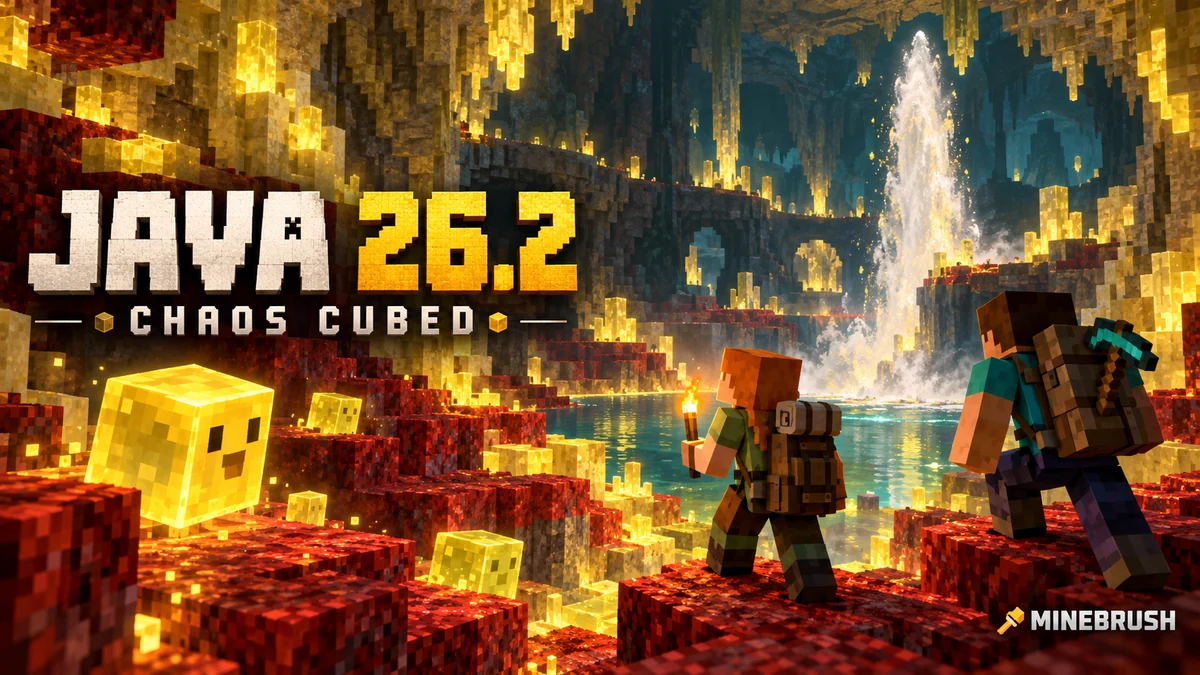
Explore sulfur caves, build cube games and set up the Java Friends List. Learn why an online friend is not a joinable world, choose privacy and graphics settings, and keep older saves safe.
- Java
- Java 26.2
- Release type
- Release
- Game released
Focus Sulfur caves, cube projects, friends and PC settings
Install Official Minecraft Launcher
Historical release · Friends List does not host an online world
Java · Release
Minecraft Java 26.2: Chaos Cubed and Friends
Explore sulfur caves, build cube games and set up the Java Friends List. Learn why an online friend is not a joinable world, choose privacy and graphics settings, and keep older saves safe.
Historical release · Friends List does not host an online world
- Minecraft version
- Java 26.2
- Game edition
- Java Edition
- Update type
- Major release
- Release channel
- Java Edition
- Official release date
- 2026-06-16
- World safety
- Back up before updating
- Player impact
- Sulfur caves, cube projects, friends and PC settings
- Related major release
- Chaos Cubed
- Platform family
- Java PC
- Last verified at
- Sep 16, 2026
- Update state
- historical
- Compatibility confidence
- Source claimed
- Card delivery statement
- Official Minecraft Launcher
- Card limitation note
- Historical release · Friends List does not host an online world
- Edition applicability
- Java
- Delivery state
- No file
- Lifecycle state
- Superseded
Player discussion 0
Questions, discoveries and help from other players.