
Java 26.2 player guide
Minecraft Java 26.2: Chaos Cubed, Friends List and Multiplayer Guide
Explore sulfur caves, build cube games and set up the Java Friends List. Learn why an online friend is not a joinable world, choose privacy and graphics settings, and keep older saves safe.
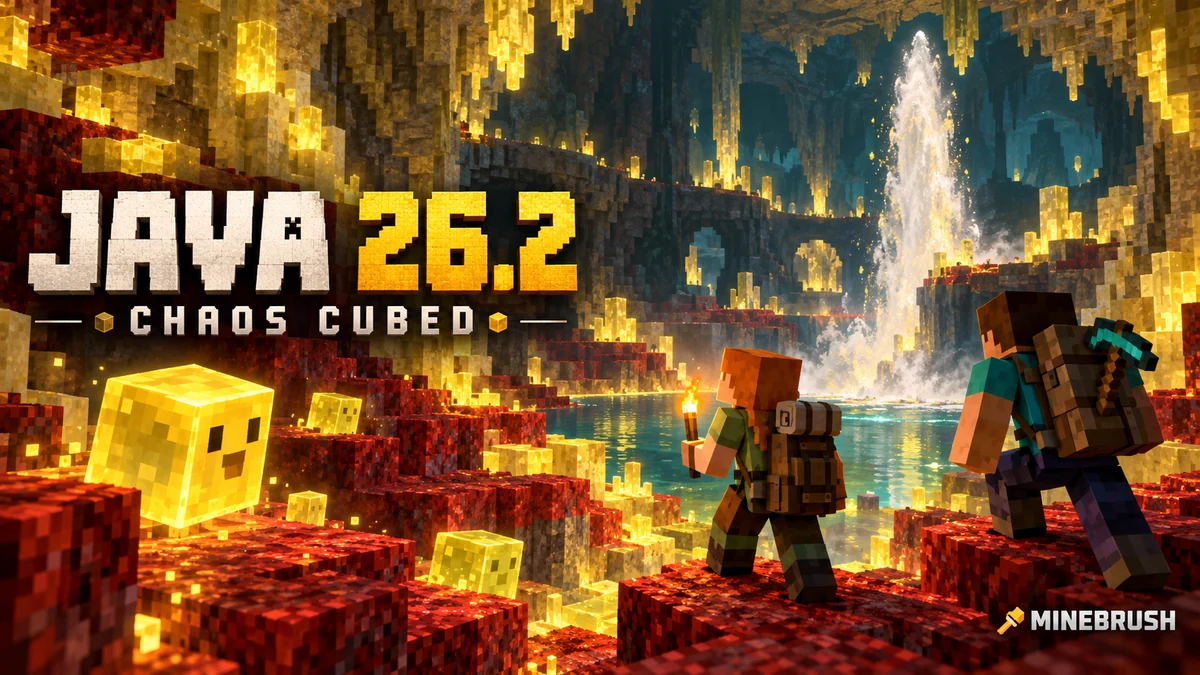
Minecraft Java 26.2 gives you new reasons to go underground and new ways to keep track of friends. Chaos Cubed adds sulfur caves, movable sulfur cubes and red-and-yellow building blocks. On PC, it also introduces a Friends List, privacy controls and an optional experimental graphics mode.
This guide covers the stable Java release of June 16, 2026, for Windows, macOS and Linux. It is a historical release: Java 26.3 / Wilderness Bound is newer. Use 26.2 when your world, server or modpack calls for it; do not select an old version just because a guide calls it an update. Bedrock's equivalent Chaos Cubed release is 26.30, with different settings.
A useful first trip into Chaos Cubed
Make your expedition about bringing something home. Carry a pickaxe, food, torches, building blocks for a return path, an empty bucket and shears. Note your home coordinates before setting off. Search unexplored terrain for sulfur springs on the surface, then look carefully for the caves beneath; digging straight down into an unfamiliar pool is a poor way to begin.
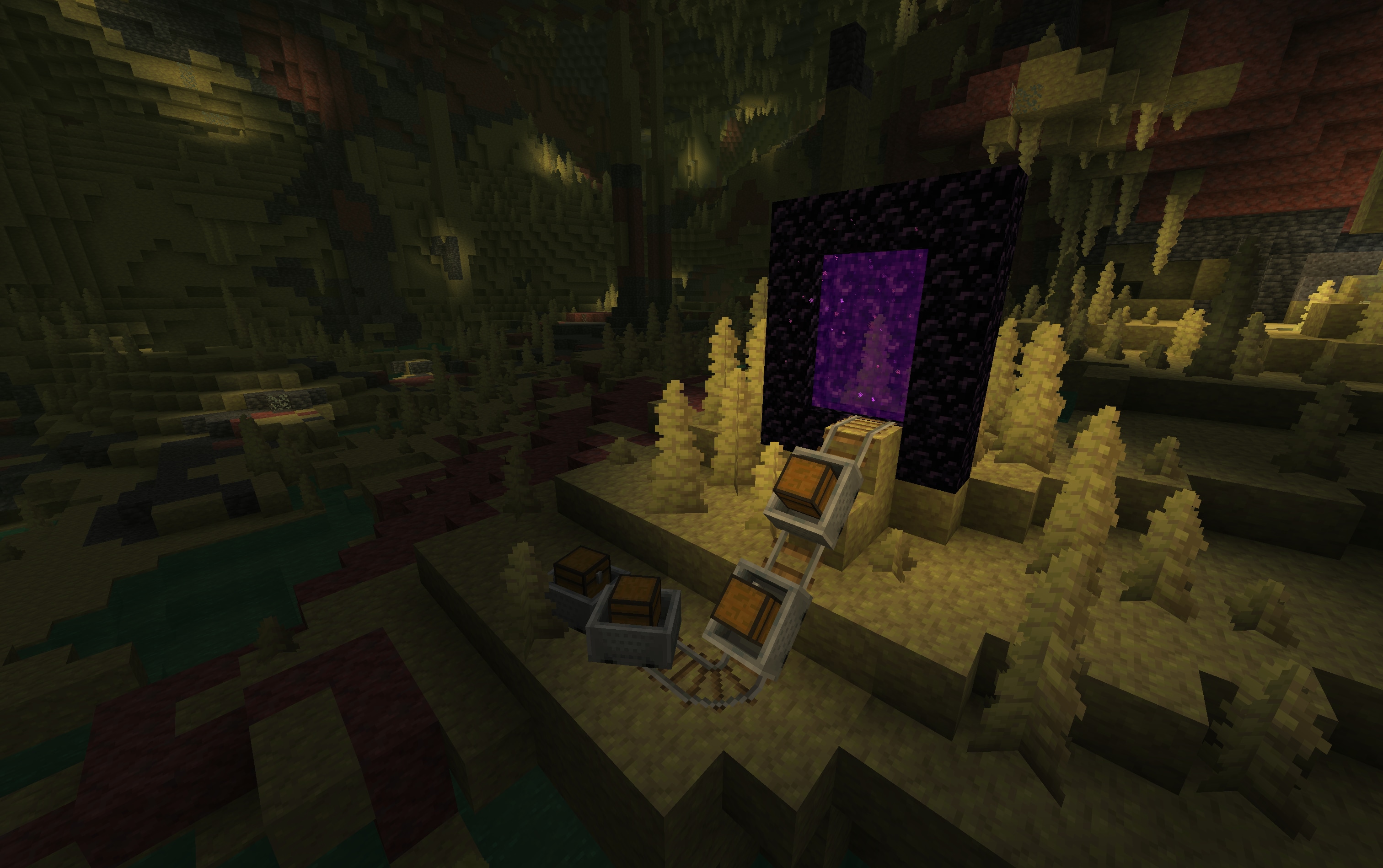
Collect sulfur and cinnabar for construction, and find a large sulfur cube if you want to experiment at home. Cave spiders also spawn in the biome, so this is not automatically a peaceful sightseeing area. Potent sulfur beneath shallow water can produce a nausea-causing cloud; avoid treating every attractive pool as a safe place to stand.
- Secure a route first. Light a landing area, mark your way out and leave valuable spare equipment at home.
- Bring building samples. Compare yellow sulfur with red cinnabar in a small wall before committing to a large palette. Both have polished and brick variants, stairs, slabs and walls.
- Transport a cube. A large cube can be collected with an empty bucket. Small ones grow when fed slime balls. Cubes cannot ride boats, so a bucket is the straightforward option for a long return trip.
- Build a contained testing area. A flat floor, perimeter wall and clear observation space make it easier to understand what each absorbed block changes.
New cave generation belongs in newly generated terrain. Updating a well-explored home area does not replace its underground rooms with sulfur caves. Recipes and the new settings are still useful in an existing world.
Three projects to try with sulfur cubes
Interact with a cube while holding a suitable block to let it absorb that block. Its behavior changes into a movable physical object: you can hit or push it. Shears remove the block and restore the creature's normal behavior. Keep them beside your test area so you can reset an experiment.
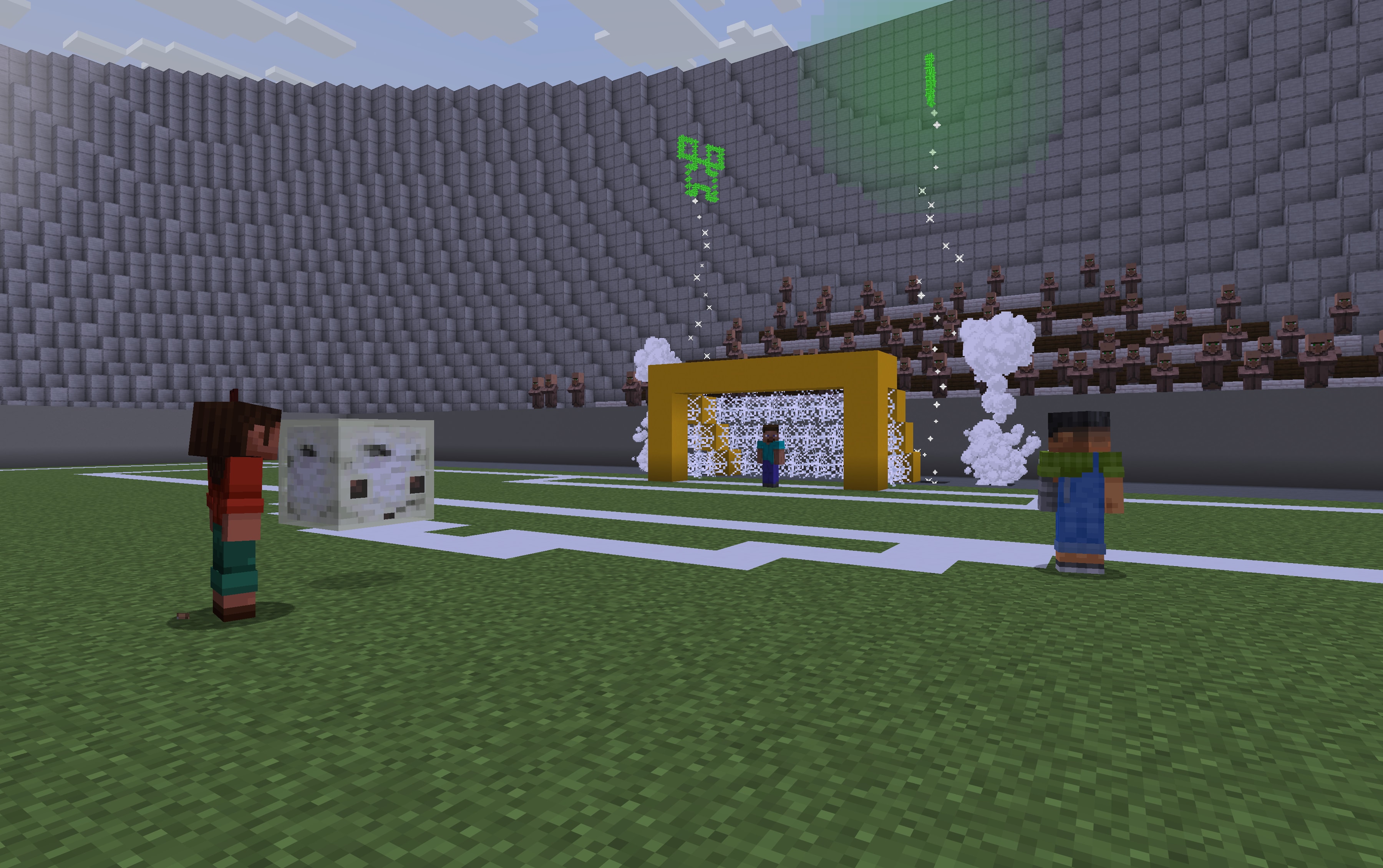
- A two-player target game: use a wooden block for a lively, bouncy ball. Mark two goals and agree on a starting line. For a calmer variation, try a stone-like block and compare the slower movement rather than changing the whole arena.
- An ice-cube obstacle course: an icy block makes the cube slide quickly without bouncing. Build a straight lane first, then add corners or stopping pockets. It teaches you more than releasing it on a wide open lake and chasing it.
- A lightweight water challenge: a wool-filled cube floats and behaves differently from the faster wooden version. Make a short pool course with safe edges, then try to move the cube to a target platform.
A dispenser can insert or swap a block, use shears to remove one, and release a bucketed cube. That makes a reset station a sensible next project once the manual version works.
Keep TNT out of your first test. An absorbed TNT block can be ignited by redstone, fire or another explosion. Once primed, you cannot rescue it with a bucket or remove it with shears. A magma-filled cube can also hurt entities on contact. Use harmless materials while learning the movement.
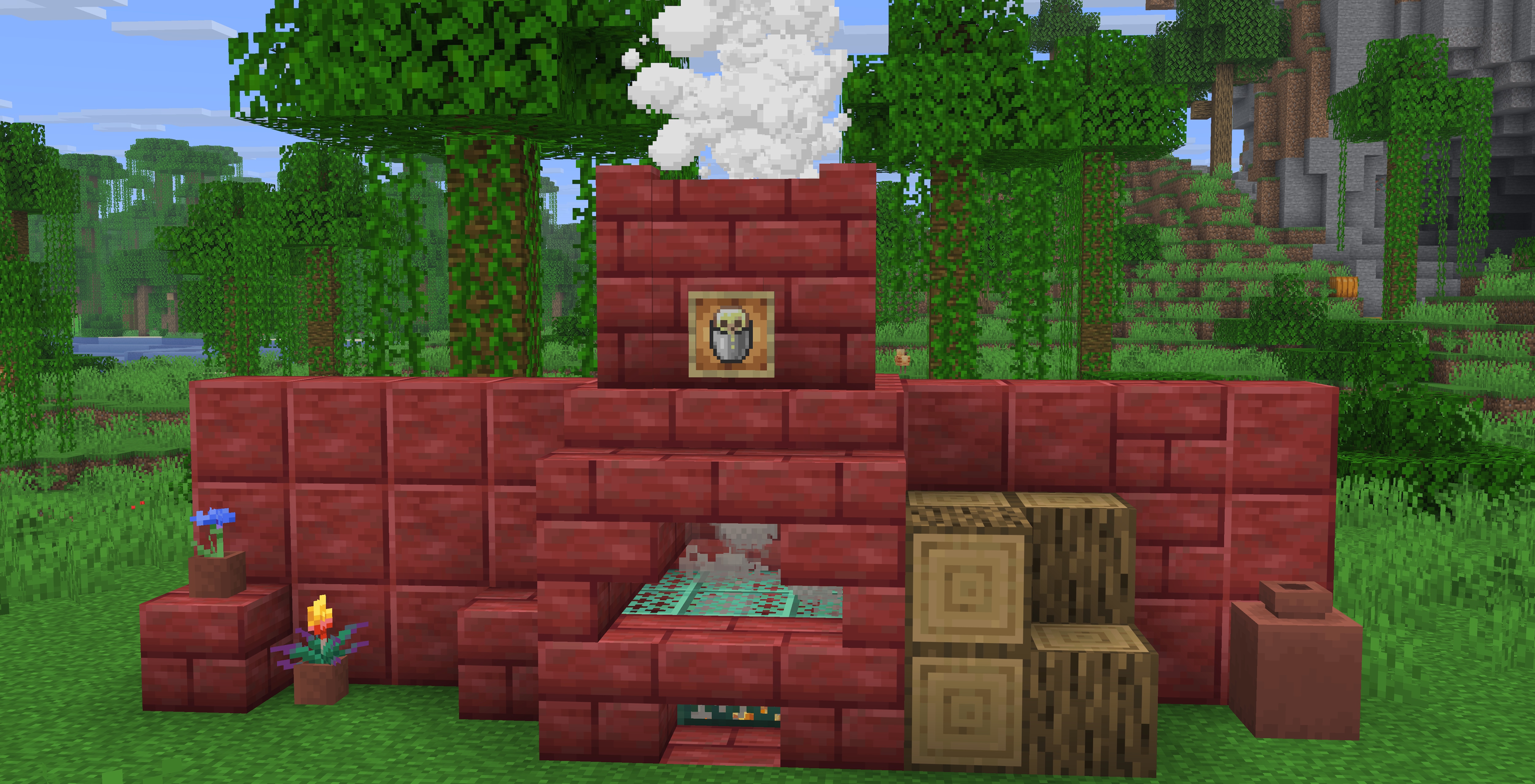
For the complete material comparison, geyser layout and sulfur-building options, continue with our Chaos Cubed guide. The rest of this page explains the Java-specific changes that are easy to misunderstand.
How to add a friend in Java 26.2
Open Friends on the title screen or pause menu. The default in-game shortcut is O; use the menu button if you have rebound that key. The first visit asks you to enable the feature.
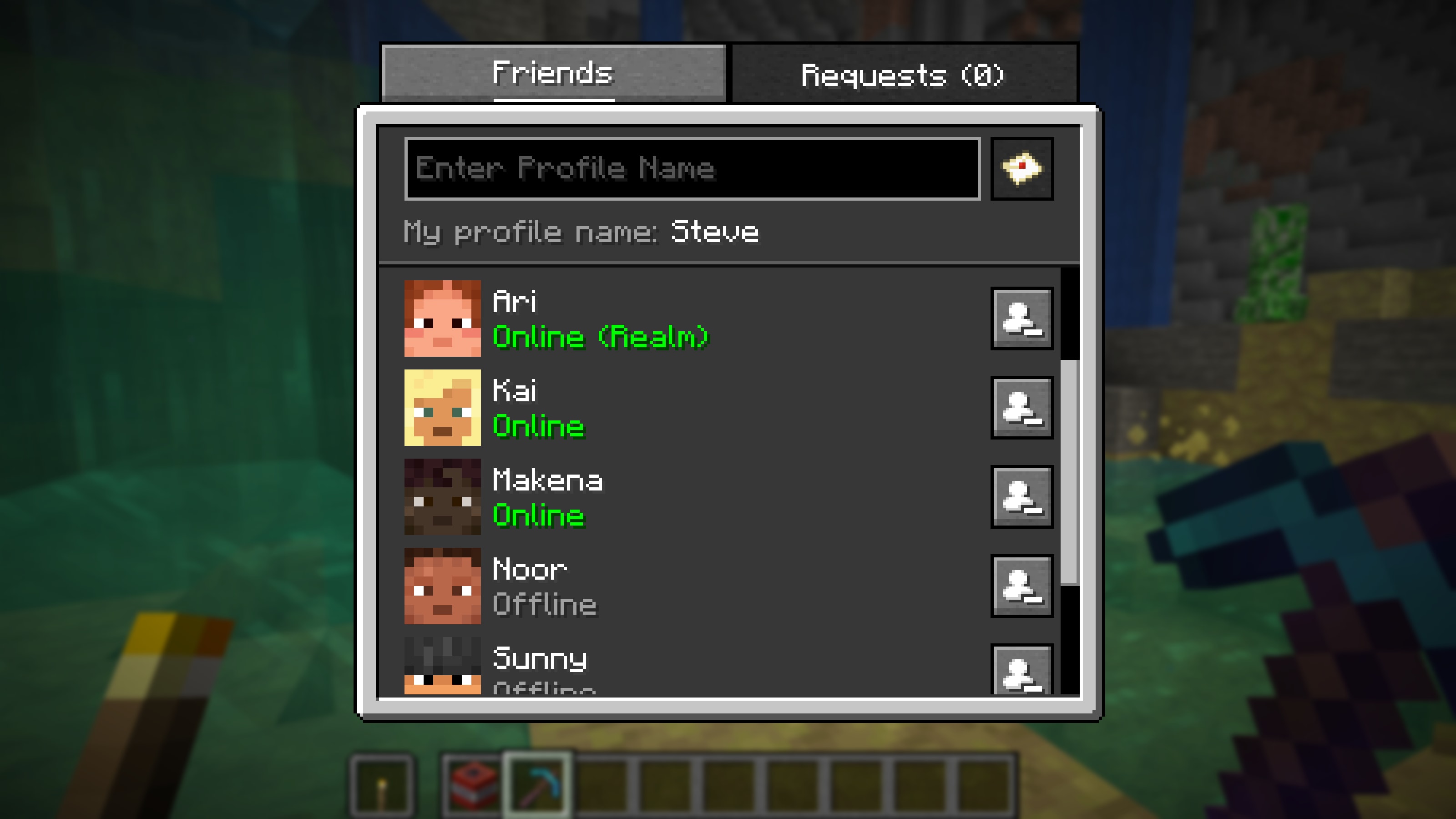
- Ask your friend for their Java Profile Name, then send a request from the Friends tab. Do not enter an email address or assume a nickname used elsewhere is the same profile.
- Your friend opens Pending and accepts the incoming request. Sending a request does not make it accepted automatically.
- Use Pending to cancel an outgoing request or decline an incoming one. Existing friends can be removed from the Friends tab.
- Once connected, check their status to decide whether now is a good time to arrange a session. It can distinguish being online from playing in a world, on LAN, in a Realm or on a server.
If the request fails: first confirm the exact Profile Name with your friend. The game distinguishes an unknown profile from service problems and too many requests. Correct the name when it is wrong; wait and retry later for a temporary service or rate-limit message. Repeatedly pressing the button is not a useful fix.
If a status looks old: the list refreshes periodically. Give it time, and remember that the other player's visibility setting can deliberately hide activity. Offline does not prove they have stopped playing, blocked you or lost their world.
Choose what friends can see
Open Options → Online Options → Friends List. These controls serve different purposes; choose them according to how you want to play.
- Friends List: enable or disable the feature itself.
- In-Game Notification: choose whether request and acceptance notifications appear while you are playing. Turn these off when recording or when pop-ups distract you; this is separate from rejecting requests.
- Allow Requests: decide whether other players can send you friend requests.
- Visibility — Full: share your activity. This is useful when regular companions want to see when you are playing.
- Visibility — Limited: share online/offline status without detailed activity. This suits someone who wants to be reachable without broadcasting what they are doing.
- Visibility — Hidden: appear offline to friends. Use it for a quiet solo session rather than removing your whole friends list.
The Xbox Settings link opens Microsoft account privacy and online-safety settings. Account restrictions and an in-game notification switch are not interchangeable. For example, the account's Friends Only chat setting restricts whose chat messages appear; a quiet chat may therefore be a permission choice rather than a broken keyboard or server.
Practical setup: for a small regular group, add the people you actually play with and choose Limited if their main question is simply whether you are online. For streaming, consider Hidden and turn off in-game notifications before starting the recording.
Why can I see my friend but not join their world?
The Friends List in stable 26.2 does not turn a single-player world into an internet-hosted game. Early Snapshot 7 coverage showed direct peer-to-peer world joining. Mojang removed that feature in 26.2 Pre-Release 1 before the final release. Instructions based on that snapshot can therefore show buttons and behavior you do not have in stable 26.2.
Choose the actual session type instead of searching for a missing invitation button:
- Same local network: the host loads the world and opens it to LAN. Other players use Java's Multiplayer screen. The host must keep that world running; a Friends entry does not replace the local connection.
- A private world across different homes: use a Java Realm or a properly hosted Java server. A Realm needs an invitation from its owner; a server needs its address and any required access permission.
- An existing modpack group: follow that server's required game, loader and modpack versions. Matching only the Friends List is not enough to make different installations compatible.
- A friend on a phone or console: check the edition first. The Java Friends List does not add native Java–Bedrock cross-play.
For a server, open Multiplayer → Add Server to save the address for later, or use Direct Connection for a one-off connection. Get the address from the host and check the version they require. If a child account cannot use multiplayer, have its family organizer review the account permissions rather than changing unrelated graphics settings.
Example: two friends see one another as online, but live in different houses. Their next step is to agree on a Java Realm or server and exchange its invitation/address. Re-sending friendship requests or opening LAN at one house will not provide the missing internet-hosted session.
Vulkan or OpenGL: which setting should I use?
In Video Settings → Graphics API, start with Default. For the 26.2 release, Mojang recommends that choice and it behaves like Prefer OpenGL. Vulkan is an experimental alternative, not a promise of higher frame rates or a switch that adds a shader pack.
If your game already runs smoothly, there is no need to change it just to access sulfur caves or the Friends List. If you want to compare:
- Note your current setting and test in a copied world or a non-critical session.
- Choose Prefer Vulkan (Experimental), then compare the same area and viewing direction with the same distance settings.
- Look for stable movement and correct rendering, not just a single high FPS number. If performance drops, visuals break or the game becomes unstable, return to Default or Prefer OpenGL.
The game can fall back to another supported graphics mode. It also has startup recovery: a crash with experimental Vulkan changes the setting back to Default; a startup crash on Default can lead to Prefer OpenGL. If you reopen the game and the selection differs, that can be recovery behavior rather than a setting you forgot to save.
Prefer OpenGL is the useful fallback to try when Vulkan startup detection itself causes trouble. Older hardware may not support the experimental option. On a modded installation, compare a clean vanilla profile before blaming a particular resource pack, and follow the rendering mod author's version requirements.
Other Java changes worth checking in your world
- Host settings and guest settings are separate: World Options exposes the host's Game Mode and Allow Commands choices outside Hardcore. Open to LAN has Settings for Other Players. When setting up a survival evening, check the guest settings instead of assuming your own building permissions apply to everyone.
- Changing the host's mode can affect the default: using F3 + F4 or a command as host changes the world's default game mode in this release. After preparing a map in Creative, check the intended default before inviting players.
- Peaceful Nether trips change: hoglins count as hostile and do not spawn on Peaceful. Do not plan a new Peaceful-world hoglin setup around the previous behavior.
- Beds bounce a little differently: beds and slime-block collision behavior changed. Recheck a movement challenge or contraption that relies on precise rebounds before running an event.
- Touchscreen Mode was removed: looking through every submenu will not restore it. Use supported mouse/keyboard controls for Java rather than following an older tutorial built around that toggle.
Install the right release and preserve your world
Use the official Minecraft Launcher. In Java Edition's Installations section, create or select an installation for release 26.2 when you specifically need it. Latest Release now points to a newer version, so check the selected number before opening an older modpack or joining a 26.2 server.
- Keep an untouched backup of the world before upgrading. For a modpack, back up its configuration and world together.
- Use a separate game directory for a historical or modded installation so its files do not mix with your current setup.
- Confirm loader, mods, resource packs and data packs support that exact environment. An older 26.1 file is not automatically compatible.
- Open a copy first and check the activities you care аbout: storage, farms, villagers, travel and multiplayer.
- Use newly generated terrain for the new biome. Keep the backup even after the first successful launch.
Do not downgrade your only save. If a world has already been opened in a newer release, return to its untouched older backup for 26.2. There is no need for a separate game archive from this article: the Launcher provides the release, and these stable features do not require enabling experiments.
Sources and image credits
MineBrush Editorial used Mojang's final Java 26.2 notes, the pre-release notice explaining removal of direct world joining, the official server-playing guide and multiplayer requirements. All four in-article images are official Mojang/Microsoft release images, with preserved originals. The cover is a MineBrush editorial illustration. Project ideas and troubleshooting order are editorial guidance, not claims of device-by-device testing.
More for your Java setup.
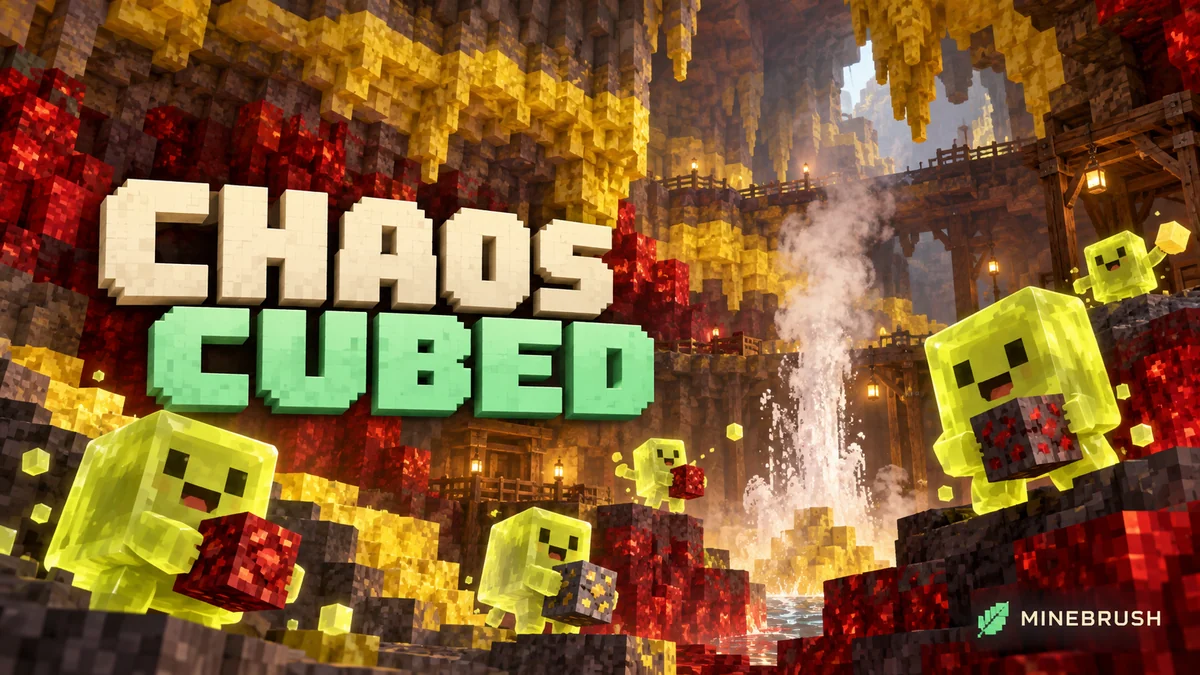
Turn sulfur cubes into bouncing balls and sliding targets, build a geyser, and explore the red-and-yellow caves of Chaos Cubed. Practical projects and Java 26.2 / Bedrock 26.30 differences.
- Game released
- Java
- 26.2 · Stable
- Bedrock
- 26.30 · Stable
Focus Sulfur cubes, new caves, geysers, cinnabar builds and minigame ideas
Topic Chaos Cubed
Install Explore the update
Java 26.2 / Bedrock 26.30
Java + Bedrock · Release
Chaos Cubed
Turn sulfur cubes into bouncing balls and sliding targets, build a geyser, and explore the red-and-yellow caves of Chaos Cubed. Practical projects and Java 26.2 / Bedrock 26.30 differences.
Java 26.2 / Bedrock 26.30
- Update type
- Major release
- Release channel
- Unknown / not stated
- Official release date
- 2026-06-16
- World safety
- Back up before updating
- Player impact
- Sulfur cubes, new caves, geysers, cinnabar builds and minigame ideas
- Related major release
- Chaos Cubed
- Platform family
- Cross-edition
- Supported devices
- Java: Windows, macOS and Linux; Bedrock: supported PC, mobile and consoles
- Install format
- Official game update
- Touch readiness
- Yes
- Resource type
- Update
- Last verified at
- Sep 16, 2026
- Update state
- historical
- Compatibility confidence
- Source claimed
- Bedrock version/build
- 26.30
- Card evidence statement
- Cubes, caves and building ideas
- Card delivery statement
- Explore the update
- Card limitation note
- Java 26.2 / Bedrock 26.30
- Edition applicability
- Java + Bedrock
- Java version/build
- 26.2
- Shared update topic
- Chaos Cubed
- Delivery state
- No file
- Lifecycle state
- Superseded
- Java update channel
- Stable
- Bedrock update channel
- Stable
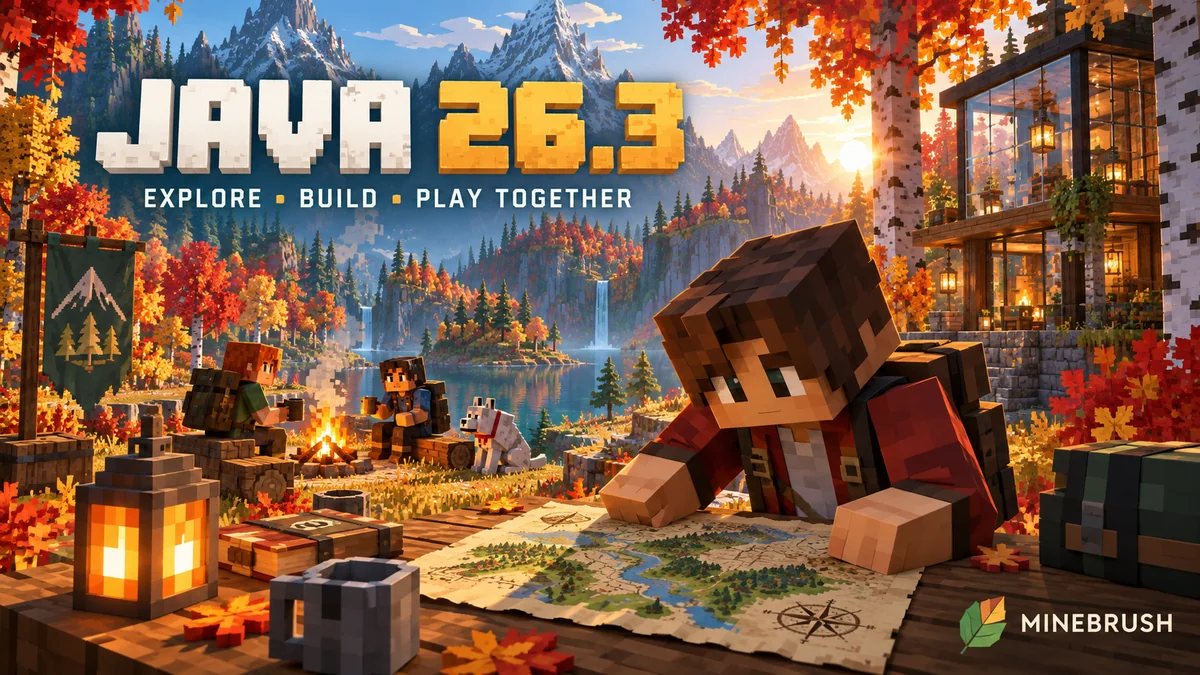
Plan a camp-map expedition, invite friends to a Realm and find the new LAN settings. Java 26.3 explained: practical first steps, transparency choices, Mac controls and safe world updates.
- Java
- 26.3
- Release type
- Release
- Game released
Focus Camp-map expeditions, Realms invitations, LAN settings and building materials
Install Install through the official Minecraft Launcher
Back up worlds; check mod and pack support before updating
Java · Release
Minecraft Java 26.3
Plan a camp-map expedition, invite friends to a Realm and find the new LAN settings. Java 26.3 explained: practical first steps, transparency choices, Mac controls and safe world updates.
Back up worlds; check mod and pack support before updating
- Minecraft version
- 26.3
- Game edition
- Java Edition
- Update type
- Major release
- Release channel
- Java Edition
- Official release date
- 2026-09-15
- World safety
- Back up before updating
- Player impact
- Camp-map expeditions, Realms invitations, LAN settings and building materials
- Related major release
- Wilderness Bound
- Platform family
- Java PC
- Last verified at
- Sep 16, 2026
- Update state
- current
- Compatibility confidence
- Source claimed
- Card delivery statement
- Install through the official Minecraft Launcher
- Card limitation note
- Back up worlds; check mod and pack support before updating
- Edition applicability
- Java
- Delivery state
- No file
- Lifecycle state
- Current
Player discussion 0
Questions, discoveries and help from other players.