
MineBrush publication
Oculus 1.8.0 for Minecraft Java 1.20.1: Shader Setup & Downloads
Load shaders in your Minecraft Java 1.20.1 modpack with Oculus 1.8.0 and Embeddium. Download both components, choose a shader, tune its look and fix common setup mistakes.
Oculus lets supported Forge-based Minecraft setups load shader packs. It is useful when you want a different lighting style in an existing modded Java world, but it is the shader loader—not the shader effect itself. You still need a compatible shader ZIP.
Choose the build and its required renderer together
| Your Minecraft setup | Oculus release | Required companion |
|---|---|---|
| Java 1.20.1, Forge or the listed NeoForge build | 1.8.0 | Embeddium 0.3.31 for 1.20.1 (included below) |
| Java 1.19.2, Forge | 1.6.9a | A matching Rubidium build; this older setup is not included in the download set below |
Do not use one dependency recipe for every Oculus version. The 1.20.1 release lists Embeddium; the 1.19.2 release lists Rubidium. An older guide telling everyone to install Rubidium can send a 1.20.1 player in the wrong direction.
These are separate builds, not an upgrade path that changes the Minecraft version of an existing modpack. Keep the game version and loader that your other mods require.
Install the loader, then select a shader
- Open the folder for the Minecraft instance you actually play. A launcher-managed modpack may have its own folder.
- Place the matching Oculus JAR and required companion JAR in that instance’s mods folder.
- Do not combine Oculus with OptiFine. The Oculus project explicitly says they are incompatible.
- Launch the matching modded profile and open the video/shader settings.
- Put the chosen shader ZIP in the instance’s shaderpacks folder, then select it in the shader menu.
Oculus is client-side. Putting its JAR on a dedicated server does not enable shaders on everyone’s computer. Each player chooses and runs their own visual setup.
Choose a look that suits your world
A shader can change how familiar places feel: use a restrained style for ordinary survival, warmer lighting for a timber village, or a deliberately retro look for an Alpha-inspired world. These are choices made by the shader pack. Oculus itself does not provide a particular sky, water style or colour palette.
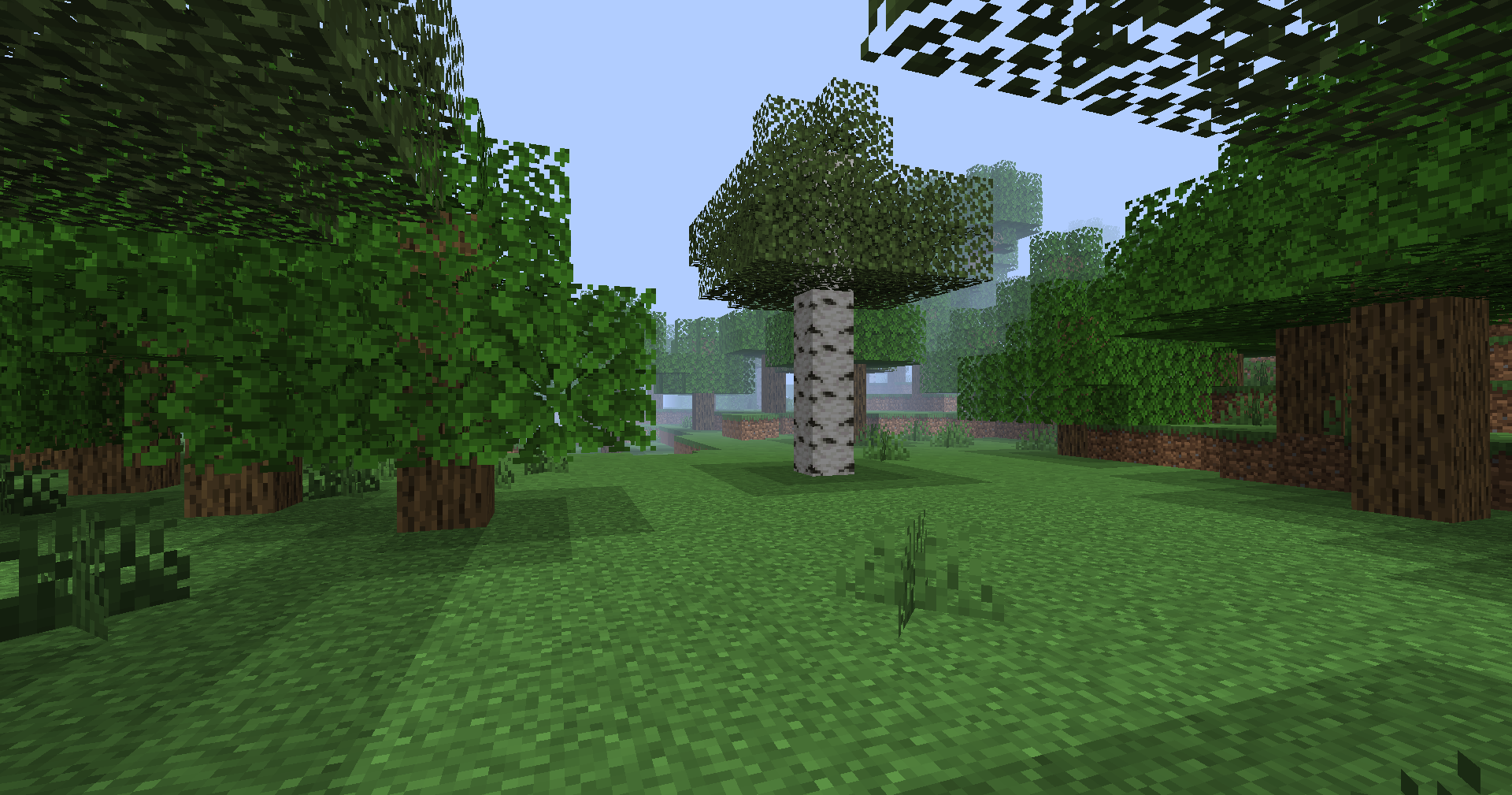
For example, ELASION is a separate shader made for Oculus that recreates Alpha-style shading and fog. Its settings include brightness, contrast and colours for fog, sky and foliage. You still install its ZIP separately; the image below shows that shader, not an effect bundled with Oculus.
What to do once the shader is active
Start with the shader’s default preset and visit the places where you normally play: your base, an interior and an outdoor area. Adjust the shader’s options for the look and responsiveness you want. Oculus supplies the loading support; available effects and individual controls depend on the shader you selected.
For a heavy modpack, check the machines, armour and blocks you regularly use before committing to a visual preset. A landscape screenshot alone will not show whether your particular modded equipment renders correctly.
Keep the view readable while you play
| Your goal | What to adjust first |
|---|---|
| Build and judge block colours | Use a neutral shader preset; reduce strong colour grading if the shader offers it. |
| Explore caves comfortably | Check the pack’s exposure or brightness controls in an actual interior. Daylight alone is a poor guide. |
| Keep combat responsive | Try a lower shader preset before reducing every game setting. Disable motion blur if it makes movement harder to follow. |
| Take a scenic screenshot | Try a higher preset for the shot, then restore your normal preset before a long session. |
Only change controls your chosen pack actually provides. There is no universal “best Oculus setting”: a light retro shader and a heavy reflective shader can have very different costs.
Find the right problem before changing more mods
| Symptom | First check |
|---|---|
| Minecraft will not start | Match the Oculus file, game version, loader and required renderer. Remove duplicate old Oculus files and check for OptiFine. |
| No shader menu appears | Confirm that you launched the intended modded instance and installed Oculus there. |
| The shader does not appear in the list | Check that its ZIP is in shaderpacks, not mods or resourcepacks. |
| A problem appears only with one shader | Disable that shader and compare. Keep its name and version when reporting the issue. |
| A modded object renders incorrectly | Record the affected mod, Oculus version and shader; report Oculus-specific issues to the Oculus tracker. |
What changes in Oculus 1.8.0?
The 1.20.1 release fixes compatibility with Distant Horizons 2.2 and newer and corrects the rendering of Mekanism’s MekaSuit. That is useful context if you use those projects; it is not a promise that every shader or every later version of those mods has been tested together.
For other Minecraft versions, choose their own supported loader and file. The listed Oculus builds do not establish support for Minecraft 26.x.
Download the Java 1.20.1 setup
Install both JARs below in the same 1.20.1 instance. The loader and renderer are separate components. Keep your shader ZIP in shaderpacks; choose it separately from the Java shader library.
For more renderer settings, see our Embeddium guide. Do not put the 1.20.1 files into a 1.19.2 modpack.
The ELASION illustration comes from its creator’s project page, under CC BY-SA 4.0. The display copy was resized and converted to WebP; click it for the original.
More for your Java setup.
Find the Bedrock update that matters to your world or device. Explore stable releases, practical game-drop guides, platform-specific fixes and a separate Beta/Preview archive.
- Coverage
- 2023–2026
- Edition
- Bedrock Edition
- Versions
- Bedrock 1.20.30–26.51
Bedrock · Update history
Bedrock Update History
Find the Bedrock update that matters to your world or device. Explore stable releases, practical game-drop guides, platform-specific fixes and a separate Beta/Preview archive.
Back up before updating
- Minecraft version
- Bedrock 1.20.30–26.51
- Game edition
- Bedrock Edition
- Update type
- Unknown / not stated
- Release channel
- Bedrock Edition
- World safety
- Back up before updating
- Player impact
- Find a useful release, platform fix or practical game-drop guide
- Platform family
- Bedrock & Mobile
- Supported devices
- Windows, consoles and mobile; patch availability varies
- Touch readiness
- Yes
- Last verified at
- Sep 17, 2026
- Update state
- current
- Compatibility confidence
- Source claimed
- Card delivery statement
- Player guides and official release notes
- Edition applicability
- Bedrock
- Bedrock enrollment route
- Preview app
- Delivery state
- No file
- Lifecycle state
- Current
- History coverage
- 2023–2026
Find what changed in Minecraft Java from 2023 to 2026, choose your next survival project and follow practical update guides. Stable releases and test builds are clearly separated.
- Coverage
- 2023–2026
- Edition
- Java Edition
- Versions
- Java 1.20.2–26.3
Java · Update history
Java Update History
Find what changed in Minecraft Java from 2023 to 2026, choose your next survival project and follow practical update guides. Stable releases and test builds are clearly separated.
Back up before updating
- Minecraft version
- Java 1.20.2–26.3
- Game edition
- Java Edition
- Update type
- Unknown / not stated
- Release channel
- Java Edition
- World safety
- Back up before updating
- Player impact
- Find a feature, choose a project and check the right release
- Platform family
- Java PC
- Last verified at
- Sep 17, 2026
- Update state
- current
- Compatibility confidence
- Source claimed
- Card delivery statement
- Player guides and official release notes
- Edition applicability
- Java
- Delivery state
- No file
- Lifecycle state
- Current
- History coverage
- 2023–2026
Find trial chambers, beat the breeze, match keys to vaults and prepare for ominous trials. Learn mace and wind-charge tricks, build your first crafter and put copper, tuff and dungeon rewards to use.
- Game released
- Java
- 1.21 · Stable
- Bedrock
- 1.21 · Stable
Focus Trial chambers, vault rewards, mace combat, wind charges and automatic crafting
Topic Tricky Trials
Install Included in the official game update
Back up before updating
Java + Bedrock · Release
Tricky Trials
Find trial chambers, beat the breeze, match keys to vaults and prepare for ominous trials. Learn mace and wind-charge tricks, build your first crafter and put copper, tuff and dungeon rewards to use.
Back up before updating
- Update type
- Major release
- Release channel
- Unknown / not stated
- Official release date
- 2024-06-13
- World safety
- Back up before updating
- Player impact
- Trial chambers, vault rewards, mace combat, wind charges and automatic crafting
- Platform family
- Cross-edition
- Supported devices
- Java: Windows, macOS, Linux. Bedrock: supported Windows, mobile and console devices.
- Install format
- Included in the official game update
- Touch readiness
- Not required
- Resource type
- Update
- Last verified at
- Sep 18, 2026
- Update state
- historical
- Compatibility confidence
- Source claimed
- Bedrock version/build
- 1.21
- Card delivery statement
- Included in the official game update
- Edition applicability
- Java + Bedrock
- Java version/build
- 1.21
- Shared update topic
- Tricky Trials
- Delivery state
- No file
- Lifecycle state
- Superseded
- Java update channel
- Stable
- Bedrock update channel
- Stable
Keep your builds, inventory and modpack progress before an update. Find the right profile, back up the complete world and setup, restore a separate copy and know how to roll back if something breaks.
- Edition
- Java Edition
- Difficulty
- Intermediate
- Time
- Copy time depends on world size
Do not test an update on the only good copy
MineBrush · Guide
Back Up a Modded World
Keep your builds, inventory and modpack progress before an update. Find the right profile, back up the complete world and setup, restore a separate copy and know how to roll back if something breaks.
Do not test an update on the only good copy
- Game edition
- Java Edition
- Platform family
- Java & PC
- Supported devices
- Windows · macOS · Linux
- Install format
- Manual backup and restore; no extra mod needed
- Touch readiness
- Not required
- Resource type
- Guide
- Compatibility confidence
- Source claimed
- Card evidence statement
- Official storage and launcher docs reviewed · restore not run
- Card delivery statement
- Step-by-step backup and restore guide
- Card limitation note
- Do not test an update on the only good copy
- Edition applicability
- Java
- Estimated time
- Copy time depends on world size
- Guide difficulty
- Intermediate
- Delivery state
- No file
- Lifecycle state
- Current
Player discussion 0
Questions, discoveries and help from other players.