
MineBrush publication
Why Your Minecraft Seed Looks Different: Versions, Editions and Old Worlds
Missing the village or landscape from a seed post? Match editions, versions and world settings, compare real map examples and understand what changes in an older save.
Copied a Minecraft seed, but the island, village or mountain is missing? The number is only part of the recipe. The game edition, generation version and world settings also matter. An old save can contain land generated by several different updates, so it may not match a brand-new world made from the same seed today.
This guide helps you reproduce a seed from a video, check whether a favourite building spot still exists, compare Java and Bedrock expectations, or keep exploring a long-running survival world after an update. Start with the case that matches what you are trying to do.
Choose the right kind of comparison
- “I want the world from this seed post.” Create a fresh world with the author’s edition, version and generation settings, then visit the stated coordinates.
- “Will my base survive an update?” Work on a backup copy of your existing save. Recreating its seed does not recreate your base, inventory or explored history.
- “Where will the update’s new places appear?” Look at the update’s generation rules and regions that have not already been generated, rather than assuming the landscape around your home will be replaced.
- “Can my Bedrock friend use my Java seed?” Share the number, but check important structures and routes separately for their edition.
Check these details before travelling again
- The complete seed. Copy every digit and a leading minus sign if present. Avoid extra spaces or accidentally copying the publication’s ID instead of its seed.
- Java or Bedrock. A phone, console and PC label alone can be misleading: PC players can use different editions.
- The version used to generate that location. A screenshot from an older update may describe a different landscape from a new world created now.
- World settings. Match the normal world type or any special generator, Large Biomes setting, experiments, world-generation mods, add-ons or data packs.
- Coordinates and dimension. Compare the same X and Z in the Overworld, Nether or End. Y matters for underground entrances and structures. Spawn is not a substitute for the author’s actual destination.
Our seed-sharing guide shows where to find the number and how to write clear coordinates. If a video omits the edition or version, look in its description, pinned comment or creator’s follow-up before spending a long survival journey on a guess.
See how much changing the version can matter
These two real Chunkbase Seed Map captures use seed 12345, the Overworld and a marker at X=0, Z=0. Only the selected Java generation version changes. The older view labels the marker Taiga Mountains; the newer view labels it Ocean.
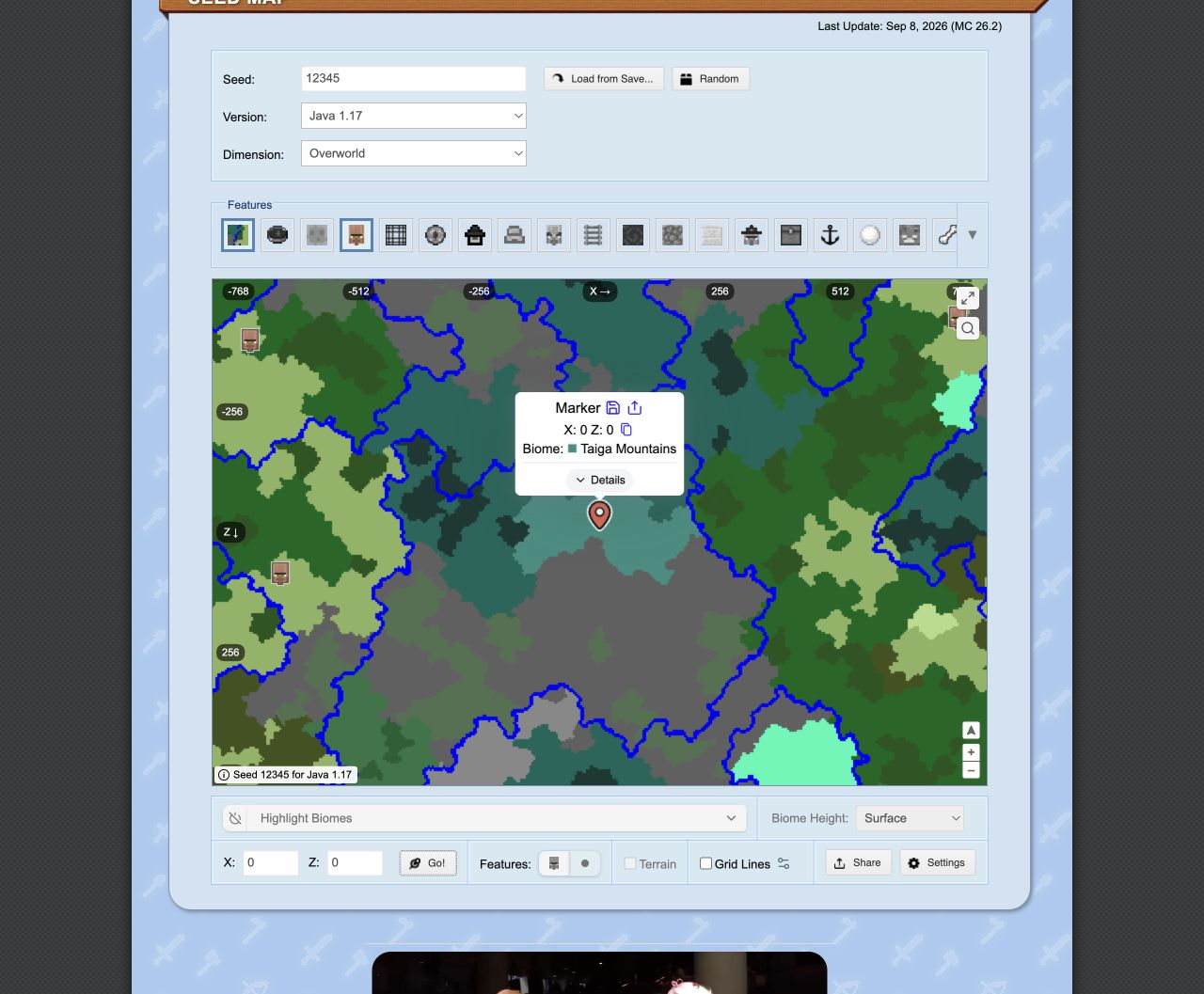
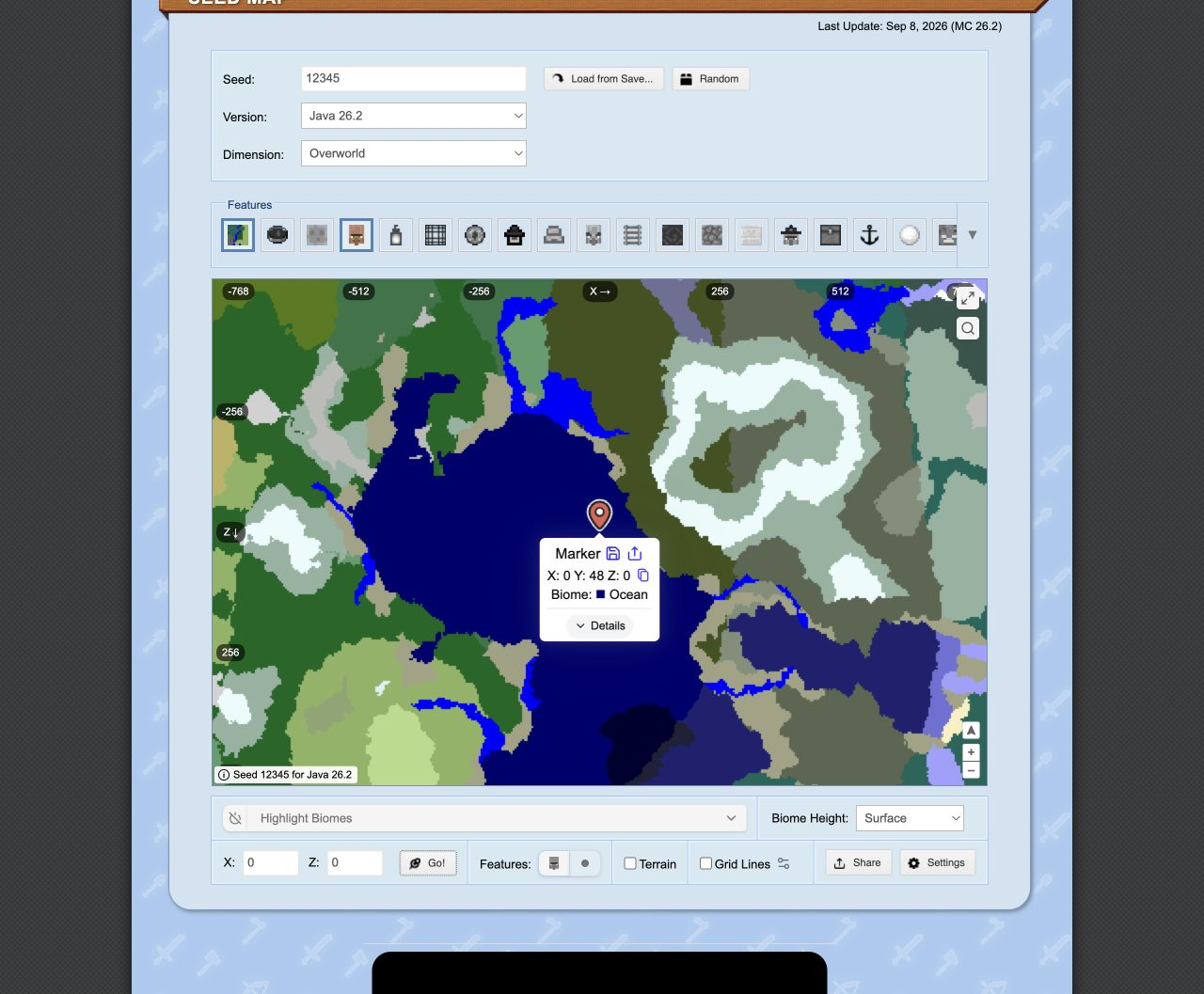
The practical lesson is to match the generation version before deciding the seed is wrong. This example compares widely separated versions; it does not mean every small patch moves every biome. If you only need a scenic building area, compare the landscape you care about. If the whole reason for choosing the seed is a village beside spawn, check that village too.
Java and Bedrock: similar land does not settle every question
Mojang improved cross-edition seed support in the Caves & Cliffs era, including Bedrock’s expanded seed support in 1.18.30. That makes sharing a landscape between editions much more useful than it was in older versions. It still pays to check edition-specific details rather than carrying every coordinate across unchanged.
For a build site, look at the coastline, valley, biome and usable space. For a survival start, check the route from your actual spawn and the nearby resources. For a structure hunt, use the correct edition in any locator and confirm the destination in that game. A matching hill does not tell you whether a particular village entrance, chest or cave access is the same.
A fresh world and an updated save answer different questions
Imagine you explored around a village several updates ago and later upgraded the same survival world. That explored region was already saved. Creating a new world from its seed in the current version asks Minecraft to generate the area again using the current setup. Those are different starting points.
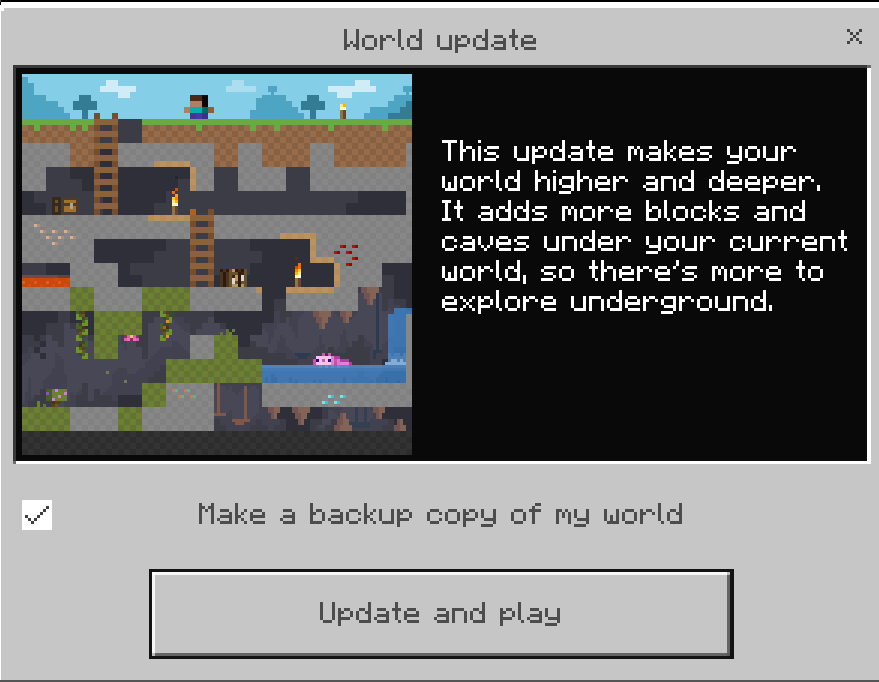
Worlds are saved in regions of terrain called chunks. An area may have been generated while you travelled nearby, even if you never stood on every block. After an update, newly generated territory can use newer rules while existing areas retain their history. Special update conversions can also change parts of saved terrain: the 1.18 transition, for example, added new generation below eligible old chunks and blended old and new terrain.
For a long-running world, write down roughly when you first explored each important area. A simple note such as “home valley explored before Caves & Cliffs; northern expedition started after the update” is more useful than guessing from the version currently displayed on the title screen.
Check an update without risking your only save
- Make a separate backup before opening the world in the new version. Use the game’s backup/copy or export feature where available. If copying a world folder manually, close the game first and copy the whole world.
- Give the test copy a recognisable name. Keep the untouched backup separate from the copy you are about to open.
- Visit what matters to you. Check your home, nearby routes and any important farms or builds. A seed comparison does not test whether a farm’s mechanics changed.
- Explore outward on the test copy. Compare familiar land with the transition into newer territory, including paths, water and cave access.
- If you want to go back, restore the pre-update backup. Reopening a newly saved world in an older version is not the same as restoring it.
For a fresh-world comparison in Java, use a separate installation/game directory for an older version so you do not accidentally open your usual saves there. For Bedrock, do not assume an old version is available through the normal launcher: if you cannot reproduce the author’s version, treat its scenery as an older example and look for a seed checked on your current version.
Use a seed map as a planning tool
In Chunkbase, enter the seed and select the matching Version and Dimension. For an old save, choose the version that generated the region you are examining. If different expeditions generated different regions, switch the selection as you inspect them.
Some version choices cover a range, such as a group of patches; select the range containing the relevant version. Large Biomes choices are marked LB. Do not choose an experimental option simply because it is near the top of the list.
A seed map is still a prediction. Chunkbase documents missing or misplaced features and distinguishes biome colouring from exact coastlines; its Terrain option can help with the latter. Use it to choose a direction, then verify the place before promising it to friends. For a modded world, check whether your generator is supported at all.
What the mismatch usually tells you
- The entire landscape is different: recheck seed, edition, generation version and world type first. Also check whether the source uses a custom generator.
- The land looks familiar but a village is absent: check the edition and structure settings. A map icon can also be an inaccurate prediction; do not assume the world is broken.
- The spot is underground or apparently empty: check Y, the destination’s entrance and whether the coordinates identify a centre rather than a visible doorway.
- The map matches near home but not farther away: the world may contain regions generated in different versions. Match each area to its exploration history.
- The new biome or structure is not beside your base: check the update’s rules and seek genuinely new territory. Do not delete familiar chunks merely to force a feature to appear.
- You spawn away from the screenshot: use the supplied coordinates and compare the actual destination. A scenic screenshot may never have been taken at spawn.
- The creator’s castle is missing: a seed recreates generation, not a player’s construction. You need the creator’s world download if that is what you want to explore.
Decide whether the seed still fits your plan
You do not need every tree to be identical to enjoy a seed. Decide what you wanted from it: space for a harbour, a mountain backdrop, a village start or a particular challenge. If the key feature survives in your version, the world may still be an excellent choice. If it does not, either use a suitable older setup for a fresh world or find an alternative checked for your version.
For a quick comparison, keep three lines in your notes: setup (edition, version, seed and special settings), destination (dimension and coordinates), and what you found (the feature that matters). Add a screenshot of that spot. Share the result plainly: “The valley is still here, but I found a different village location,” rather than a blanket “works everywhere”.
Ready to choose a world? Our seed scouting guide helps compare survival starts, building space and exploration routes.
Sources
More from MineBrush.
Share a Minecraft Seed — Help friends find the same place: copy the seed, match Java or Bedrock and the version, read XYZ coordinates and describe a useful route with screenshots.
- Edition
- Cross-edition
- Difficulty
- Beginner
- Time
- A short check
A seed recreates terrain, not your builds
MineBrush · Guide
Share a Minecraft Seed
Share a Minecraft Seed — Help friends find the same place: copy the seed, match Java or Bedrock and the version, read XYZ coordinates and describe a useful route with screenshots.
A seed recreates terrain, not your builds
- Minecraft version
- Java and Bedrock; match your world version
- Game edition
- Cross-edition
- Platform family
- Cross-edition
- Supported devices
- PC, console and mobile
- Install format
- No installation needed
- Touch readiness
- Not required
- Resource type
- Guide
- Compatibility confidence
- Not applicable
- Card evidence statement
- Find the seed and read coordinates
- Card delivery statement
- Versions, directions and screenshots
- Card limitation note
- A seed recreates terrain, not your builds
- Edition applicability
- Java + Bedrock
- Estimated time
- A short check
- Guide difficulty
- Beginner
- Delivery state
- No file
- Lifecycle state
- Current
Find Your Next Minecraft World — Choose a seed that suits your plans: check the survival start, usable building space and travel routes, with optional seed-map help and real examples.
- Edition
- Cross-edition
- Difficulty
- Beginner
- Time
- About 20 minutes
Choose a world that suits your plans
MineBrush · Guide
Find Your Next Minecraft World
Find Your Next Minecraft World — Choose a seed that suits your plans: check the survival start, usable building space and travel routes, with optional seed-map help and real examples.
Choose a world that suits your plans
- Minecraft version
- Java and Bedrock; match your world version
- Game edition
- Cross-edition
- Platform family
- Cross-edition
- Supported devices
- PC, console and mobile
- Install format
- No installation needed
- Touch readiness
- Check guide
- Resource type
- Guide
- Compatibility confidence
- Source claimed
- Card evidence statement
- Check the start, base site and journey
- Card delivery statement
- Practical scouting with real examples
- Card limitation note
- Choose a world that suits your plans
- Edition applicability
- Java + Bedrock
- Estimated time
- About 20 minutes
- Guide difficulty
- Beginner
- Delivery state
- No file
- Lifecycle state
- Current
Xaero’s World Map
1.46.0Keep a map of the places you explore and find your way back to bases, villages and portals. Download Xaero’s World Map 1.46.0 for Java 26.2, choose Fabric, Forge or NeoForge, and learn how to install it and preserve explored terrain.
- Minecraft
- Java 26.2
- Loader
- Fabric
- Runtime
- Client
Optional Xaero’s Minimap integration; server rules apply.
Java · Mod
Xaero’s World Map
Keep a map of the places you explore and find your way back to bases, villages and portals. Download Xaero’s World Map 1.46.0 for Java 26.2, choose Fabric, Forge or NeoForge, and learn how to install it and preserve explored terrain.
Optional Xaero’s Minimap integration; server rules apply.
- Minecraft version
- Java 26.2
- Game edition
- Java Edition
- Loader / platform
- Fabric
- License
- All Rights Reserved
- Platform family
- Java & PC
- Supported devices
- Windows · macOS · Linux
- Install format
- Place the matching JAR in the game instance’s mods folder
- Touch readiness
- Not required
- Resource type
- Mod
- Project version
- 1.46.0
- Last verified at
- Sep 5, 2026
- Secondary guide action
- Setup & fixes
- Compatibility confidence
- Source claimed
- Java mod loader
- Fabric
- Java runtime side
- Client
- Card evidence statement
- Explore, revisit locations and preserve your recorded terrain.
- Required dependency
- Fabric API for Fabric; XaeroLib included
- Card delivery statement
- Fabric, Forge and NeoForge downloads on MineBrush
- Card limitation note
- Optional Xaero’s Minimap integration; server rules apply.
- Edition applicability
- Java
- Delivery state
- Direct download
- Lifecycle state
- Current
Player discussion 0
Questions, discoveries and help from other players.