
MineBrush publication
How to Choose a Minecraft Seed for Survival, Building and Exploration
Find Your Next Minecraft World — Choose a seed that suits your plans: check the survival start, usable building space and travel routes, with optional seed-map help and real examples.
A good Minecraft seed is a world you want to keep playing. A dramatic mountain can be perfect for a castle and awkward for a first survival base. A simple riverside plain can be much more useful when you want farms, roads and room for friends. This guide helps you decide before you spend hours gathering materials or moving your first chests.
Use the roughly twenty-minute scout below as a starting plan, then spend longer on anything that matters to you. You do not need to explore the whole world, find every structure or complete a spreadsheet. The aim is to answer three questions: Can I get started here, can I do what I came for, and do I like the journey between the two?
Choose the kind of world you want
- A comfortable survival start: prioritise reachable wood, a food plan, basic stone and somewhere to shelter. A village is a bonus, not a requirement.
- A long-term building world: look for usable space, surroundings that suit your style, and room to expand beyond the first house.
- Exploration: choose interesting terrain and a reason to travel, such as a coast, connected valleys or a biome you want to visit. Decide how much you want to discover naturally.
- A world with friends: look for a shared meeting point, several potential building areas and travel routes that do not force everyone through one difficult passage.
Pick two essentials and one nice extra. For example, a harbour builder might need an accessible shore and room for warehouses, while treating nearby mountains as a bonus. This keeps you from rejecting a promising world because it lacks every feature on someone else’s “best seed” list.
Set up the right world before judging it
Use the seed’s stated Java or Bedrock edition and full game version. Copy the complete seed, including its minus sign. Match generation settings such as world type and any world-generation mods, data packs or add-ons. If a recommendation only says “latest”, check which release the creator actually used.
For a new playthrough, create a new world with those settings. An old save upgraded through several versions can contain terrain generated under different rules. If you want to fly around before committing to survival, make a separate Creative scouting world with the same seed and generation settings; keep your main playthrough separate.
Java players can obtain their world seed with /seed where permitted. Bedrock players can find World seed in the world’s edit settings. Our seed-sharing guide shows both interfaces and explains version matching in more detail.
Pick how much you want to know in advance
- Keep discoveries a surprise: walk around the starting area in Survival and avoid external maps. Judge whether the beginning feels enjoyable.
- Preview the landscape: use your separate Creative world to fly over nearby terrain, then land and inspect the places that interest you.
- Look for a particular feature: use a seed map to choose a direction, then visit the location in the matching game world before planning around it.
In Creative, double-press your Jump control to start flying. On a standard keyboard, Space rises and Shift descends; controller and touch layouts use their corresponding jump and descend controls. If you changed your bindings, check Settings → Controls.
Spectator mode can help inspect underground shapes in a separate scouting world: with commands permitted, /gamemode spectator lets you move through blocks. It does not show whether a cave is easy to enter on foot, and you cannot interact with blocks there. Use /gamemode creative to return to Creative. Neither mode replaces a walk along the route you expect to use in Survival.
First few minutes: can you get established?
Before wandering away, note your starting coordinates. Java uses F3; newer versions provide configurable information through F3 + F6. Bedrock has Show coordinates in the world settings. Keep X, Y and Z in that order, with negative signs. Your initial position is a better reference than assuming spawn is exactly X=0, Z=0.
Look around for a practical first-day plan. Can you reach trees without a difficult climb or swim? Is there a realistic source of food? Where could you collect stone, and where would you shelter if night arrived before your house was ready? You are choosing a manageable beginning, not proving that every resource is beside spawn.
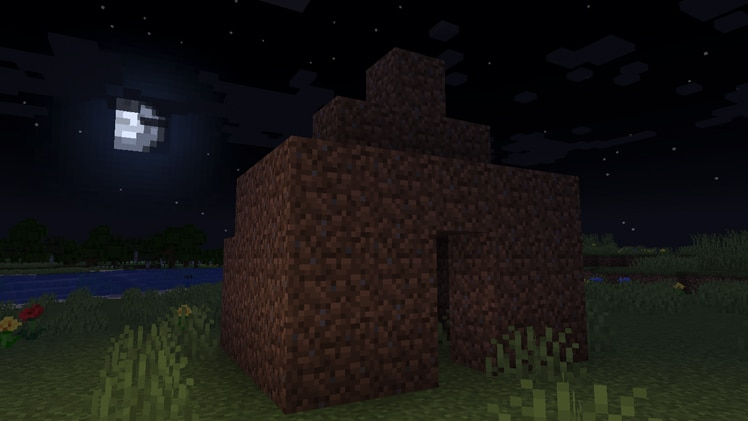
A tiny enclosed shelter is enough for the first night. The important part is whether you can finish it with the materials and time available. A scenic cave mouth is less convenient if it opens into darkness or a deep drop; inspect it before treating it as your home.
Next: inspect the place you actually want to use
Choose one destination: a starter base site, a harbour, a village approach or an interesting cave entrance. Travel there and stop to examine it. A short, focused visit tells you more than flying in random directions until the scenery looks impressive.
For a house, town or larger build
Walk around the intended footprint. Imagine the front entrance, storage, paths, farms and the next building. Is the ground usable, or would the first several sessions go into clearing trees, filling water and levelling hills? Those jobs can be enjoyable, but choose them deliberately.
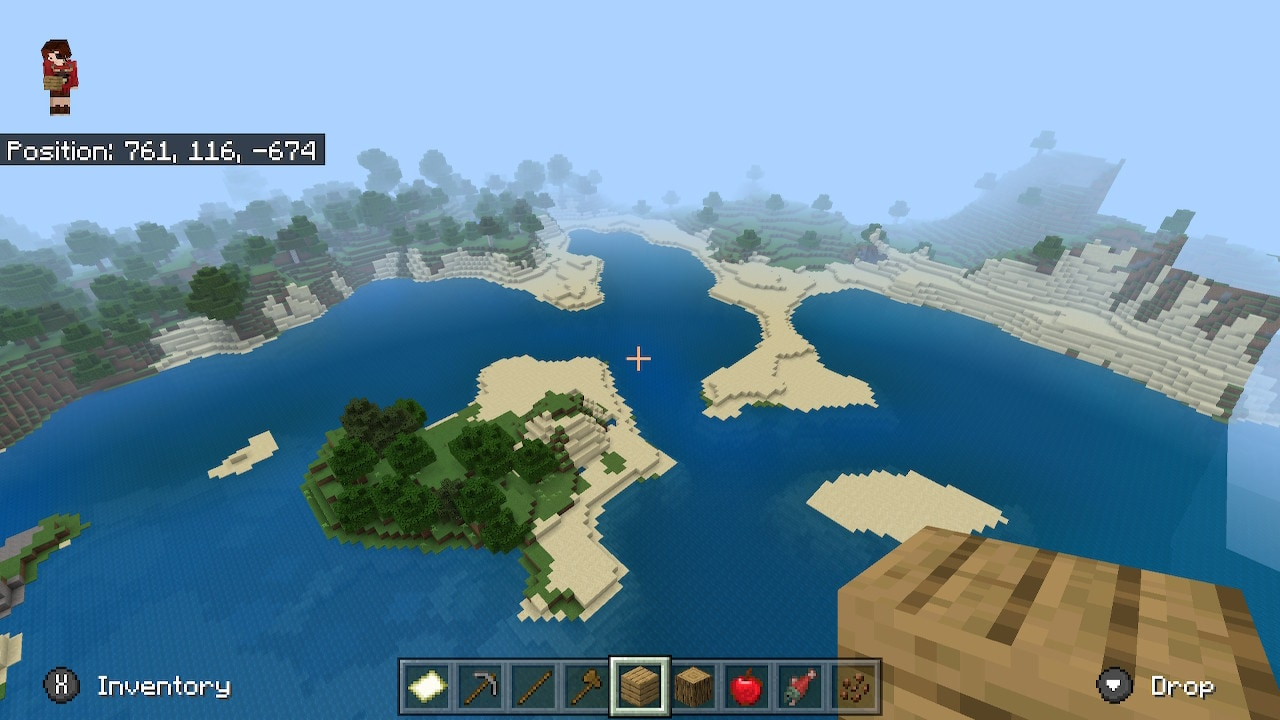
Check the site from normal eye level as well as above. A narrow ridge can look spacious from the air. A bay may offer a beautiful harbour but leave little land behind the beach. A mountain home needs a route for bringing materials up and getting back down.
For villages, caves and exploration
Check the approach, not only the destination. Can you reach the village without repeatedly crossing a ravine? Is the cave entrance near your planned base, and can you return to the surface easily? A structure can be interesting without being convenient for a brand-new character.
For an underground destination, note the entrance and its height as well as the place below. Looking straight down from the surface does not reveal a comfortable route. Do not turn a quick scout into a deep expedition unless that is the experience you want.
Using Chunkbase without getting lost in markers
Chunkbase Seed Map is optional. Enter the seed, select the matching edition/version and dimension, then keep only the features you need. Drag to move, scroll or pinch to zoom, and click or tap a marker for details. Enter X and Z and use Go! to examine a known location.
Match the version that generated the area, especially in an upgraded world. Some markers are approximate or can be missing in-game, and not every feature includes Y. If the map disagrees with your world, recheck the seed, version and generation additions. Visit the location before committing a base or a long journey to it.
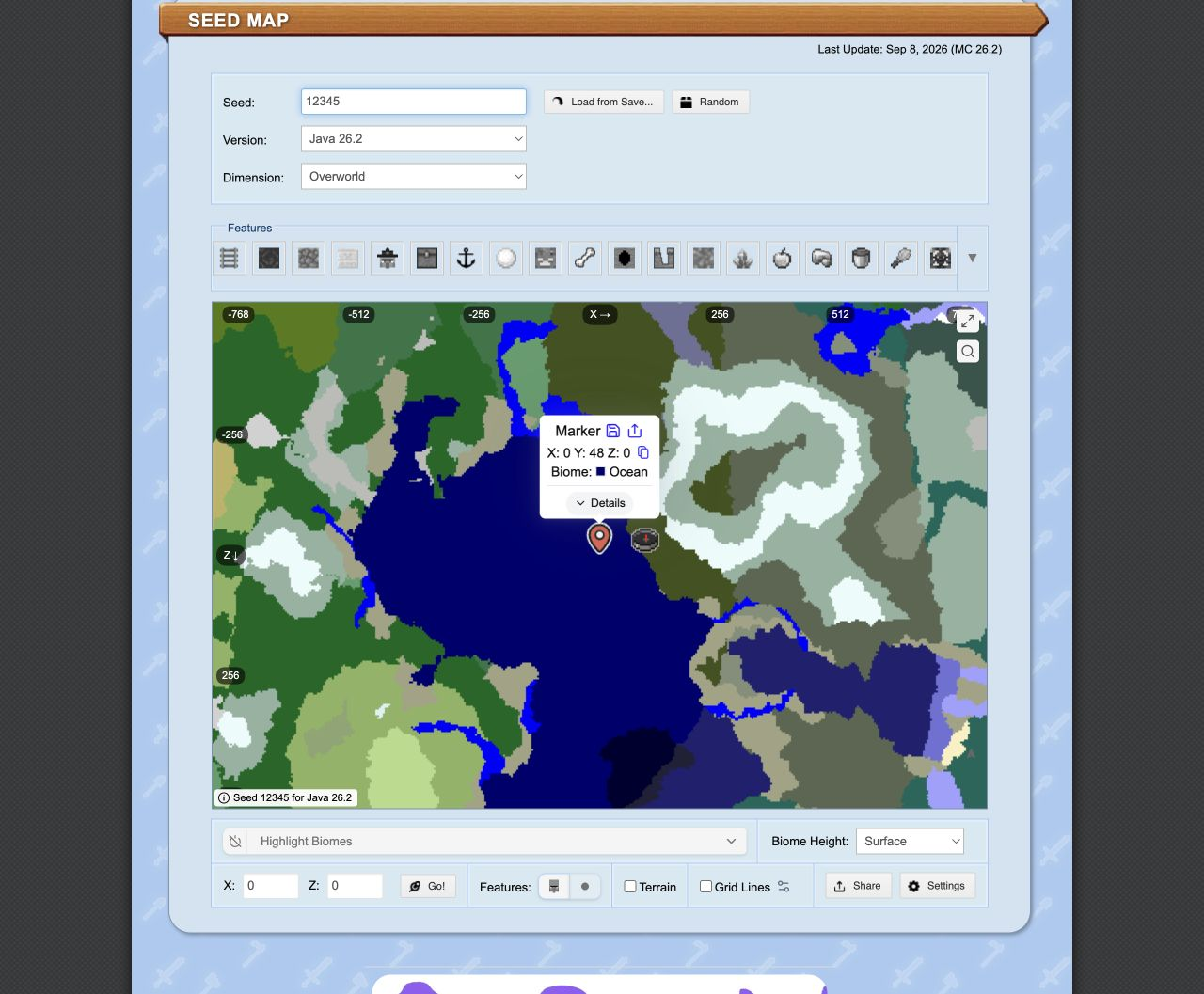
You can stop using the map as soon as it answers your question. Finding a possible building region does not require revealing every dungeon and structure in the world. Leave discoveries for later if that is part of the fun for you.
Before deciding: try the route you will repeat
Walk between your starting area and the planned base or destination. Think about doing that trip with an inventory full of materials. An awkward cliff, several disconnected pools or dense woodland may matter more than the straight-line distance.
Check the return trip too. A drop that is easy to descend may be difficult to climb. If a boat, bridge, staircase or marked path would make the route pleasant, decide whether that is an appealing first project. A little preparation can turn an imperfect location into a good world.
For multiplayer, imagine a newcomer arriving with no equipment. Pick a meeting point and directions you can explain easily. There should be room for separate projects as well as any shared village, road or storage area.
A simple twenty-minute plan
- About five minutes: confirm the world settings, look around the start and choose a first-day plan.
- About ten minutes: visit one place that matches your main goal. Inspect it above ground and at eye level.
- The remaining time: try the useful route, note one drawback and decide whether you want to continue.
These are suggested proportions, not a promise that every computer will generate a world or every player will finish a route in twenty minutes. Stop sooner if you already know the world is wrong for you; take longer if you have found something worth exploring.
Keep it, save it for later or move on?
- Keep it: your essentials are present, the journey is enjoyable and you can picture the first few projects.
- Save it for another idea: it is awkward for this playthrough but would suit a different build or challenge.
- Move on: the main appeal depends on an absent feature, a version you do not want to use or groundwork you will not enjoy.
Compare two or three candidates using the same priorities instead of endlessly searching for a world with everything. A seed with one memorable landscape and a comfortable starting plan may give you more enjoyable play than a crowded list of supposedly rare features.
Common reasons a promising seed disappoints
- The screenshot looks better than your game: shaders, resource packs, lighting and a carefully chosen viewpoint can change the presentation. Judge the terrain with the look you plan to use.
- The attractive spot is far from where you arrive: check its coordinates and decide whether the trip is a fun opening adventure or a chore.
- You do not find the feature quickly: return to its exact source version and coordinates. A short search only tells you what you saw on that route.
- The world feels small: you may have judged only the immediate surroundings. One short trip in another direction can reveal a different setting.
- The scenery is right but the impressive buildings are missing: a seed recreates generation, not another player’s construction. A finished creation needs its world save.
When you settle on a world, save the seed, edition/version, useful coordinates and a screenshot of the place that convinced you. If you share it, credit the original finder and explain who would enjoy it. “A sheltered bay for a harbour build, with a climb to reach the forest” is more useful than “the best seed ever”.
Sources and image credits
World-selection advice and the suggested scouting plan are by MineBrush. Game controls: Mojang’s controls guide. Modes and aerial image: Sophie Austin / Mojang. Spectator behaviour: official Bedrock 1.19.50 notes. Shelter image and first-night basics: Per Landin / Mojang. Coordinates: Mojang’s exploration guide and Java 1.21.9 debug changes. Map controls and prediction limits: Chunkbase’s own help. The cover is an original MineBrush illustration; the article images are real captures with their context described above.
More from MineBrush.
Share a Minecraft Seed — Help friends find the same place: copy the seed, match Java or Bedrock and the version, read XYZ coordinates and describe a useful route with screenshots.
- Edition
- Cross-edition
- Difficulty
- Beginner
- Time
- A short check
A seed recreates terrain, not your builds
MineBrush · Guide
Share a Minecraft Seed
Share a Minecraft Seed — Help friends find the same place: copy the seed, match Java or Bedrock and the version, read XYZ coordinates and describe a useful route with screenshots.
A seed recreates terrain, not your builds
- Minecraft version
- Java and Bedrock; match your world version
- Game edition
- Cross-edition
- Platform family
- Cross-edition
- Supported devices
- PC, console and mobile
- Install format
- No installation needed
- Touch readiness
- Not required
- Resource type
- Guide
- Compatibility confidence
- Not applicable
- Card evidence statement
- Find the seed and read coordinates
- Card delivery statement
- Versions, directions and screenshots
- Card limitation note
- A seed recreates terrain, not your builds
- Edition applicability
- Java + Bedrock
- Estimated time
- A short check
- Guide difficulty
- Beginner
- Delivery state
- No file
- Lifecycle state
- Current
VeinMiner
2.12.1 / datapack 1.3.5Mine connected ore with one block break, or configure groups for logs and other materials. Download VeinMiner for Java 26.2, choose Fabric, NeoForge, Paper or the vanilla datapack, and learn how to activate it and control tool wear.
- Minecraft
- 26.2
- Loader
- Fabric
- Runtime
- Server
Choose one platform · server rules apply
Java · Mod
VeinMiner
Mine connected ore with one block break, or configure groups for logs and other materials. Download VeinMiner for Java 26.2, choose Fabric, NeoForge, Paper or the vanilla datapack, and learn how to activate it and control tool wear.
Choose one platform · server rules apply
- Minecraft version
- 26.2
- Game edition
- Java Edition
- Loader / platform
- Fabric
- License
- AGPL-3.0-only
- Platform family
- Bedrock & Mobile
- Supported devices
- Windows · macOS · Linux
- Install format
- .jar mod or plugin / .zip datapack
- Touch readiness
- Not required
- Resource type
- Mod
- Project version
- 2.12.1 / datapack 1.3.5
- Last verified at
- Sep 5, 2026
- Secondary guide action
- Setup & fixes
- Compatibility confidence
- Source claimed
- Java mod loader
- Fabric
- Java runtime side
- Server
- Card evidence statement
- Four creator files checked 2026-09-05 · runtime not tested
- Required dependency
- Fabric: Fabric API + Kotlin; NeoForge: KotlinLangForge
- Card delivery statement
- Hosted mod, plugin and datapack files
- Card limitation note
- Choose one platform · server rules apply
- Edition applicability
- Java
- Delivery state
- Direct download
- Lifecycle state
- Current
Xaero’s World Map
1.46.0Keep a map of the places you explore and find your way back to bases, villages and portals. Download Xaero’s World Map 1.46.0 for Java 26.2, choose Fabric, Forge or NeoForge, and learn how to install it and preserve explored terrain.
- Minecraft
- Java 26.2
- Loader
- Fabric
- Runtime
- Client
Optional Xaero’s Minimap integration; server rules apply.
Java · Mod
Xaero’s World Map
Keep a map of the places you explore and find your way back to bases, villages and portals. Download Xaero’s World Map 1.46.0 for Java 26.2, choose Fabric, Forge or NeoForge, and learn how to install it and preserve explored terrain.
Optional Xaero’s Minimap integration; server rules apply.
- Minecraft version
- Java 26.2
- Game edition
- Java Edition
- Loader / platform
- Fabric
- License
- All Rights Reserved
- Platform family
- Java & PC
- Supported devices
- Windows · macOS · Linux
- Install format
- Place the matching JAR in the game instance’s mods folder
- Touch readiness
- Not required
- Resource type
- Mod
- Project version
- 1.46.0
- Last verified at
- Sep 5, 2026
- Secondary guide action
- Setup & fixes
- Compatibility confidence
- Source claimed
- Java mod loader
- Fabric
- Java runtime side
- Client
- Card evidence statement
- Explore, revisit locations and preserve your recorded terrain.
- Required dependency
- Fabric API for Fabric; XaeroLib included
- Card delivery statement
- Fabric, Forge and NeoForge downloads on MineBrush
- Card limitation note
- Optional Xaero’s Minimap integration; server rules apply.
- Edition applicability
- Java
- Delivery state
- Direct download
- Lifecycle state
- Current
Player discussion 0
Questions, discoveries and help from other players.