
MineBrush publication
Cherished Worlds: Favorite Worlds, Servers and Downloads
Keep your favorite worlds and servers at the top of Minecraft's menus. Download Cherished Worlds for Fabric or NeoForge 26.2, learn the star controls and backup prompts, and protect important saves from accidental menu deletion.

Cherished Worlds keeps the worlds and servers you care about at the top of Minecraft's menus. Click the small star beside an entry to mark it as a favorite. Your long-running survival world no longer disappears beneath yesterday's test maps, and your usual multiplayer server stays easy to find. Favorited entries also lose their normal Delete action until you remove the star.
This guide covers Cherished Worlds 17.0.0 for Minecraft Java 26.2, available here for Fabric and NeoForge. Both mod files were published on July 20, 2026 and remain the latest releases for this game version when checked on September 13, 2026. The mod runs on your client: install it on the computer where you play, with no server installation required.
Useful ways to organize your Minecraft sessions
- Keep your main survival world first. Pin the world with your home, farms and long-term projects. Temporary worlds you open later remain below your favorites.
- Separate lasting creative builds from experiments. Favorite your city, redstone workshop or building practice world while leaving disposable tests unstarred. The mod does not create folders, but a small favorites group makes the list easier to scan.
- Return to an adventure map over several sessions. Star the map you are currently playing, then remove the star when you finish. Unfavoriting does not delete the map or reset your progress.
- Keep several important worlds accessible. There is no one-world limit. A survival world and a creative planning world can both stay near the top.
- Find your usual servers quickly. Favorite the server you play on with friends or the community you visit most. This organizes your saved entries; it does not alter the remote server.
Favorites work best when they remain a short list of things you regularly return to. Starring every world is allowed, but removes much of the sorting benefit. Names such as “Survival — Main” and “Creative — Bridge Designs” can complement the stars without needing another organizational mod.
How to favorite and unpin a world
- Open Singleplayer from Minecraft's title screen.
- Find the small empty star to the left of the world's thumbnail. Hover it to see Add to Favorites.
- Click the star once. It becomes filled, and the world joins the favorites group at the top.
- Open the world normally. Cherished Worlds does not change the Play button or require an in-world command.
- To unpin it, click the filled star. The tooltip reads Remove from Favorites; the world returns to the ordinary list and its Delete action becomes available again.
If several worlds are favorites, they are ordered by their last-played date within the favorites group. A star gives priority over unstarred worlds; it does not freeze one exact position forever. The existing search field still filters the list, so clear a search if a favorite seems to be missing.
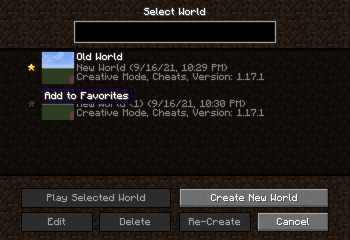
Favorite a new world before its first session
When creating a world, look for the star beside the Create New World button. Turn it on before creating the world to add that new save to favorites immediately. This is handy when starting a new long-term survival run or a permanent creative project: you do not need to leave the world and reopen the list just to pin it.
The star does not change the seed, difficulty, game mode or world-generation settings. Pick those normally, and use the star only to decide whether this save belongs in your favorites.
Pin your multiplayer servers
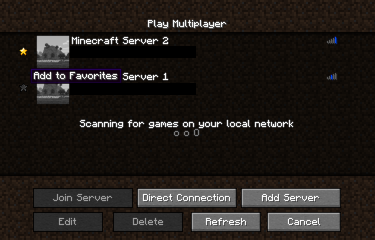
Open Multiplayer and use the star beside a saved server entry. Favorites appear before unstarred servers. Within the favorite group, server order follows the existing list order rather than the last-played sorting used for local worlds. The mod keeps favorite and non-favorite entries in separate groups when reordering.
To remove a saved server entry, first unstar it, then use Minecraft's Delete button. That action removes an address from your local list; it cannot delete the server's world. Favoriting does not reserve a player slot, bypass a whitelist, reduce ping or keep an offline server running.
Download the matching 26.2 file
Choose one loader route. Fabric and NeoForge are alternatives, so do not put both Cherished Worlds files into one instance. Use the Java 25 runtime required by Minecraft 26.2.
Fabric
Install Cherished Worlds for Fabric together with Fabric API. For the API file below, use Fabric Loader 0.18.4 or newer. If your modpack already includes a compatible API, keep one copy.
NeoForge
Use NeoForge for Minecraft 26.2 and the NeoForge mod file below. Fabric API is not needed for this route. The supplied mod bundles its SpectreLib support, so no separate library download is required.
These are Java Edition downloads. They do not install on Bedrock or mobile Bedrock. The project has older branches for other Minecraft versions, including historical Forge releases; use the official version history for those instead of forcing a 26.2 file into an older modpack.
Install and check the first star
- Close Minecraft and open the game folder for the launcher instance you use.
- Place the matching Cherished Worlds JAR in
mods. On Fabric, add the matching Fabric API too. Do not unpack either file. - Remove an older duplicate Cherished Worlds JAR and launch the same profile.
- Open Singleplayer or Multiplayer. The stars should appear beside the entries in that menu.
- Star an entry, leave the menu and reopen it. Your selection should remain marked and near the top.
You can use the mod with existing worlds. There are no new recipes, blocks or mobs to find, and no resource pack to activate. Everyone playing on a server can decide independently whether they want these menu features.
Keyboard navigation and accessibility
The current branch supports keyboard navigation and narration for favorites. Use Tab to move focus to the favorites control, then Up/Down to move between entries and the normal selection key to toggle the focused star. Watch for the focus outline so that you activate the star rather than open the world. With menu narration enabled, the control announces whether it will add or remove the entry from favorites.
The 16.0.0 update introduced these accessibility improvements and clearer hover/focus states; the supplied 17.0.0 branch carries them forward to 26.2. An older screenshot without the focus outline is not a reason to look for a separate keyboard add-on.
What the Delete protection does
A star prevents normal deletion through the affected Minecraft menu while the mod is active. If Delete is disabled on a world you intentionally want to remove, unstar that world first. You can still enter it and play normally while it is a favorite.
This is not a backup of the world. It cannot recover corrupted saves, undo an incompatible world upgrade or prevent deletion through your file manager. Removing Cherished Worlds also removes its menu protection. For a world you would hate to lose, keep a separate copy of the complete save in addition to the star.
Backup prompts when opening an older world
Cherished Worlds can ask you to confirm and back up a save before loading it in a newer Minecraft version. Its backupWorldType setting has three choices:
- ALL — the default. Extend the prompt to all eligible older worlds.
- FAVORITED — extend it only to worlds you have starred.
- NONE — turn off the mod's additional prompt. Minecraft's own existing warnings still apply.
Leave ALL selected if you want the reminder for both important worlds and unstarred saves. The prompt is tied to opening an older save with a newer game version; it is not an automatic backup after every session. Choose the backup option when prompted if you want a copy before continuing.
You do not need to configure anything to use stars. If you want to change this setting, use Cherished Worlds' client configuration through your loader's available configuration screen. On Fabric, Mod Menu can provide access to mod settings; match its file to your Minecraft version. The bundled SpectreLib supplies the configuration integration.
Keeping favorites when moving to another instance
Favorites are saved locally in cherishedworlds-favorites.dat in the instance's main game folder, alongside folders such as mods and saves. This file stores the favorites list, not your builds or world data.
When moving a complete instance to another computer, preserve that file as well as the actual saves and your saved server list. A new instance with only the mod JAR does not automatically know your old favorites. Local world favorites refer to their save-folder identifiers, so a newly copied or recreated world may need to be starred again. The simplest recovery is usually to mark the desired entries again in the new instance.
If something is not working
- No stars appear: check that you launched the instance containing the mod, with the correct loader and Minecraft 26.2. On Fabric, confirm Fabric API is installed.
- A favorite changes position: local favorites are sorted by last played. Opening another favorite can move it ahead of the first; both still stay above unstarred worlds.
- A favorite seems missing: clear the world search and check the launcher instance. Pinning does not make a world bypass the search filter or move it between separate game folders.
- Delete is unavailable: remove the star first. Unfavoriting by itself never deletes the entry.
- The stars disappear after a restart: confirm that the instance can write its favorites file and that you are opening the same game directory.
- A customized menu hides or overlaps controls: update the menu mod and compare with the ordinary selection screen. Recent Cherished Worlds versions improve menu compatibility, but a heavily replaced screen can still need its own integration.
- An old build crashes around LAN entries: the 16.0.1 maintenance update fixed a LAN-server menu crash. Use the release matching your Minecraft branch; 17.0.0 is the 26.2 route.
To remove Cherished Worlds, close Minecraft and remove its JAR from mods. Your saves remain in place, while the stars and deletion guard disappear. Keep Fabric API if other installed mods need it.
Author and sources
Cherished Worlds is by Illusive Soulworks, licensed LGPL-3.0-or-later. Fabric API is by FabricMC under Apache-2.0. MineBrush provides this player guide and hosts the original release files. The cover is a MineBrush editorial illustration; the two menu images are historical author screenshots.
- Official project and gallery
- Fabric 17.0.0 · NeoForge 17.0.0
- Fabric API 0.160.0 for 26.2
- Author's changelog · Current controls, settings and favorites behavior
- Support and issue tracker
More for your Java setup.
Mod Menu
20.0.2Find installed mods, open supported settings and make a large modpack easier to navigate. Download Mod Menu 20.0.2 for Java 26.2, with search tips, library filters and the required files.
- Minecraft
- Java 26.2
- Loader
- Fabric
- Runtime
- Client
Client menu · no server installation needed
Java · Mod
Mod Menu
Find installed mods, open supported settings and make a large modpack easier to navigate. Download Mod Menu 20.0.2 for Java 26.2, with search tips, library filters and the required files.
Client menu · no server installation needed
- Minecraft version
- Java 26.2
- Game edition
- Java Edition
- Loader / platform
- Fabric
- License
- MIT
- Platform family
- Java & PC
- Supported devices
- Windows · macOS · Linux
- Install format
- JAR files in the instance mods folder
- Touch readiness
- Not required
- Resource type
- Mod
- Project version
- 20.0.2
- Last verified at
- Sep 12, 2026
- Secondary guide action
- Setup & fixes
- Compatibility confidence
- Source claimed
- Java mod loader
- Fabric
- Java runtime side
- Client
- Card evidence statement
- Search installed mods and open supported settings
- Required dependency
- Fabric API and Text Placeholder API for Minecraft 26.2
- Card delivery statement
- Mod Menu and dependencies hosted on MineBrush
- Card limitation note
- Client menu · no server installation needed
- Edition applicability
- Java
- Delivery state
- Direct download
- Lifecycle state
- Current

Language Reload
1.7.7Play in your preferred language and still find the items named in an English guide. Language Reload adds fast switching, language fallbacks and multilingual item search for Minecraft Java 26.2, with practical controls and required downloads.
- Minecraft
- Java 26.2
- Loader
- Fabric
- Runtime
- Client
Uses existing translations; does not translate player chat
Java · Mod
Language Reload
Play in your preferred language and still find the items named in an English guide. Language Reload adds fast switching, language fallbacks and multilingual item search for Minecraft Java 26.2, with practical controls and required downloads.
Uses existing translations; does not translate player chat
- Minecraft version
- Java 26.2
- Game edition
- Java Edition
- Loader / platform
- Fabric
- License
- MIT
- Platform family
- Java & PC
- Supported devices
- Windows · macOS · Linux
- Install format
- .jar mod file from the creator
- Touch readiness
- Not required
- Resource type
- Mod
- Project version
- 1.7.7
- Last verified at
- Sep 13, 2026
- Secondary guide action
- Setup & fixes
- Compatibility confidence
- Source claimed
- Java mod loader
- Fabric
- Java runtime side
- Client
- Card evidence statement
- Search items across selected languages and switch without a full resource reload
- Required dependency
- Fabric API for 26.2; Mod Menu optional
- Card delivery statement
- Download on MineBrush · mod and required Fabric API
- Card limitation note
- Uses existing translations; does not translate player chat
- Edition applicability
- Java
- Delivery state
- Direct download
- Lifecycle state
- Current
Player discussion 0
Questions, discoveries and help from other players.