
MineBrush publication
Chat Heads 1.2.8 for Minecraft 26.2: Settings & Downloads
Recognize friends in a busy Minecraft chat by their skin portraits. Download Chat Heads for Java 26.2, choose a layout and learn useful settings for shadows, hats and server nicknames.
Chat Heads adds a small player face beside Minecraft chat messages. When several friends are talking at once, their skin portraits give you another way to follow the conversation without rereading every name. It is a small visual change that makes a familiar server feel more personal.
The mod runs on your Java Edition client. Other players do not need it for you to see heads, and it does not need to be installed on the server. It keeps the usual text chat: there are no new chat commands to learn for everyday use.
What you can use it for
- Follow a busy survival chat: spot a familiar face while friends discuss supplies, coordinates or the next group expedition.
- Coordinate a shared build: distinguish the person asking for materials from another teammate reporting progress. Portraits supplement the written names; they do not replace them.
- Make a multiplayer recording easier to follow: recognizable skins can help viewers connect a chat line with a character. Adjust Minecraft’s own chat scale and background opacity if the text is too small over gameplay.
- Personalize a small server or LAN session: use the skin’s hat layer and optional shadow for a little more character in everyday conversations.
Chat Heads does not add voice chat, floating speech bubbles above players, chat translation or new gameplay items. Its main benefit is in conversations with other players; a quiet solo world gives it much less to display.

Download Chat Heads for Java 26.2
Chat Heads 1.2.8 has separate Fabric and NeoForge builds. Choose one that matches your launcher profile. Although the author’s filenames include 26.1, these exact releases are also listed for 26.2, as well as 26.1, 26.1.1 and 26.1.2.
Fabric
Use Fabric Loader 0.18.5 or newer with the matching Minecraft profile. Chat Heads itself does not require Fabric API.
Optional for settings: add Cloth Config below and Mod Menu. You can use Chat Heads with its default settings without these configuration tools.
NeoForge
Use a NeoForge profile for Minecraft 26.2 and the NeoForge mod file. Cloth Config is optional for basic rendering, but needed to open the settings screen.
The Cloth Config files on this page are for 26.2; do not use them in a 26.1 profile simply because Chat Heads supports both. For older Minecraft releases or Forge, use the author’s version selector and match every component to the game and loader.
Install it and see your first chat heads
- Close Minecraft and open the game folder of the launcher instance you actually play.
- Put one matching Chat Heads JAR in
mods. Remove an older Chat Heads copy so there is only one version. - If you want the settings described below, add the matching Cloth Config file. On Fabric, also install Mod Menu and its listed requirements.
- Launch your Fabric or NeoForge profile and join a multiplayer server or LAN world.
- Open chat with T, or your assigned chat key. When a player sends a supported message, their head appears automatically.
There is no crafting recipe, resource-pack activation or separate hotkey to enable the effect. Your friends will only see the same client-side decoration on their own screens if they also use the mod, or if their server already supplies its own chat portraits.
Choose where heads appear
On Fabric, open Mods → Chat Heads → Configure through Mod Menu. On NeoForge, select Chat Heads in the Mods screen and open its configuration. Install Cloth Config if the game reports that the settings menu cannot open.
Before Name puts the head next to the player’s name within the message. This is the current default and a useful starting point on servers with prefixes or formatted lines: the portrait stays near the name it matches.

Before Line places the head at the start of the line, creating a more consistent left-hand column. Choose it if you prefer the older layout. Its Offset non-player chat text option also indents lines without a player head so the text can remain aligned; turn it off if you want those lines to start at their normal position.
For long conversations, change Minecraft’s own Chat Settings to make the text large enough and give it a readable background. The mod decorates chat; it does not replace those readability controls.
Hat layers, 3Dness and shadows
3Dness draws the skin’s outer hat layer slightly larger, making a face look less flat. It is most noticeable on skins with hair, a hood or another visible outer layer. This option affects the chat portrait, not the player model in the world.

Chat Heads respects Minecraft’s Skin Customization → Hat setting. If you have hidden your own hat layer there, it will also be absent from your chat head. If 3Dness causes an odd-looking edge or other rendering issue in your setup, switch it off.
Render Shadow adds a small shadow around the head to match the surrounding chat text. Toggle it to see which appearance is clearer with your background. Current releases apply this setting to Before Name as well as Before Line.
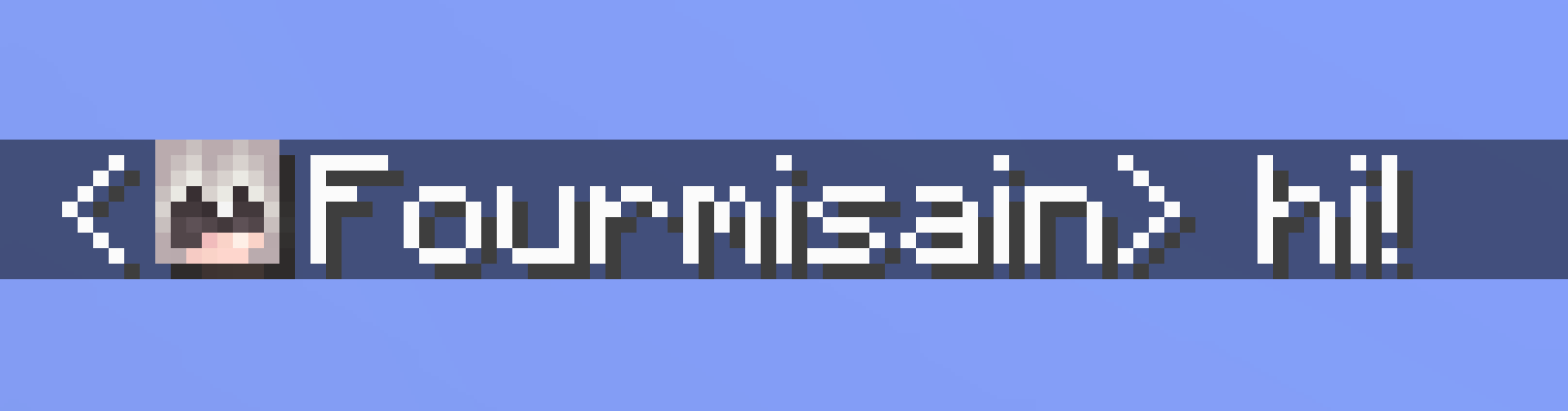
If the hat layer becomes faint when you reduce Chat Text Opacity, raise the opacity again or try Before Line. The author notes a transparency limitation in the newer inline portrait rendering; the older Before Line route has a transparency fix.
Get heads working with server nicknames
Most servers work with the default UUID and heuristic sender detection. In plain language, Chat Heads uses sender information from the server and can fall back to looking for a player name in the message.
Some servers rewrite chat or use nicknames that differ from account names. In Name Aliases, you can associate a nickname with the real profile name. For example, if your friend’s account is AlexBuilder but the server calls them Architect, the mapping is Architect → AlexBuilder. Use the actual profile name, including its spelling.
On EssentialsX servers, Auto-detect Name Aliases can learn this association from a response to /realname nickname. The option is enabled by default; the server must provide that command and allow you to use it. If a nickname changes or a saved association is wrong, correct or remove its entry in Name Aliases.
If heads are still missing on one server, the author recommends trying Heuristic only. This relies on the message text and can match the wrong player, so return to the default if you see incorrect portraits. A face is a reading aid, not proof of who sent a message.
Common questions and fixes
- There are no heads anywhere: check that you launched the modded profile containing Chat Heads. Look at actual player messages; a system announcement does not always have a player portrait.
- It works on one server but not another: chat plugins may change the sender information or formatting. Check aliases first for nicknames, then try the sender detection setting above.
- Heads disappeared after changing Handle system messages: restore that option. Some servers turn ordinary player chat into system messages, so disabling it can hide portraits from real conversations too.
- The wrong player appears beside a line: check Name Aliases and restore default sender detection. If unwanted guesses remain and your server supplies usable sender information, try UUID only; some lines may then have no head.
- A server already includes faces: recent Chat Heads versions detect player portraits already present in a message and avoid adding another head.
- A nickname or formatted line renders strangely: update the mod before changing many settings. Recent fixes cover nickname matching, text styling and click positions; version 1.2.6 also fixed fake player entries from the TAB plugin’s layout feature.
- The mod conflicts with OptiFine: the author warns about newer OptiFine releases and recommends the Sodium family instead. Our Sodium guide covers that renderer; keep all mods matched to your game version.
- I want to remove it: close the game and remove the Chat Heads JAR. Normal chat remains. Keep Cloth Config and Mod Menu if other mods still use them.
Release and sources
Chat Heads is by dzwdz, Fourmisain and contributors. Version 1.2.8 was released August 9, 2026; its direct change updates the Ukrainian translation. It also includes the earlier fixes and settings described above. The project uses the MPL-2.0 license. Hosted JAR contents and their license notices are unchanged.
Sources: official description and gallery, Fabric release and changelog, NeoForge release, creator’s repository and configuration descriptions, and Cloth Config by shedaniel. The MineBrush cover is an editorial illustration; the in-article images are the creators’ dated demonstrations.
More for your Java setup.
Understand Minecraft 26, tell normal releases from test builds, and choose the right version for friends, servers and mods. Clear Java and Bedrock examples without the technical clutter.
- Topic
- Choosing your Minecraft version
- Scope
- None
- Evidence
- Official Minecraft sources · checked 9 Sep 2026
A shared “26” prefix never proves cross-edition compatibility.
MineBrush · News
Minecraft Versions Made Simple
Understand Minecraft 26, tell normal releases from test builds, and choose the right version for friends, servers and mods. Clear Java and Bedrock examples without the technical clutter.
A shared “26” prefix never proves cross-edition compatibility.
- Compatibility confidence
- Source claimed
- Card evidence statement
- Official policy and indexes checked 9 Sep 2026; client display NOT_OBSERVED.
- Card delivery statement
- Choose a version for everyday play or testing
- Card limitation note
- A shared “26” prefix never proves cross-edition compatibility.
- Edition applicability
- Java + Bedrock
- News topic
- Choosing your Minecraft version
- Public news evidence label
- Official Minecraft sources · checked 9 Sep 2026
- Delivery state
- No file
- Lifecycle state
- Current
- News evidence type
- Official Minecraft source
No Chat Reports
2.20.2 / 2.2.3Understand No Chat Reports before joining: read chat-status icons, choose a signing mode and match the server’s setup. Includes original interface images, Java 26.2 downloads for three loaders and older 1.20.1 builds.
- Minecraft
- Java 26.2 / 1.20 / 1.20.1
- Loader
- Fabric
- Runtime
- Both
Signing choices depend on the server
Java · Mod
No Chat Reports
Understand No Chat Reports before joining: read chat-status icons, choose a signing mode and match the server’s setup. Includes original interface images, Java 26.2 downloads for three loaders and older 1.20.1 builds.
Signing choices depend on the server
- Minecraft version
- Java 26.2 / 1.20 / 1.20.1
- Game edition
- Java Edition
- Loader / platform
- Fabric
- License
- WTFPL
- Platform family
- Java PC
- Supported devices
- Windows · macOS · Linux
- Install format
- .jar mod file
- Touch readiness
- Not required
- Resource type
- Mod
- Project version
- 2.20.2 / 2.2.3
- Last verified at
- Sep 16, 2026
- Secondary guide action
- Setup & fixes
- Compatibility confidence
- Source claimed
- Java mod loader
- Fabric
- Java runtime side
- Both
- Card evidence statement
- Chat icons, signing modes and server setup explained
- Required dependency
- Fabric API for 26.2 Fabric; matching loader
- Card delivery statement
- Choose your Minecraft version and loader
- Card limitation note
- Signing choices depend on the server
- Edition applicability
- Java
- Delivery state
- Direct download
- Lifecycle state
- Current
Understand a Minecraft server before moving in: edition and join details, claims, PvP, world resets, costs and community hours. See a clear example profile, official connection screenshots and the questions that protect your time and builds.
- Edition
- Cross-edition
- Difficulty
- Intermediate
- Time
- 8 min read
Check the server’s own current rules and join page.
MineBrush · Guide
Read a Minecraft Server Profile
Understand a Minecraft server before moving in: edition and join details, claims, PvP, world resets, costs and community hours. See a clear example profile, official connection screenshots and the questions that protect your time and builds.
Check the server’s own current rules and join page.
- Minecraft version
- Java & Bedrock — check the server’s supported releases
- Game edition
- Cross-edition
- Platform family
- Cross-edition
- Supported devices
- Java PC; Bedrock access depends on device and server
- Install format
- Read online — no download required
- Touch readiness
- Not required
- Resource type
- Guide
- Compatibility confidence
- Not applicable
- Card evidence statement
- Understand joining, claims, resets and community rules.
- Card delivery statement
- Practical guide · clear fictional profile example
- Card limitation note
- Check the server’s own current rules and join page.
- Edition applicability
- Java + Bedrock
- Tested environment
- Java and Bedrock server listings
- Estimated time
- 8 min read
- Guide difficulty
- Intermediate
- Delivery state
- No file
- Lifecycle state
- Current
Hypixel brings Bed Wars, Build Battle, SkyWars and long-term SkyBlock progression to Java players. Copy the official address, choose a mode, join friends and use the right version and server pack.
- Edition
- Java
- Modes
- Minigames
- Region
- None
SkyBlock: modern Java and required server resource pack
Minecraft · Server
Hypixel
Hypixel brings Bed Wars, Build Battle, SkyWars and long-term SkyBlock progression to Java players. Copy the official address, choose a mode, join friends and use the right version and server pack.
SkyBlock: modern Java and required server resource pack
- Minecraft version
- Java; SkyBlock recommends 26.2
- Game edition
- Java Edition
- Loader / platform
- Not applicable
- License
- Hypixel server rules and terms
- Server address
- mc.hypixel.net
- Server modes
- Minigames
- Platform family
- Java & PC
- Supported devices
- Minecraft Java Edition on PC and Mac
- Install format
- Join using the server address
- Touch readiness
- Not required
- Resource type
- Server
- Last verified at
- Sep 14, 2026
- Compatibility confidence
- Source claimed
- Card evidence statement
- Official join guide and current SkyBlock announcement
- Card delivery statement
- Copy mc.hypixel.net and join in Java Edition
- Card limitation note
- SkyBlock: modern Java and required server resource pack
- Edition applicability
- Java
- Bedrock address copy availability
- Copy unavailable
- Java address copy availability
- Copy available
- Java server address
mc.hypixel.net- Delivery state
- No file
- Lifecycle state
- Current
Player discussion 0
Questions, discoveries and help from other players.