
MineBrush publication
Zoomify: Zoom Controls, Spyglass Modes and Smooth Camera Shots
Look closely at distant builds, adjust zoom with your scroll wheel and create smooth scenic shots. Download Zoomify for Fabric 26.2 with required libraries, controls and spyglass settings.
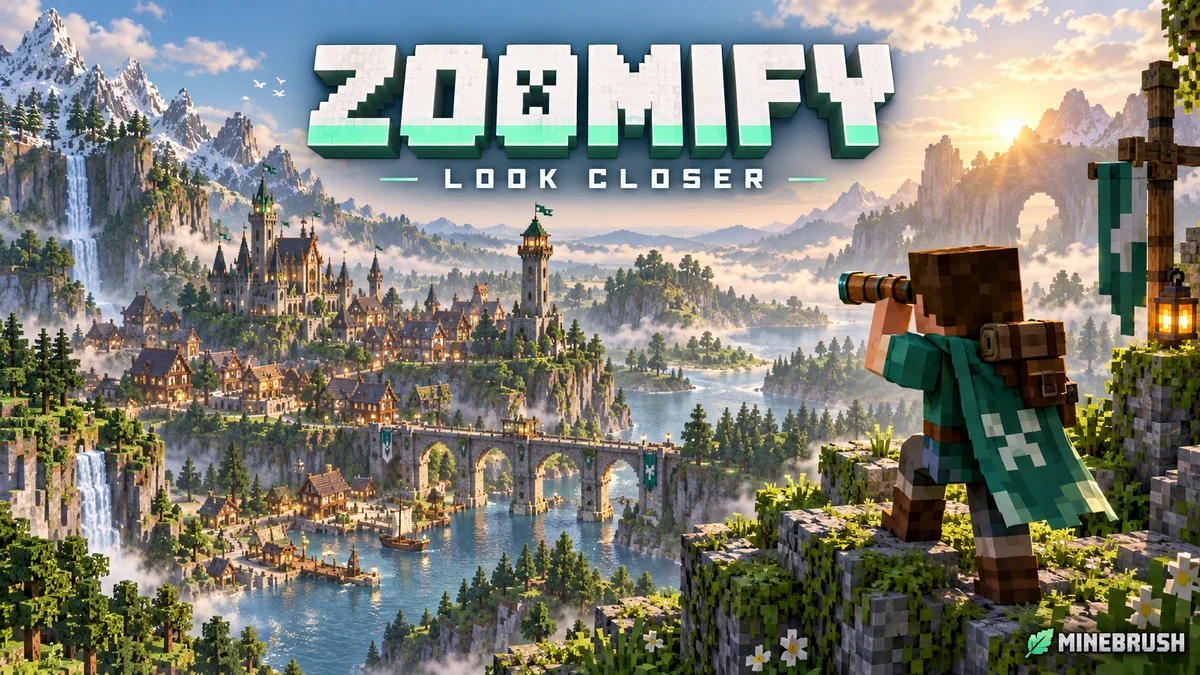
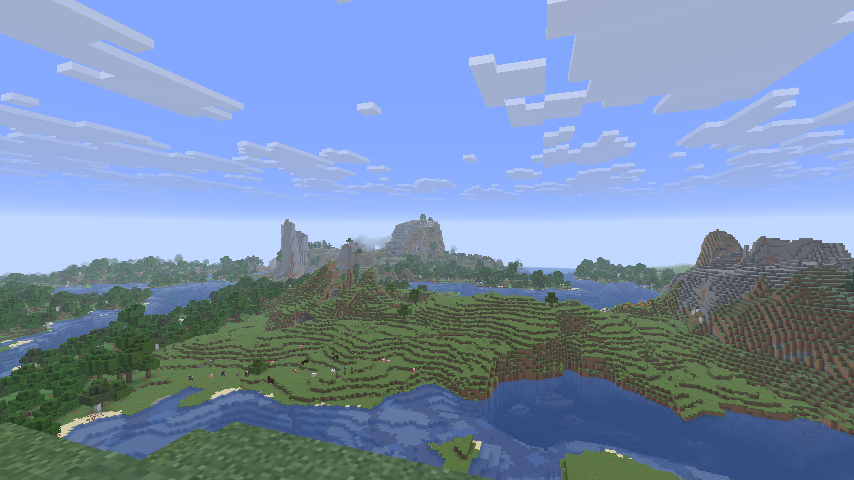
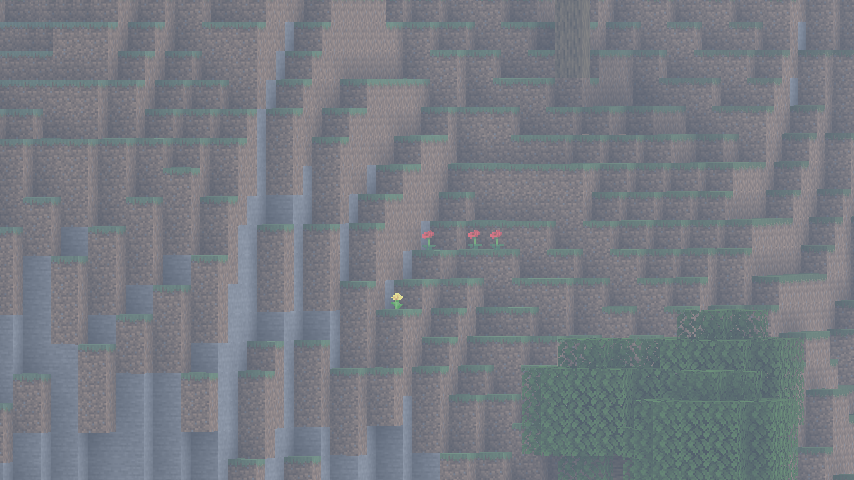
Zoomify lets you look closely at distant parts of your Minecraft world without walking over to them. Hold a zoom key, adjust the magnification with the mouse wheel, then return to your normal view. You can make the movement quick for everyday exploring or slow and smooth for showing off a build.
This is isXander’s client-side zoom mod. It changes your view rather than adding a new item, texture pack or world-generation feature. The download here is Zoomify 2.16.1 for Minecraft Java 26.2 on Fabric. Older releases may list other game versions or Quilt; do not assume this specific Fabric release fits every loader.
Jump to: Downloads · Controls · Smooth camera · Fixes
What can you use it for?
- Scout a route. Look more closely at a visible village, river crossing or hillside before deciding where to travel. Zooming enlarges what your client can already render; it does not reveal ungenerated terrain or let you see through blocks.
- Check a build from a distance. Examine roof shapes, windows, towers and bridges from the viewpoint where visitors will first see them. Release the key to judge the whole silhouette again.
- Keep track of visible animals or players. A moderate zoom helps distinguish activity across an open field. It does not increase entity tracking range, change combat reach or guarantee that a distant entity has been sent to your client.
- Make a calmer building showcase. Use Secondary Zoom for a slow push toward a focal point while keeping your usual quick zoom available for ordinary play.
- Keep the spyglass useful in survival. Choose a mode that requires holding or carrying one, rather than having unrestricted zoom available all the time.
Download Zoomify and the required libraries
For a fresh Fabric 26.2 instance, install all four components below. Zoomify 2.16.1 was released June 16, 2026. The selected libraries are Fabric Language Kotlin 1.14.1, Fabric API 0.160.0 and YACL 3.9.6. Use Fabric Loader 0.19.5 or newer for this combination: the Kotlin file raises the loader requirement above Zoomify’s own minimum.
Zoomify · the zoom mod
Fabric Language Kotlin · required
This library lets Fabric run mods written in Kotlin. It has no zoom key of its own. If your pack already contains a compatible version, keep one copy rather than adding a duplicate.
Fabric API · required
Use the API build for Minecraft 26.2. A library from a different Minecraft release is not interchangeable simply because its name also says Fabric API.
YetAnotherConfigLib (YACL) · required
YACL provides the configuration interface used by Zoomify. Choose this Fabric build; a NeoForge version of the same library is not a replacement.
Mod Menu is optional: it adds a convenient settings entry, but you can open Zoomify with its own client command. These JARs are for Java Edition, not Bedrock/mobile. For an older modpack, choose matching files from the author’s version history; the hosted Zoomify file above targets 26.2.
Install it and get your first zoom working
- Close Minecraft. Open the game folder for the exact Fabric 26.2 launcher instance you use, and put the four JARs in its
modsfolder. Replace obsolete copies of the same mod or library. - Launch that Fabric profile. Zoomify is installed on your own client; you do not need to add it to a dedicated server. On multiplayer servers, follow their rules about zoom mods.
- Open Options → Controls → Key Binds and find the Zoomify category. The normal zoom key starts as C. If its binding is red, resolve the conflict by assigning an unused key to one of the actions.
- In a world, look toward a visible landmark and hold the zoom key. Scroll while zooming to adjust the view. With Hold behavior, releasing the key restores the normal view; with Toggle behavior, press again.
- Type
/zoomifyin chat to open its settings, or use its configuration button in Mod Menu. This is a client command, not a server-administration command.
If a launcher reports that Fabric Loader is too old, update the loader for this instance. The Kotlin library supplied here requires 0.19.5+. Use a launcher runtime appropriate for Minecraft 26.2; the mod’s Java requirement is 25 or newer.
Make the controls comfortable
Initial Zoom sets how close the view starts when you activate it. Begin with a moderate amount so you can still find the object you are looking for; increase it only when you need detail. Very strong zoom gives you a narrow field of view and makes small mouse movements more noticeable.
Enable Scroll Zoom to move beyond that initial level. Scroll Step Count limits how many steps are available, Zoom Per Step controls their strength, and Scroll Zoom Smoothness controls the transition. If every notch feels too abrupt, reduce the step strength through the settings screen and increase smoothing slightly.
Remember Zoom Steps is useful when you repeatedly inspect the same distant build. Leave it off if you prefer a predictable starting view each time. If the zoom seems unexpectedly strong on the next use, this is one of the first options to check.
Prefer buttons to a wheel or trackpad gesture? Enable Keybind Scrolling, then assign Scroll Zoom In and Scroll Zoom Out in Minecraft’s key bindings. If those entries do not appear immediately, restart the client after enabling the option. Change Zoom Key Behavior between Hold for quick glances and Toggle for a longer inspection without holding a key.
Choose between quick inspection and smooth camera movement
- Quick exploration: use a short Zoom In Time, a short Zoom Out Time and little or no Cinematic Camera. The goal is to inspect something and return to movement promptly.
- Precise building inspection: use Relative Sensitivity to reduce mouse movement while magnified. Relative View Bobbing can make walking with zoom less jarring. A steady standing viewpoint is still easier for comparing details.
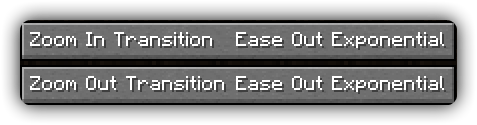
- Smooth scenic movement: increase the transition time and try a curved transition rather than Instant. Add some Cinematic Camera if you want the view to glide; reduce it if the camera feels delayed when following a moving subject.
Zoom-in and zoom-out transitions are independent. A slow approach with a faster return can be useful when showcasing a structure. Affect Hand FOV controls whether the held-hand view participates in the zoom; turn it off if you want the hand to retain its usual framing.
Use a separate zoom for recording
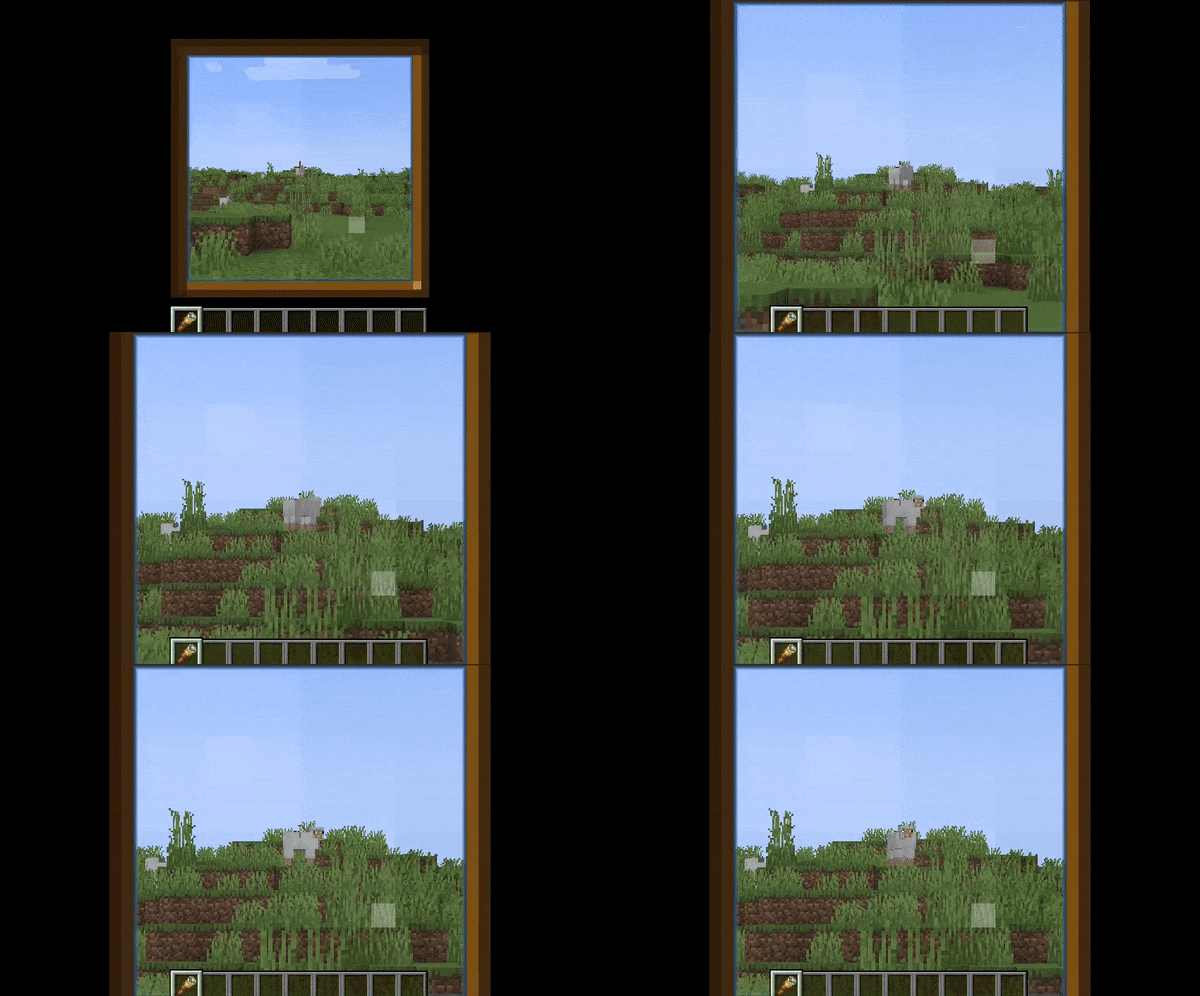
Secondary Zoom has its own key and settings. It is toggle-only: activate it once to begin, and press its key again to leave. Set its Zoom Amount, Zoom In Time and Zoom Out Time separately from the ordinary zoom.
For a simple build reveal, stand at your chosen viewpoint, aim at the main feature and start Secondary Zoom with a longer transition. Enable Hide HUD On Zoom when you want the hotbar and crosshair out of the shot. This changes the view; it does not record video or create a camera path. Use your usual screenshot or recording tool.
Secondary Zoom can also explain a “stuck” magnified view or a missing HUD: releasing the normal zoom key will not necessarily end the separate toggle. Press the Secondary Zoom key again before changing unrelated video settings.
Choose how the spyglass works
The Zoom Behavior options let you fit the mod to your play style:
- Combine: use Zoomify together with the spyglass’s zoom for a stronger combined view.
- Override: replace the spyglass zoom behavior with Zoomify’s configurable zoom.
- Allow While Holding: require a spyglass in hand before using the zoom key.
- Allow While Carrying: allow zoom while a spyglass is in your inventory, without needing to keep it selected.
Overlay Visibility and Sound Behavior are separate choices. You can keep the familiar spyglass frame and sounds, show them only under certain conditions, or remove them when you want an unobstructed view. A frame on screen is not proof that the server requires a spyglass; these are your client settings.
Fix common problems and reset a confusing setup
- C does nothing: check conflicting key bindings and the selected Hold/Toggle behavior. Also check whether your spyglass mode requires an item you are not holding or carrying.
- The wheel changes the hotbar instead of zoom: activate the normal zoom first and check Enable Scroll Zoom. If Keybind Scrolling is enabled, use the assigned keys.
- The camera feels floaty or shaky: reduce Cinematic Camera for a more immediate response; use Relative Sensitivity and Relative View Bobbing for steadier magnified movement.
- Terrain or mobs never appear: zoom cannot replace render distance or server entity tracking. Moving closer may be necessary; raising zoom strength alone does not load missing detail.
- Missing Kotlin, YACL or Fabric API error: check all three libraries and the selected Fabric instance. The YACL file must be for Fabric and Minecraft 26.2.
- Startup conflict: remove another zoom mod from the test instance so two camera modifications do not compete. Zoomify’s release also declares OptiFabric incompatible and rejects Controlify versions below 2.
Under Misc → Presets, Default restores the standard behavior; OptiFine and OK Zoomer presets offer familiar styles. Applying a preset takes effect immediately and discards pending changes, so note any values you want to keep first. These presets do not require installing the mods they imitate.
If you cannot recover through the settings screen, close Minecraft, back up config/zoomify.json and remove that configuration file so a fresh one can be created. To uninstall, close the game and remove the Zoomify JAR. Keep shared libraries if other mods use them.
Continue your setup
Zooming in does not generate terrain beyond your normal view. To learn about distant terrain detail, read the Distant Horizons settings guide and check compatibility before combining mods. If you are creating your first Fabric instance, start with the Fabric installation guide.
Release notes, author and sources
Zoomify 2.16.1 adds support for Minecraft 26.2. The developer is isXander; MoonTidez designed the project logo. The project’s source and license notices remain with the original files. MineBrush provides this player guide, a branded editorial cover and locally hosted downloads; the mod and demonstration images belong to their creators.
Sources: Zoomify 2.16.1 release, official documentation and source, author’s CurseForge page, Fabric Language Kotlin, Fabric API and YACL. The cover is an editorial illustration; it is not a screenshot or a promise that Zoomify supplies the pictured buildings or lighting.
More for your Java setup.
Understand Minecraft 26, tell normal releases from test builds, and choose the right version for friends, servers and mods. Clear Java and Bedrock examples without the technical clutter.
- Topic
- Choosing your Minecraft version
- Scope
- None
- Evidence
- Official Minecraft sources · checked 9 Sep 2026
A shared “26” prefix never proves cross-edition compatibility.
MineBrush · News
Minecraft Versions Made Simple
Understand Minecraft 26, tell normal releases from test builds, and choose the right version for friends, servers and mods. Clear Java and Bedrock examples without the technical clutter.
A shared “26” prefix never proves cross-edition compatibility.
- Compatibility confidence
- Source claimed
- Card evidence statement
- Official policy and indexes checked 9 Sep 2026; client display NOT_OBSERVED.
- Card delivery statement
- Choose a version for everyday play or testing
- Card limitation note
- A shared “26” prefix never proves cross-edition compatibility.
- Edition applicability
- Java + Bedrock
- News topic
- Choosing your Minecraft version
- Public news evidence label
- Official Minecraft sources · checked 9 Sep 2026
- Delivery state
- No file
- Lifecycle state
- Current
- News evidence type
- Official Minecraft source
Hypixel brings Bed Wars, Build Battle, SkyWars and long-term SkyBlock progression to Java players. Copy the official address, choose a mode, join friends and use the right version and server pack.
- Edition
- Java
- Modes
- Minigames
- Region
- None
SkyBlock: modern Java and required server resource pack
Minecraft · Server
Hypixel
Hypixel brings Bed Wars, Build Battle, SkyWars and long-term SkyBlock progression to Java players. Copy the official address, choose a mode, join friends and use the right version and server pack.
SkyBlock: modern Java and required server resource pack
- Minecraft version
- Java; SkyBlock recommends 26.2
- Game edition
- Java Edition
- Loader / platform
- Not applicable
- License
- Hypixel server rules and terms
- Server address
- mc.hypixel.net
- Server modes
- Minigames
- Platform family
- Java & PC
- Supported devices
- Minecraft Java Edition on PC and Mac
- Install format
- Join using the server address
- Touch readiness
- Not required
- Resource type
- Server
- Last verified at
- Sep 14, 2026
- Compatibility confidence
- Source claimed
- Card evidence statement
- Official join guide and current SkyBlock announcement
- Card delivery statement
- Copy mc.hypixel.net and join in Java Edition
- Card limitation note
- SkyBlock: modern Java and required server resource pack
- Edition applicability
- Java
- Bedrock address copy availability
- Copy unavailable
- Java address copy availability
- Copy available
- Java server address
mc.hypixel.net- Delivery state
- No file
- Lifecycle state
- Current
CubeCraft offers EggWars teamwork, quick SkyWars fights, unpredictable Lucky Islands and lasting Skyblock projects. Choose the right Java or Bedrock route, invite friends and start with a clear plan.
- Edition
- Java + Bedrock
- Modes
- Minigames
- Region
- None
Choose the same edition as your friends
Minecraft · Server
CubeCraft
CubeCraft offers EggWars teamwork, quick SkyWars fights, unpredictable Lucky Islands and lasting Skyblock projects. Choose the right Java or Bedrock route, invite friends and start with a clear plan.
Choose the same edition as your friends
- Minecraft version
- Java 1.21.8+ · Bedrock 1.21.120+
- Game edition
- Cross-edition
- Loader / platform
- Not applicable
- License
- CubeCraft rules and terms
- Server address
- play.cubecraft.net
- Server modes
- Minigames
- Platform family
- Cross-edition
- Supported devices
- Java on PC/Mac; Bedrock on Windows, mobile and consoles
- Install format
- Java server address or Bedrock Featured Servers
- Touch readiness
- Not required
- Resource type
- Server
- Last verified at
- Sep 14, 2026
- Compatibility confidence
- Source claimed
- Card evidence statement
- Official CubeCraft guides and game updates
- Card delivery statement
- Join Java or Bedrock using the guide
- Card limitation note
- Choose the same edition as your friends
- Edition applicability
- Java + Bedrock
- Bedrock address copy availability
- Copy unavailable
- Java address copy availability
- Copy available
- Java server address
play.cubecraft.net- Delivery state
- No file
- Lifecycle state
- Current


Controlify
3.5.0Play Minecraft Java with a gamepad: tune your controls, manage inventory, use a radial menu and type from the sofa. Download the matching Fabric or NeoForge setup and check your controller features.
- Minecraft
- Java 26.2
- Loader
- Fabric
- Runtime
- Client
Special features depend on controller, connection and operating system
Java · Mod
Controlify
Play Minecraft Java with a gamepad: tune your controls, manage inventory, use a radial menu and type from the sofa. Download the matching Fabric or NeoForge setup and check your controller features.
Special features depend on controller, connection and operating system
- Minecraft version
- Java 26.2
- Game edition
- Java Edition
- Loader / platform
- Fabric
- License
- Controlify and YACL LGPL-3.0-or-later; Fabric API Apache-2.0
- Platform family
- Java PC
- Supported devices
- Windows · macOS · Linux
- Install format
- Matching client JARs in the mods folder
- Touch readiness
- Not required
- Resource type
- Mod
- Project version
- 3.5.0
- Last verified at
- Sep 15, 2026
- Secondary guide action
- Setup & fixes
- Compatibility confidence
- Source claimed
- Java mod loader
- Fabric
- Java runtime side
- Client
- Card evidence statement
- Gamepad play, inventory controls, radial menu and keyboard
- Required dependency
- Fabric: YACL Fabric and Fabric API; NeoForge: YACL NeoForge
- Card delivery statement
- Universal main mod with clearly separated loader dependencies
- Card limitation note
- Special features depend on controller, connection and operating system
- Edition applicability
- Java
- Delivery state
- Direct download
- Lifecycle state
- Current
Player discussion 0
Questions, discoveries and help from other players.