
Bedrock 26.30 player guide
Minecraft Bedrock 26.30: Chaos Cubed, Realms and Player Settings Guide
Build cube challenges and geyser gardens, find Realms Hub controls and choose Player Waypoints. Bedrock 26.30 explained for phones, consoles and Windows, including graphics, add-ons and save safety.
Minecraft Bedrock 26.30 combines a new underground playground with useful changes to everyday play. Chaos Cubed brings sulfur caves, block-absorbing cubes and new building colors. Bedrock also changes Realms access, player-location settings, graphics options and several interactions on phones, consoles and Windows.
This is the stable release from June 16, 2026, now a historical update. Bedrock 26.50 / Wilderness Bound is newer. The guide helps you understand what 26.30 introduced; it is not a recommendation to downgrade a current world. Java's equivalent Chaos Cubed version is 26.2, and its menus are different.
What can you actually do with Chaos Cubed?
Begin with an expedition, a construction project or a small multiplayer game. You do not need a new world for every feature: new terrain is needed to find naturally generated sulfur caves, but collected blocks and cubes can become projects at an established base.
Bring a piece of the cave home
Look for sulfur springs marked by yellow sulfur, red cinnabar and gas at the surface. Explore beneath them carefully. Pack food, light, tools, blocks for a route out and an empty bucket. Scooping up a sulfur cube is easier than trying to push one all the way back to your base.
Use the new palette in a project you already want to build. Red cinnabar makes a strong chimney or workshop foundation; yellow sulfur adds contrast to a station, courtyard or cave entrance. Both sets provide more than a single solid block, so combine their stairs, slabs and walls for depth.
Make a repeatable cube challenge
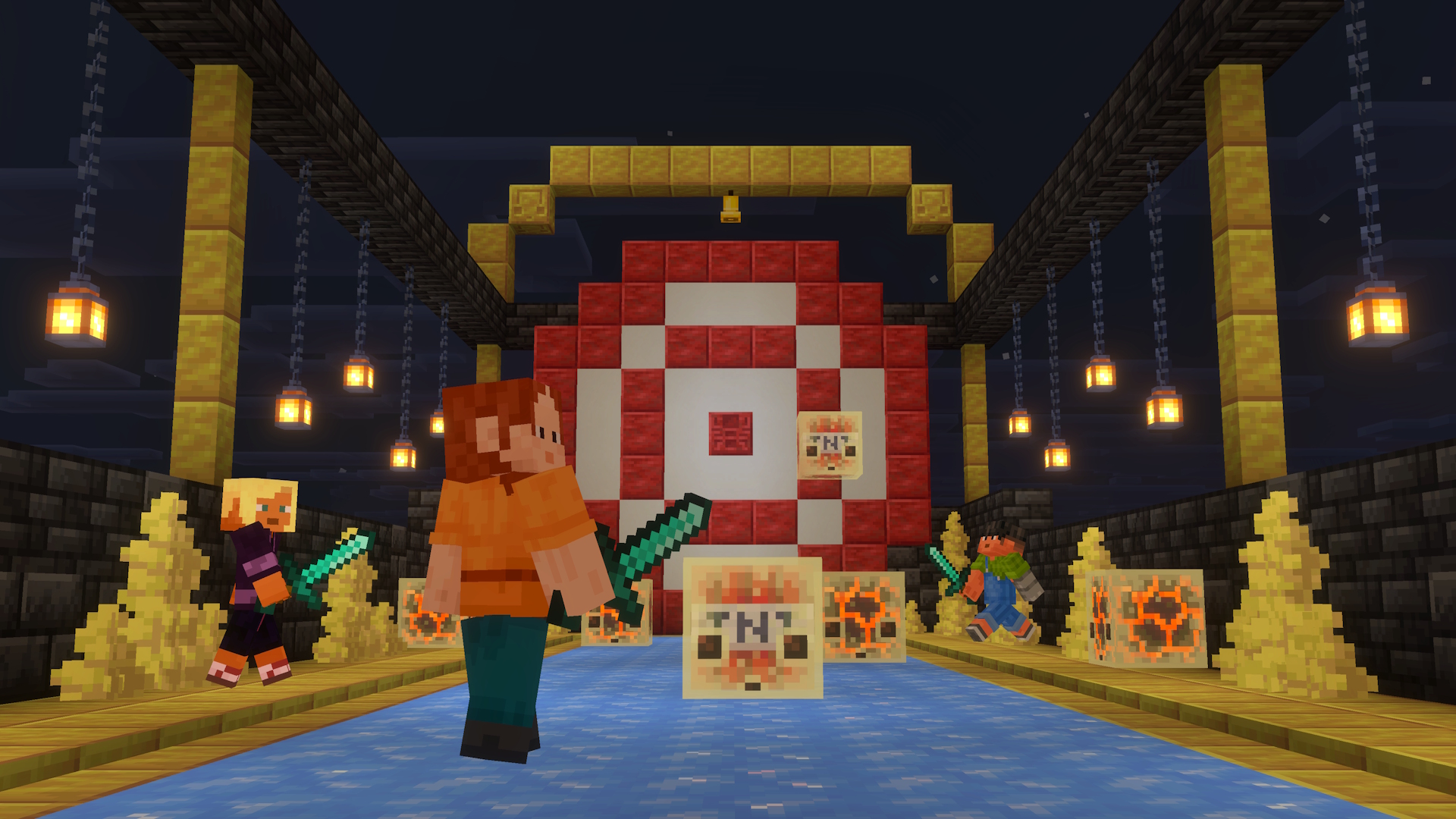
A sulfur cube changes its movement when it absorbs a block. Build a short enclosed lane, put a target at the far end and agree on a starting line. Compare a bouncy wooden-block cube with an icy sliding cube. Keep the lane the same while you change the material so the difference is easy to see.
Try a cooperative variation: one player moves the cube while another opens a route or calls out where to aim. Shears remove the absorbed block for a reset. After the manual game works, a dispenser can help change blocks or reset the cube. Keep explosives away from valuable builds and do not assume you can remove primed TNT at the last moment.
Bedrock 26.30 adds angled knockback for sulfur cubes when hit with Knockback-enchanted weapons or while the attacker is sprinting or swimming. That gives a challenge course more possibilities, but also means your hit is not necessarily identical when you change weapon or movement. Use a plain setup first, then make the advanced rules part of the game.
Give exploration a second goal
Search minecarts with chests in abandoned mineshafts inside sulfur caves for the Bounce music disc by fingerspit. It is a possible find, not guaranteed in the first chest. Combining a block-gathering trip with a disc search gives you a reason to explore beyond the first colorful room.
Build a geyser as a landscape feature or launch pad
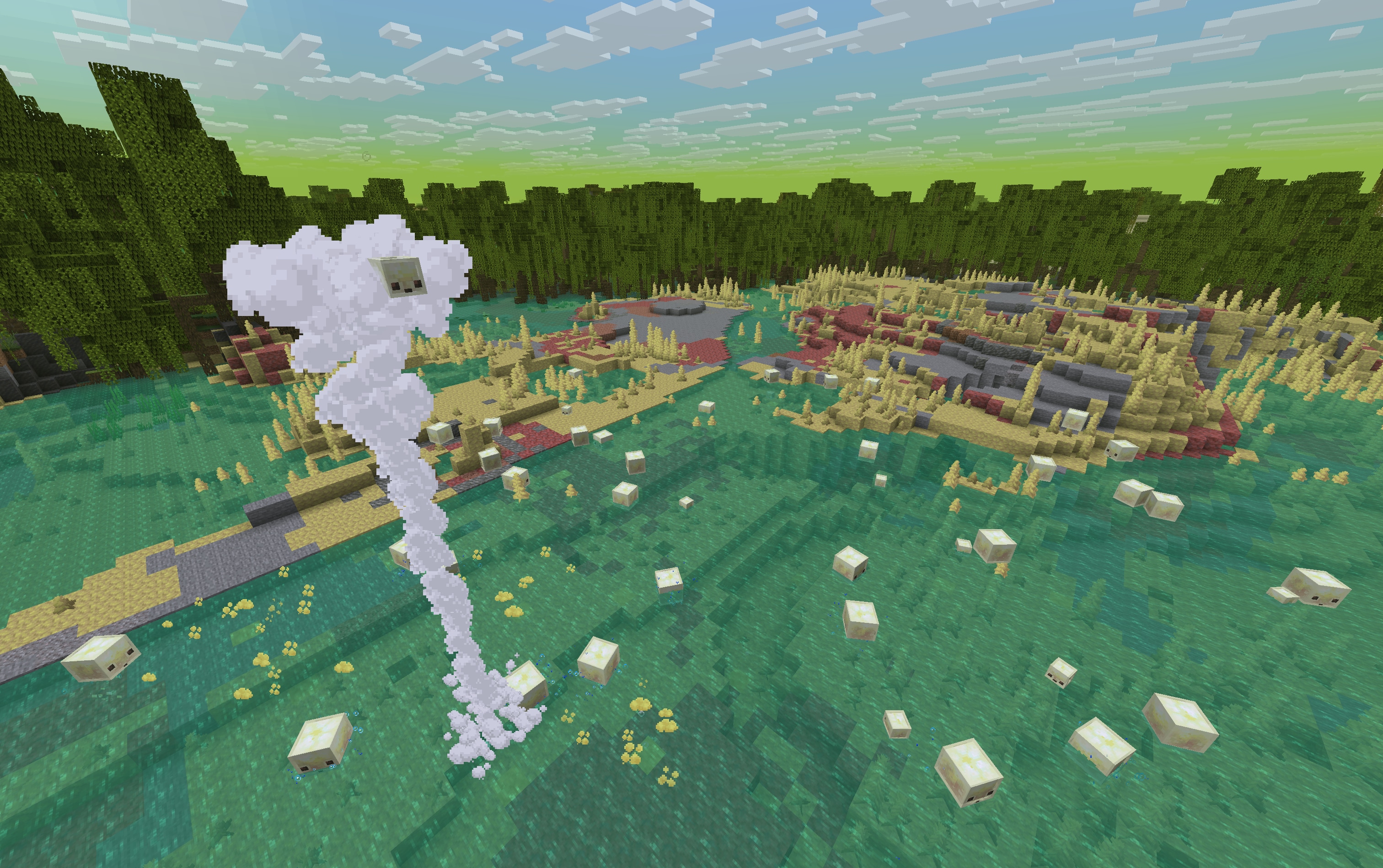
The Bedrock release describes a geyser made by placing magma below potent sulfur, with one to four blocks of water above the potent sulfur. Build a small test pool where you can see and reach the stack, then finish the landscaping around it.
- Choose an open area away from storage, animals and paths where players must stand.
- Place the magma base, potent sulfur above it and a shallow water column. Start with the simple stack before hiding it inside a larger build.
- Observe the eruption from a safe edge, then test where a boosted player or cube lands. Leave clearance overhead and avoid a landing near lava or a cliff.
- Turn the pool into a garden centerpiece, a marked obstacle-course launch point or a dramatic entrance to a cave exhibit.
Potent sulfur can create nausea-causing gas above water. A pool that looks inviting is not necessarily a good swimming hole. Separate the viewing path from the active area and tell guests what the feature does. If a design does not erupt, check the vertical stack and water depth before adding more decoration.
Sulfur spikes add cave detail. Walking on them is harmless, unlike pointed dripstone, but falling spikes can hurt you. Avoid placing a fragile overhead arrangement where visitors will stand. Our full Chaos Cubed guide compares cube materials and the wider building set.
Realms Hub: find the world controls without hunting through old menus
In 26.30, Realms Hub replaces the Realms Stories button in the in-game pause screen. You can also access the Hub from Play's Realms tab. If an older tutorial tells you to look for a Stories button, the changed entry point may be all that is confusing you.
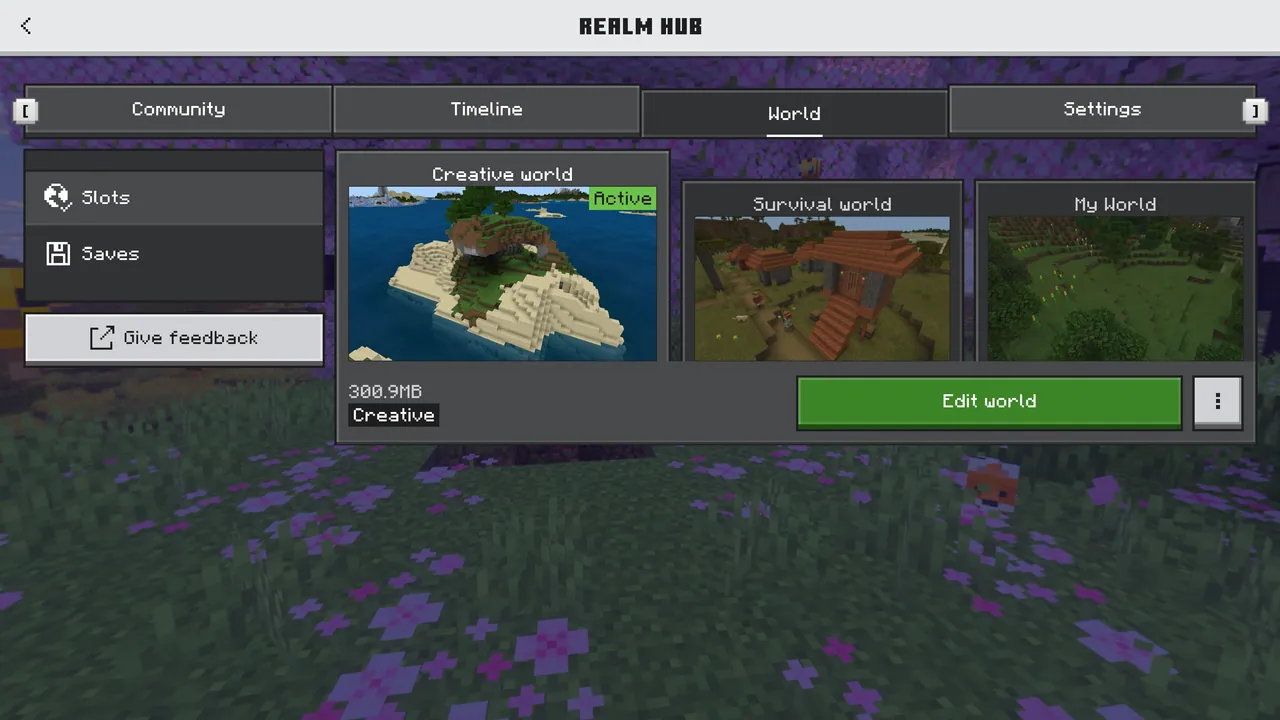
Use World for slots and saves, Community for members and stories, and Settings for Realm configuration. Owners and admins have different permissions; seeing a button in somebody else's screenshot does not mean every member can use it.
Simulation distance is a gameplay choice
The release adds server settings for simulation distance and maximum player count. Simulation distance controls how much nearby world activity is processed. It is different from how far your device can draw terrain: being able to see a distant farm does not prove that it is running.
For a busy base: compare the same farm or activity before and after changing simulation distance. Increase cautiously and pay attention to server responsiveness. Do not change several performance options at once, or you will not know which one helped. A larger value is not automatically better for a group using varied devices.
Use the player limit to suit your session within the options the Realm offers. This setting does not remove account permissions or imply an unlimited subscription capacity.
Keep a copy before experimenting
Before substantial changes, use the Realm's world options to download a local copy. Keep that copy separate from an experimental building session. Replace World and Reset World are not backup buttons: they change what occupies the active slot.
The release also improves resource-pack download progress when joining a Realm. A visible download can explain why a friend has not entered yet. Check whether it is progressing before repeatedly cancelling and starting again. Fixes to the saves screen improve which save's storage information is shown, but you should still select the intended save carefully.
Player Waypoints: decide whether your group can track one another
In the Multiplayer tab of Create New World or Edit World, the old Locator Bar switch becomes Player Waypoints. The choices described for this release are Off, showing no players on the locator bar, and Everyone, showing all players.
- Choose Everyone for a cooperative trip. It helps a mixed-experience group stay oriented toward one another when exploring or returning from a cave.
- Choose Off for a hide-and-seek or exploration challenge. Tell players the rule before starting so they do not mistake a missing marker for a broken interface.
This setting concerns the locator bar. It is not an invisibility effect and does not remove every other way players can share a location. Agree on the rules of a competitive game instead of assuming one switch creates complete secrecy.
Party chat is also available while in a world, with /party for responding from world chat. Use the intended chat channel when coordinating with a party; do not assume a normal world-chat message goes only to those friends.
Graphics and comfort: the options that matter on your device
Texture streaming is a PC and mobile feature in this release
Texture streaming becomes enabled by default on supported PC and mobile devices and can be disabled in Video settings. The release does not make that toggle a universal console feature. If you are on a console and cannot find it, do not follow a phone tutorial as though the menus must match.
If textures turn blank or appear wrong, first distinguish a specific resource pack from a general graphics issue. On a copied test world, compare the same scene with the pack disabled. Where the option exists, compare texture streaming enabled and disabled, changing one thing at a time. This is a troubleshooting comparison, not a claim that disabling it always improves performance.
26.30 fixes several streaming-related display and stability problems, including invisible textures and some inventory items looking partly transparent. It also fixes rendering issues in Vibrant Visuals, ray tracing and split-screen. The presence of a fix does not mean every device gains those graphics modes.
Reduce distracting motion or flashes
- Panorama Scroll Speed: adjust rotation of the main-menu background in Video settings. This helps if the moving menu is distracting before you even enter a world.
- Hide Sky Flashes: now suppresses Overworld lightning sky flashes too. Use it if sudden sky flashes are uncomfortable; it is separate from the weather itself.
- Resource-pack comparisons: judge your own device in the same scene. A creator's dramatic screenshot may use a graphics mode or pack your device does not support.
Small changes with useful survival consequences
- Bees accept more flowers: Chorus Flowers and Spore Blossoms can lure, breed and age bees. If those are the plants you have collected, you can use them when organizing an apiary.
- Shallow-water planting works more predictably: bone meal on dirt under shallow water correctly creates seagrass or coral. This is useful when finishing the edge of a pond or aquarium.
- Skeleton-family attacks depend on difficulty: skeletons, strays, bogged and parched use difficulty-based firing intervals. Reassess an old combat setup that relied on the previous distance-based rhythm.
- The furnace recipe book is part of the normal game: use it to see available smelting recipes rather than enabling an experiment just for the book.
- Crafting previews reflect your wood: recipes can show the material variants related to the wood you own, making mixed building sessions less confusing.
- Mobile typing is less awkward: fixes address the keyboard remaining open after text submission on iOS and Android; text selection and cursor gestures also improve.
What should I check in an add-on world?
Back up the world and try a copy with the creator's supported add-on version. Check both its behavior pack and resource pack: missing visuals and missing gameplay behavior are different symptoms. The release fixes some automatically added resource-pack settings and loading problems, but it cannot make every older add-on compatible.
Custom Projectiles leaves its experimental stage, which lets creators use that feature without that particular experiment. It does not mean every pack on the internet has been updated or that all other experiments are unnecessary.
Do not infer achievement eligibility from a missing warning. The notes remove one warning during creation with add-ons, while also adding an achievements warning to Realms editing. Check the actual world's settings and the current rules before investing in an achievement-focused run. Removing a warning message is not evidence that cheats or every configuration now preserves achievements.
If a pack stops working, compare a clean test world and the author's current instructions, then re-enable the required packs on your copied world. Avoid removing a pack that supplies your world's blocks or entities from the only copy of that world.
How to update without losing track of your saves
- Keep a separate copy. Back up a local world or download the Realm world before making major changes.
- Update through your device's official store or library. Android and iOS use their app stores; consoles use their game-update system; Windows uses the official Minecraft installation route. The official download page points to supported platforms.
- Check the version together. Friends and servers need compatible versions. A stable player and a Preview player may not be using the same environment even though both see Minecraft on their screen.
- Test your normal routine. Visit storage, farms and portals, check add-ons and try the group connection before starting a long expedition.
- Keep the older backup intact. Do not treat loading a newer save in an old release as a safe rollback method.
Can I install exactly 26.30 from this page? No game archive is provided. Official stores generally offer the current supported release rather than a Java-style historical version picker. For present-day play, update to the supported version your platform and multiplayer environment require.
Is cloud backup guaranteed here? No. The 26.30 changelog includes Windows cloud-backup work explicitly described as an early preview, including Windows Preview capacity changes. Do not treat those entries as a promise of automatic backup on stable mobile or console installations. Verify your own backup route and keep a known copy.
Sources and image credits
Written by MineBrush Editorial from Mojang's Bedrock 26.30 release notes and Realms management guide. The arena image is from the official Bedrock release; the geyser illustration is an official Java image of the shared feature, explicitly labeled. The historical Realms Hub screenshot comes from DoomHosting's 26.20 coverage. Original images are preserved and linked. The MineBrush cover is an editorial illustration. Suggested projects and comparisons are practical guidance, not a claim of testing every device, Realm or add-on.
More for your Bedrock world.
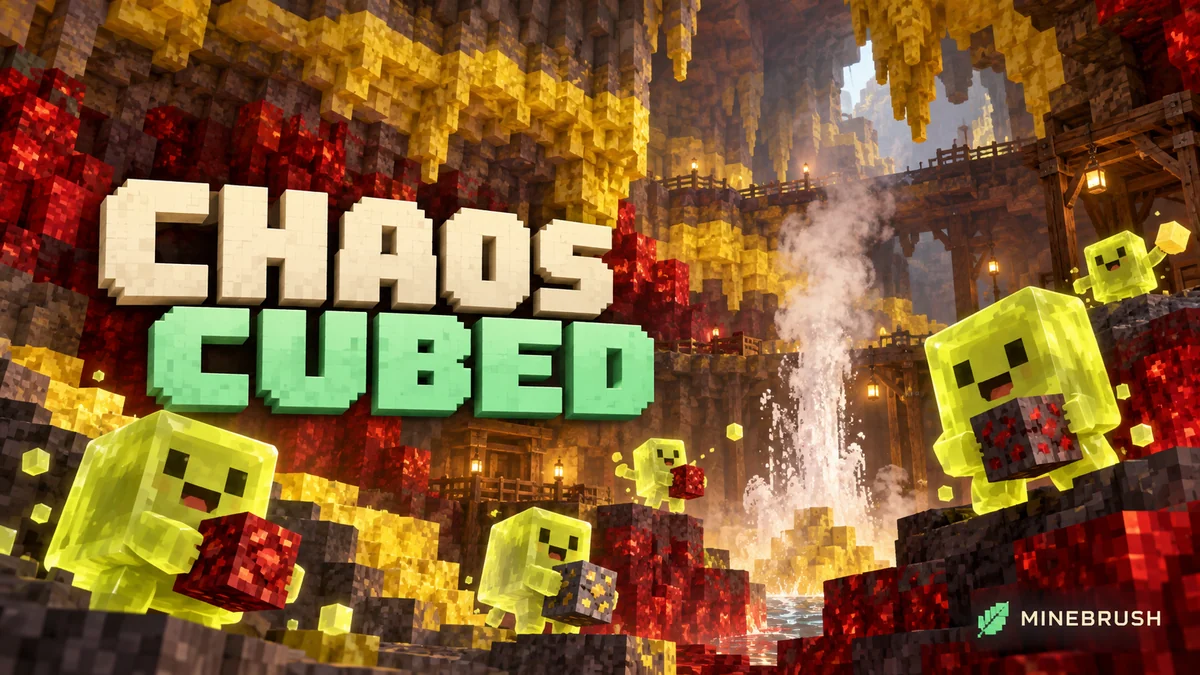
Turn sulfur cubes into bouncing balls and sliding targets, build a geyser, and explore the red-and-yellow caves of Chaos Cubed. Practical projects and Java 26.2 / Bedrock 26.30 differences.
- Game released
- Java
- 26.2 · Stable
- Bedrock
- 26.30 · Stable
Focus Sulfur cubes, new caves, geysers, cinnabar builds and minigame ideas
Topic Chaos Cubed
Install Explore the update
Java 26.2 / Bedrock 26.30
Java + Bedrock · Release
Chaos Cubed
Turn sulfur cubes into bouncing balls and sliding targets, build a geyser, and explore the red-and-yellow caves of Chaos Cubed. Practical projects and Java 26.2 / Bedrock 26.30 differences.
Java 26.2 / Bedrock 26.30
- Update type
- Major release
- Release channel
- Unknown / not stated
- Official release date
- 2026-06-16
- World safety
- Back up before updating
- Player impact
- Sulfur cubes, new caves, geysers, cinnabar builds and minigame ideas
- Related major release
- Chaos Cubed
- Platform family
- Cross-edition
- Supported devices
- Java: Windows, macOS and Linux; Bedrock: supported PC, mobile and consoles
- Install format
- Official game update
- Touch readiness
- Yes
- Resource type
- Update
- Last verified at
- Sep 16, 2026
- Update state
- historical
- Compatibility confidence
- Source claimed
- Bedrock version/build
- 26.30
- Card evidence statement
- Cubes, caves and building ideas
- Card delivery statement
- Explore the update
- Card limitation note
- Java 26.2 / Bedrock 26.30
- Edition applicability
- Java + Bedrock
- Java version/build
- 26.2
- Shared update topic
- Chaos Cubed
- Delivery state
- No file
- Lifecycle state
- Superseded
- Java update channel
- Stable
- Bedrock update channel
- Stable
Explore camps and the Dappled Forest, build with new shapes and keep your home spawn on overnight trips. Bedrock 26.50 explained, including Realms, touch controls, world-saving fixes and add-on checks.
- Bedrock
- 26.50
- Release type
- Release
- Game released
Focus Camping and building, world-saving fixes, Realms and device controls
Install Update through your device store or official game launcher
Enrollment None required
Back up worlds and check add-on compatibility
Bedrock · Release
Minecraft Bedrock 26.50
Explore camps and the Dappled Forest, build with new shapes and keep your home spawn on overnight trips. Bedrock 26.50 explained, including Realms, touch controls, world-saving fixes and add-on checks.
Back up worlds and check add-on compatibility
- Minecraft version
- 26.50
- Game edition
- Bedrock Edition
- Update type
- Major release
- Release channel
- Bedrock Edition
- Official release date
- 2026-09-15
- World safety
- Back up before updating
- Player impact
- Camping and building, world-saving fixes, Realms and device controls
- Related major release
- Wilderness Bound
- Platform family
- Bedrock & Mobile
- Supported devices
- Supported Bedrock devices: Windows, phones, tablets and consoles
- Touch readiness
- Yes
- Last verified at
- Sep 18, 2026
- Update state
- current
- Compatibility confidence
- Source claimed
- Card delivery statement
- Update through your device store or official game launcher
- Card limitation note
- Back up worlds and check add-on compatibility
- Edition applicability
- Bedrock
- Bedrock enrollment route
- None required
- Delivery state
- No file
- Lifecycle state
- Current
Take your Bedrock world to a new phone, Windows PC, Xbox or PlayStation. Choose export/import or Realms, follow the current menus, and check your base and progress before leaving the old device.
- Edition
- Bedrock Edition
- Difficulty
- Beginner
- Time
- None
MineBrush · Guide
Transfer Your Bedrock World
Take your Bedrock world to a new phone, Windows PC, Xbox or PlayStation. Choose export/import or Realms, follow the current menus, and check your base and progress before leaving the old device.
- Game edition
- Bedrock Edition
- Platform family
- Bedrock & Mobile
- Supported devices
- Android / iOS / Windows / Xbox / PlayStation
- Install format
- Realms transfer or Windows export/import
- Touch readiness
- Check guide
- Resource type
- Guide
- Compatibility confidence
- Source claimed
- Edition applicability
- Bedrock
- Guide difficulty
- Beginner
- Delivery state
- No file
- Lifecycle state
- Current
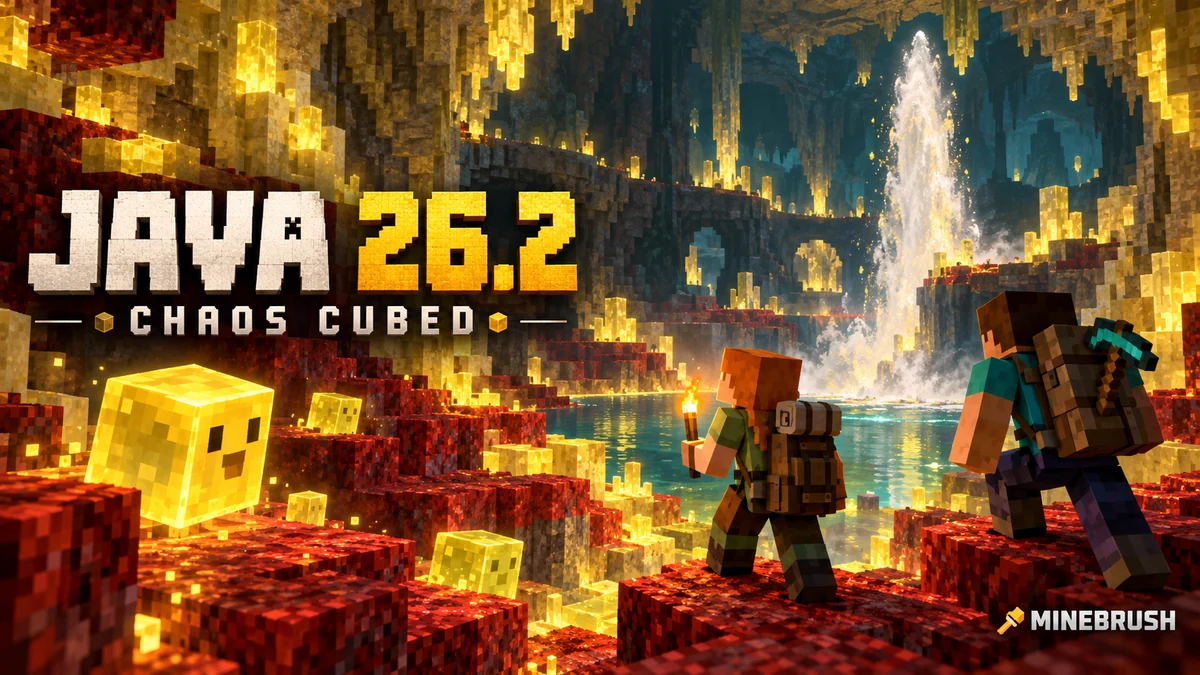
Explore sulfur caves, build cube games and set up the Java Friends List. Learn why an online friend is not a joinable world, choose privacy and graphics settings, and keep older saves safe.
- Java
- Java 26.2
- Release type
- Release
- Game released
Focus Sulfur caves, cube projects, friends and PC settings
Install Official Minecraft Launcher
Historical release · Friends List does not host an online world
Java · Release
Minecraft Java 26.2: Chaos Cubed and Friends
Explore sulfur caves, build cube games and set up the Java Friends List. Learn why an online friend is not a joinable world, choose privacy and graphics settings, and keep older saves safe.
Historical release · Friends List does not host an online world
- Minecraft version
- Java 26.2
- Game edition
- Java Edition
- Update type
- Major release
- Release channel
- Java Edition
- Official release date
- 2026-06-16
- World safety
- Back up before updating
- Player impact
- Sulfur caves, cube projects, friends and PC settings
- Related major release
- Chaos Cubed
- Platform family
- Java PC
- Last verified at
- Sep 16, 2026
- Update state
- historical
- Compatibility confidence
- Source claimed
- Card delivery statement
- Official Minecraft Launcher
- Card limitation note
- Historical release · Friends List does not host an online world
- Edition applicability
- Java
- Delivery state
- No file
- Lifecycle state
- Superseded
Player discussion 0
Questions, discoveries and help from other players.