
MineBrush publication
WorldEdit Bedrock: Build, Copy, Replace & Use Brushes
Copy builds, replace materials and shape terrain with WorldEdit for Bedrock. Learn the wand, clipboard, brushes and undo, then choose the right download for a normal world, Windows Editor or dedicated server.
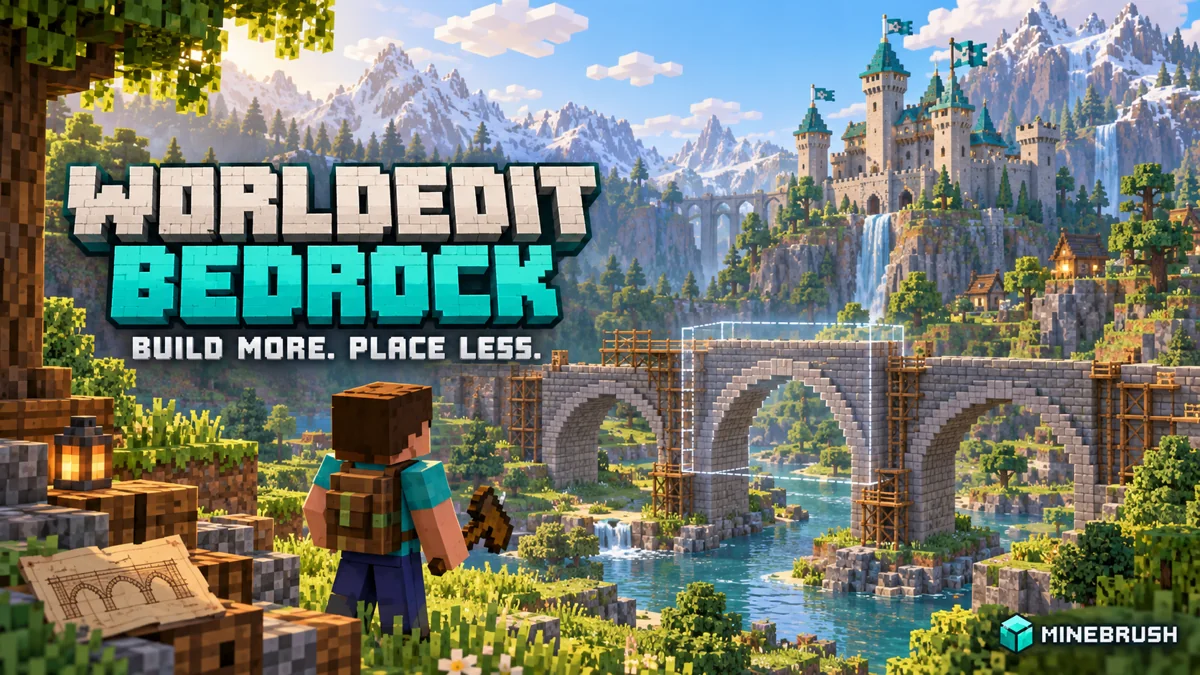
Build a bridge from one finished section, change a wall's material in seconds or shape a landscape with a brush. WorldEdit: Bedrock Edition brings selection-based building tools into Minecraft Bedrock. Instead of placing every repeated block yourself, you choose an area and tell WorldEdit what to do with it. This guide takes you through a small first edit, copying a build and useful tools for your next project.
Start here
For an ordinary world on Windows, Android, iPhone or iPad, choose the normal .mcaddon. Activate its behaviour and resource packs, enable Beta APIs as required by the author, then grant yourself WorldEdit access in a copied Creative world. Get the selection wand with ;wand and the shortcut tools with ;kit.
Current creator packages: 0.11.0-beta.5, released 20 March 2026, lists Bedrock 26.10 as its minimum. The last stable release, 0.10.4, targets 1.21.130. The beta label belongs to the add-on; it does not mean you should automatically install Minecraft Preview. Bedrock updates can change the scripting features it uses, so try the selected package on a copy before using it for a major build.
What can you build with it?
- Bridges, walls and corridors: finish one repeatable section, then copy or stack it to extend the design.
- Building renovations: replace one material in a selected area while leaving other blocks alone.
- Villages and adventure maps: copy a house, rotate the clipboard and place another version elsewhere, then customise the details.
- Landscapes: use brushes to add rock shapes, smooth rough terrain or scatter prepared structures.
- Large outlines: generate walls or a shell from a selection instead of counting and placing the entire boundary manually.
This is SIsilicon's Bedrock add-on, developed with WorldEdit-BE contributors. It is a separate project from Java WorldEdit: a Java JAR will not work here, and some commands and features differ. Think of it as a building toolkit. It does not decide where your village should go or design a finished castle for you.
Choose the right package
- Normal world, newest beta:
WorldEdit.beta.mcaddon, version 0.11.0-beta.5. Use this route for ordinary Bedrock worlds when trying the newer add-on features. - Normal world, older stable release:
WorldEdit.mcaddon, version 0.10.4. Keep it for a matching older setup; “stable” does not guarantee compatibility with every future Bedrock update. - Bedrock Editor on Windows:
WorldEdit.beta.editor.mcaddon, version 0.11.0-beta.5. This integrates with Editor's interface and is not the package for an ordinary mobile world. - Bedrock Dedicated Server:
WorldEdit.server.zip, version 0.10.4. This is a separate server installation route, not a Realm upload package.
Download one route, not every package. The normal add-on already contains its paired packs. Do not activate the normal and Editor versions together. All four original creator files are available through the attachments near the end of this page.
Install in an ordinary Bedrock world
- Make a copy or export a backup of the world you want to edit. For the first session, use a small Creative practice world with cheats enabled.
- Download the matching normal .mcaddon file below. Open it with Minecraft and wait for import to finish. On a phone, use the file manager's Open/Share option to send it to Minecraft.
- Open that world's settings. Activate WorldEdit under Behaviour Packs and WorldEdit [RES] under Resource Packs. Check both Active lists.
- Enable Beta APIs in the world's experimental settings, following the author's installation instructions. You do not need to turn on every experiment.
- Enter the world, open chat and run
/tag @s add worldeditto grant your own player WorldEdit access. - Run
;wand, then;kit. You should receive the selection tool and shortcut items.
The permission command uses Minecraft's normal / prefix; the add-on commands in this guide use a semicolon ;. If you type /wand, Minecraft is looking for a different kind of command. You need permission to run the tag command in that world.
The worldedit tag grants broad building powers. It is convenient for your own Creative practice world. On a shared server, give it only to trusted builders; an administrator can instead grant narrower permissions such as worldedit.selection or worldedit.clipboard. Remove full access with /tag @s remove worldedit when you no longer need it.
On consoles, importing a local add-on directly is less straightforward. The author's documentation describes transferring a world through a Realm from a PC or mobile device. The dedicated-server ZIP is not a shortcut for that process. Keep an untouched copy of a survival world if you want to preserve its original settings and achievement eligibility.
Select a small area with the wand
The default selection wand is a wooden axe. Mark two opposite corners of the rectangular volume you want to edit: use the block-breaking action on the first corner, then use/interact with the wand on the second. With mouse controls these are normally left-click and right-click. Touch layouts vary; use the corresponding break and interact actions.
Both corner blocks are included. A three-block-wide, three-block-long, three-block-high selection contains 27 blocks. Start that small so you can see exactly what changed. The visible selection outline is your cue to check the height as well as the footprint.
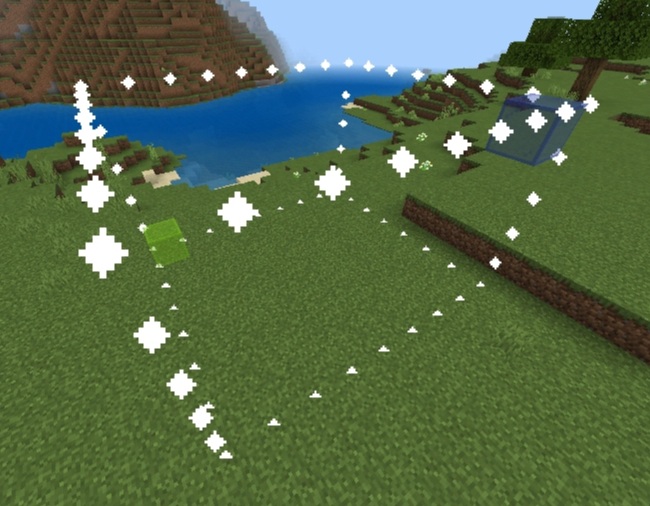
For a corner in mid-air, stand at the desired point and type ;pos1 or ;pos2. These use the block space your player occupies, not the block underneath your feet. This matters when you are selecting a floor or a roof: a point one block too high can leave the intended surface outside the selection.
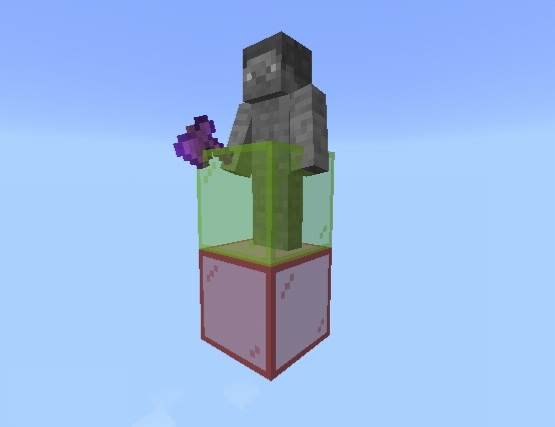
Your first edit: fill, replace and undo
In the small practice selection, type ;set stone. The selected volume becomes stone. Next, try ;replace stone cobblestone: this replaces only stone within the selection, rather than every type of block there.
Now type ;undo to reverse the last edit. Use ;redo if you want to apply that edit again. Practising these immediately gives you a useful habit before working on a real build. If the affected area is unexpected, stop and correct the selection rather than running more commands over it.
Set versus replace: use set when you want the entire selected volume filled with a material. Use replace when renovating a palette, such as changing stone to cobblestone around windows that should stay in place. ;set air clears a whole selected volume, so save that command for an area you genuinely mean to remove.
For a shared or slower device, begin with a small per-operation limit such as ;limit 1000, subject to the administrator's configured maximum. This is a starting ceiling, not a performance guarantee. Increase the job gradually rather than selecting a whole mountain for your first attempt.
Copy a build and place it where you expect
- Select a small structure, including the parts you want to reproduce.
- Stand at a recognisable reference point, such as beside its front door, and type
;copy. - Move to the new site and stand where that same reference point should be.
- Type
;paste -n. This sets a selection showing the proposed destination without placing the blocks. - Check the outline and your height, then type
;pasteto place the copy. - Inspect the result and use
;undoif it is not where you intended.
The clipboard remembers where you were standing when you copied. If you copied while standing on a roof, the pasted building appears below your new position. Moving your player changes the paste position; simply facing a different direction does not automatically rotate the building.
To rotate the clipboard, use ;rotate 90 before previewing and pasting. This changes the copy in memory by default; it does not rotate the original building in the world. Try a small asymmetric structure first so its new orientation is easy to recognise.
Ordinary copying includes air inside the selected cuboid, which can clear blocks at the destination. If you want to copy only the non-air parts, use ;copy -a when making the clipboard. That can help place a decorative structure into an existing scene, but it may also leave unwanted terrain inside its empty spaces. Choose deliberately. The preview outline is a bounding box, not a full translucent rendering of every pasted block.
Repeat a section instead of rebuilding it
Use ;stack 3 east to repeat the selected section three times towards the east. This is useful for bridge spans, tunnel supports or a row of pillars. The selection's width determines the spacing: include the intended gap in the section if you need repeated pieces separated.
Use an explicit direction such as east, north or up while learning. If you omit the direction, your facing matters. Check that the destination is clear and that you did not include neighbouring terrain in the source selection.
For a building shell, ;walls stone creates the vertical boundary of the selection. It is a quick way to outline a rectangular room before adding openings and detail. It is different from filling the entire volume with ;set stone.
Brushes for rocks, paths and terrain
A brush binds an editing action to a held item. For a small rock-making example, hold a spare shovel and type ;brush sphere stone 2. Use that item while aiming at an open practice area to place stone spheres. Build a rough cluster first, then refine it; a brush is a tool for shaping, not a finished landscape generator.
The kit's WorldEdit Settings → Brush Settings menu lets you create and edit brushes without remembering every command. Choose the material, radius and other options, then try a single use before making a stroke. You can remove the binding with ;brush none while holding that item.
A mask restricts which blocks an operation may change. It is useful when painting a path onto a chosen surface or replacing terrain while preserving another material. A forgotten mask can also explain an edit that affects fewer blocks than expected. Check the relevant brush/global mask settings when a command appears to do nothing.
Shortcuts for touch controls
;kit supplies items for common actions such as copy, paste, undo and filling a selection. Keep the ones you use on your hotbar so you do not need to reopen chat for every step. The Pattern Picker selects the material for a fill; the Mask Picker restricts the blocks it affects. On mobile, the author's guide describes holding the screen with the Pattern Picker when selecting air.
Work on a small area while learning each item's action. Confirm the selected tool before tapping near a finished build, especially when switching between navigation, selection and a brush. You can use the typed commands above if a touch shortcut feels ambiguous.
What is different in Bedrock Editor?
Bedrock Editor is Microsoft's Windows map-making environment. The dedicated WorldEdit Editor package integrates region operations, brush controls and gradient management into its interface, with Ctrl+Z / Ctrl+Y shortcuts for undo and redo. It requires Editor itself; importing the Editor package into a regular mobile world does not turn that world into Editor.
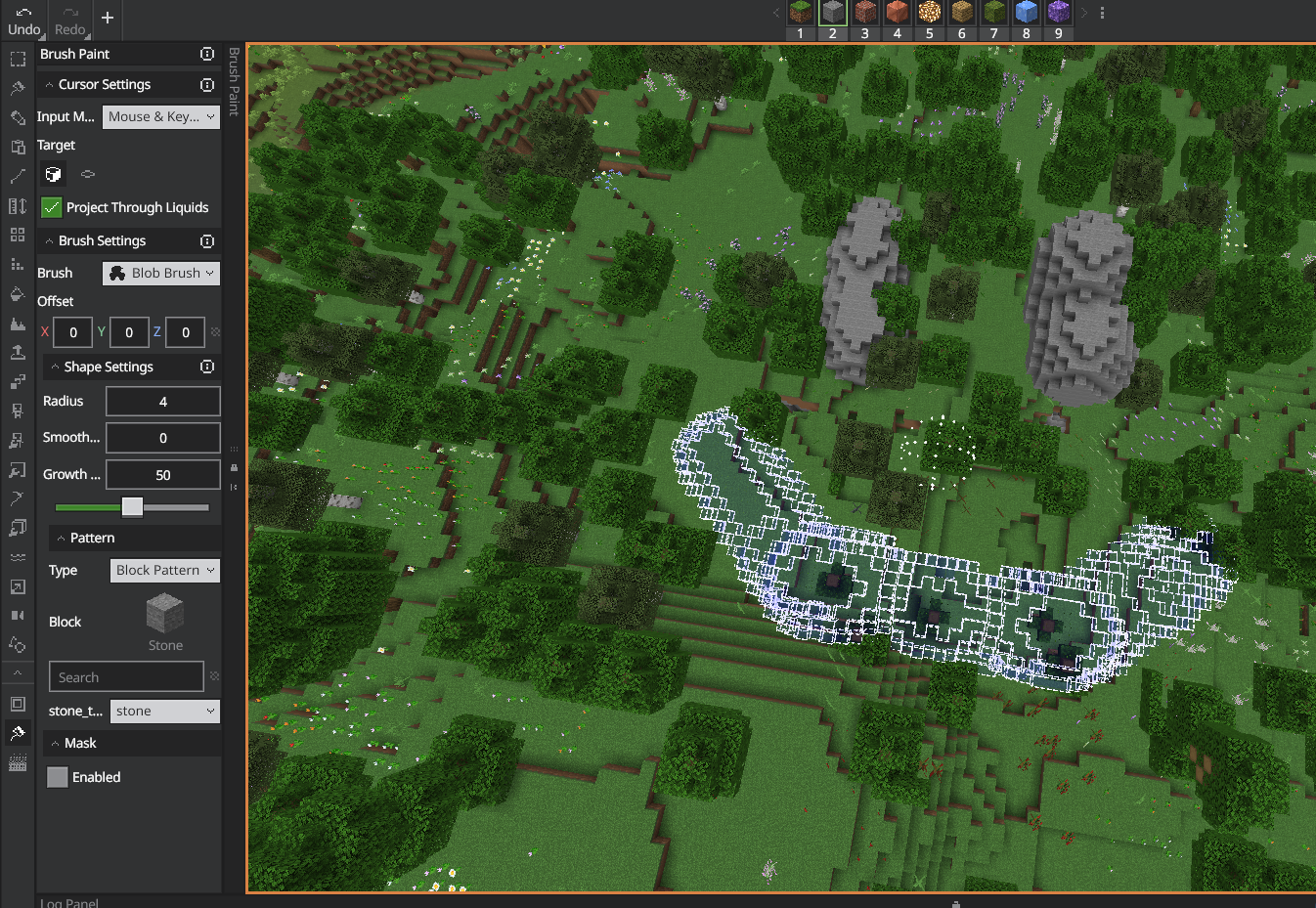
The 0.11.0-beta.5 release adds an Editor brush tool and improves the blob brush. For your first Editor setup, install Editor using Microsoft's Editor tutorial, import WorldEdit.beta.editor.mcaddon, and use a copied Editor project with the add-on's paired packs. Follow the creator's Editor integration guide for that interface.
Dedicated servers, Realms and Aternos
For a Bedrock Dedicated Server, stop the server and preserve a complete backup first. Extract the server ZIP, install its WorldEditBP and WorldEditRP folders into the server's appropriate pack locations, and activate the matching packs for the target world using the host's pack controls or Bedrock world-pack configuration. Put the supplied variables.json in config/default, as the author documents. Restart and grant WorldEdit access only to the builders who need it.
The creator specifically says the dedicated-server archive is not the Realms route. The installation guide also tells Aternos users to use the normal add-on because its configuration support differs. Follow your host's documented pack activation steps; a ZIP sitting in a downloads folder does not activate an add-on on a server.
Undo helps, but keep a world backup
WorldEdit records block edits in session history, with a default limit of 25 actions. Server configuration can change that limit. The clipboard and session data are temporary: the documentation describes a default ten-minute retention after leaving a multiplayer session and immediate loss on leaving single-player.
Undo does not reverse secondary effects such as flowing water, spreading fire or explosions. Test the undo action immediately after a small edit, and keep a separate world backup for anything important. Do not rely on logging back in tomorrow to recover today's building mistake.
When WorldEdit does not respond
- Commands are ignored: check the semicolon prefix, your WorldEdit permission tag, both active packs and Beta APIs. Ordinary Minecraft commands such as /tag still use a slash.
- Import reports a duplicate: check Settings → Storage for older WorldEdit behaviour and resource packs. Preserve worlds first, then remove the conflicting imported pair if replacing it; do not delete the world itself.
- No selection appears: mark both corners with the correct wand actions, or use ;pos1 and ;pos2. Confirm that the resource pack is active.
- Paste is offset: consider where you stood during ;copy, not just where the selection was. Recopy from an easy reference point and use ;paste -n.
- The edit is incomplete or rejected: check selection size, limits and masks. Wait for an operation to finish before starting another.
- It stopped after a Minecraft update: check the exact add-on version and the author's releases. Experimental scripting changes can require an add-on update; enabling unrelated experiments is not a reliable fix.
- A complex command behaves incorrectly in the beta: simplify the selection and command in a copied world. The project has current issue reports for advanced patterns and some operations; do not keep applying the same failed operation to a valuable build.
Download WorldEdit Bedrock
Normal world — 0.11.0-beta.5. Creator minimum: Bedrock 26.10. Import the .mcaddon, activate both packs and Beta APIs.
Normal world — 0.10.4 stable. Creator-supported release: Bedrock 1.21.130. This is the older stable option, not a promise of support for every newer game build.
Windows Bedrock Editor — 0.11.0-beta.5. Use only with the Editor workflow, not a regular mobile world.
Bedrock Dedicated Server — 0.10.4 stable. Includes the server configuration file. This is not the Realm/Aternos package route described above.
Sources and credits
WorldEdit: Bedrock Edition is by SIsilicon and contributors. Original packages and release details: creator releases. Source code and licensing: WorldEdit-BE repository. Useful references: installation, commands and permissions, clipboard, brushes, undo history and current issue reports.
Images are credited to the developer and link to unchanged originals. The cover is an original MineBrush editorial illustration. MineBrush checked the published packages and documentation; this article does not claim an in-game test of every Bedrock version or server setup.
Explore more Bedrock add-ons or browse maps for your next building project.
More for your Bedrock world.
Understand Minecraft 26, tell normal releases from test builds, and choose the right version for friends, servers and mods. Clear Java and Bedrock examples without the technical clutter.
- Topic
- Choosing your Minecraft version
- Scope
- None
- Evidence
- Official Minecraft sources · checked 9 Sep 2026
A shared “26” prefix never proves cross-edition compatibility.
MineBrush · News
Minecraft Versions Made Simple
Understand Minecraft 26, tell normal releases from test builds, and choose the right version for friends, servers and mods. Clear Java and Bedrock examples without the technical clutter.
A shared “26” prefix never proves cross-edition compatibility.
- Compatibility confidence
- Source claimed
- Card evidence statement
- Official policy and indexes checked 9 Sep 2026; client display NOT_OBSERVED.
- Card delivery statement
- Choose a version for everyday play or testing
- Card limitation note
- A shared “26” prefix never proves cross-edition compatibility.
- Edition applicability
- Java + Bedrock
- News topic
- Choosing your Minecraft version
- Public news evidence label
- Official Minecraft sources · checked 9 Sep 2026
- Delivery state
- No file
- Lifecycle state
- Current
- News evidence type
- Official Minecraft source
Construct
1.2.0Turn saved designs into building holograms for Bedrock. Follow a build layer by layer, gather the right materials, use Easy Place and spot mistakes before finishing your next survival project.
- Minecraft
- Bedrock 26.40
- Components
- Paired
- Package
- .mcaddon — behavior and resource packs
Beta APIs required. Release targets Bedrock 26.40; 26.50 is not listed.
Bedrock · Add-on
Construct
Turn saved designs into building holograms for Bedrock. Follow a build layer by layer, gather the right materials, use Easy Place and spot mistakes before finishing your next survival project.
Beta APIs required. Release targets Bedrock 26.40; 26.50 is not listed.
- Minecraft version
- Bedrock 26.40
- Game edition
- Bedrock Edition
- Loader / platform
- Bedrock
- License
- MIT
- Platform family
- Bedrock & Mobile
- Supported devices
- Windows · Android · iOS/iPadOS
- Install format
- .mcaddon — behavior and resource packs
- Touch readiness
- Check guide
- Resource type
- Add-on
- Project version
- 1.2.0
- Last verified at
- Sep 15, 2026
- Compatibility confidence
- Source claimed
- Bedrock add-on packs
- Paired
- Bedrock add-on import route
- Open .mcaddon with Minecraft; activate Construct BP and RP, then Beta APIs.
- Required experiments
- Required
- Card evidence statement
- Building holograms, layers, material lists and placement helpers
- Card delivery statement
- Complete addon with behavior and resource packs
- Card limitation note
- Beta APIs required. Release targets Bedrock 26.40; 26.50 is not listed.
- Edition applicability
- Bedrock
- Delivery state
- Direct download
- Lifecycle state
- Current

Bring a Bedrock adventure, parkour course or survival map to Android, iPhone or iPad. Find the download, import the world or template, start playing and keep your progress separate from the original file.
- Edition
- Bedrock Edition
- Difficulty
- Intermediate
- Time
- None
Keep your progress separate from the original map
MineBrush · Guide
Import Bedrock Maps on Mobile
Bring a Bedrock adventure, parkour course or survival map to Android, iPhone or iPad. Find the download, import the world or template, start playing and keep your progress separate from the original file.
Keep your progress separate from the original map
- Game edition
- Bedrock Edition
- Platform family
- Bedrock & Mobile
- Supported devices
- Android / iPhone / iPad
- Install format
- .mcworld / .mctemplate
- Touch readiness
- Check guide
- Resource type
- Guide
- Compatibility confidence
- Source claimed
- Card evidence statement
- Worlds, templates and first steps
- Card delivery statement
- Import and start playing
- Card limitation note
- Keep your progress separate from the original map
- Edition applicability
- Bedrock
- Guide difficulty
- Intermediate
- Delivery state
- No file
- Lifecycle state
- Current
Cut your Minecraft player out of a recorded scene for intros, overlays and thumbnails. Download EntityMask 1.0 for Java 1.20–1.21.8, see the author's real mask previews, and learn how to align two recordings and keep the player with an inverted luma matte.
- Format
- Workflow
- Path
- Replay → normal recording + mask → video editor
- Output
- Player cutout for an intro, title effect or thumbnail
Version 1.0 beta; Java 26.x support is not listed.
MineBrush · Creator
EntityMask 1.0
Cut your Minecraft player out of a recorded scene for intros, overlays and thumbnails. Download EntityMask 1.0 for Java 1.20–1.21.8, see the author's real mask previews, and learn how to align two recordings and keep the player with an inverted luma matte.
Version 1.0 beta; Java 26.x support is not listed.
- Minecraft version
- Java 1.20–1.21.8
- Game edition
- Java Edition
- Loader / platform
- Not applicable
- License
- MIT
- Creator resource format
- Workflow
- Platform family
- Java & PC
- Supported devices
- Minecraft Java on desktop
- Install format
- ZIP → shaderpacks
- Touch readiness
- Not required
- Resource type
- Shader
- Last verified at
- Sep 18, 2026
- Compatibility confidence
- Source claimed
- Card evidence statement
- Record matching color and mask clips; combine them in your editor.
- Card delivery statement
- Shader ZIP · Iris or OptiFine required
- Card limitation note
- Version 1.0 beta; Java 26.x support is not listed.
- Edition applicability
- Java
- Tested environment
- Java with Iris or OptiFine; replay recorder and matte-capable video editor
- Example artifact path
- Replay → normal recording + mask → video editor
- Creator output
- Player cutout for an intro, title effect or thumbnail
- Estimated time
- 8 min read; recording time varies
- Guide difficulty
- Intermediate
- Delivery state
- Direct download
- Lifecycle state
- Current
Player discussion 0
Questions, discoveries and help from other players.