
MineBrush publication
BRAZZ Shader for Minecraft Bedrock: Download & 8 Profiles
BRAZZ Shader offers eight lighting and color profiles for Minecraft Bedrock, from golden Retro to black-and-white Noir. Compare the real screenshots, choose the matching in-game setting, and download version 1.0.3. This older Vibrant Visuals pack targets the 1.21.80 era; compatibility with current builds is unconfirmed.
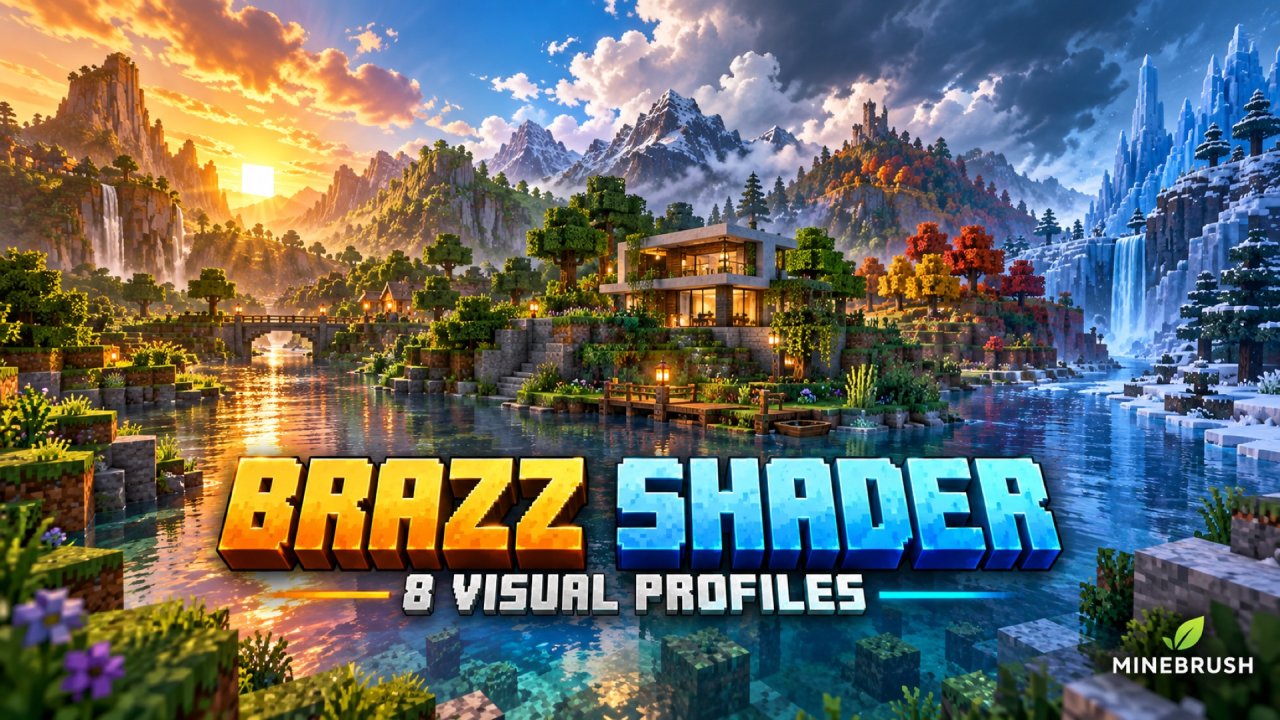
What BRAZZ Shader adds to your world
A lakeside cabin can look quiet and natural, golden and nostalgic, or cold enough to belong in a winter adventure. BRAZZ Shader gives you eight ways to light and color the same Bedrock world. It is a visual resource pack by Lucas Coelho: you choose one profile, keep your build, and change its atmosphere.
The download here is BRAZZ 1.0.3. Its files adjust lighting, sky and fog, water, shadows, and color grading. They do not add crafting recipes, mobs, or new blocks, and this is not a high-resolution replacement for every block texture. The eight real gameplay images below show the differences more clearly than the illustrated cover.
Before you download: this is an older Vibrant Visuals pack from April 2025, built around Bedrock 1.21.80. Its current-version compatibility is not confirmed. If you need a pack guaranteed to work with your present game build, this release does not offer that assurance.
Download · Versions and devices · Compare eight profiles · Install and switch profiles · Fix missing effects
Download BRAZZ Shader 1.0.3
One Brazz_Shader.mcpack contains all eight profiles. You do not need eight downloads or a separate behavior pack. Minecraft identifies this pack as Brazz after import.
Which Minecraft versions and devices is it for?
The author's page is inconsistent: its description says 1.21.80+, while its changelog says only 1.21.80. The supplied file names 1.21.80 as its minimum game version. A minimum version does not establish compatibility with every later release.
That distinction matters here. Minecraft's current Vibrant Visuals pack requirements have moved beyond the setup used in this archive. We checked the original file and its contents, but have not run this release in the current game. An import success message alone will not confirm that its lighting works.
- Edition: Minecraft Bedrock. This MCpack cannot be installed as a Java shader.
- Graphics: a device that can actually select Vibrant Visuals. Ordinary Simple or Fancy graphics will not reproduce the gallery.
- Creator-listed platforms: Android and Windows 10/11. The author's listing does not establish BRAZZ support on iPhone, iPad, consoles, or Realms.
If Vibrant Visuals is missing from your settings, use our Vibrant Visuals device and settings guide first. Importing BRAZZ cannot make an unsupported device gain that graphics mode.
Eight profiles: what changes, and which should you choose?
The pack's menu uses Padrão for Standard, Vivido for Vivid, and Cinemático for Cinematic. The other five names match the headings below. These are choices inside one pack; activate one profile at a time.
The gallery follows the author's profile labels and shows the same shoreline, with slightly different framing and sun positions. Use it to compare the overall look, rather than treating it as an exact brightness benchmark. Select an image to enlarge the hosted copy.
Standard — Padrão
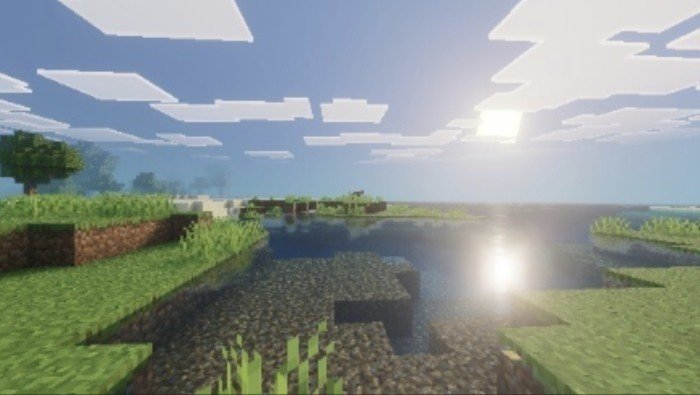
Start here when choosing blocks for a house or playing ordinary survival. A more neutral view makes it easier to judge your material palette before trying a stronger grade.
Cinematic — Cinemático
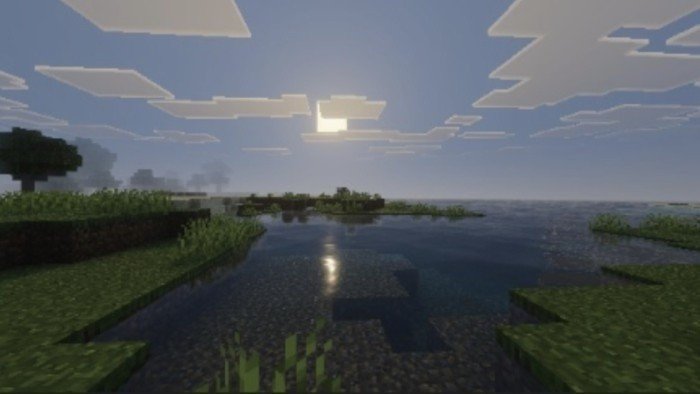
Try it for an approach shot toward a castle, distant mountains, or a quiet village. Keep an eye on the foreground: the grass in this example is considerably darker than the sky.
Vivid — Vivido
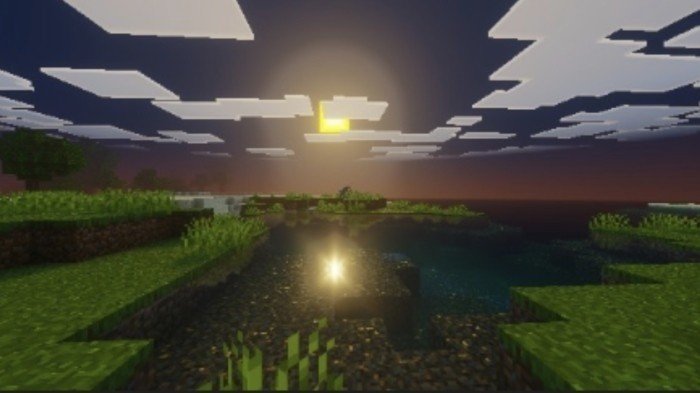
Consider this look for a lush garden or a colorful fantasy build. Vivid does not mean everything becomes brighter: the reference image still has deep shadows, so it is a different choice from a visibility-focused pack.
Retro
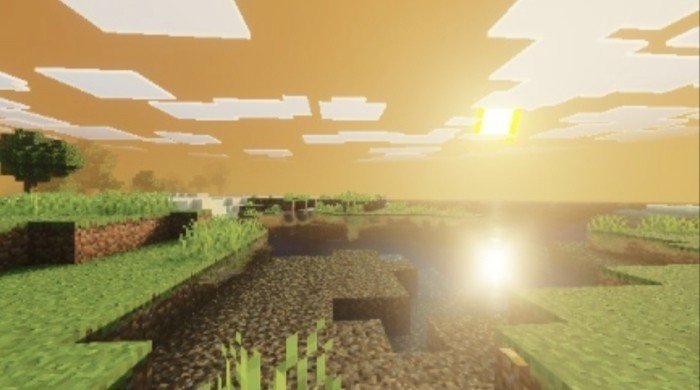
Use this as a starting point for a nostalgic village scene or a warm cabin screenshot. Judge white walls and pale stone carefully; their apparent color changes with the grade.
Cartoon
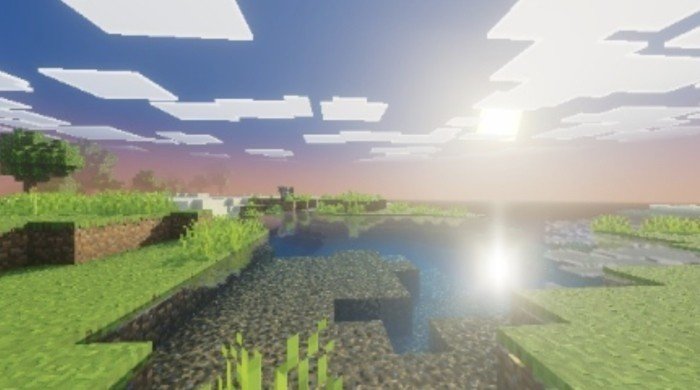
Try it around a colorful minigame lobby or cheerful creative build. The image still uses Minecraft's familiar block shapes; the profile does not promise comic-book outlines or redesigned textures.
Noir
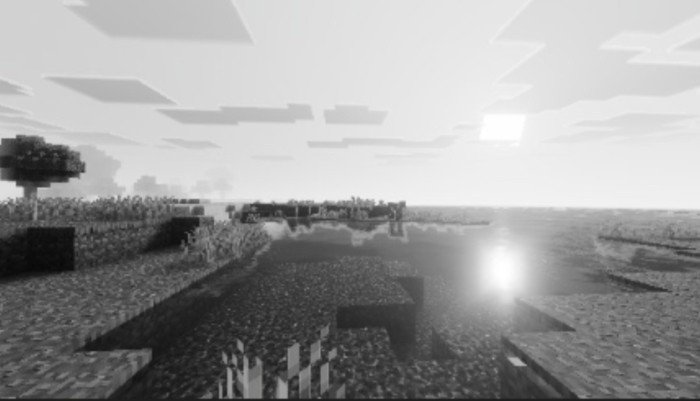
A detective street or abandoned station could suit this look. Avoid relying on it while building a wool-color puzzle or following color-coded paths: those distinctions are precisely what monochrome removes.
Frozen
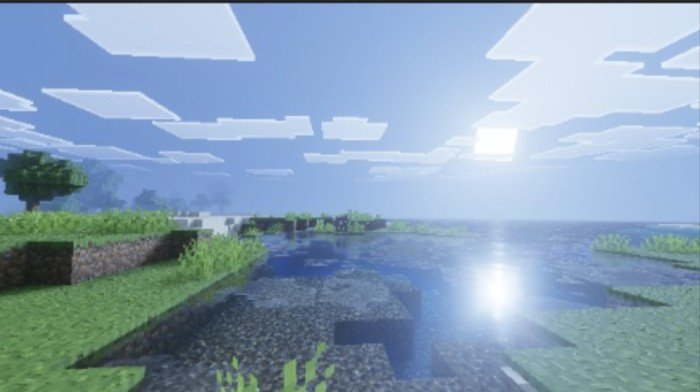
Pair it with an ice harbor, mountain refuge, or winter castle. Frozen is a visual style: it does not turn the biome snowy, freeze lakes, or introduce temperature mechanics.
HDR
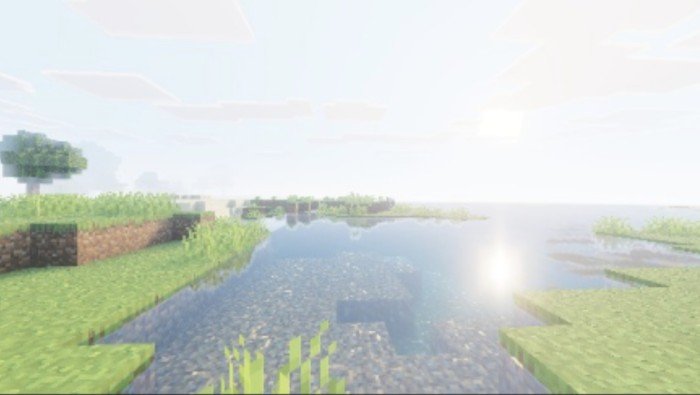
Try it if you want a bright presentation, then compare your clouds, snow, and white walls with Standard. Here HDR is the profile's name; it is not evidence that the pack enables a display's hardware HDR mode.
Install the pack and select your look
- Download the MCpack above. Leave it as
Brazz_Shader.mcpack; do not extract its folders or rename it to a Java shader ZIP. - Open it with Minecraft Bedrock. On Windows, double-click it or choose Minecraft in “Open with.” On Android, use the file manager's open/share action to send the downloaded file to Minecraft.
- Wait for the import result. Look for Brazz in the pack list. Importing makes it available; it does not activate it in every world.
- Choose a world. Open its edit screen, then Resource Packs → My Packs → Brazz → Activate. Use a copy for an important existing world, especially if you are trying the historical experimental setup.
- Select the active pack and its gear/settings button. Choose the profile by its displayed name. For the neutral starting point, choose Padrão. Apply the selection and reopen the world.
- Use Vibrant Visuals. In the main menu's Settings → Video → Graphics Mode, select Vibrant Visuals when available.
For the original 1.21.80-era setup: Mojang's 1.21.80 release notes also require the world's Vibrant Visuals experiment before the graphics option appears. That historical step should not become advice to enable every experiment in today's game. Read the world's warning before changing experimental settings.
To change the look later, return to the same active pack settings and select another profile. To remove BRAZZ from that world, use Resource Packs → Active → Brazz → Deactivate, then reopen it. Vibrant Visuals may remain enabled; deactivating the pack and turning off the graphics mode are separate choices.
Make the profile useful for your build
Choose materials before adding a mood. For a cabin, place a small sample of your wood, roof, and stone in Standard first. Try Retro for the finished scene, then return to Standard before deciding that a pale wall needs a different block. This avoids redesigning a palette just to compensate for a color filter.
Use presentation effects for presentation. Noir can make an adventure-map screenshot more distinctive, while Frozen can reinforce an ice fortress. Neither changes the map's rules. Keep ordinary torches and light sources where players need them; a brighter-looking picture is not a measurement of the game's block light or mob-spawning conditions.
Compose around the reflection. The gallery shows a bright sun reflection on the water. At a dock or waterside house, move your camera so it supports the building instead of obscuring its entrance. If highlights swallow the detail, try Standard or Cinematic rather than assuming the brightest profile is best.
If importing or changing profiles does not work
Minecraft cannot import the file
Check that you are opening the MCpack in Bedrock, not Java or a ZIP viewer. If your download is incomplete, download the attachment again. A duplicate-pack message can mean Brazz is already present: check My Packs before trying to install it repeatedly.
Vibrant Visuals is missing or unavailable
Check the game and device requirements in the linked settings guide. If the mode is unavailable even without BRAZZ, changing BRAZZ profiles will not solve that underlying limitation. The older 1.21.80 experiment is a separate case described above.
Vibrant Visuals works, but BRAZZ changes nothing
Confirm Brazz is active in this world and temporarily deactivate other lighting, sky, or color-changing packs. Reopen the world. If the built-in mode works but this pack still has no effect, its older format may be the problem. Repeatedly toggling unrelated experiments is not a reliable fix; use a pack that explicitly supports your current build.
The menu looks different, or not all profiles are offered
Check the translated names above. The archive contains eight profiles, but the author also assigns them different device memory requirements. Their availability should not be assumed identical on every device. Those settings are not measured FPS ratings, and we have not verified all eight selections in-game.
The game becomes less smooth
Start with Vibrant Visuals' Favor Performance preset. Compare the same area with BRAZZ deactivated while leaving Vibrant Visuals on; this separates the cost of the graphics mode from any additional effect of the pack. On a phone, judge it after normal play, not just a still screenshot. There is no measured FPS gain or “no lag” guarantee for this release.
More for your Bedrock world.
Turn on Vibrant Visuals in Bedrock, check supported devices and choose settings that suit your play. Compare six official before-and-after screenshots, with help for missing options, Realms and split-screen.
- Edition
- Bedrock Edition
- Difficulty
- Beginner
- Time
- None
MineBrush · Guide
Vibrant Visuals Setup Guide
Turn on Vibrant Visuals in Bedrock, check supported devices and choose settings that suit your play. Compare six official before-and-after screenshots, with help for missing options, Realms and split-screen.
- Game edition
- Bedrock Edition
- Platform family
- Bedrock & Mobile
- Supported devices
- Supported Windows PCs, Xbox, PlayStation, Android and iOS
- Install format
- Built-in graphics setting
- Touch readiness
- Yes
- Resource type
- Guide
- Compatibility confidence
- Source claimed
- Edition applicability
- Bedrock
- Guide difficulty
- Beginner
- Delivery state
- No file
- Lifecycle state
- Current
Player discussion 0
Questions, discoveries and help from other players.