
MineBrush publication
Blue Architect Minecraft Skin: Builder Outfit, Classic Model and Download
A blue workshop outfit for builders and survival projects. Inspect the real skin from three angles, download its PNG in a ZIP and follow the Classic/Wide import steps.
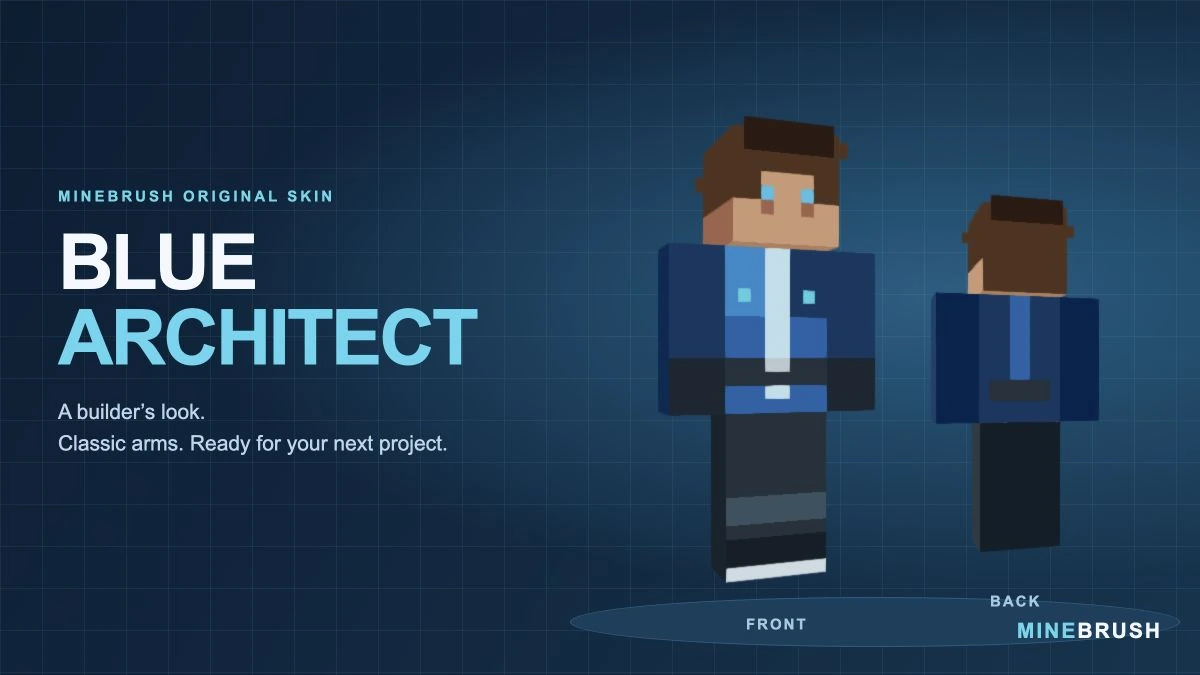
Blue Architect is a MineBrush original skin for players who like a clean builder or workshop look. A blue jacket, pale central zip, cyan accents and dark work clothes give the character a simple, recognisable style. Brown hair, a compact belt and light boot soles finish the design without covering it in tiny decorative details.
Choose Classic / Wide when importing it. The download contains the original 64 × 64 PNG inside a ZIP. Extract the PNG first, then select it in Minecraft’s skin importer.
A look for builders, engineers and everyday survival
- Creative building: use it as your architect’s outfit while working on a town, modern house, railway station or public build.
- A survival workshop: the jacket, belt and dark trousers suit a base full of storage rooms, farms and redstone projects.
- A building team: the blue palette gives your character a clear visual theme during collaborative projects or group screenshots.
- Build tours and tutorials: a simple, consistent outfit helps make your character recognisable between episodes.
These are role-playing and presentation ideas. The skin changes your character’s appearance; it does not provide tools, armour protection, faster building or extra inventory space.
See the actual skin from three angles
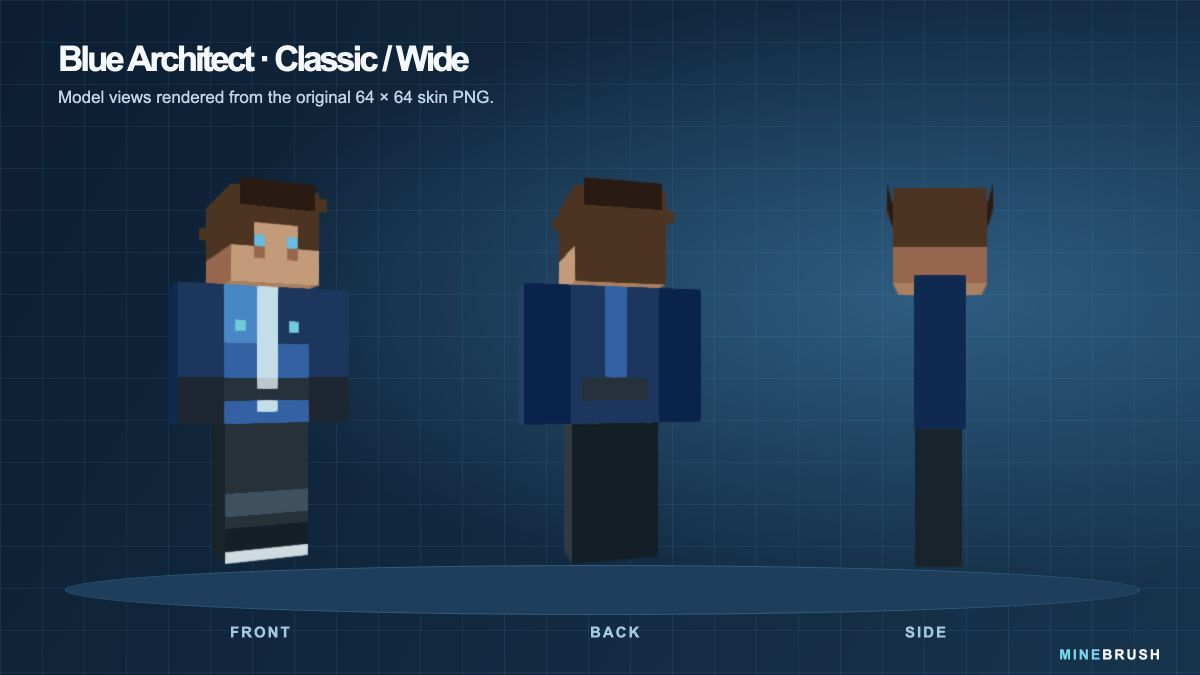
The front view shows the pale zip and cyan jacket details. From behind, a blue stripe continues down the jacket above the dark belt panel. The side view shows the broad Classic sleeve and the continuous brown hair around the head.
Download Blue Architect
This download is a ZIP containing blue-architect-64x64.png. Extract it with your device’s file manager. The small, flat PNG is the skin Minecraft needs; the large character preview and cover are for viewing only.
No mod loader, resource pack or executable is required. Keep the skin as PNG and do not resize it before importing. Saving it as JPEG or using a screenshot of the preview will not preserve the skin layout.
Choose Classic / Wide, not Slim
Blue Architect was drawn for the standard four-pixel-wide arms. Minecraft’s Classic and Wide labels refer to that model. Slim uses narrower arms and can make the sleeve and wrist pattern appear misaligned.
If the arms look wrong after import, edit the saved skin and change the model to Classic/Wide before downloading another copy. You do not need to alter the image to use the intended model.
Put it on in Minecraft Java Edition
- Extract the downloaded ZIP and locate blue-architect-64x64.png.
- Open Minecraft Launcher and select Minecraft: Java Edition.
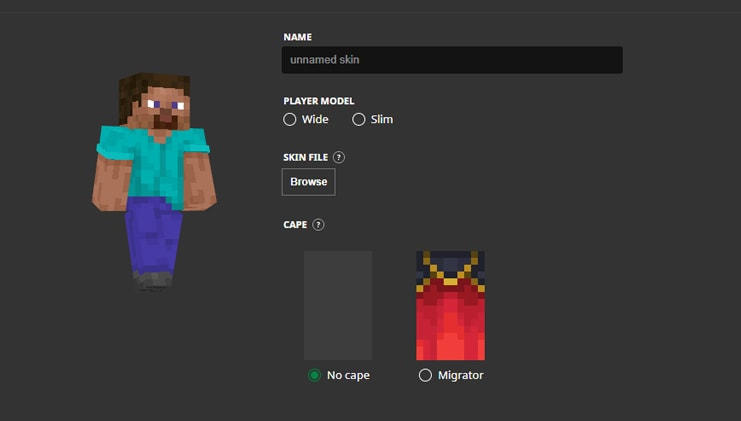
- Open Skins, choose New Skin and give it a recognisable name such as Blue Architect.
- Select Wide / Classic, choose Browse and select the extracted PNG.
- Choose Save & Use. If Minecraft was already running, restart the game before checking the new appearance.
You can also use the custom-skin upload in your Java profile on Minecraft.net. Select the same Classic model and upload the extracted PNG there.
Using the PNG in Bedrock
On Bedrock platforms that support importing a custom Classic skin, use the Dressing Room, select a character slot and open Classic Skins. Find the import/custom-skin option, select the extracted PNG from your device and choose the wide-armed model when prompted.
Mojang documents local custom-skin import on Windows and mobile. Console editions do not provide the same local PNG import route. If your device has no import option, buying or installing a mod loader will not add that option to this file.
Keep a copy of the PNG on each device where you want to use it. Do not assume an imported Bedrock skin will automatically sync to every device on the same account. A Classic PNG skin is also separate from an outfit assembled item by item in Character Creator.
Make the outfit visible in your world
Switch to third-person view to see more than your arm. In Java, use the assigned perspective key, normally F5; some keyboards require an Fn combination. In Bedrock, use the camera-perspective setting available on your device.
For a build-tour screenshot, stand somewhere with even lighting and turn slightly so the front of the jacket and one sleeve are visible. Equipped armour can cover much of the outfit. You can remove it for a posed picture in a safe setting, but the skin itself offers no protection during survival play.
If you use shaders or visual packs, the blue and cyan colours may look warmer, darker or brighter than the neutral model preview. The downloaded skin does not include those lighting effects.
Quick fixes
- The importer cannot find a skin: extract the ZIP first and select the PNG inside, not the archive.
- The image is rejected: check that you selected the original 64 × 64 PNG instead of the large preview. Download it again if another app converted or resized it.
- The sleeves look narrow or offset: change the arm model to Classic/Wide.
- The old skin still appears: confirm Save & Use, check that you are using the intended account and restart the game.
- Another player sees a default skin: check the game’s skin/account connection and any custom-skin restrictions in that session. A successful local preview does not guarantee that every server or device will display it identically.
- The outfit seems to have disappeared: check whether armour is covering it before replacing the skin.
To change back, choose a previous skin in the Java Launcher’s skin library or another saved character in Bedrock’s Dressing Room. Your worlds and builds remain in place.
Credits and official help
Skin and model previews: MineBrush Studio. Blue Architect is an original MineBrush design. The downloadable PNG is the source used for its model views and cover, rather than a resized illustration.
Installation references: Mojang’s guide to Minecraft skins, including the Launcher illustration above; official Java custom-skin help; and Mojang’s Classic-skin and platform FAQ. The model previews demonstrate the file’s appearance; they are not a claim of independent in-game testing.
More from MineBrush.
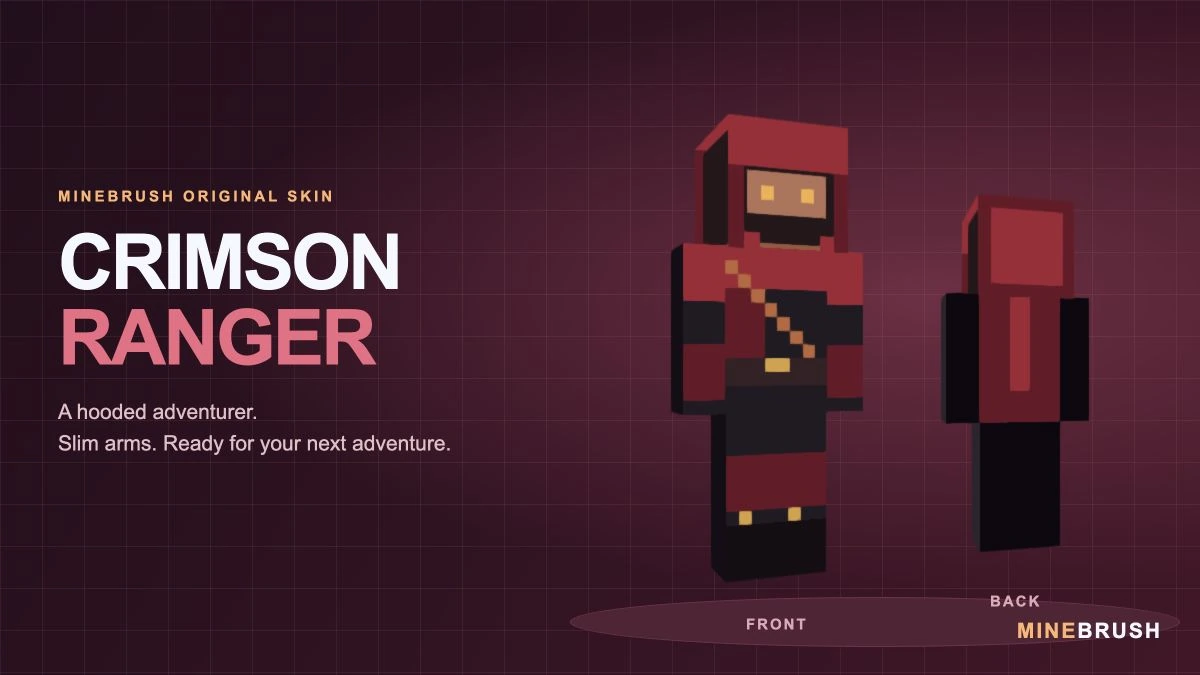
A crimson-hooded adventurer with a diagonal strap and gold accents. See the real Slim-model skin, download its PNG in a ZIP and follow the correct import steps.
- Model
- Slim (3 px arms)
- Texture
- 64×64 PNG
- Import
- Java Launcher; supported Bedrock Classic Skin import
Extract the PNG, then choose Slim / Narrow
Minecraft · Skin
Crimson Ranger
A crimson-hooded adventurer with a diagonal strap and gold accents. See the real Slim-model skin, download its PNG in a ZIP and follow the correct import steps.
Extract the PNG, then choose Slim / Narrow
- Minecraft version
- Slim / Narrow skin import
- Game edition
- Cross-edition
- Loader / platform
- Not applicable
- License
- Original MineBrush design
- Skin model
- Slim (3 px arms)
- Platform family
- Cross-edition
- Supported devices
- Java Launcher; Bedrock local skin import on supported devices
- Install format
- ZIP containing a 64×64 PNG
- Touch readiness
- Not required
- Resource type
- Skin
- Last verified at
- Sep 14, 2026
- Compatibility confidence
- Source claimed
- Card evidence statement
- Model preview from the original PNG; no independent gameplay test
- Skin texture resolution
- 64×64 PNG
- Skin PNG validation
- Original 64×64 PNG; choose Slim / Narrow
- Skin import scope
- Java Launcher; supported Bedrock Classic Skin import
- Skin preview status
- Model views from the downloadable skin
- Card delivery statement
- PNG inside ZIP · Slim / Narrow
- Card limitation note
- Extract the PNG, then choose Slim / Narrow
- Edition applicability
- Java + Bedrock
- Delivery state
- Direct download
- Lifecycle state
- Current
- Skin import route
- Java Launcher upload
- Skin texture
- 64x64 PNG validated
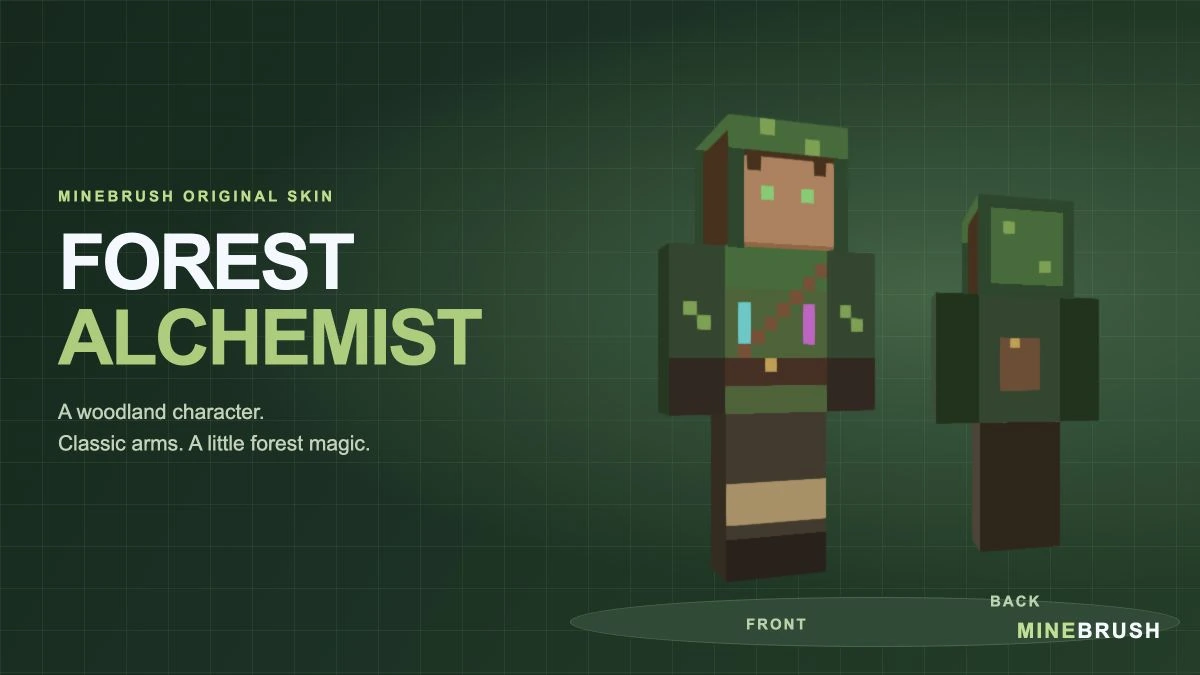
A woodland alchemist with a green hood, painted potion vials and a back satchel. See the real skin, compare the hood layer and download the Classic/Wide PNG in a ZIP.
- Model
- Classic (4 px arms)
- Texture
- 64×64 PNG
- Import
- Java Launcher; supported Bedrock Classic Skin import
Choose Classic / Wide; show the Hat layer for the complete hood
Minecraft · Skin
Forest Alchemist
A woodland alchemist with a green hood, painted potion vials and a back satchel. See the real skin, compare the hood layer and download the Classic/Wide PNG in a ZIP.
Choose Classic / Wide; show the Hat layer for the complete hood
- Minecraft version
- Classic / Wide skin import
- Game edition
- Cross-edition
- Loader / platform
- Not applicable
- License
- Original MineBrush design
- Skin model
- Classic (4 px arms)
- Platform family
- Cross-edition
- Supported devices
- Java Launcher; Bedrock local skin import on supported devices
- Install format
- ZIP containing a 64×64 PNG
- Touch readiness
- Not required
- Resource type
- Skin
- Last verified at
- Sep 14, 2026
- Compatibility confidence
- Source claimed
- Card evidence statement
- Model preview from the original PNG; no independent gameplay test
- Skin texture resolution
- 64×64 PNG
- Skin PNG validation
- Original 64×64 PNG; choose Classic / Wide
- Skin import scope
- Java Launcher; supported Bedrock Classic Skin import
- Skin preview status
- Model views from the downloadable skin
- Card delivery statement
- PNG inside ZIP · Classic / Wide
- Card limitation note
- Choose Classic / Wide; show the Hat layer for the complete hood
- Edition applicability
- Java + Bedrock
- Delivery state
- Direct download
- Lifecycle state
- Current
- Skin import route
- Java Launcher upload
- Skin texture
- 64x64 PNG validated
Player discussion 0
Questions, discoveries and help from other players.