
MineBrush publication
Ultramarine Overhaul: Four Visual Presets, Useful Settings and Bedrock Download
Refresh Bedrock’s world and menus with four colour-and-fog presets. Learn which look suits your builds, customise the clock, totem and particles, and download Ultramarine Overhaul.

Ultramarine Overhaul gives Minecraft Bedrock a different atmosphere and a more personalised interface. It combines changes to textures, menus, environmental details and sounds with four colour-and-fog presets. You can keep a clearer, more familiar-looking world, or choose richer colours and mist for a softer landscape.
Its practical extras matter during ordinary play too: an on-screen game clock, a less obstructive held totem, adjustable particle effects and redesigned inventory screens. This is a Bedrock resource pack, not a Java shader or an add-on that introduces new crafting recipes, creatures or dimensions.
What changes, and who will enjoy it?
- Builders: give a cottage, garden, harbour or large landscape a different mood without rebuilding it. Choose a clear preset when judging a distant roofline, then a foggy preset for a more atmospheric tour.
- Survival explorers: combine a preferred world palette with useful HUD information and reduce effects that get in the way of seeing the scene.
- Players who enjoy custom interfaces: refresh the start screen, settings, storage and workstation menus as part of one coordinated pack.
- Screenshot and video makers: use the presets as starting points for a consistent style. A pack changes how a scene is presented; it does not supply the buildings shown in the creator’s gallery.
Ultramarine changes several parts of the game at once. If you only want a small change to one block or menu, a more focused pack may be easier to combine with your current setup.
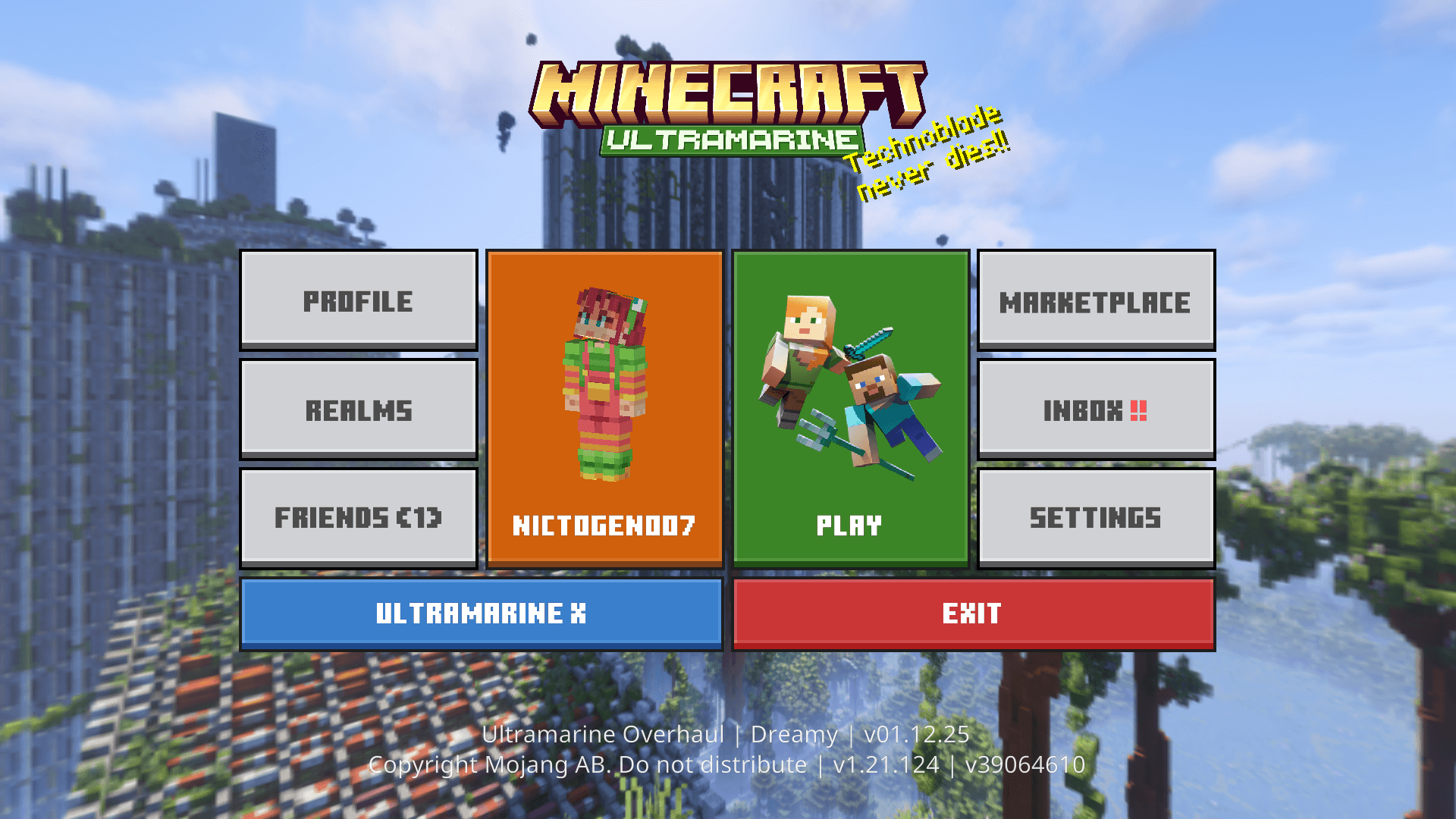
Choose your look: Void, Nova, Bloomy or Dreamy
All four presets are included in the same download. Activate the pack, open its gear/settings button and select the named preset. These choices combine two things: the colour treatment and whether the pack uses fog.
| Preset | Look | A useful starting point for |
|---|---|---|
| Void | Vanilla colour treatment, no fog | Keeping familiar colours and a clear view of a build or landscape. |
| Nova | More saturated colours, no fog | Colourful gardens, towns and broad views where you want a clear horizon. |
| Bloomy | Vanilla colour treatment with fog | Quieter forest paths, villages and softer-looking landscapes. |
| Dreamy | More saturated colours with fog | A stronger atmospheric style for exploration and scenic build tours. |
The “vanilla” label describes the preset’s colour treatment; it does not disable the rest of the overhaul. Removing the pack’s fog also does not increase your render distance or reveal unloaded chunks.
Try it in a place you already know. Stand outside your base and look at its walls, nearby leaves and the horizon. Start with Void, then try Nova to judge the colour change. Compare Bloomy and Dreamy if you enjoy mist. Choose what remains comfortable during normal play, rather than relying on a single dramatic sunset.
Download Ultramarine Overhaul v260525
The current creator file is v260525, uploaded on 21 May 2026. Its file page lists Bedrock 26.20, 26.13, 26.12, 26.11, 26.10, 26.3, 26.0.02 and 26.0. The release adds 26.20 support, transparent clouds, Pocket-interface fixes, expanded custom armour-stand support and improvements for Better Quick Loot compatibility.
These are the creator-listed versions for this file. A newer game release is not automatically covered. The screenshots below come from the creator’s project gallery; their menu arrangement can differ from the latest release. Graphics settings and device support can also change the final appearance.
Install and get started
- Download the .mcpack and open it with Minecraft Bedrock. Wait for the import confirmation. You normally do not need to extract the archive.
- Activate it in Resource Packs. For one world, use that world’s Resource Packs settings. For your personal interface across worlds, use Settings → Global Resources → My Packs.
- Start with other large visual and UI packs disabled. This lets you see which changes belong to Ultramarine before combining packs.
- Open the active pack’s settings. Select a preset deliberately, then adjust the clock, totem and particles you want to use.
- Return to your world. Look around your base, open a chest and your inventory, and check a held totem if you use one. Reload the world or restart Minecraft if a selected setting has not taken effect.
The main file is a resource pack: it does not need Forge, Fabric or a separate behaviour pack for its normal visual and interface changes. Mobile devices need a working “open with Minecraft” route for community .mcpack files. Console import routes differ from a normal file import on a computer or phone.
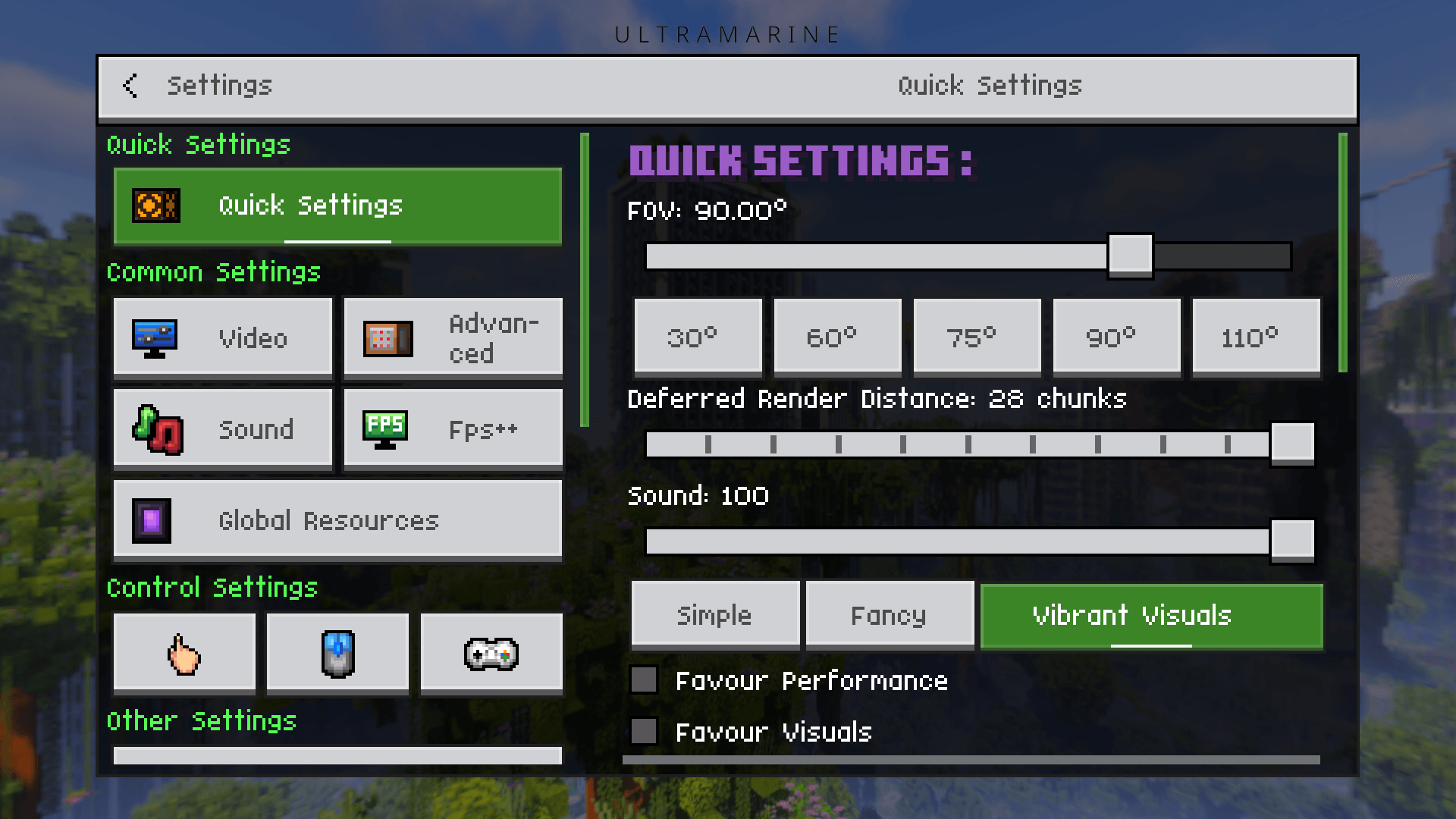
Useful settings for everyday survival
Keep track of the day with the HUD clock
The Clock option displays the current in-game time. It is useful while planning an outdoor journey or deciding whether to finish work around your base before night. It is a display option, not a way to change time or prevent hostile mobs from appearing.
Make a held totem less intrusive
Transparent totem makes the displayed totem partially transparent. The Totem size slider changes its visual size. If you routinely keep a totem in hand, use these to give yourself more comfortable sightlines. They do not make the item more powerful or change when it activates.
Start near the default size, then reduce it until the view feels comfortable while you can still identify what you are holding. You can also adjust the size of the burst shown when a totem activates.
Control visual clutter without losing useful cues
The pack exposes switches for many particle groups, including leaves, rain splashes, potion effects, explosions, smoke, fishing and redstone. Potion and totem particles also have size sliders.
- Building and taking screenshots: reduce falling leaves or rain splashes if they distract from a structure. Keep effects that help you understand the scene.
- Potion-heavy play: reduce potion-particle size before turning effects off entirely.
- Fishing: keep fishing particles enabled if you use the visible approach trail to judge a bite.
- Exploring the Deep Dark: be cautious about hiding sculk, vibration and shriek effects; they are useful visual cues.
- Understanding machinery: keep redstone and relevant block particles if you use them while checking a build.
Fewer effects can make the view less busy. Do not treat a switch as a promised FPS increase: performance depends on the device, world and graphics settings. Change a few options at a time so it is easy to restore a cue you miss.
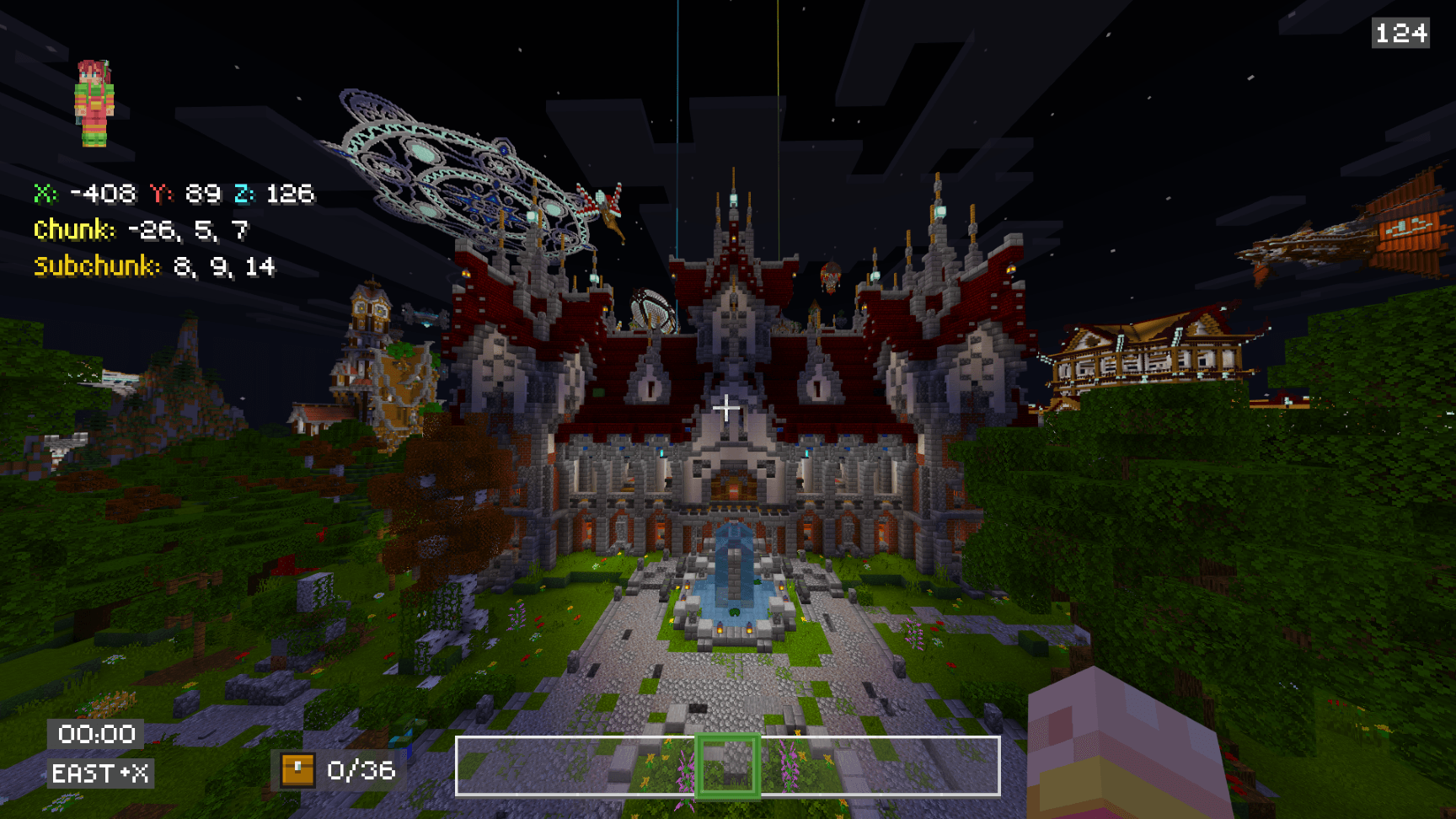
Menus you use at your base
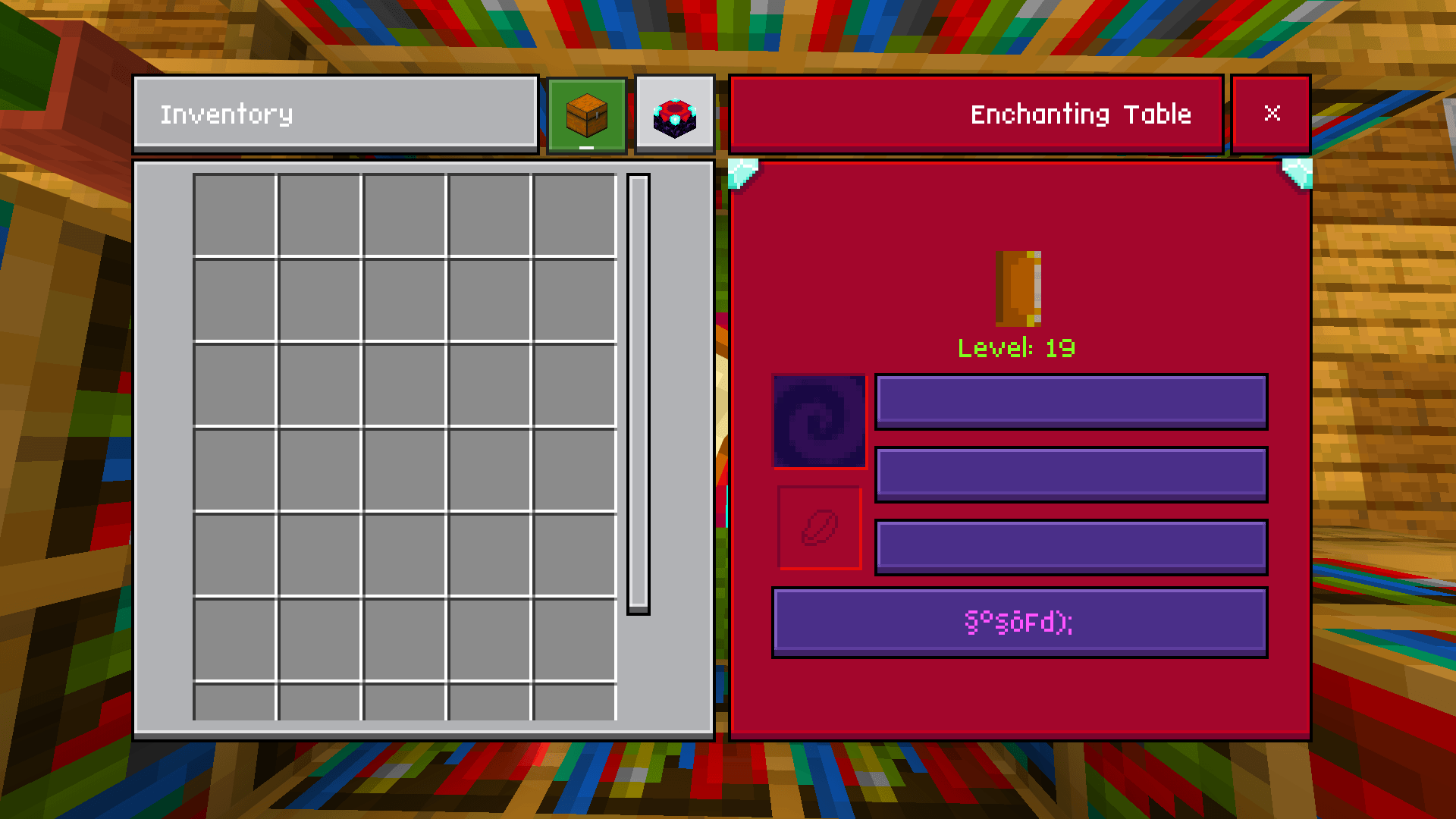
Open your storage, enchanting area and inventory to see the practical side of the interface overhaul. Distinct menus can make a familiar base feel refreshed without changing how many items a container stores or which ingredients a recipe needs.
Use a GUI scale where item stacks, tooltips and buttons remain readable. If you switch between touch and controller input, check that you can reach the controls you use most. The current release includes Pocket GUI fixes, but that does not mean every other UI pack can be layered over it.
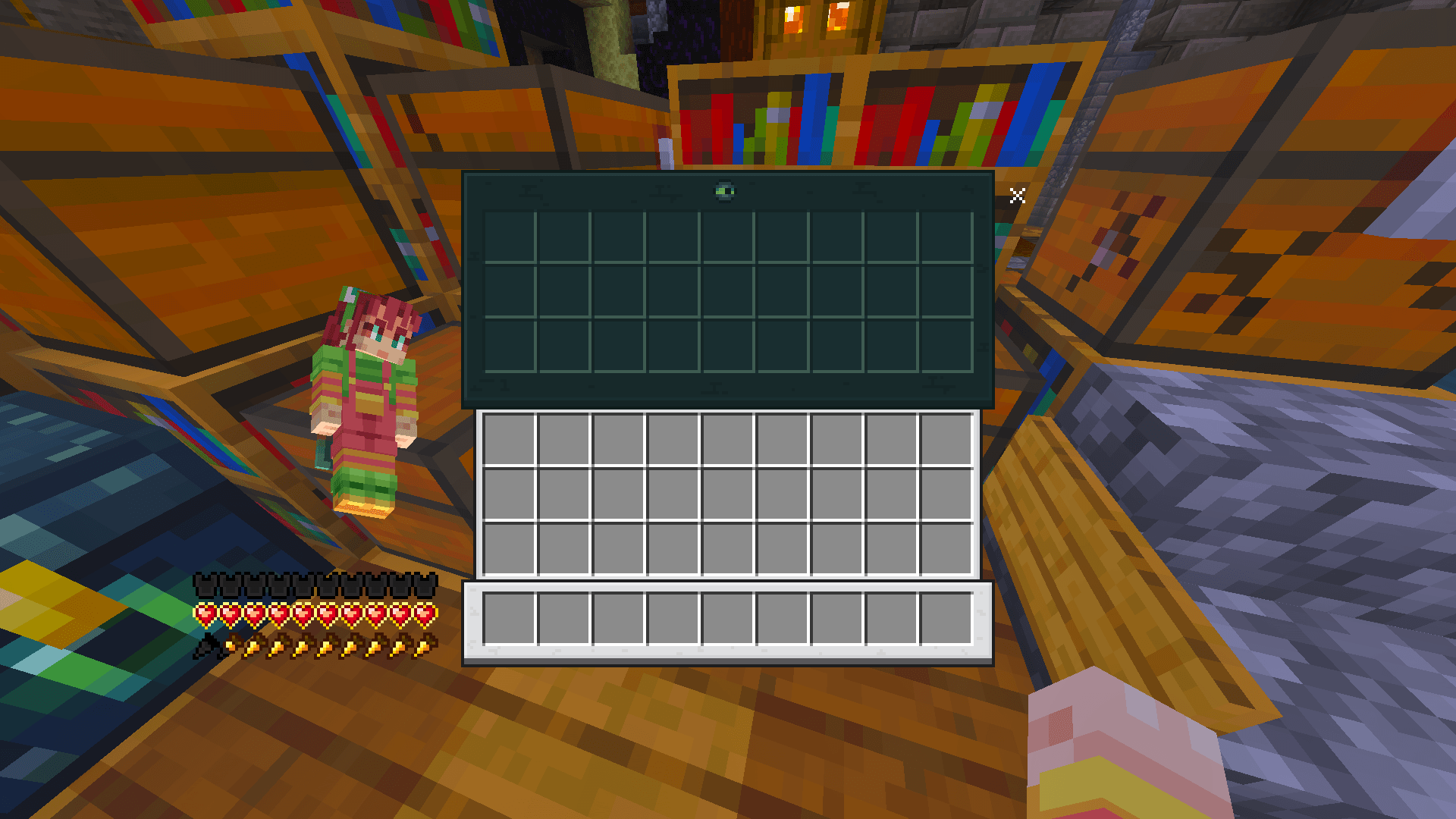
Personalise it further with the creator’s tools
The creator links optional tools for a custom totem, a custom music pack and custom armour stands. These are separate personalisation routes, not ready-made extras automatically included in the main download.
- A totem based on a skin: visit the creator’s Skin to Totem tool and follow its export instructions. Then import and activate the generated companion resource pack as instructed by the tool.
- Your own music selection: the custom music tool is a separate way to prepare a personal music pack. Use audio you have permission to include.
- A personalised display in a base: the custom armour-stand tool supplies its own setup workflow. The current Ultramarine changelog adds support for more skins; follow the companion tool’s instructions for the actual result.
The creator also offers Better Quick Loot separately. It is optional; you do not need it to start using Ultramarine. The current release improves compatibility with it, so match the companion’s version to your game before adding it.
Combining packs and solving common problems
- The import succeeds but the game looks unchanged: check that the pack is active for the world or in Global Resources, then reload. Importing and activating are separate steps.
- Colours or fog do not match your preference: check the named preset first. Void and Nova omit the pack’s fog; Bloomy and Dreamy include it.
- Buttons overlap or a menu is missing: disable other packs that replace the same UI, check your GUI scale and use a creator-listed game version.
- Another pack’s textures or animations disappear: the packs may replace the same resources. Start with Ultramarine alone and reintroduce the other pack. Pack order can choose which shared assets win; it cannot guarantee that two complete overhauls combine perfectly.
- The world does not look like a promotional image: compare the preset, graphics mode, time of day and device capabilities. Do not assume this download unlocks unsupported lighting modes or makes every device render identical shadows and reflections.
- A setting seems to have no effect: leave the world and reload, or restart Minecraft, then check the saved selection. Make sure another pack is not replacing the same feature.
To return to the normal game presentation, deactivate Ultramarine in every place you enabled it, including Global Resources and the world’s own Resource Packs list, then reload. Deactivate optional companion packs too if you want their changes removed. There is no need to delete your world to remove a resource pack.
Creator and original sources
Ultramarine Overhaul is by Team Nicverse / notnicto. The pack and gallery images are their work. MineBrush provides this player guide and a separate editorial cover.
Sources: official project, current file, supported versions and changelog, original creator gallery, and author’s MCPEDL page. You can follow the creator at notnicto.com.
More for your Bedrock world.
Bedrock & Stuff
Aug 22, 2026Give everyday movement and held items more personality. See creator screenshots, learn how to use and combine the pack, and download the current or previous Bedrock release.
- Minecraft
- 26.40 / 26.0; previous release for 26.30
- Scope
- Mixed
- Package
- Open one .mcpack with Minecraft, then activate in Resource Packs
Activate one release at a time; appearance can vary with other packs
Bedrock · Pack
Bedrock & Stuff
Give everyday movement and held items more personality. See creator screenshots, learn how to use and combine the pack, and download the current or previous Bedrock release.
Activate one release at a time; appearance can vary with other packs
- Minecraft version
- 26.40 / 26.0; previous release for 26.30
- Game edition
- Bedrock Edition
- Platform family
- Bedrock & Mobile
- Supported devices
- Bedrock devices with community .mcpack import; device compatibility varies
- Install format
- Open one .mcpack with Minecraft, then activate in Resource Packs
- Touch readiness
- Check guide
- Resource type
- Resource Pack
- Project version
- Aug 22, 2026
- Last verified at
- Sep 14, 2026
- Compatibility confidence
- Source claimed
- Resource-pack scope
- Mixed
- Bedrock pack import route
- Open .mcpack with Minecraft; activate in Global Resources or world Resource Packs
- Card evidence statement
- Creator gallery and creator-listed versions; gameplay not independently tested
- Card delivery statement
- Current and previous original .mcpack downloads
- Card limitation note
- Activate one release at a time; appearance can vary with other packs
- Edition applicability
- Bedrock
- Delivery state
- Direct download
- Lifecycle state
- Current
Colourful Containers
4.4.1Give chests, workstations and shulker boxes their own themed menus. Choose light or dark, set up Classic UI and download Colourful Containers with clear version choices.
- Minecraft
- 26.20
- Scope
- GUI
- Package
- .mcpack · Classic UI
Bedrock pack with Java-style menus; Classic UI only
Bedrock · Pack
Colourful Containers
Give chests, workstations and shulker boxes their own themed menus. Choose light or dark, set up Classic UI and download Colourful Containers with clear version choices.
Bedrock pack with Java-style menus; Classic UI only
- Minecraft version
- 26.20
- Game edition
- Bedrock Edition
- Platform family
- Bedrock & Mobile
- Supported devices
- Classic UI required; Pocket UI unsupported
- Install format
- .mcpack · Classic UI
- Touch readiness
- Check guide
- Resource type
- Resource Pack
- Project version
- 4.4.1
- Last verified at
- Sep 14, 2026
- Compatibility confidence
- Source claimed
- Resource-pack scope
- GUI
- Bedrock pack import route
- Open .mcpack with Minecraft; set Classic UI and activate in Resource Packs
- Card evidence statement
- Creator visuals and creator-listed compatibility; gameplay not independently tested
- Card delivery statement
- Current pack, previous release and optional script as separate downloads
- Card limitation note
- Bedrock pack with Java-style menus; Classic UI only
- Edition applicability
- Bedrock
- Delivery state
- Direct download
- Lifecycle state
- Current
Player discussion 0
Questions, discoveries and help from other players.