
MineBrush publication
MCA Selector 2.9: Keep Your Builds and Refresh Your Minecraft World
Keep your bases while refreshing unused terrain. Download MCA Selector 2.9 for Windows, Mac or Linux, learn to read the chunk map, review activity filters and reset selected areas of a Java world.
Your favourite survival world can keep its town, farms and history while making room for fresh exploration. MCA Selector, developed by Querz and contributors, lets you choose which parts of a Minecraft Java world to keep, export or remove. When you later visit a removed area, Minecraft generates terrain there again using the world’s current generation settings.
The useful part is control: you can retire a long, unused elytra trail without starting a new world. The important limit is just as simple: the tool cannot recognise which builds matter to you. Work on a copy, and inspect every area before removing it.
What can you do with MCA Selector?
- Bring an older world forward: remove expendable explored terrain, then revisit it after updating Minecraft. Keep the settled part of your world and let new terrain appear farther out.
- Trim a sprawling server save: clear unused exploration trails after checking with the players who travelled there. This can reduce stored world data; it is not a general FPS upgrade.
- Plan a selective Nether refresh: preserve your hub, farms and transport network while reconsidering distant exploration areas. Check the dimension carefully before editing.
- Export a district: save selected chunks separately for a later import or project. A chunk export contains world data; a saved selection only remembers the area you selected.
You do not need to delete anything to benefit from the tool. Its top-down map is useful for finding how far a world has spread and spotting distant routes you had forgotten. If all you want is new terrain, exploring beyond existing chunks is the simpler option.
Download MCA Selector 2.9
Version 2.9, released on September 15, 2026, updates support for Minecraft 26.3 and adds lower-detail zoom levels for navigating large maps. It works with Java Edition worlds; it does not edit Bedrock .mcworld saves. The project lists support from Java 1.2.1 through the 26.3 generation, with no blanket guarantee for snapshot worlds.
Choose the application for your computer. These MineBrush downloads are mirrors of the developer’s files. The Windows and Mac downloads are ZIP archives containing the unchanged official installer or disk image; extract them first. The developer’s official distribution is the GitHub project linked in the sidebar.
Windows — installer: extract the ZIP, then open mcaselector-2.9-setup.exe.
Mac with Apple silicon — M-series chip: extract the ZIP and open the aarch64.dmg disk image.
Mac with an Intel processor: extract the ZIP and open the x64.dmg disk image. About This Mac tells you which type of Mac you have.
Universal JAR — Windows, macOS or Linux: requires 64-bit Java 21 or newer and JavaFX. Keep it outside your Minecraft mods folder: this is a separate desktop application.
For the JAR route, open a terminal in its folder and run:
java -jar mcaselector-2.9.jarA normal Java installation may not include JavaFX. If the application reports missing JavaFX components, use a Java distribution with JavaFX or follow the project’s installation instructions. The packaged application is usually the easier starting point. Never treat a blocked or unidentified download as a reason to disable your computer’s security protections.
Older download: MCA Selector 2.8
Kept for an existing workflow that needs this release. Its release notes added Minecraft 26.2 support; use 2.9 for the newer 26.3 mappings.
Prepare a copy you can safely experiment with
Close Minecraft or stop the server before copying or editing the world. Make a complete backup of the world folder, then create a separate working copy. Give that copy a recognisable name such as Survival-trim-test. Keep the untouched backup elsewhere.
For a single-player save, Minecraft’s world list offers Edit → Open World Folder. A server owner should copy the complete world storage, including separate dimension folders used by that server. Do not back up only region: player data, entities, points of interest and other world information also matter.
Before opening the copy, write down the coordinates of bases, farms, portals, roads and remote outposts. On a shared server, collect those locations from other players too. A small storage hut far from spawn can be more valuable than a huge empty area near it.
Read the map before making a selection
Use File → Open World to open the working copy. Choose the intended dimension when prompted. Move with the middle mouse button, WASD or arrow keys; on Mac, Command-drag also moves the map. Zoom with the wheel, trackpad or plus/minus keys. View → Goto helps you find a known location.
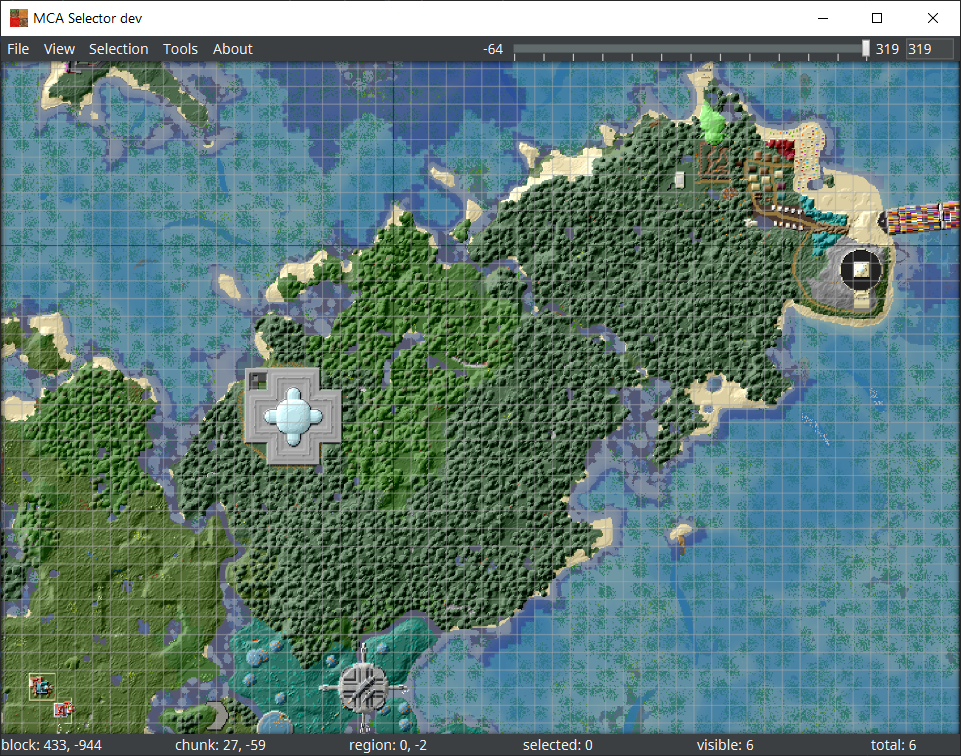
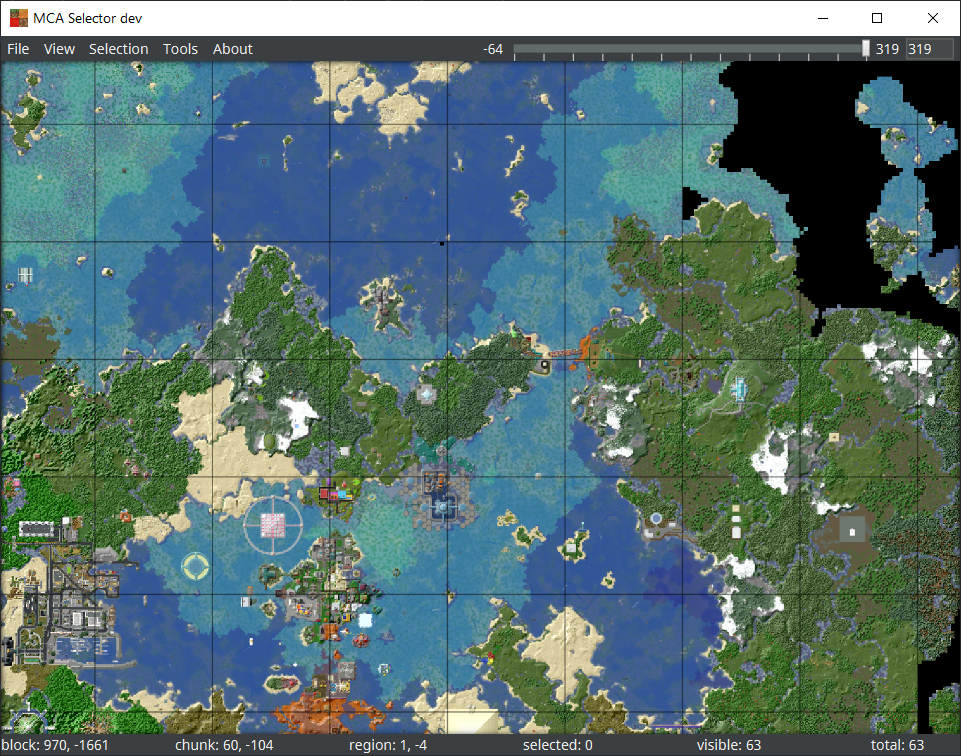
A chunk covers 16 × 16 blocks horizontally and the full height of that column. Farther out, the grid can represent regions of 512 × 512 blocks. Selecting one large square at that scale can include many builds.
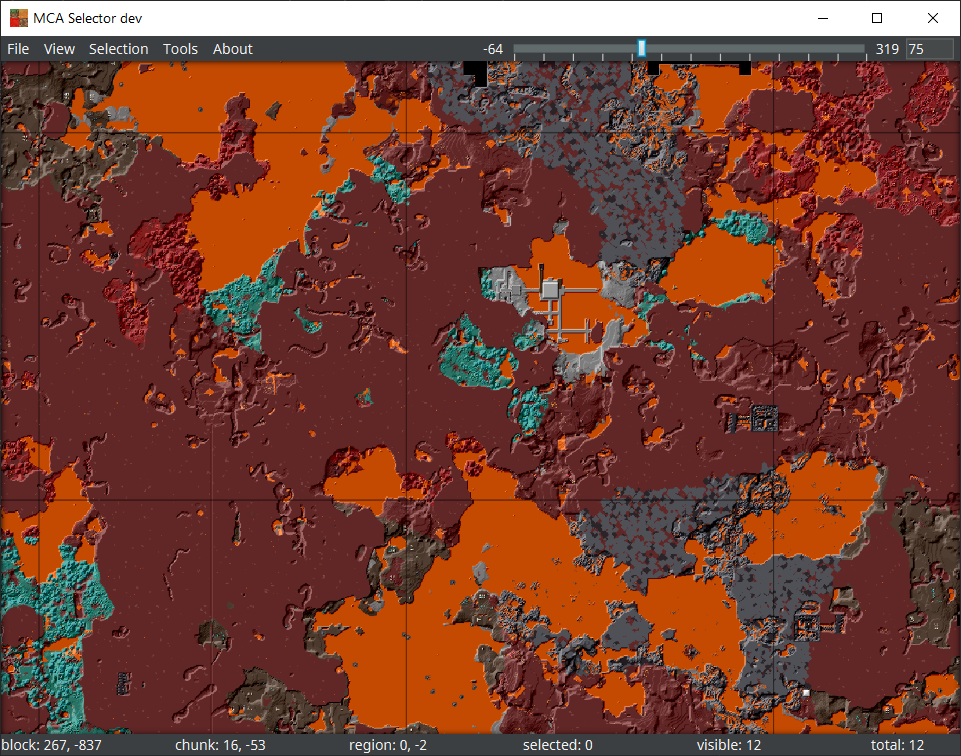
In the Nether, a top-down view may mostly show the roof. Lower the render-height slider to inspect terrain underneath. This changes the view, not the height of a chunk deletion: underground rooms and roof builds still belong to the same horizontal chunk.
Reset one small, expendable area first
Suppose your base is surrounded by useful farms, but an old scouting trip left a strip of explored terrain far away. Start with a small section of that strip. Do not begin by selecting everything outside spawn.
- Zoom in and left-click or drag across the chunks you intend to remove. Right-click or drag to deselect.
- Check the highlighted area against your protected coordinates. Leave room around structures, underground builds and routes that extend beyond what the surface map shows.
- Use Selection → Export selection to remember the boundary. If you want the terrain itself saved separately, use Export selected chunks into an empty folder as well.
- With the working copy still open, choose Selection → Delete selected chunks. This changes the save; it is not a preview.
- Close the editor, open that copy in your intended Minecraft version, and visit the area. Inspect the boundary and check the nearby builds before expanding the job.
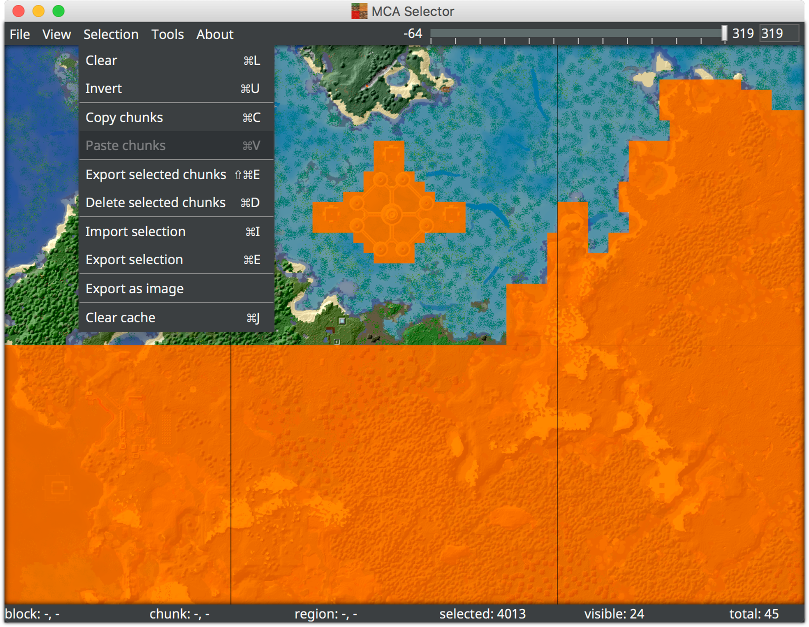
Regeneration uses the world’s seed, the active Minecraft version and its generation setup. It may recreate similar terrain, or produce different terrain after an update. It does not promise a particular new biome at your chosen coordinates. Changing world-generation mods or datapacks can also produce awkward borders; our Tectonic and Terralith guide explains why those choices need planning.
If a result is wrong, stop using that edited copy and return to the untouched backup. Removing MCA Selector from your computer does not undo changes to a world.
Use activity filters to find candidates, not to judge your builds
The InhabitedTime filter measures recorded player time around a chunk. A low value can help find briefly visited terrain, but it is not proof that a chunk contains nothing valuable. A road, portal or quickly built outpost can be important despite little recorded activity.
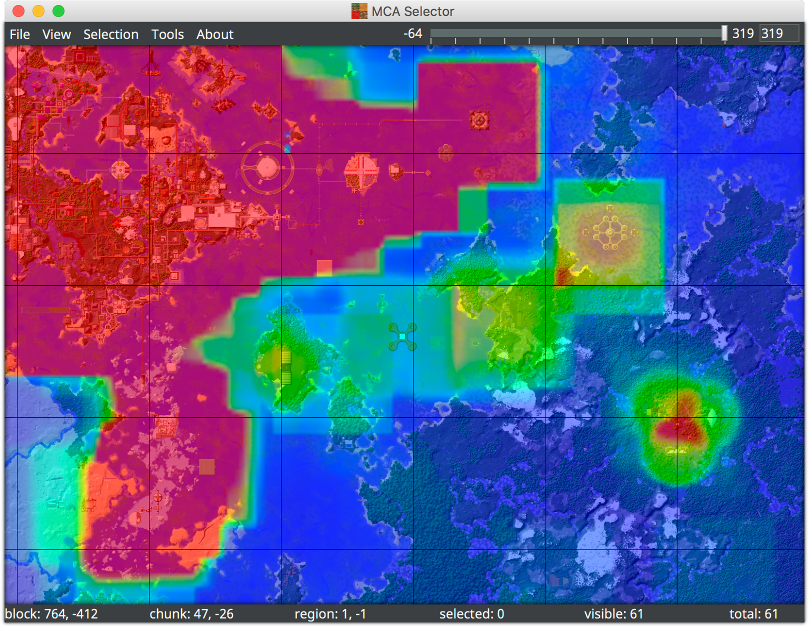
For a cautious first filter, try InhabitedTime less than 5 minutes and choose Select. This is a starting point for visual review, not a recommended automatic deletion rule. Deselect every location you need to keep before taking any further action.
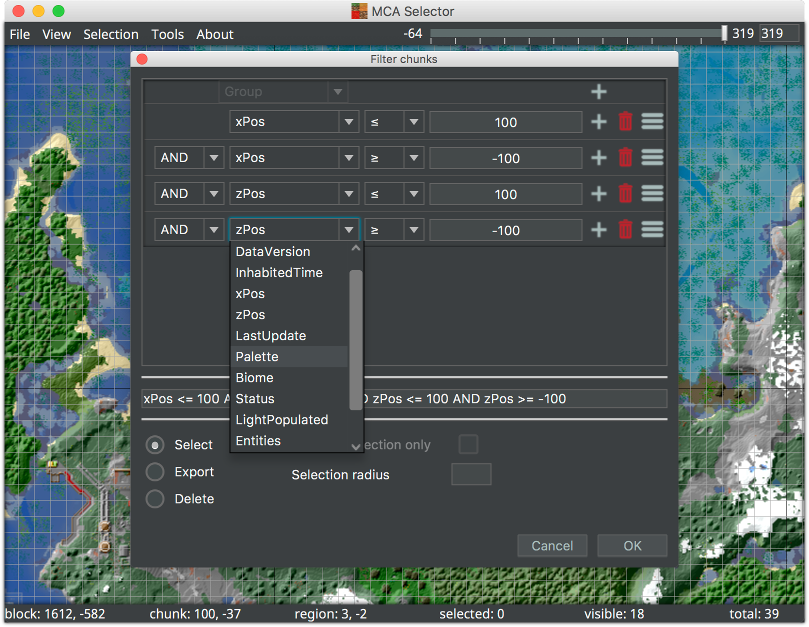
Selection radius expands the matched area. It does not create a protected border around your builds. Leave it at zero for your first removal-candidate filter. Also remember that xPos and zPos use chunk coordinates, not the block coordinates shown by Minecraft’s usual position display.
When something does not look right
The application will not start
For a JAR, run java -version and check that the command uses Java 21 or newer. Missing JavaFX needs the correct runtime setup. For a Mac package, check Apple silicon versus Intel. MCA Selector does not need Fabric or Forge.
The world is blank or the wrong dimension appears
Check the selected folder and dimension, then allow the map to render. Do not feed the application a Bedrock archive. A Nether roof view may need a lower render height; a world outside the documented version range needs a compatibility check before editing.
Almost everything is highlighted
Check whether you inverted the selection or zoomed out into region selection. Clear the selection and start with a few known chunks. Do not use Delete to find out what the selection means.
The save shrank, but grew again later
Players can regenerate removed areas by exploring them again. Trimming is most useful when the group no longer needs those areas. Coordinate where the server will explore next instead of repeatedly deleting active routes.
Can I prepare the refreshed region before players return?
Yes: after validating the edited copy and finalising the world-generation setup, Chunky can pregenerate the chosen area. MCA Selector removes selected saved terrain; Chunky generates terrain ahead of exploration. Keep those two jobs separate so you know exactly what changed.
More from MineBrush.
Chunky
1.5.3 / 1.5.4Prepare terrain before your next survival session. Download Chunky for Java 26.2–26.3, choose the right build, generate an area around your base, and pause or expand it when needed.
- Minecraft
- Java 26.2–26.3
- Loader
- Fabric / Forge / NeoForge / Paper / Spigot / Bukkit / Folia / Sponge
- Runtime
- Server
Also available for Forge, NeoForge, Paper and Sponge.
Java · Mod
Chunky
Prepare terrain before your next survival session. Download Chunky for Java 26.2–26.3, choose the right build, generate an area around your base, and pause or expand it when needed.
Also available for Forge, NeoForge, Paper and Sponge.
- Minecraft version
- Java 26.2–26.3
- Game edition
- Java Edition
- Loader / platform
- Not applicable
- License
- GPL-3.0-only
- Platform family
- Java PC
- Supported devices
- Fabric, Forge, NeoForge, Paper/Spigot/Folia/Bukkit, Sponge
- Install format
- .jar
- Touch readiness
- Not required
- Resource type
- Mod
- Project version
- 1.5.3 / 1.5.4
- Secondary guide action
- Setup & fixes
- Compatibility confidence
- Source claimed
- Java mod loader
- Fabric / Forge / NeoForge / Paper / Spigot / Bukkit / Folia / Sponge
- Java runtime side
- Server
- Card evidence statement
- Prepare terrain before exploring it.
- Required dependency
- Fabric API for the Fabric build only
- Card delivery statement
- Choose your server or mod-loader build
- Card limitation note
- Also available for Forge, NeoForge, Paper and Sponge.
- Edition applicability
- Java
- Delivery state
- Direct download
- Lifecycle state
- Current
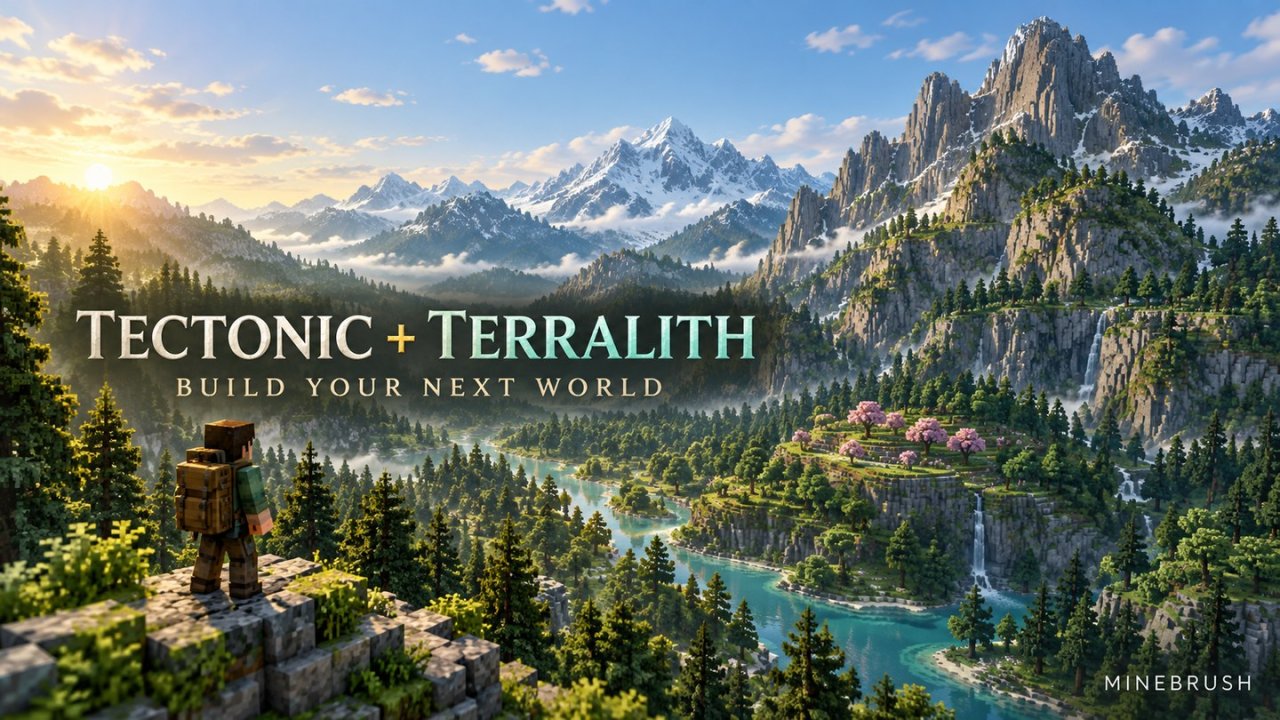
Plan mountain bases and river expeditions with Tectonic and Terralith. Choose mods or datapacks, install the right combination, and shape a fresh Java world around your next adventure.
- Edition
- Java Edition
- Difficulty
- Beginner
- Time
- 8 min read
Start a new world
MineBrush · Guide
Tectonic + Terralith
Plan mountain bases and river expeditions with Tectonic and Terralith. Choose mods or datapacks, install the right combination, and shape a fresh Java world around your next adventure.
Start a new world
- Minecraft version
- Java — match project releases
- Game edition
- Java Edition
- Platform family
- Java PC
- Supported devices
- Windows, macOS, Linux
- Install format
- Mods or datapacks
- Touch readiness
- Not required
- Resource type
- Guide
- Compatibility confidence
- Source claimed
- Card evidence statement
- Terrain, biomes and practical setup
- Card delivery statement
- Step-by-step guide
- Card limitation note
- Start a new world
- Edition applicability
- Java
- Estimated time
- 8 min read
- Guide difficulty
- Beginner
- Delivery state
- No file
- Lifecycle state
- Current
Player discussion 0
Questions, discoveries and help from other players.