
MineBrush publication
Tectonic and Terralith: Build a World Worth Exploring
Plan mountain bases and river expeditions with Tectonic and Terralith. Choose mods or datapacks, install the right combination, and shape a fresh Java world around your next adventure.
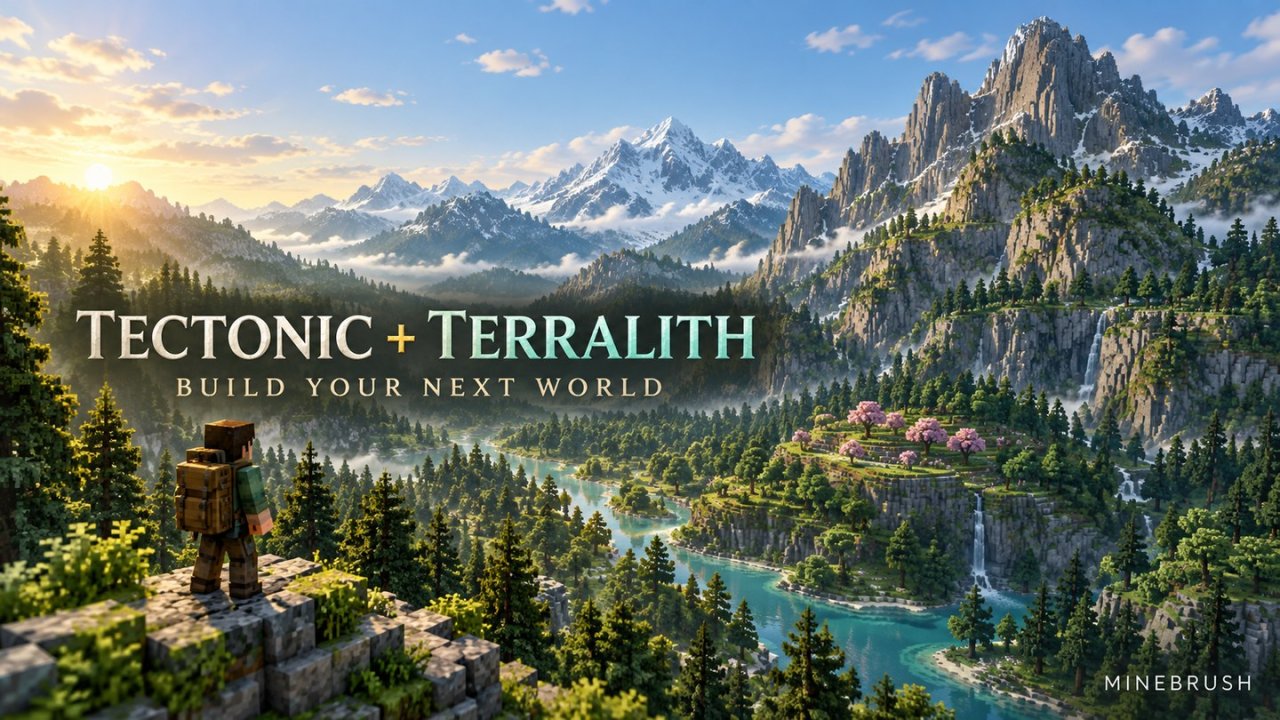
A mountain railway feels very different when the mountains stretch beyond the horizon. Pair Tectonic with Terralith and your next Java world can become a much bigger canvas for exploration and building: dramatic terrain, varied biomes, and plenty of reasons to take the long way home.
Yes, they work together—but choose the right format. Use the Tectonic and Terralith mods together, with the dependencies listed for your versions. For a datapack setup, use Terralith plus Terratonic, the adapted version of Tectonic. Start a new world for either route.
What does the combination actually change?
Tectonic reshapes the Overworld with large mountain ranges, deeper oceans, and rivers that can pass underground. Terralith brings more than 95 biomes built from vanilla blocks, including realistic landscapes and more fantastical places. The combination is about where you travel and build; it isn't a new crafting progression you have to unlock.
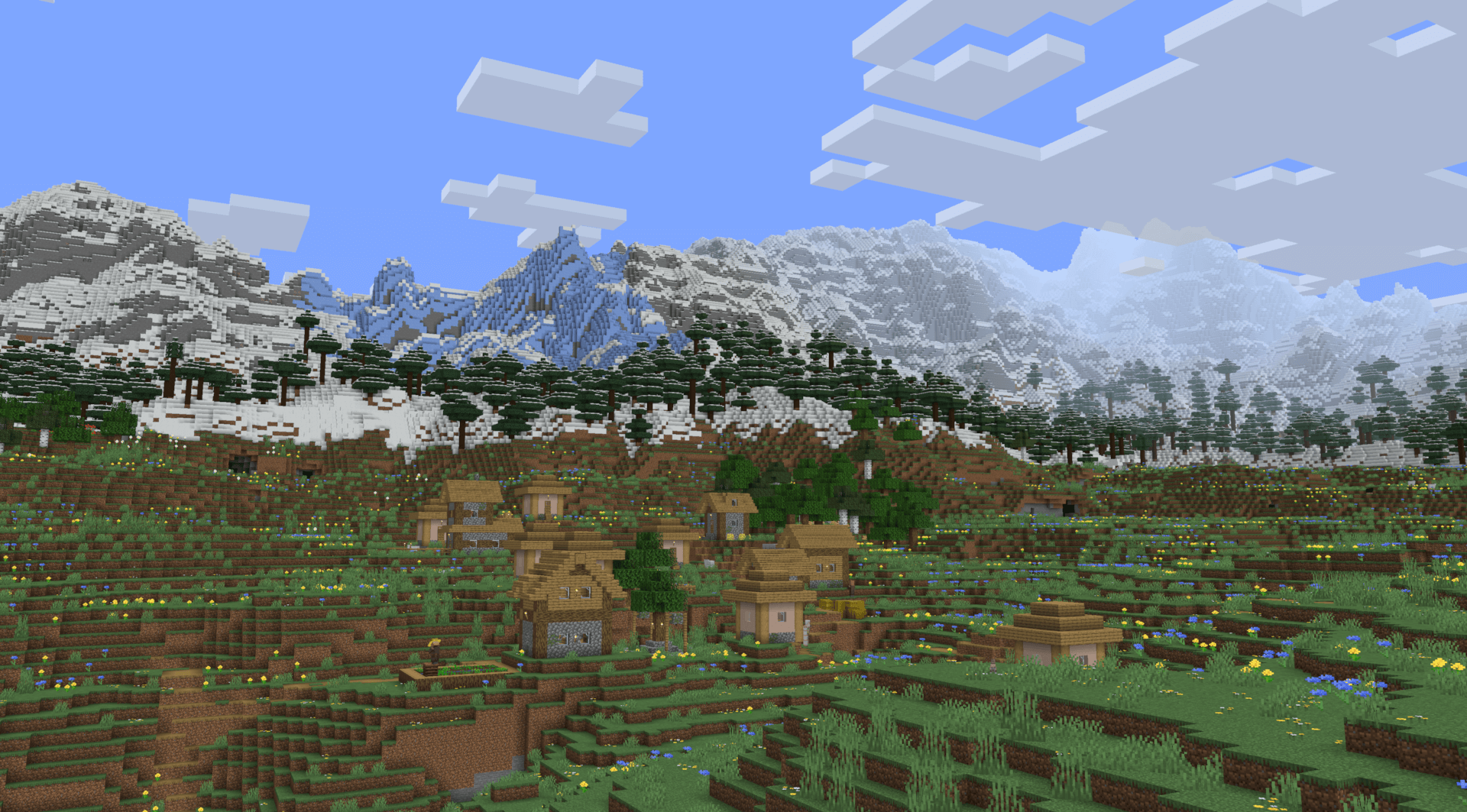
Here are three ways to turn that scenery into an actual playthrough:
- A mountain settlement: start with a small valley home, then connect a lookout, mine entrance, and ridge station with paths or rails. Scout the route before placing your main storage room; a spectacular cliff is less convenient when every supply run involves climbing it.
- A river expedition: carry a boat, food, torches, spare wood, and a bed. Place modest supply stops along your route rather than carrying everything at once. Mark your turns so an underground detour doesn't become a lost inventory. For longer journeys, our Xaero’s World Map guide explains how to map your route.
- A biome-inspired build series: choose a different palette for each outpost. Try a stone lodge against cliffs or a colorful retreat in a fantasy forest. These are building ideas, not extra generated buildings supplied by the guide.
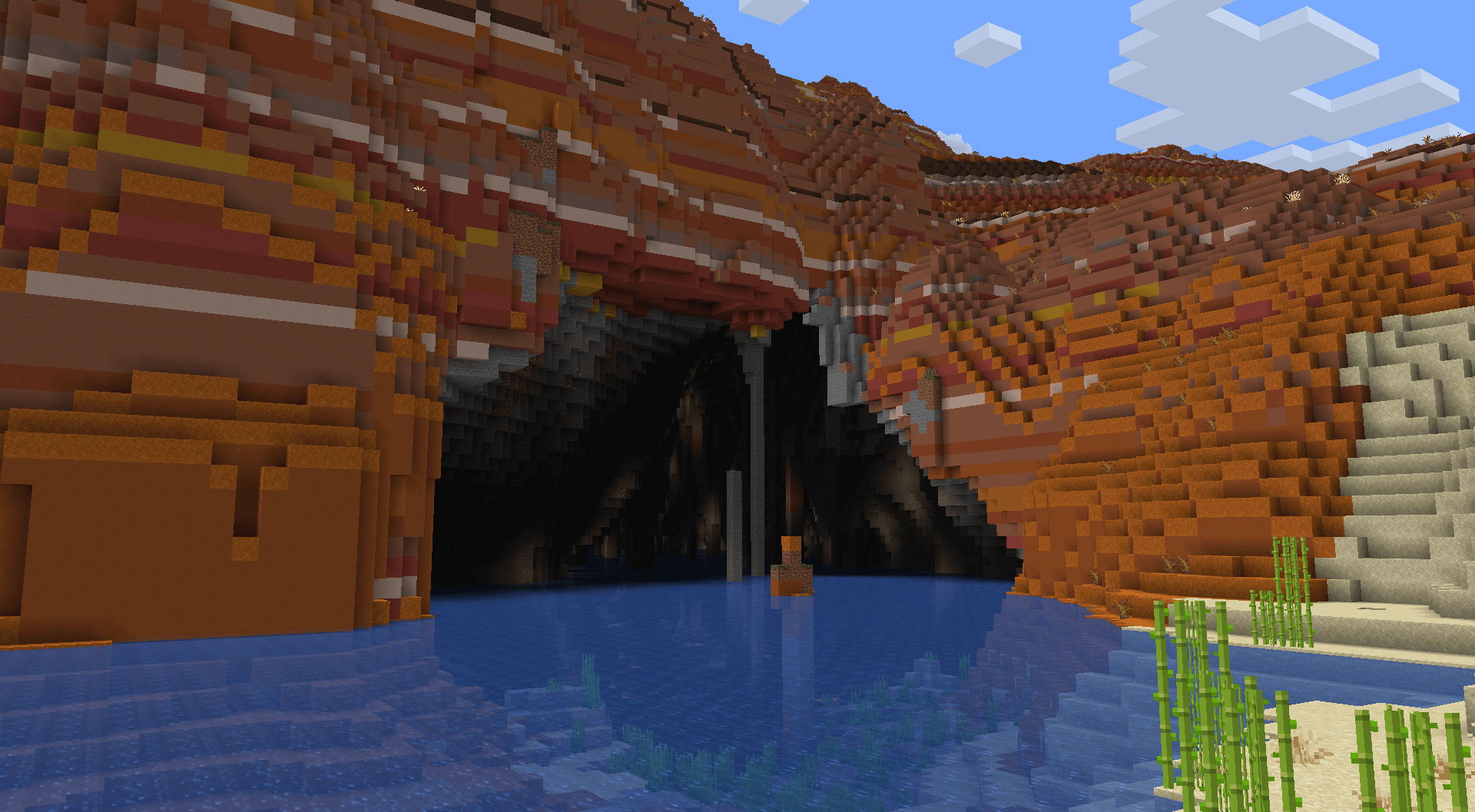
Choose one installation route
Choose mods if you already use a modded Java profile or want accessible configuration screens. Choose datapacks if you want to add world generation through the world's Data Packs menu. Neither route is a Bedrock add-on or a resource pack.
- Mod route: Tectonic mod + Terralith mod + the required dependencies for those exact releases. Terralith 2.6.0 introduced a required Lithostitched dependency. Tectonic's mod handles its Terralith compatibility automatically.
- Datapack route: Terralith datapack + Terratonic datapack. Terratonic replaces the ordinary Tectonic datapack in this combination; it does not replace Terralith.
Before downloading, select the same Minecraft version for every component and the same loader where applicable. A project's broad version list doesn't mean every file works on every listed version. Tectonic's project description currently names Java 1.21.1 and 26.1 as its maintained targets, even though files for other versions are listed.
This is a setup guide, not a bundled modpack. Choose releases from the project pages for Tectonic, Terralith, and, for the datapack route, Terratonic. Don't install both routes into the same world.
Install the mods and make your first world
- Create a separate Java profile in your launcher with the Minecraft version and loader supported by your chosen files. Give it an obvious name so it doesn't share an existing world's mod collection by accident.
- Add both mods. If your launcher manages Modrinth projects, choose the releases inside that profile and review its dependency list. For manual installation, put the matching JAR files and their required dependencies in that profile's
modsfolder; don't unpack them. - Start the profile. If the loader names a missing dependency or wrong game version, fix that message before creating a world. Adding random older copies usually makes the file selection harder to understand.
- Create a new world. Begin with the ordinary world type and default terrain settings. This gives you a useful starting point before you change how the landscape generates.
- Explore before settling. Take a short trip around spawn and choose somewhere with practical access to food, wood, and a route back. Save and reopen the world before investing in a large build.
You don't need a separate Terratonic download for this mod setup. Keep the installed releases with your world backups so you can return to the same setup later.
Install the datapacks in the right order
- Download the Terralith and Terratonic datapack ZIPs for the same Java version.
- Open Singleplayer → Create New World, then the Data Packs screen. Its location varies with the Java version.
- Use Open Pack Folder and place the two ZIPs there without unpacking them. Return to the game and move both packs into the selected list.
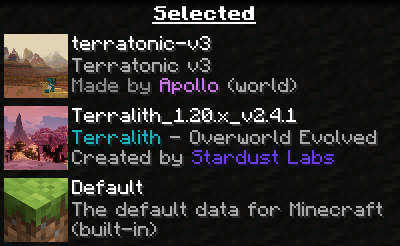
- Move Terratonic above Terralith. The selected list should show Terratonic, then Terralith, with vanilla's built-in data underneath. Don't add the ordinary Tectonic datapack as a third world-generation pack.
- Finish selecting packs, let Minecraft validate them, and create the new world. If validation fails, return to the file selection and check versions instead of continuing without the packs.
For a private server, a straightforward way to preserve your chosen datapack order is to create the fresh world locally first, close it, and upload that world using your host's normal world-import workflow. Stop the server before replacing a world and keep the existing one backed up. Use the same Minecraft version. Don't turn off a world's required datapacks simply to get past a startup error.
Shape the world around your building plans
Start with the defaults, then change one setting at a time in a new preview world. That makes it much easier to decide whether you actually prefer the result. Terrain settings affect generation; they don't remodel the hills around an already-built house.
For Tectonic's mod, open its configuration from your loader's mod menu. Useful controls include Vertical Scale for height above sea level, Flat Terrain Skew for flatter land versus plateaus, and Ocean Offset for the balance between sea and land. Lower Ocean Offset values favor more ocean; lower Continents Scale values make continents and the oceans between them larger.
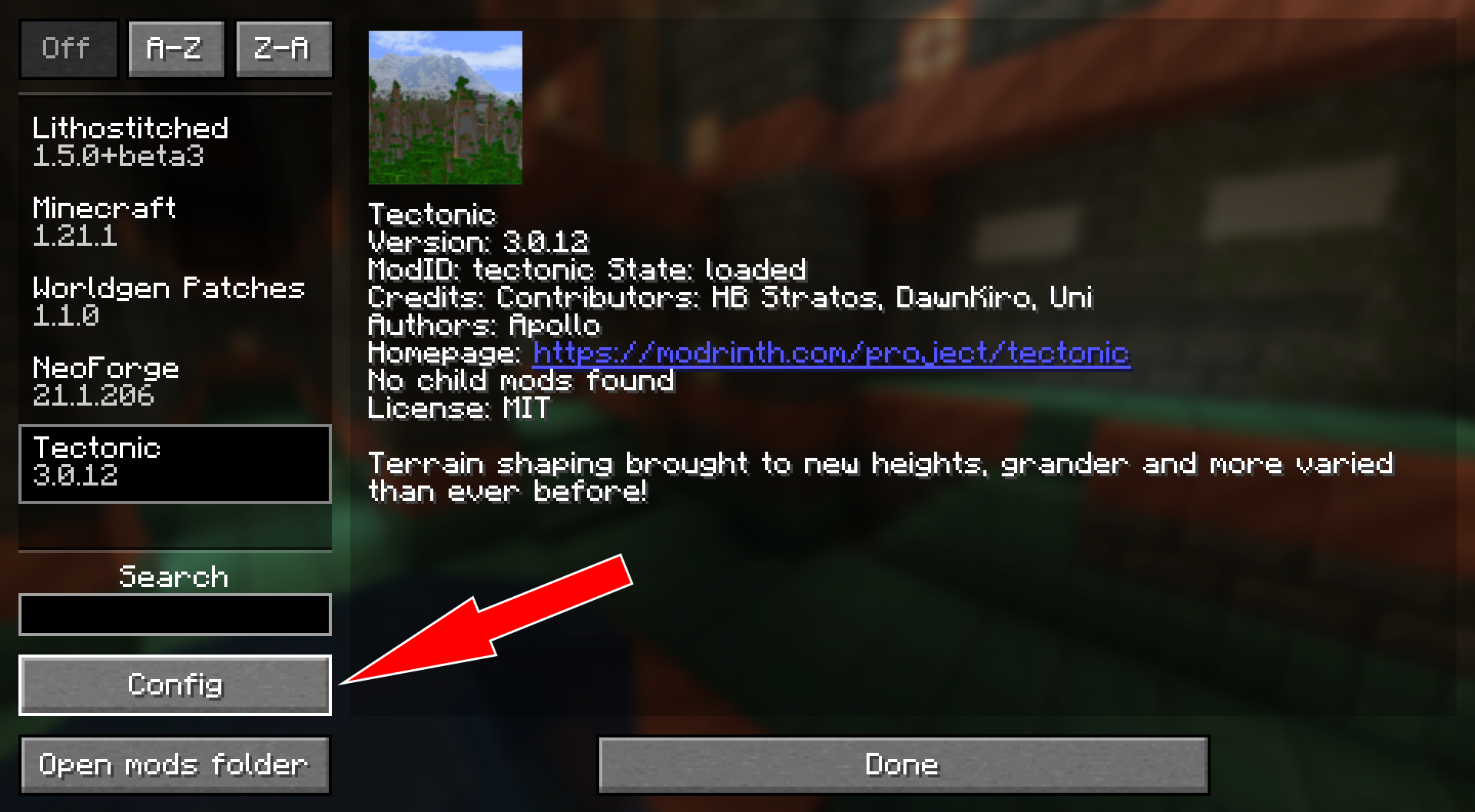
For a town-building world, try favoring flatter terrain before committing to a seed. For an ocean expedition, start with the default seas and adjust only if you want longer crossings. Keep notes of the settings you like; sharing a seed alone won't recreate a world made with different settings or releases.
Terralith's mod configuration also lets you control features such as custom structures and Skylands. If you prefer exploring biomes without Terralith's extra structures, use its structures setting rather than removing the whole mod. Choose these preferences before generating the places where you want them to apply.
When the world doesn't look or load as expected
The old area still looks vanilla
Installed world generation doesn't rebuild terrain you've already visited. More importantly, Terralith's author recommends starting a new world and warns that it cannot simply be removed from an existing one. Keep your established survival save intact and start the combination separately.
Minecraft reports a missing dependency or incompatible pack
Check the exact Minecraft version, loader, and file format first. A datapack ZIP belongs in the world's datapack setup; a mod JAR belongs in the modded profile. Read the dependency named by the loader and obtain its matching release. Don't confuse a loader, such as Fabric, with an additional library a mod requires.
The landscape changes sharply at an explored boundary
Changing world-generation packs on an established save can produce abrupt joins between old and newly generated terrain. Removing the pack afterward doesn't repair those joins. The clean recovery is the untouched backup with its original setup, or a fresh world for the new combination.
Exploration stutters, even though standing still is smooth
Try a shorter render distance and pause exploration while nearby terrain loads. If you use shaders, temporarily turn them off to distinguish rendering load from the work of generating new terrain. These are troubleshooting steps, not a promised performance improvement on every computer.
Keep your world easy to return to
Before updating, back up the complete world and keep the old mod or datapack files. Try the update on a copy. Don't switch a Terralith world between mod and datapack editions as a routine update: their current implementations differ.
Once you're happy with the setup, give your first expedition a small goal: find a valley for a home, connect two river landings, or plan a path to a viewpoint. A world this large becomes much more inviting when you give yourself a reason to explore the next ridge.
More from MineBrush.
Xaero’s World Map
1.46.0Keep a map of the places you explore and find your way back to bases, villages and portals. Download Xaero’s World Map 1.46.0 for Java 26.2, choose Fabric, Forge or NeoForge, and learn how to install it and preserve explored terrain.
- Minecraft
- Java 26.2
- Loader
- Fabric
- Runtime
- Client
Optional Xaero’s Minimap integration; server rules apply.
Java · Mod
Xaero’s World Map
Keep a map of the places you explore and find your way back to bases, villages and portals. Download Xaero’s World Map 1.46.0 for Java 26.2, choose Fabric, Forge or NeoForge, and learn how to install it and preserve explored terrain.
Optional Xaero’s Minimap integration; server rules apply.
- Minecraft version
- Java 26.2
- Game edition
- Java Edition
- Loader / platform
- Fabric
- License
- All Rights Reserved
- Platform family
- Java & PC
- Supported devices
- Windows · macOS · Linux
- Install format
- Place the matching JAR in the game instance’s mods folder
- Touch readiness
- Not required
- Resource type
- Mod
- Project version
- 1.46.0
- Last verified at
- Sep 5, 2026
- Secondary guide action
- Setup & fixes
- Compatibility confidence
- Source claimed
- Java mod loader
- Fabric
- Java runtime side
- Client
- Card evidence statement
- Explore, revisit locations and preserve your recorded terrain.
- Required dependency
- Fabric API for Fabric; XaeroLib included
- Card delivery statement
- Fabric, Forge and NeoForge downloads on MineBrush
- Card limitation note
- Optional Xaero’s Minimap integration; server rules apply.
- Edition applicability
- Java
- Delivery state
- Direct download
- Lifecycle state
- Current
Mod Menu
20.0.2Find installed mods, open supported settings and make a large modpack easier to navigate. Download Mod Menu 20.0.2 for Java 26.2, with search tips, library filters and the required files.
- Minecraft
- Java 26.2
- Loader
- Fabric
- Runtime
- Client
Client menu · no server installation needed
Java · Mod
Mod Menu
Find installed mods, open supported settings and make a large modpack easier to navigate. Download Mod Menu 20.0.2 for Java 26.2, with search tips, library filters and the required files.
Client menu · no server installation needed
- Minecraft version
- Java 26.2
- Game edition
- Java Edition
- Loader / platform
- Fabric
- License
- MIT
- Platform family
- Java & PC
- Supported devices
- Windows · macOS · Linux
- Install format
- JAR files in the instance mods folder
- Touch readiness
- Not required
- Resource type
- Mod
- Project version
- 20.0.2
- Last verified at
- Sep 12, 2026
- Secondary guide action
- Setup & fixes
- Compatibility confidence
- Source claimed
- Java mod loader
- Fabric
- Java runtime side
- Client
- Card evidence statement
- Search installed mods and open supported settings
- Required dependency
- Fabric API and Text Placeholder API for Minecraft 26.2
- Card delivery statement
- Mod Menu and dependencies hosted on MineBrush
- Card limitation note
- Client menu · no server installation needed
- Edition applicability
- Java
- Delivery state
- Direct download
- Lifecycle state
- Current
Build your first Fabric setup for Minecraft Java. Download the installer, choose matching mods, find the right folder and check the feature in-game—with illustrated steps, useful examples and fixes for common errors.
- Edition
- Java Edition
- Difficulty
- Beginner
- Time
- 8 min read; setup time varies
MineBrush · Guide
Install Your First Fabric Mods
Build your first Fabric setup for Minecraft Java. Download the installer, choose matching mods, find the right folder and check the feature in-game—with illustrated steps, useful examples and fixes for common errors.
- Minecraft version
- Choose the version your mods support
- Game edition
- Java Edition
- Platform family
- Bedrock & Mobile
- Supported devices
- Windows · macOS · Linux
- Install format
- Universal installer JAR; Java required
- Touch readiness
- Not required
- Resource type
- Guide
- Compatibility confidence
- Not applicable
- Edition applicability
- Java
- Estimated time
- 8 min read; setup time varies
- Guide difficulty
- Beginner
- Delivery state
- Direct download
- Lifecycle state
- Current
Missing the village or landscape from a seed post? Match editions, versions and world settings, compare real map examples and understand what changes in an older save.
- Edition
- Cross-edition
- Difficulty
- Beginner
- Time
- Work at your own pace
Compare the place you want, not just the seed number
MineBrush · Guide
Why Your Seed Looks Different
Missing the village or landscape from a seed post? Match editions, versions and world settings, compare real map examples and understand what changes in an older save.
Compare the place you want, not just the seed number
- Minecraft version
- Match the world generation version
- Game edition
- Cross-edition
- Platform family
- Cross-edition
- Supported devices
- Java and Bedrock
- Install format
- Seed comparison and world update guide
- Touch readiness
- Check guide
- Resource type
- Guide
- Compatibility confidence
- Source claimed
- Card evidence statement
- Real map comparison and official update guidance
- Card delivery statement
- Use your own seed or world copy
- Card limitation note
- Compare the place you want, not just the seed number
- Edition applicability
- Java + Bedrock
- Estimated time
- Work at your own pace
- Guide difficulty
- Beginner
- Delivery state
- No file
- Lifecycle state
- Current
Player discussion 0
Questions, discoveries and help from other players.