
MineBrush publication
Advanced Storage Network 3.0: Build a Smarter Bedrock Storage Room
Find supplies in one place with Advanced Storage Network 3.0.0. Build your first Bedrock storage network, automate useful jobs and set up wireless access. Includes the required Core download.
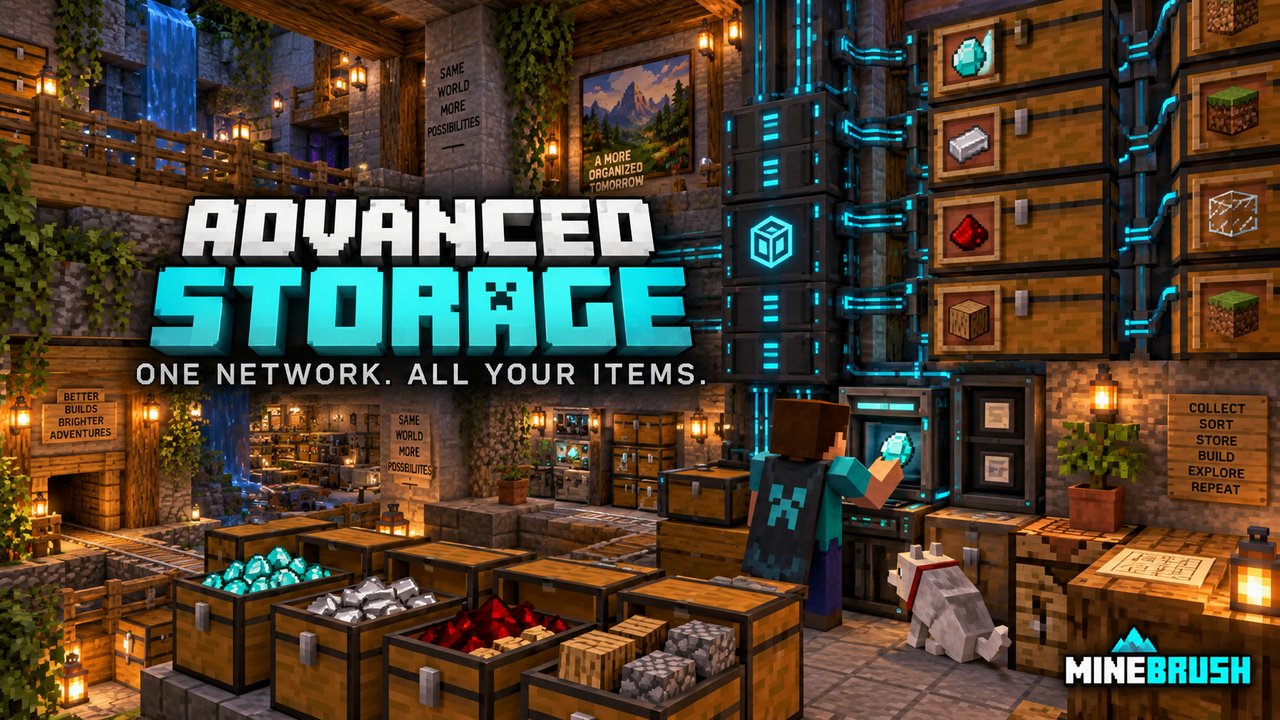
You come home with a full inventory, open six chests, and still cannot find the iron you put away yesterday. Advanced Storage Network, by Fluffyalien1422, replaces that hunt with a shared storage system: put items on disks, browse them from one interface, and expand the network as your base grows.
It can become more than a convenient cupboard. A chest can empty itself into storage, another can receive building supplies, and an Autocrafter can turn stored ingredients into useful items. Start with the cupboard; add automation when you have something specific for it to do.
This guide covers ASN 3.0.0 and Bedrock Energistics Core 0.12.0. The release requires Bedrock 26.30 or newer; its listed game versions are 26.30 and 26.40. Both downloads are below.
Already using ASN 2.x? Do not install version 3 in that world. The creator warns that v3 breaks worlds which previously used v2. Keep the old world with its matching packs and start v3 in a brand-new world. Copying an old v2 world does not make it compatible.
First network · Finding and crafting · Useful automation · Wireless access · Downloads and installation · Troubleshooting
Build your first working storage network
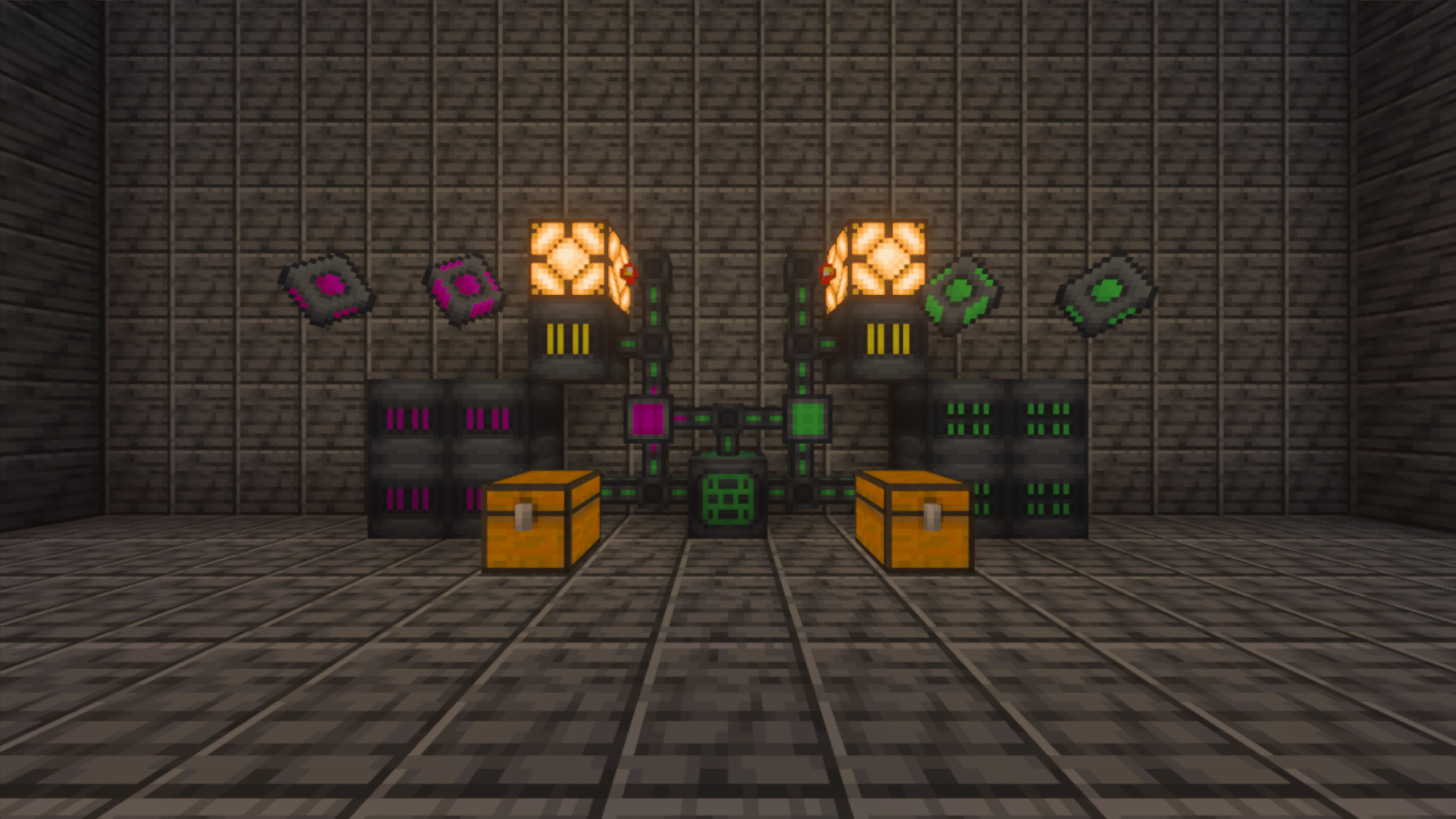
For the smallest item-storage setup, gather one Storage Core, one Storage Drive, at least one Storage Disk and one Storage Interface. Devices can connect directly or through Storage Cables. Put them close together for the first build so a missed connection is easy to spot.
- Place the Storage Core. Use only one core in a connected network.
- Connect the Storage Drive and put a disk inside it. An empty drive has nowhere to keep your items.
- Connect a Storage Interface where you can comfortably reach it.
- Choose the power setup below before expecting the interface to work.
- Add a few ordinary building blocks, close the interface, reopen it and take them back out. Once this works, expand the storage and move more supplies.
Power: the missing step in many first builds
Energy use is enabled by default. ASN consumes energy but does not include a generator. Bedrock Energistics Core is the required shared foundation, not a generator you can place. For a powered factory, you need another compatible Bedrock Energistics Core add-on that supplies energy.
If you want storage without a separate power system, a world owner with command permission can use /asnrule useEnergy false. Core is still required. Use /asnrule useEnergy to read the current setting and /asnrule help to see the available rules. In an ordinary Survival world, enabling cheats to use administrative commands affects achievement eligibility, so make that choice before committing to the world.
A Storage Power Bank holds energy for a powered network; it does not create energy. Adding more banks to an unpowered installation will not fix it.
Find recipes without keeping a browser open
The in-game tutorial book is given on your first spawn. You can also craft it from a book and an emerald. Use it normally to browse entries, or use it on an ASN device to open that device’s explanation. Keep it beside the storage area while learning the machines.
Find items, take the right amount and craft
The Storage Interface puts stored items above your inventory. Its controls include page arrows, search, all-items and grouped views, a crafting view and a stack-size selector. Use the page arrows when the network holds more items than one screen can show.
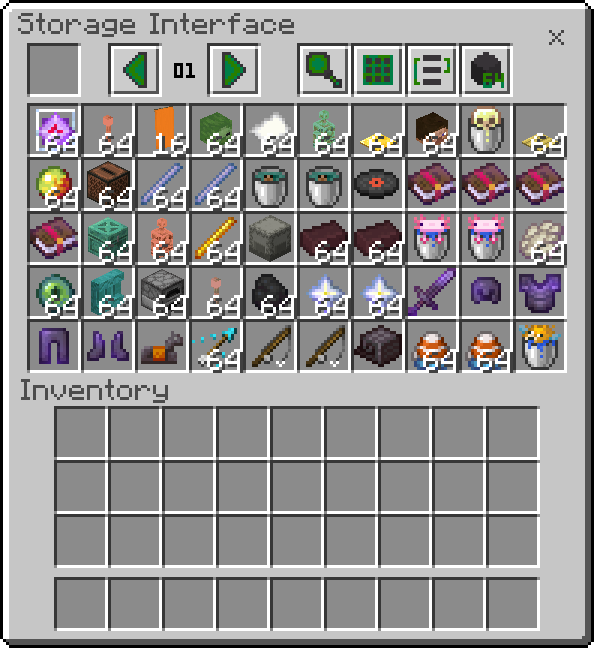
For a building trip: use the stack-size selector to choose 64 before taking bulk materials. For a recipe needing only a few ingredients, switch to 1, 2, 4, 8, 16 or 32. This is more convenient than repeatedly splitting stacks after withdrawing them.
For a crowded network: open the magnifying-glass search. Its field is an ID search, so use an item identifier such as minecraft:iron_ingot rather than assuming a renamed item’s custom display name will match. If the search action closes the interface, open it again to see the result; use Cancel Search to return to the full list.
For crafting: switch to the crafting view to work with ingredients stored in the network. This is convenient for turning a supply of planks into the parts you need without fetching each stack from a different chest. Automatic repeated production is a separate job for the Autocrafter described below.
How much can the disks hold?
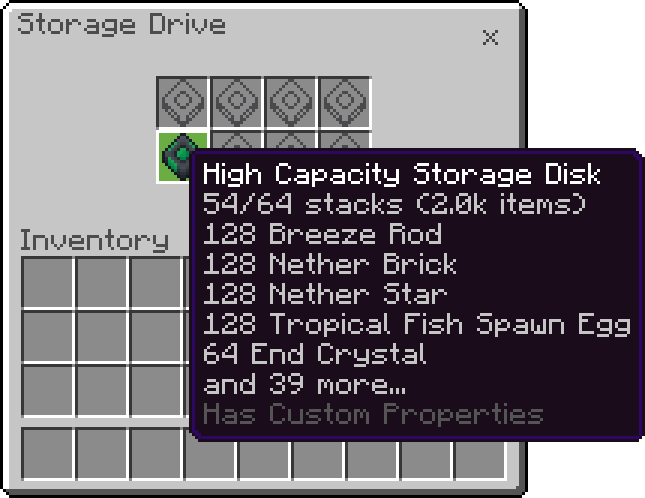
A standard item disk holds 32 item stacks; a high-capacity disk holds 64. A drive takes eight disks, so a fully populated drive provides up to 256 or 512 stack slots respectively. That is a stack count, not a promise that every slot holds 64 individual items: tools and other unstackable items still need space.
Use the Disk Upgrader to expand an occupied standard disk while preserving its contents. For an item disk, place it in the centre of the upgrader’s grid, quartz on the four edges and blaze powder in the four corners. Take the upgraded disk from the output. The machine needs energy unless you have disabled energy use.
Keep track of disks when dismantling the installation: the drive drops them when broken. Collect them before leaving the area, and do not treat a disk containing your supplies as a disposable crafting component.
Three useful projects for a Survival base
1. A drop-off chest beside the entrance
Connect a Storage Import Bus facing a chest. Items placed in that chest move into the network, provided the network is working and has room. After a mining trip, unload into the chest instead of sorting everything immediately.
Keep valuables you do not want imported in a separate chest. A redstone signal pauses the bus, so a lever gives you a simple on/off control while rearranging the storage area. Do not place an export bus facing the same container unless you deliberately want items moved back out.
2. A restocking chest for a building project
Connect a Storage Export Bus facing the chest you want to refill. Open its configuration with an empty hand and select the material you want exported. For example, let it send stone bricks from central storage to a chest beside a castle build while other materials stay in the network.
Exporting moves existing supplies; it does not craft replacements. A redstone signal pauses the bus. Use that control when you want to stop draining the main stock rather than allowing the chest to fill indefinitely. Items with durability or enchantments have additional filter options, which matter when a network contains several similar tools.
3. Keep torches ready without endless production
Connect an Autocrafter. Interact while holding a torch to choose its recipe; if more than one recipe is available, select the one matching your ingredients. Put sticks and the required coal or charcoal in the network. The machine crafts only when every ingredient is present and there is room for the result.
To stop at a useful stock level, configure a Storage Level Emitter to check whether the torch count is at least 64. Route its output to the Autocrafter: a redstone signal pauses crafting. As you withdraw torches and the count falls below the threshold, the signal can turn off and production resume. The output must actually reach the machine; simply placing an emitter somewhere on the cable is not a redstone connection.
This is a stock-control idea built from the add-on’s documented controls. Start with one recipe. Do not assume a torch recipe will automatically turn raw logs into planks and sticks as well: supply its ingredients or build those production steps separately.
Reach supplies while building, and connect distant work areas
Add a Storage Wireless Transmitter to the network, then use a Wireless Storage Interface on the Storage Core to link it. The default transmitter range is 500 blocks. This is useful for taking another stack of blocks while working around a base instead of running back to the storage room.
With energy enabled, the handheld interface also needs charging. ASN does not add a charger; use one from a compatible Bedrock Energistics Core add-on. A powered network and an uncharged handheld are two different problems. With energy disabled, that separate charging step is unnecessary.
For distant network sections, Storage Relays connect to other relays assigned to the same namespace. They have unlimited range and can link across dimensions. On a shared world, configure who can join the namespace rather than treating its name as a secret password.
Think of a relay as a connection between work areas, not a guarantee that an unloaded farm keeps running. World loading rules still matter. Relays and wireless transmitters also serve different purposes: a relay links network devices, while a transmitter provides handheld access.
Should you build fluid storage too?
Only if your other add-ons give it something useful to store. ASN’s fluid system uses Bedrock Energistics Core fluids and needs compatible machines to produce them. It is not a universal replacement for every bucket or every other add-on’s tank.
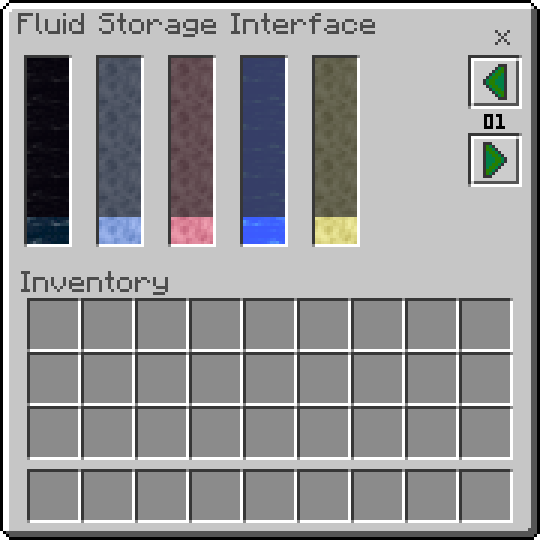
Use Fluid Storage Disks in a Fluid Storage Drive, view the contents through a Fluid Storage Interface, and connect compatible machines with fluid import or export buses. The drive takes eight fluid disks. Ordinary item disks do not become fluid tanks, so finish a working item network before adding this second system.
Download ASN and its required Core
Advanced Storage Network 3.0.0 — Bedrock 26.30 / 26.40: the main add-on, including its behavior and resource packs.
Bedrock Energistics Core 0.12.0 — required: install this matching dependency even when energy use is disabled.
These packages are for Minecraft Bedrock, not Java. Newer game releases can change add-on behaviour; the file’s minimum version alone does not prove that every later release is supported. For version 3, use a fresh world rather than updating a world that previously contained ASN 2.x.
Install both packages in the same world
- Open the Core
.mcaddonwith Minecraft and wait for its import to finish. - Open the ASN
.mcaddonand wait for that import too. Keep both files packaged. - Create a new world. In its add-on settings, activate the Core and ASN behavior packs and check that both matching resource packs are active.
- Launch the world and open the tutorial book. Build the small network above, then choose a compatible energy supply or the owner-controlled energy-free setting.
- Once the basic network works, add it to the world’s normal building plans. Back up this new world before later pack changes.
On Windows, open the downloaded file with Minecraft. On Android or iPhone/iPad, use the file manager’s Open With or Share action to send it to Minecraft. If the device does not offer a Minecraft import option, resolve the file association first. Consoles do not provide the same ordinary local-file import workflow; these downloads are not Marketplace purchases.
Fix the symptom you actually see
The packs imported, but the network will not open
Importing makes packs available; it does not activate them in every world. Check that ASN and the matching Core are active in this world, including their resource packs. Then check energy, cable connections and that there is only one Storage Core on the network.
I placed a drive, but cannot deposit anything
Open the drive and check that it contains an item disk with free space. A fluid disk belongs in a fluid drive. If the disks are full, add capacity or withdraw items; an extra empty drive alone will not help.
The import bus or Autocrafter stopped
Look for a redstone signal: both devices pause when powered by redstone. Then check the destination’s free space and the network’s energy. An Autocrafter additionally needs every ingredient for the selected recipe, while a bus must face the container it is meant to use.
Wireless access fails beside a working storage room
Relink the handheld to the correct core, check the connected transmitter and its range, and charge the handheld if energy is enabled. A Power Bank in the network does not automatically charge the item in your hand.
A friend cannot use the interface I am using
The interface can report that another player already has it open. Close it so your friend can use it, or give the shared base another connected interface. For relay access, also check the namespace’s access settings.
For the next expansion, browse our Bedrock add-ons and choose projects that support the same game version. Add one useful system at a time: a reliable entrance chest and a restocked building supply are worth more than a room full of machines you never use.
More for your Bedrock world.
Carry more supplies with BONY162’s Backpacks for Bedrock. Craft your first bag, choose a design and use storage pages, sorting, a magnet and other upgrades—with illustrated recipes and clear controls.
- Minecraft
- Bedrock 26.30
- Components
- Paired
- Package
- .mcaddon — behavior and resource packs included
Bedrock · Add-on
BONY162’s Backpacks
Carry more supplies with BONY162’s Backpacks for Bedrock. Craft your first bag, choose a design and use storage pages, sorting, a magnet and other upgrades—with illustrated recipes and clear controls.
- Minecraft version
- Bedrock 26.30
- Game edition
- Bedrock Edition
- Loader / platform
- Bedrock
- License
- All Rights Reserved
- Platform family
- Bedrock & Mobile
- Supported devices
- Windows, Android, iPhone and iPad — Bedrock import
- Install format
- .mcaddon — behavior and resource packs included
- Touch readiness
- Check guide
- Resource type
- Add-on
- Project version
- 1.6
- Compatibility confidence
- Source claimed
- Bedrock add-on packs
- Paired
- Bedrock add-on import route
- Open .mcaddon with Minecraft; activate both included packs
- Required experiments
- None
- Edition applicability
- Bedrock
- Delivery state
- Direct download
- Lifecycle state
- Current
SWAILA
6.0Identify blocks and creatures at a glance with SWAILA 6.0 for Bedrock. Learn what its health, tool and drop hints mean, choose a clear HUD position, and install both included packs.
- Minecraft
- Bedrock 26.40; earlier versions in guide
- Components
- Paired
- Package
- .mcaddon — both packs included
Bedrock · Add-on
SWAILA
Identify blocks and creatures at a glance with SWAILA 6.0 for Bedrock. Learn what its health, tool and drop hints mean, choose a clear HUD position, and install both included packs.
- Minecraft version
- Bedrock 26.40; earlier versions in guide
- Game edition
- Bedrock Edition
- Loader / platform
- Bedrock
- License
- All Rights Reserved
- Platform family
- Bedrock & Mobile
- Supported devices
- Minecraft Bedrock on Windows, Android and iOS; local add-on import
- Install format
- .mcaddon — both packs included
- Touch readiness
- Check guide
- Resource type
- Add-on
- Project version
- 6.0
- Compatibility confidence
- Source claimed
- Bedrock add-on packs
- Paired
- Bedrock add-on import route
- Open .mcaddon, activate both packs, choose HUD position
- Required experiments
- None
- Edition applicability
- Bedrock
- Delivery state
- Direct download
- Lifecycle state
- Current
Player discussion 0
Questions, discoveries and help from other players.