
MineBrush publication
All Stacker 3.0.0: Item Groups, Animal Farms and Mass Breeding for Bedrock
Turn scattered drops and crowded farm animals into counted groups. Learn All Stacker’s settings, mass breeding and farm uses, then download the Bedrock 26.30 / 26.40 add-on.
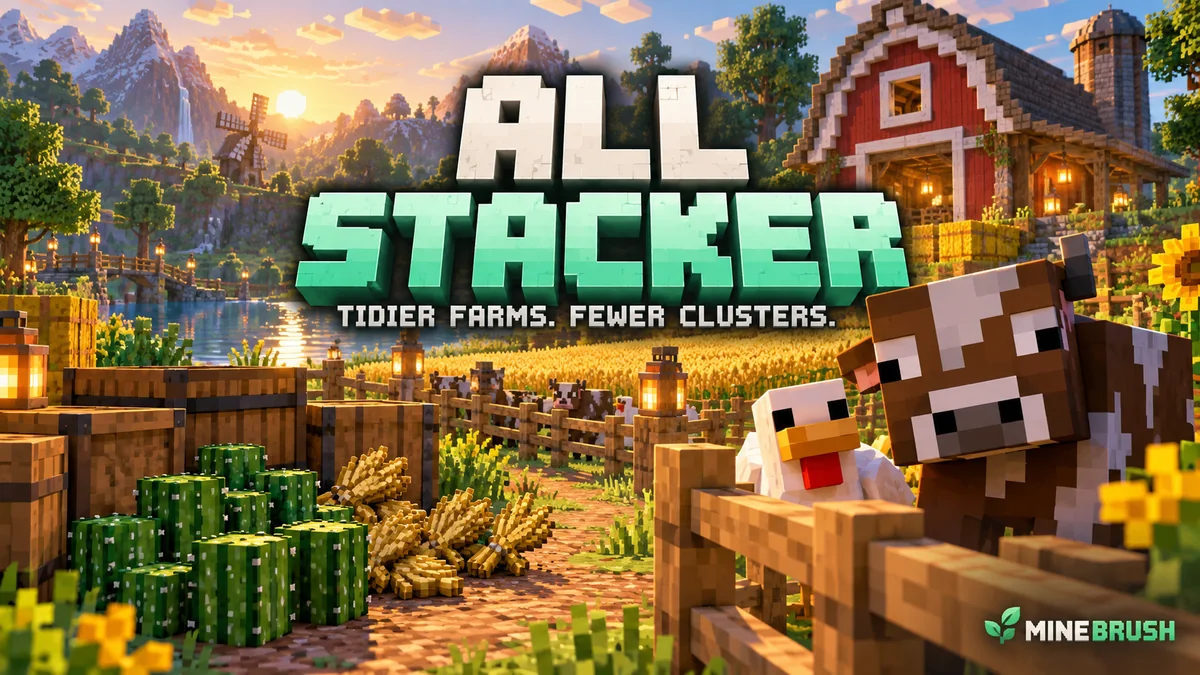
All Stacker makes a busy Bedrock farm easier to read. Nearby matching dropped items become a counted pile, while supported animals can appear as one mob with a group total. You can collect harvests with less clutter, keep track of a herd at a glance, and feed several pairs of animals in one interaction.
This download is All Stacker 3.0.0 by KisuX3 / PUKAN223, listed by the creator for Minecraft Bedrock 26.30 and 26.40. It includes the behavior and resource packs together. It does not increase the stack limit inside your inventory or turn every kind of mob into a safe candidate for grouping.
Where All Stacker is useful
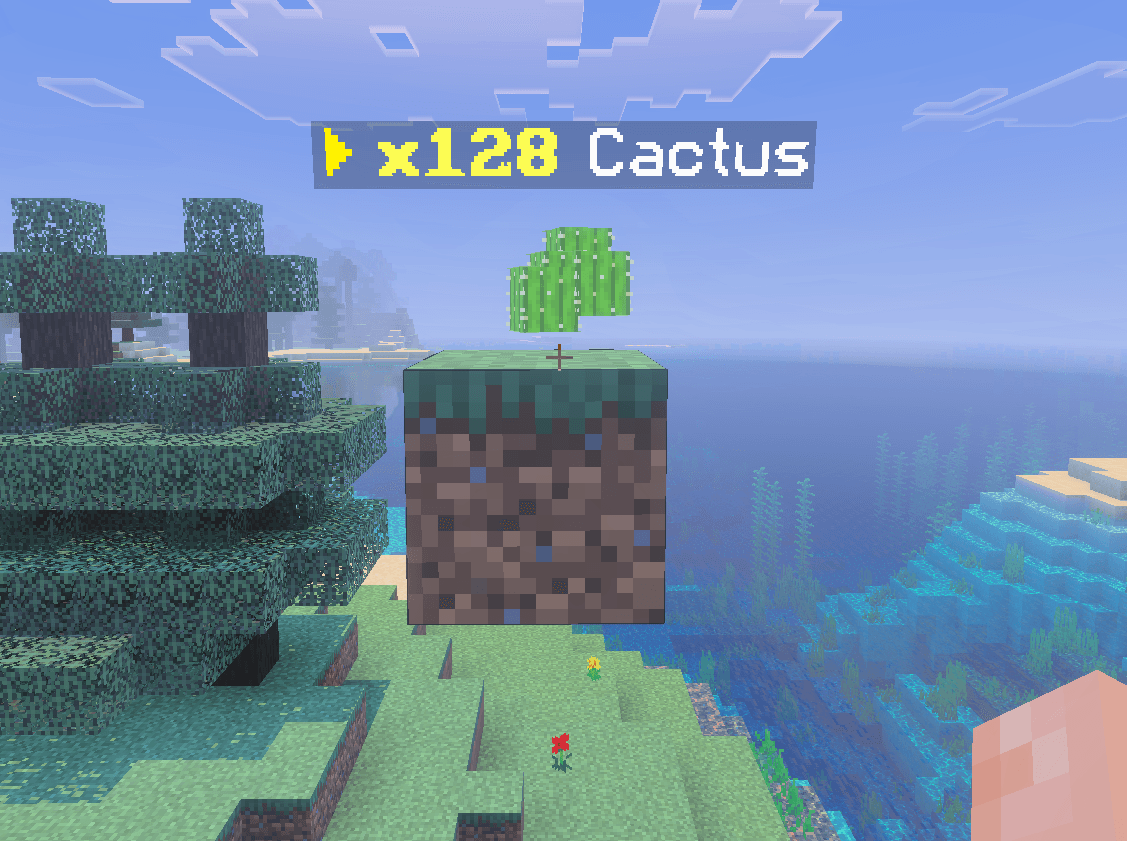
- Crop collection: group matching drops around a cactus or crop farm instead of leaving many separate piles on the ground. The label shows the combined amount.
- A shared survival base: see how many ordinary cows, sheep, pigs or chickens a group represents without counting a crowded pen.
- Breeding sessions: use the mass-breeding option to feed multiple pairs together, with food consumed for each pair.
- Item-only cleanup: keep item stacking enabled and turn mob stacking off if you prefer every animal to remain physically separate.
The aim is to reduce the number of separate entities around busy areas. Results depend on your world and device; it is not a guaranteed FPS boost, a chest sorter or an automatic farm builder.
Download All Stacker 3.0.0
Choose the native download below for the original .mcaddon package. This is a Bedrock add-on, not a Java mod or JAR. Both included packs are required; no separate library download is needed.
Windows, Android and iOS players can use their device’s file-opening route to import the package into Minecraft. Console editions do not provide the same direct local-file import route. For an existing world, see our Bedrock add-on activation guide.
Install it and see the first result
- Copy your world first. All Stacker changes how dropped items and animal groups are represented. Keep an untouched copy before trying it in a valued farm.
- Open the downloaded .mcaddon with Minecraft and wait for the import results.
- Edit the copied world. Activate All Stacker under Behavior Packs and check that its matching Resource Pack is active too. Use both packs from this 3.0.0 download.
- Start with the world’s normal settings. The creator does not require Beta APIs; do not enable every experimental option just to install it.
- Drop two small piles of the same ordinary material close together, such as cobblestone. Look for a combined label, then pick the items up.
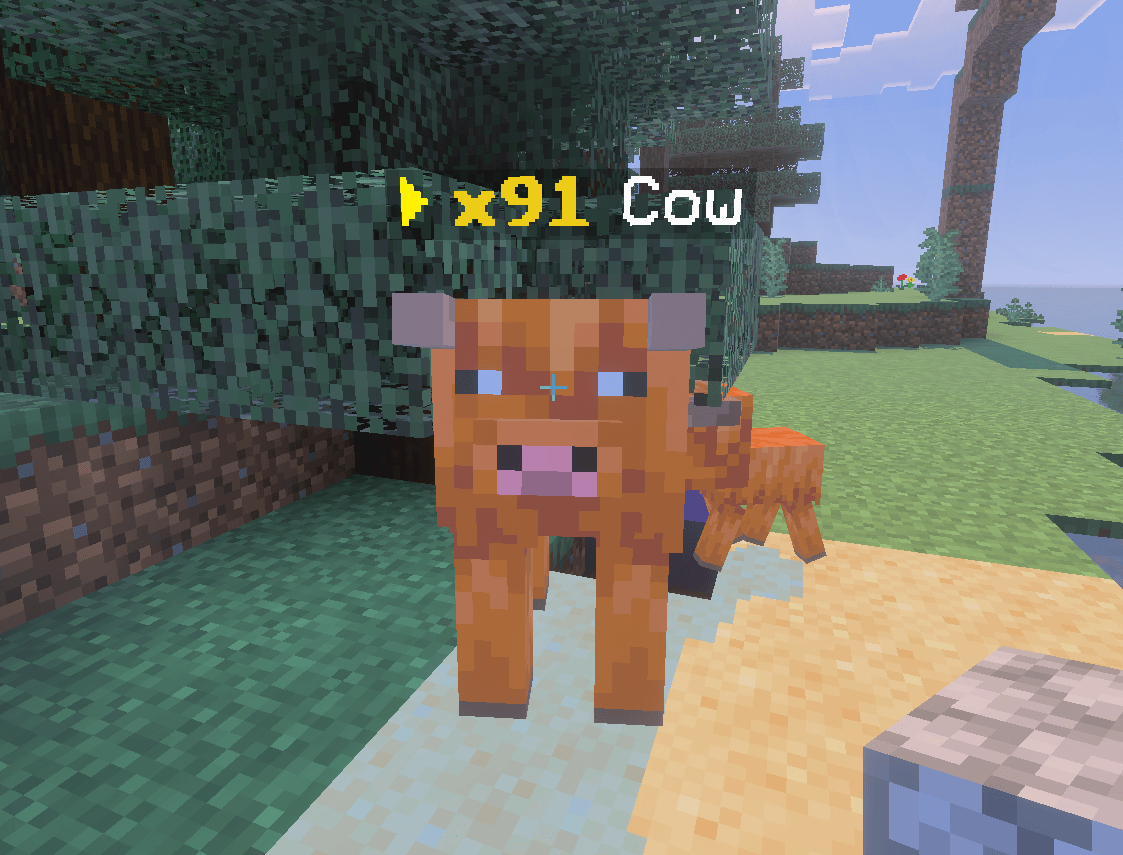
- For animals, start with a small pen of adult cows. Nearby supported animals can combine, and their label shows the represented total. Open the settings before deciding how you want deaths and breeding to work.
For a shared world, the host activates the packs and an operator manages their settings. Being a player on a server does not give you permission to change its add-ons. Do not assume that this externally imported package qualifies a world for achievements; Minecraft’s announced add-on achievement support concerns Marketplace content.
Open the settings: recipe or command
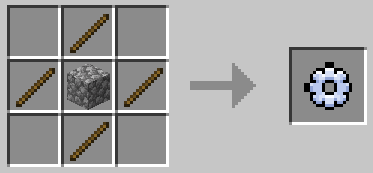
On a crafting table, put one cobblestone in the center and four sticks directly above, below, left and right. Leave the corners empty. This creates All Stackers Settings. Hold it and use the item with your normal mouse, controller or touch control.
You must be an operator to open the menu, even if you crafted the item yourself. If you already have command access, the alternative is /give @s kisu:ac_setting. A “You must be an Operator” message is a permission issue, not a failed import.
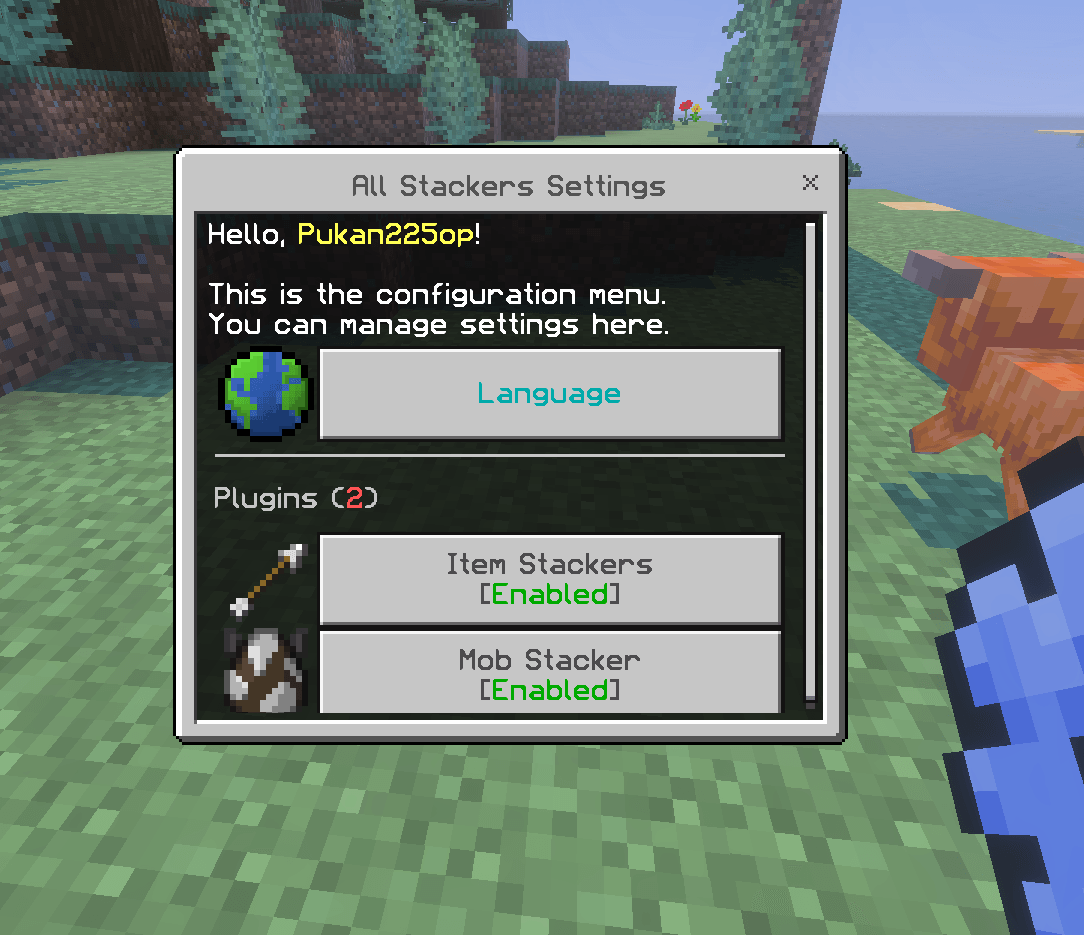
The main menu separates ItemStacker and MobStacker, with a Language option for English or Thai. The author’s gallery below illustrates the layout; exact wording and icons can differ from the current release. Choose the part you want to adjust, open its settings, make a small change and use Save.
Make dropped-item stacking fit your base
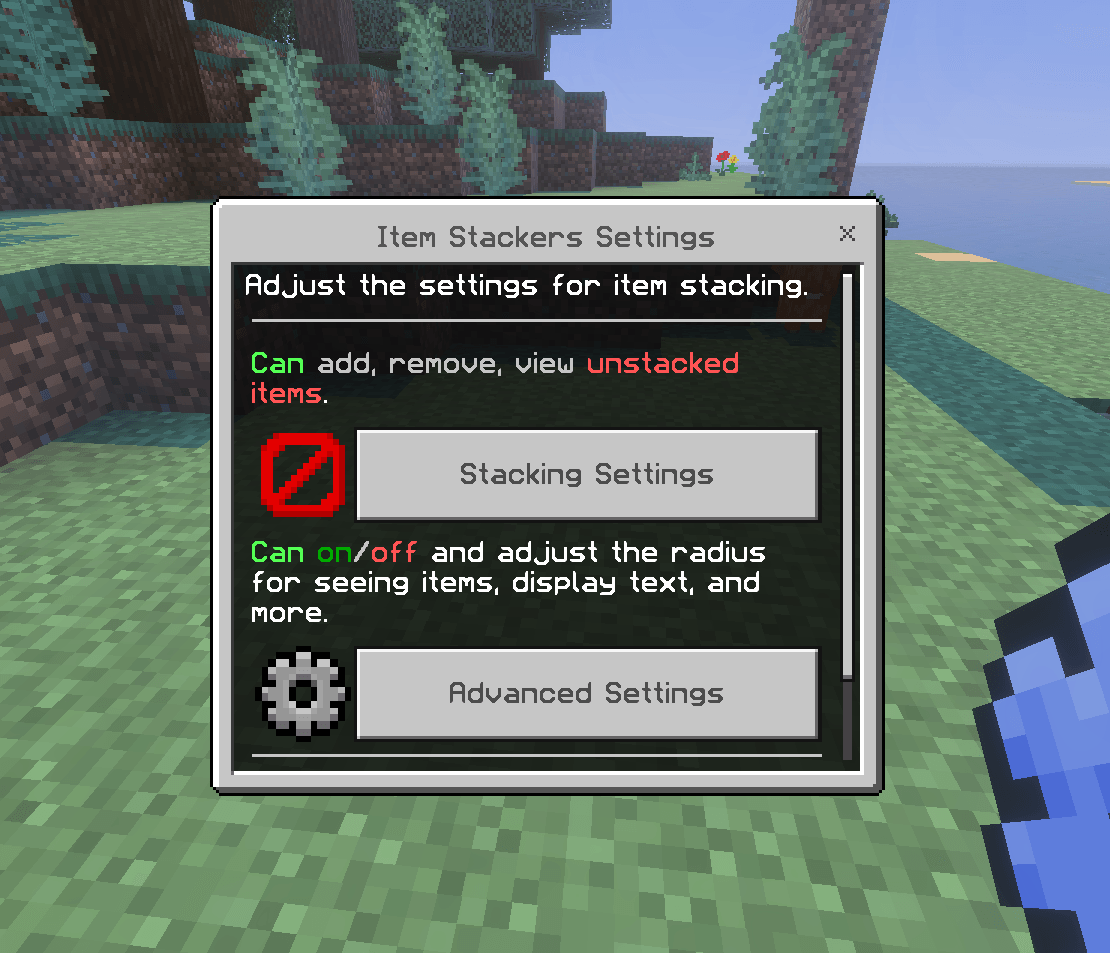
RadiusCombine controls how far apart matching dropped items may be when they merge; the supplied default is 15 blocks. RadiusSeeing controls how close a player must be to see their labels; its default is 10 blocks. These are different controls: hiding a distant label does not disable stacking.
For a compact collection area, begin with the defaults. If separate work areas are close together, reduce the combine radius so drops are less likely to join across those areas. Keep the display range short if many labels distract you while building.
Stacking Settings manages the list of items that should stay unstacked. Use it for material you deliberately want to keep separate. Named items and items with special stored contents receive additional handling; a potion or filled container refusing to merge is not a reason to remove those protections. Ordinary blocks are the clearest starting example.
FastMode is off by default. Leave it off initially: making the stacking process run more frequently is not automatically better on a phone or a busy world.
Pickup still uses normal inventory slots and stack limits. Leave enough room for the total shown in a pile. A hopper farm still needs a working collection system; grouping drops does not move them into a chest for you. Before extending an existing automated farm, check a small known quantity through its usual hopper route.
Use animal groups without changing the wrong part of your farm
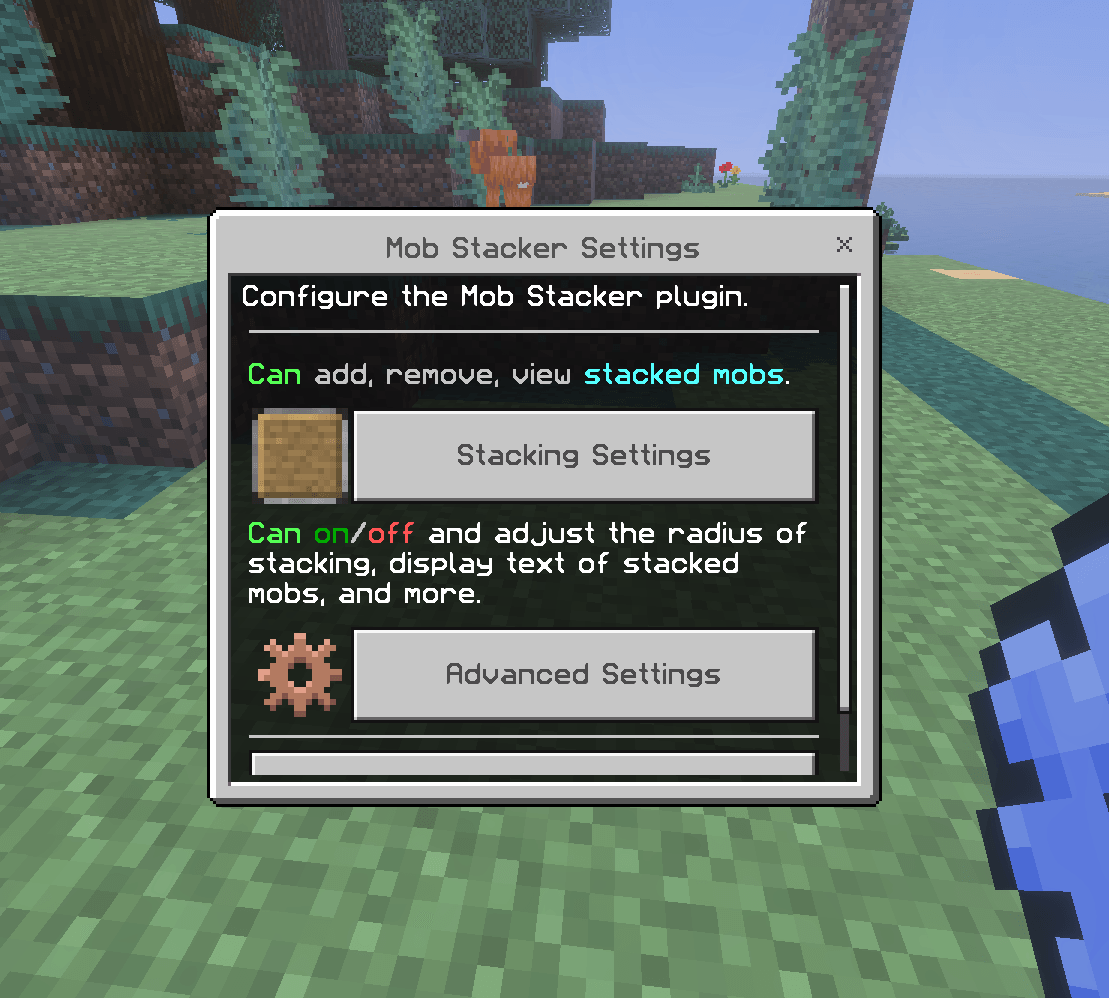
The default mob list is pigs, cows, sheep and chickens, with a 10-block stacking radius. Adult and baby animals remain separate; color differences are considered, and tamed or leashed entities are excluded. A large label represents animals in the group, not extra health for a single ordinary animal.
Keep a simple farm first. The menu can add other nearby mob types to the list, but that is not proof that custom creatures, pets or trading villagers will preserve every special property. Keep valuable individual animals and trading setups out of an expanded list. Reducing the radius can also help keep separate pens separate.
Normal non-breeding interactions with a group split off an individual so it can be handled separately. For milking or shearing, approach with the appropriate tool and check the animal you are interacting with rather than expecting one click to milk or shear the entire count.
Choose what happens when a grouped animal dies
- All: the default mode processes multiple animals and their loot together. A large group is handled in batches of up to 32, so a remaining group can survive even though the option is called “All”.
- Only one: one animal is removed and the rest of the group remains. This is the more intuitive starting choice if you want to harvest individual animals while keeping a breeding herd.
Set this before using a killing chamber or attacking your herd. Grouping changes the unit that you see on screen, so do not assume one visible death always means one animal. Loot still depends on the animal and the way it is killed.
Breed several pairs in one interaction
Version 3.0.0 adds MassBreeding, enabled by default. Hold suitable food and use it on an adult stacked group: wheat for cows or sheep, suitable vegetables for pigs, and suitable seeds for chickens.
Example: for a group of eight adult cows, holding eight wheat provides food for four pairs. The add-on consumes two wheat per pair and creates four calves as a baby group. With only four wheat in hand, the same interaction can feed two pairs instead. The amount in your held stack matters.
The parent group then has a five-minute breeding cooldown. If a second interaction appears to do nothing, wait for that cooldown and check that you are targeting adults with at least enough food for a pair. Turn MassBreeding off if you prefer to manage breeding through individual interactions.
The 3.0.0 release also lists fixes for group persistence after chunk reloads, chicken egg counts, settings navigation and bundle behavior. Those are useful reasons to use the current paired packs rather than mix an older behavior pack with the new resources.
If something does not look right
- No labels or menu item: confirm that both packs imported and are active in this world, and that your Bedrock version matches the release listing. Re-enter the copied world after changing packs.
- The menu refuses to open: ask the host for operator permission. Crafting the settings item does not grant it.
- Some items stay separate: try ordinary identical blocks, then check the exclusion list and combine radius. Special item contents and names can prevent merging.
- Animals do not combine: check the enabled species, distance, adult/baby state, color and whether a lead is attached.
- Unexpected farm output: stop expanding that setup and check death mode or mass breeding first. On the copied world, try All Stacker alone if another add-on also changes mobs or dropped items. Our Bedrock add-on conflict guide explains how to isolate the overlapping pair.
- You want to remove it: return to the untouched world copy if possible. Simply removing a pack while it is managing grouped items or animals is not the same as restoring the original world.
Creator and sources
All Stacker is made by KisuX3 / PUKAN223. MineBrush provides this player guide, an original editorial cover and a hosted copy of the creator’s package. Gameplay screenshots belong to the creator; their gallery does not identify an exact capture version. The project declares the MIT license.
- Official CurseForge project and release notes
- All Stacker 3.0.0 release and supported Minecraft versions
- Creator’s original screenshot gallery
- Author’s repository and instructions
- Minecraft: add-ons and achievements
More for your Bedrock world.
Add something new to the world you already love. Bring furniture, pets or new survival activities into an existing Bedrock save. Learn how to copy your world, activate the right packs, find the first useful features and keep your progress recoverable.
- Edition
- Bedrock Edition
- Difficulty
- Beginner
- Time
- 15–30 min, plus downloading and world copying
Keep your builds; try new features on a world copy
MineBrush · Guide
Add-ons for Your Existing World
Add something new to the world you already love. Bring furniture, pets or new survival activities into an existing Bedrock save. Learn how to copy your world, activate the right packs, find the first useful features and keep your progress recoverable.
Keep your builds; try new features on a world copy
- Minecraft version
- Bedrock Edition — match the add-on release
- Game edition
- Bedrock Edition
- Platform family
- Bedrock & Mobile
- Supported devices
- Bedrock on Windows, mobile and consoles; import routes vary
- Install format
- Step-by-step world setup guide
- Touch readiness
- Yes
- Resource type
- Guide
- Compatibility confidence
- Source claimed
- Card evidence statement
- Minecraft and creator guidance; illustrated world settings
- Card delivery statement
- Choose, activate and start using an add-on
- Card limitation note
- Keep your builds; try new features on a world copy
- Edition applicability
- Bedrock
- Estimated time
- 15–30 min, plus downloading and world copying
- Guide difficulty
- Beginner
- Delivery state
- No file
- Lifecycle state
- Current
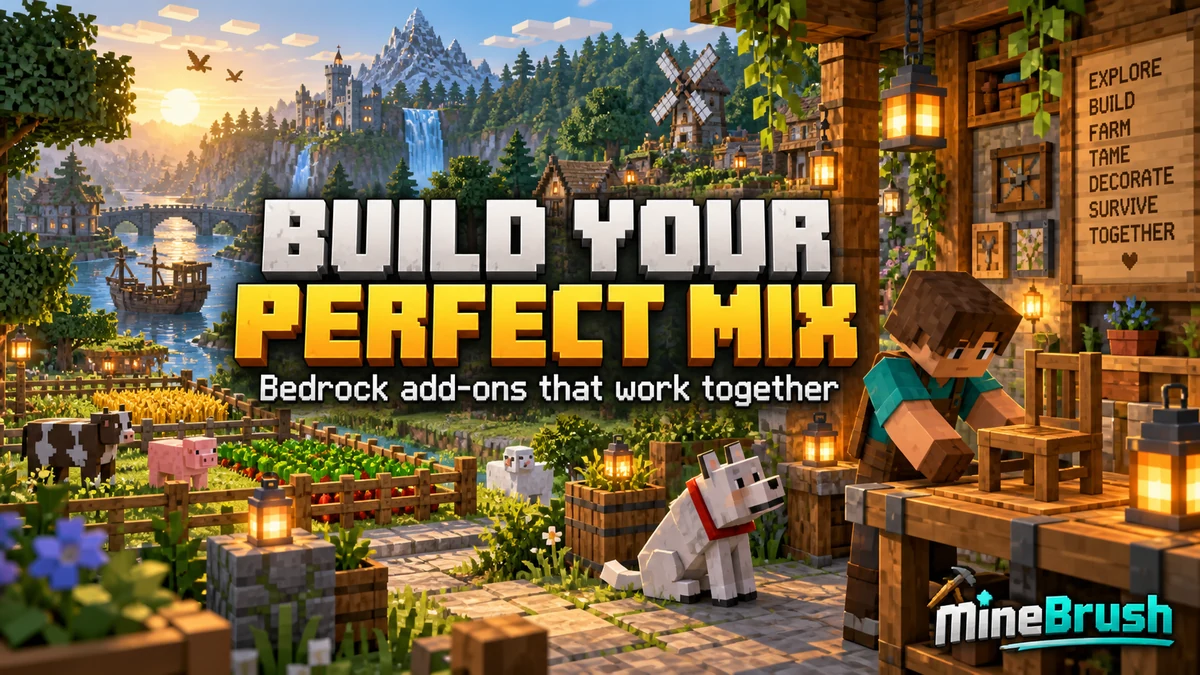
Build a Bedrock world around the features you enjoy. Combine useful add-ons, understand pack order, choose compatible visual settings and find the cause when textures, items or gameplay stop working together.
- Edition
- Bedrock Edition
- Difficulty
- Intermediate
- Time
- 20–30 min to check a pair
Make your favourite features work together
MineBrush · Guide
Build Your Bedrock Add-on Mix
Build a Bedrock world around the features you enjoy. Combine useful add-ons, understand pack order, choose compatible visual settings and find the cause when textures, items or gameplay stop working together.
Make your favourite features work together
- Minecraft version
- Bedrock Edition — match each add-on release
- Game edition
- Bedrock Edition
- Platform family
- Bedrock & Mobile
- Supported devices
- Bedrock on Windows, mobile and consoles
- Install format
- Pack selection and troubleshooting guide
- Touch readiness
- Yes
- Resource type
- Guide
- Compatibility confidence
- Source claimed
- Card evidence statement
- Microsoft guidance and creator settings examples
- Card delivery statement
- Choose features, set pack order and resolve conflicts
- Card limitation note
- Make your favourite features work together
- Edition applicability
- Bedrock
- Estimated time
- 20–30 min to check a pair
- Guide difficulty
- Intermediate
- Delivery state
- No file
- Lifecycle state
- Current
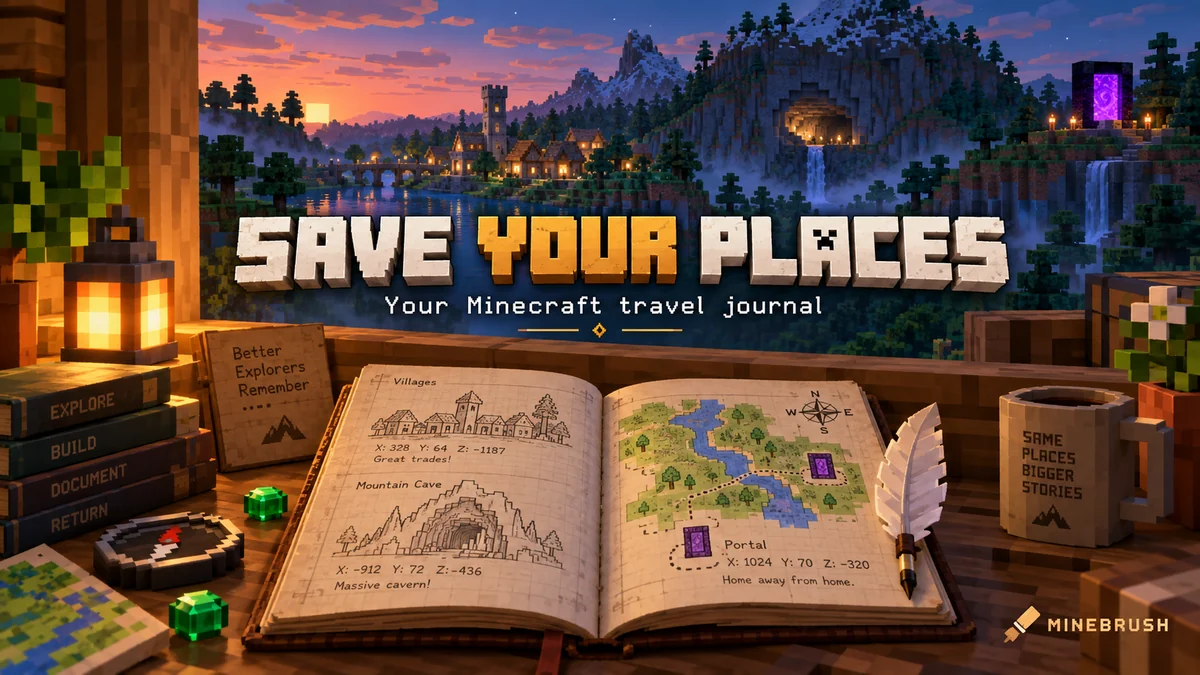
Save Your Minecraft Places — Keep useful coordinates for your base, caves and portals. Make a simple travel journal, share clear directions with friends and keep your notes available after a death.
- Edition
- Cross-edition
- Difficulty
- Beginner
- Time
- Start before your next outing
Keep home and portal notes accessible outside your inventory
MineBrush · Guide
Save Your Minecraft Places
Save Your Minecraft Places — Keep useful coordinates for your base, caves and portals. Make a simple travel journal, share clear directions with friends and keep your notes available after a death.
Keep home and portal notes accessible outside your inventory
- Minecraft version
- Java and Bedrock — record your world and dimension
- Game edition
- Cross-edition
- Platform family
- Cross-edition
- Supported devices
- Java PC · Bedrock PC, mobile and consoles
- Install format
- In-page guide and note template
- Touch readiness
- Check guide
- Resource type
- Guide
- Compatibility confidence
- Source claimed
- Card evidence statement
- Coordinate examples and book controls explained
- Card delivery statement
- Read the guide and copy the note template
- Card limitation note
- Keep home and portal notes accessible outside your inventory
- Edition applicability
- Java + Bedrock
- Estimated time
- Start before your next outing
- Guide difficulty
- Beginner
- Delivery state
- No file
- Lifecycle state
- Current
Player discussion 0
Questions, discoveries and help from other players.