
MineBrush publication
FullBright Pro for Bedrock: Clearer Fog, Underwater Views and Setup
See distant terrain and underwater builds more clearly with FullBright Pro for Bedrock. Learn what fog reduction actually changes, activate the pack without commands, and avoid confusing it with Night Vision.
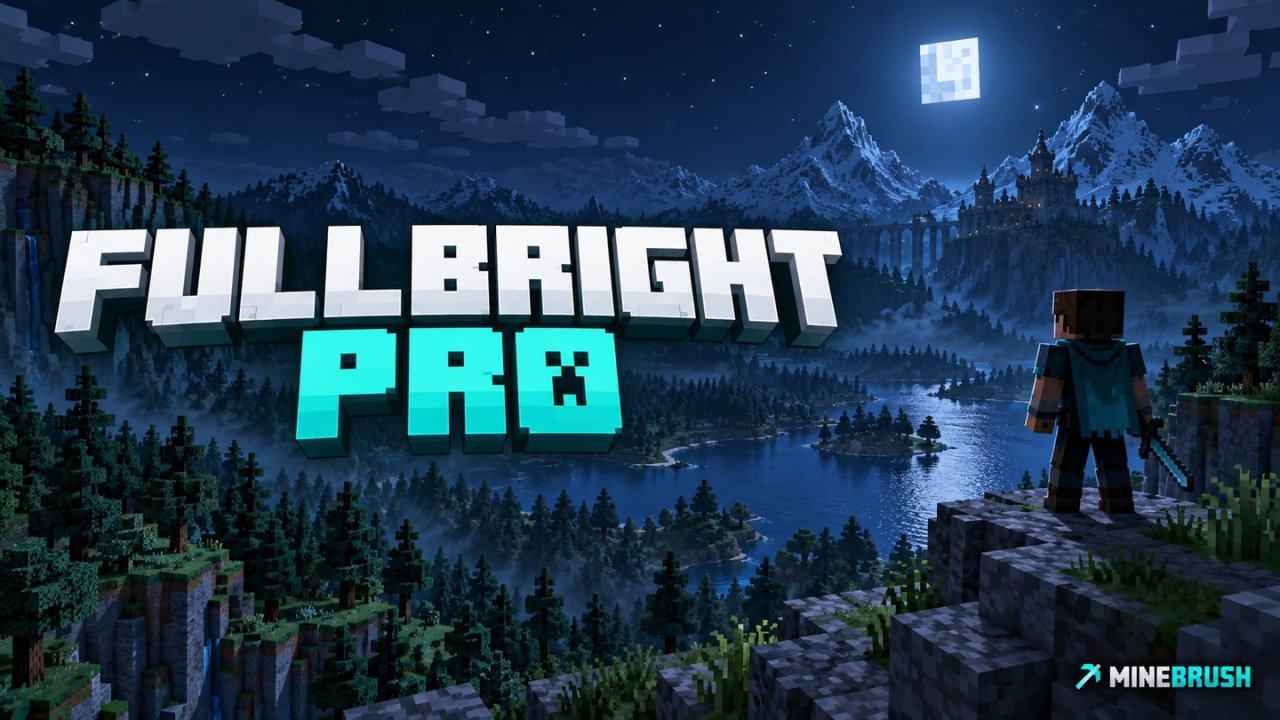
A distant shoreline disappears into haze, or the water around a build makes its outline hard to read. FullBright Pro is a small Bedrock resource pack by Leo Termado that reduces environmental fog. It is useful when you want a clearer view of terrain and underwater scenery without activating a behavior pack or using commands.
There is one important distinction behind the name: this is a fog-reduction pack, not Night Vision. It does not raise gamma or change block lighting. A dark cave can still be dark, and a clearer-looking base still needs proper lighting to prevent hostile mobs from spawning.
The download is FullBright Pro 1.0.1. Start with Bedrock’s Simple or Fancy graphics. The author’s CurseForge release lists versions through 26.30, while the repository documents support through 26.34 based on a static review. Support for newer 26.40/26.50 builds is not established by those records; do not assume every newer graphics renderer will produce the same result.
What to use it for · What changes on screen · Download and activate · Other packs and graphics modes · Common questions
Four useful ways to use clearer fog
Follow landmarks across a landscape
Try a route where you navigate by a mountain, a tall base or a recognizable shoreline. Reducing the haze can make those shapes easier to distinguish within the terrain your device already renders. Stand at a familiar lookout and compare the same view with the pack on and off.
This does not load terrain beyond your render distance. If the far shore is outside the loaded view, a fog pack cannot bring it back. Keep coordinates or another reliable navigation method for trips where losing sight of a landmark would leave you stranded.
Plan an underwater build
For an aquarium, submerged ruin or underwater entrance, compare how clearly you can see the build from your intended viewing position. Start with a shallow test area so you can judge the outline without fighting the oxygen timer. The pack changes underwater fog, which is a different effect from adding glass textures or a water shader.
Clearer water does not supply oxygen. Use the normal equipment or effects your project needs, and light the build separately if you want it to look brighter.
Check a skyline in changing weather
If you are designing a castle silhouette, bridge or large harbor, look at it from the route visitors will approach. Less weather haze may make the shape easier to read. This is particularly useful for comparing whether a tower or landmark is prominent enough from a distance.
The pack does not stop rain or storms. It also changes the atmosphere you are judging: a build that reads clearly with reduced fog may look more mysterious in vanilla. Check both when planning a map for players who will not use this pack.
Choose clarity or atmosphere for screenshots
A clear long-distance view can help show the scale of a build; ordinary fog can add depth and mood. Keep the camera position and time of day the same, then choose the version that communicates your build better. Hide the HUD through the game’s video settings when you want a clean composition.
FullBright Pro does not add the lighting, reflections or materials of a shader. If another screenshot includes those effects, installing this fog pack alone will not recreate them.
What changes—and what stays the same
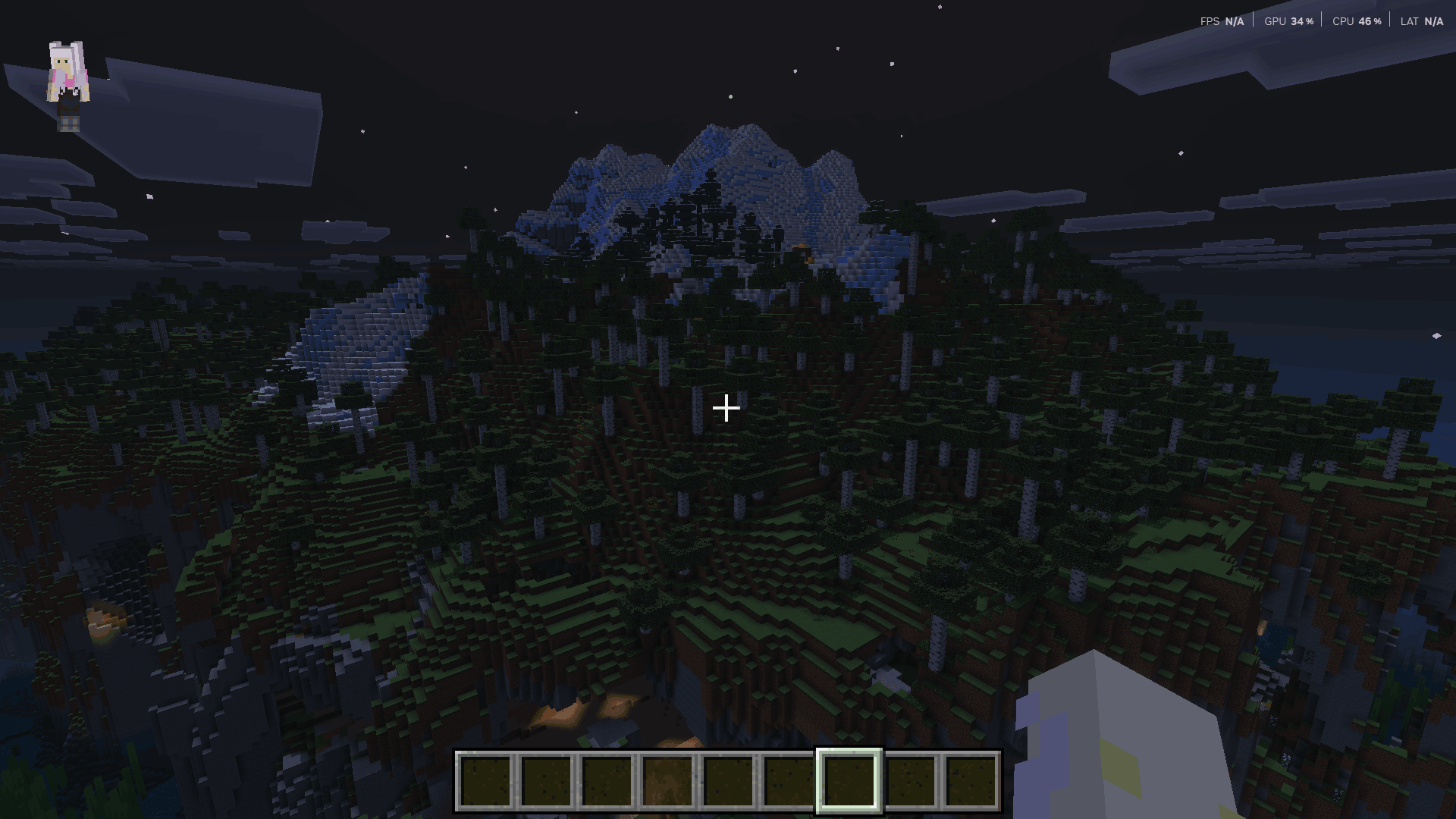
The pack changes fog in air, weather, water and lava. It keeps Minecraft’s blocks and items rather than replacing them with a new texture style. There is no custom key, spell or tool to use: once the resource pack is active, its visual changes apply in the background.
- Dark areas remain dangerous. It does not change light-based spawning rules or make blocks emit light.
- Hidden ore stays hidden. This pack does not make solid blocks transparent or reveal caves through a wall.
- Lava remains dangerous. A change in its fog does not grant fire resistance, prevent damage or make swimming through it a sensible visibility test.
- No performance boost is promised. Choose it for the view, not as a fix for low frame rates.
If your goal is seeing inside a completely unlit room, normal lighting or the game’s Night Vision effect addresses that different problem. FullBright Pro’s name should not be taken as a promise of the same result.
Download FullBright Pro 1.0.1 for Bedrock
This is a resource pack for Minecraft Bedrock, not a Java resource pack. It needs no separate behavior pack, script add-on or experimental switch.
Activate it in one world first
- Download the
.mcpackand open it with Minecraft. Wait for the successful import message; importing alone does not activate the pack. - From the world list, choose the pencil/Edit button beside the world you want to use.
- Open Resource Packs → Available or My Packs, depending on your menu version.
- Look for FullBright (Cheats OFF). That is the in-game name of this download. Select it and choose Activate.
- In the Active list, put it above another pack that changes fog. For the first comparison, use it on its own.
- Use Simple or Fancy graphics, enter the world and return to a familiar landscape or shallow underwater view.
There are no required commands and no reason to enable cheats just to activate this resource pack. The author describes it as achievement-friendly; it does not reverse an achievement restriction already caused by other world settings.
On Android, iPhone or iPad, use the file’s Open with/Share action to send it to Minecraft if a normal tap does not import it. Our Bedrock mobile import guide covers the device-specific steps. Keep the downloaded extension as .mcpack; do not extract the contents for a normal import.
Use it across your own worlds
For a general preference, open Settings → Global Resources from the main menu, activate FullBright and place it above conflicting visual packs. World-specific or required server packs can still affect the final appearance. Start with world-only activation if you do not want to change the look of unrelated worlds.
Direct file importing mainly applies to Windows and supported mobile installations. Consoles do not necessarily offer the same file-opening route; a compatible Realm or world carrying the pack may be needed. Do not follow a Windows folder tutorial on a console and expect identical menus.
Graphics modes, pack order and multiplayer
Simple and Fancy are the supported starting points. The current author documentation does not guarantee Vibrant Visuals or ray-traced graphics. If that is the mode you want to keep using, this release may not give you the result you expect. Increasing the brightness slider is not a substitute for renderer compatibility.
Another pack can control the same fog or biome appearance. If FullBright works alone but stops working in your usual setup, move it above the conflicting pack and reopen the world. You are choosing which pack’s fog wins; the rest of a texture pack may still work, but its intended atmosphere can change. Add visual packs one at a time until you identify the conflict.
On a Realm or server, follow that community’s resource-pack rules. “Cheats OFF” describes the pack’s installation requirements, not a promise that every multiplayer community allows visibility changes. Required server resources may also determine the view. For a shared Realm setup, the owner can activate the resource pack for the Realm’s world.
Common questions and quick fixes
The pack imported, but nothing changed
Check the world’s Active resource packs, not just the import message. Look for the in-game name FullBright (Cheats OFF), then try Simple or Fancy with no other fog pack active. Compare a view with visible distance haze or underwater fog; a close wall in a dark room is a poor way to judge fog reduction.
Caves still look dark
That is possible even when the pack is working. It changes fog, not actual illumination or gamma. Place a light source or use Night Vision if brightness is what you need.
The water or atmosphere looks wrong with my texture pack
Deactivate the other visual pack temporarily and reopen the world. If the problem disappears, choose the fog you prefer by adjusting pack order. There is no universal order that preserves two conflicting fog designs at once.
It stopped working after a Bedrock update
Check the author’s current compatibility information and your graphics mode. This 1.0.1 download is not confirmed here for 26.40/26.50. If the updated game no longer shows the effect, deactivate the pack and wait for compatible support rather than assuming a reinstall will fix a renderer change.
How do I go back to the normal look?
Deactivate FullBright in the world’s Active resource packs. If you also enabled it globally, remove it from Global Resources as well, then reopen the world. You do not need to delete a world or rebuild anything: this pack supplies visual settings, not custom blocks that your build depends on.
FullBright Pro license notice
MIT License

Copyright (c) 2025 Leo Termado

Permission is hereby granted, free of charge, to any person obtaining a copy
of this software and associated documentation files (the "Software"), to deal
in the Software without restriction, including without limitation the rights
to use, copy, modify, merge, publish, distribute, sublicense, and/or sell
copies of the Software, and to permit persons to whom the Software is
furnished to do so, subject to the following conditions:

The above copyright notice and this permission notice shall be included in all
copies or substantial portions of the Software.

THE SOFTWARE IS PROVIDED "AS IS", WITHOUT WARRANTY OF ANY KIND, EXPRESS OR
IMPLIED, INCLUDING BUT NOT LIMITED TO THE WARRANTIES OF MERCHANTABILITY,
FITNESS FOR A PARTICULAR PURPOSE AND NONINFRINGEMENT. IN NO EVENT SHALL THE
AUTHORS OR COPYRIGHT HOLDERS BE LIABLE FOR ANY CLAIM, DAMAGES OR OTHER
LIABILITY, WHETHER IN AN ACTION OF CONTRACT, TORT OR OTHERWISE, ARISING FROM,
OUT OF OR IN CONNECTION WITH THE SOFTWARE OR THE USE OR OTHER DEALINGS IN THE
SOFTWARE.
More for your Bedrock world.
Install Bedrock add-ons on Android, iPhone and iPad: find the downloaded file, open it in Minecraft, activate both packs when required and start using the new content. Includes illustrated steps and common fixes.
- Edition
- Bedrock Edition
- Difficulty
- Intermediate
- Time
- None
Import, world activation and first use
MineBrush · Guide
Install Bedrock Add-ons on Mobile
Install Bedrock add-ons on Android, iPhone and iPad: find the downloaded file, open it in Minecraft, activate both packs when required and start using the new content. Includes illustrated steps and common fixes.
Import, world activation and first use
- Game edition
- Bedrock Edition
- Platform family
- Bedrock & Mobile
- Supported devices
- Android · iPhone · iPad
- Install format
- Open in Minecraft; activate in world settings
- Touch readiness
- Check guide
- Resource type
- Guide
- Compatibility confidence
- Source claimed
- Card evidence statement
- Official device and Minecraft guidance
- Card delivery statement
- No file · step-by-step guide
- Card limitation note
- Import, world activation and first use
- Edition applicability
- Bedrock
- Guide difficulty
- Intermediate
- Delivery state
- No file
- Lifecycle state
- Current
Player discussion 0
Questions, discoveries and help from other players.