
MineBrush publication
Litematica: Build from Schematics, Materials & Java 26.2 Download
Turn a saved build into a hologram you can follow in Survival. Use Litematica to plan a base, count materials, build in layers, and find misplaced blocks. Download Litematica 0.28.8 and MaLiLib for Java 26.2 Fabric, with a practical first-build guide.
Litematica turns a saved build into a visible building plan. Place its hologram over your chosen site, gather the listed materials, build one layer at a time, and find the blocks you missed. It is useful for moving a Creative design into Survival, repeating a village house, or checking the direction of an observer in a complicated farm.
This download is Litematica 0.28.8 with MaLiLib 0.29.6 for Minecraft Java 26.2, Fabric. Litematica runs on your client; ordinary schematic viewing does not require everyone on the server to install it. It does not supply building materials or include an automatic printer. These files are not Bedrock add-ons or Java 26.3 builds.
What can you build with it?
- Plan a Survival base in Creative. Design a small house, save it, and position the plan in your Survival world before committing expensive materials. Check the doorway height, footprint, and roof against the landscape first.
- Repeat a design without recounting every block. Save a lamp, bridge segment, tower, or market stall. Create another placement and change its position or rotation. You still decide the spacing and do the construction.
- Follow a technical build. Work through a farm or storage system in slices, then compare the finished blocks against the plan. Correct block states matter: the right observer facing the wrong way can still break a machine.
- Coordinate a shared project. Share the schematic with your teammates and agree on the placement coordinates and rotation. A hologram visible to you is not automatically broadcast to the other players.
Download Litematica and its required library
Install both current JARs below in the same Fabric 26.2 profile. MaLiLib supplies the menus and controls Litematica needs. This MaLiLib release includes the Fabric API components it requires; a separate full Fabric API download is not required just for this pair.
Version 0.28.8 fixes a failure when saving leash-capable entities that do not currently have a leash. The previous pair remains below for players maintaining an older profile; do not combine the new Litematica with the old MaLiLib 0.29.4.
Install and open the first menu
- Open the game folder of the launcher profile you actually use. Install or select Fabric for Java 26.2.
- Close Minecraft. Put the two current JARs in that profile's
modsfolder without unpacking them. Move previous Litematica and MaLiLib JARs out of this folder so only one version of each remains. - Launch that Fabric profile and enter a world. Press M for Litematica's main menu; M + C opens its configuration.
- If a shortcut conflicts with another mod or your keyboard layout, change it under M + C → Hotkeys. These bindings are managed by MaLiLib, rather than Minecraft's normal Controls list. The defaults below assume QWERTY.
For your first attempt, use a small building in a Creative world. It is much easier to understand an incorrect origin or one misplaced layer on a hut than on a whole city.
Load a schematic and position the hologram
- Place the
.litematicfile in the active profile'sschematicsfolder. Create the folder if needed. This is separate frommods. - Open M → Load Schematics, select the file, and load it with Create a placement enabled. If you loaded it without that option, use Loaded Schematics → Create placement.
- Open M → Schematic Placements. Select your placement and choose Configure. Set its position, rotation, and any mirror setting. A placement is the location of a plan in this world; the schematic is the saved design.
- Walk around the footprint before building. Line up a recognizable corner and confirm the ground level. A one-block vertical offset affects the whole build.
- Once the position is right, leave it in place while building. If clicks with a stick keep moving things, use M + T to disable the tool temporarily.
The default tool is a stick. While holding the enabled tool, Ctrl + mouse wheel changes its operation mode; in Schematic Placement mode, Alt + mouse wheel nudges the selected placement in the direction you are looking. For exact coordinates, use Configure instead.
Gather materials without losing track
Open the placement's Material List, or use M + L. That shortcut can reopen the last list you used, so check its title if several schematics are loaded. A placement list helps you compare the planned build with the work already present; a list opened directly from a schematic describes the design itself.
Total is the requirement, Missing identifies outstanding blocks, and Available shows items counted from your inventory. Turn on Info HUD to keep the shopping list beside the game view; use Hide available to focus on supplies you still need. Refresh after changing the build or the selected regions.
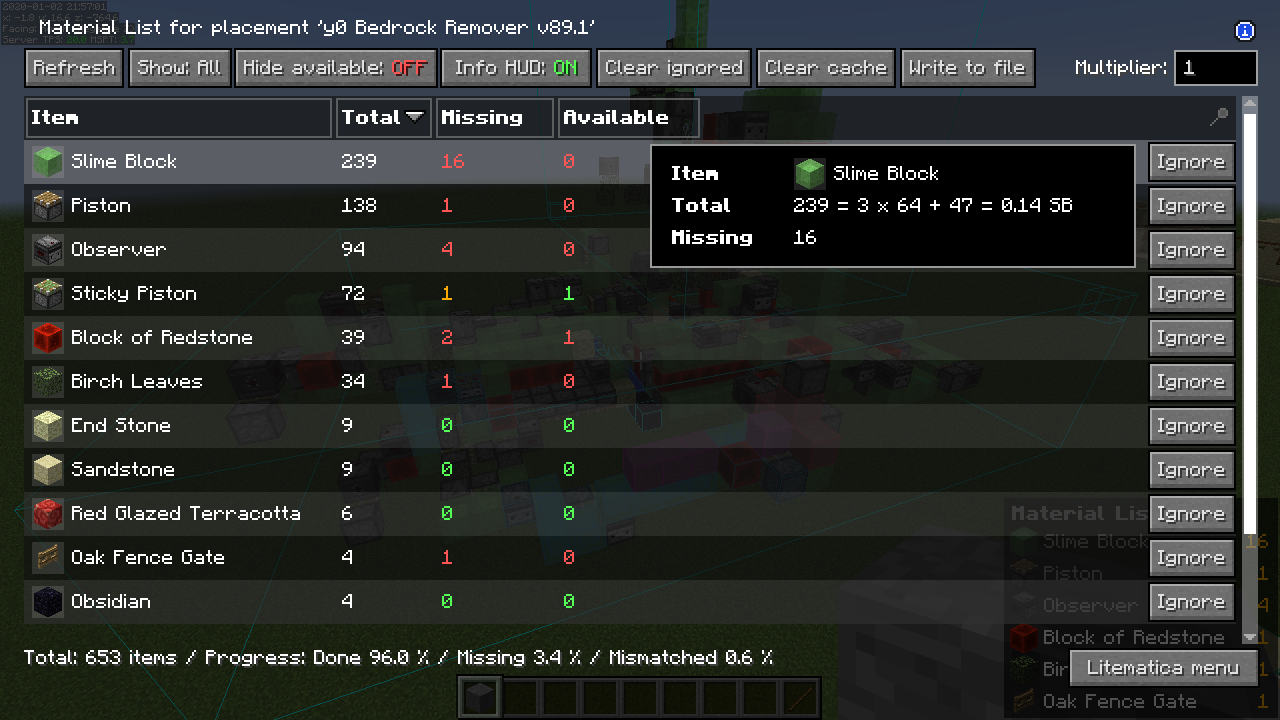
Author-gallery example: the material list translates 239 slime blocks into three full stacks plus 47. This screenshot's on-screen date is January 2020; menu styling can differ in current builds. Source: Litematica gallery · Original image.
For a house, collect the foundation and wall materials first, then the roof and details. For a machine, prepare components such as observers before starting its slice. The normal block list is not automatically a complete shopping list of ingredients for every recipe. The current menu also has a Raw Materials export; its recipe results can depend on which recipes you have discovered.
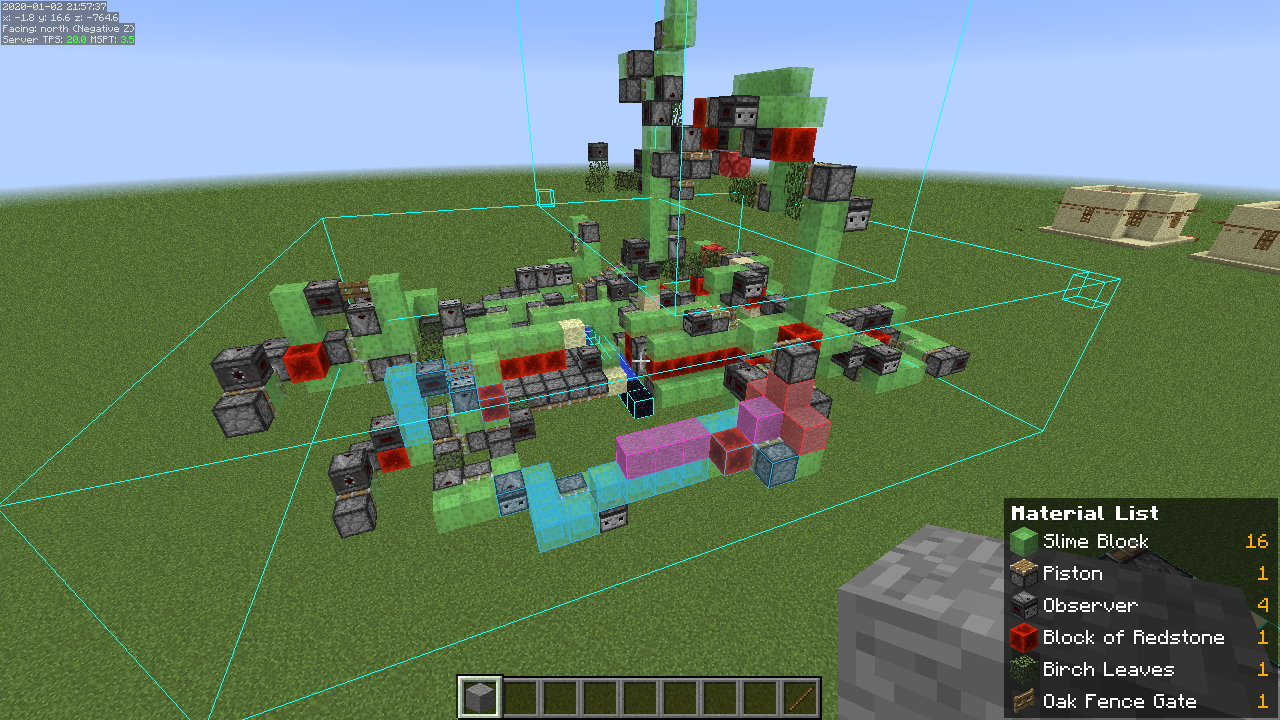
The same historical author gallery shows how the shopping HUD stays visible while you look at a build. The machine is an example schematic, not a structure included in the mod. Source · Original image.
Build one layer at a time
Open Render Layers from the main menu and select a single layer when the complete hologram becomes hard to read. Page Up / Page Down moves through layers; M + Page Up / Page Down cycles the layer mode. Rebind these if your laptop does not have convenient keys.
For a house, finish the foundation, then advance through the walls and roof. For a dense machine, inspect each slice before covering it with the next. Return to the full rendering mode to check the overall shape. A restricted layer can make a perfectly loaded schematic seem to be missing most of its blocks.
Find the one block that breaks the build
Select the placement, open the Schematic Verifier with M + V, and start its comparison. Use the result categories to narrow the search:
- Missing blocks: a position in the plan has not been built.
- Wrong blocks: the position contains a different block, such as stone where the plan expects an observer.
- Wrong states: the block type matches but a property differs, such as its facing direction.
- Extra blocks: the world has blocks where the plan expects empty space. Check their purpose before removing them; temporary scaffolding may be intentional.
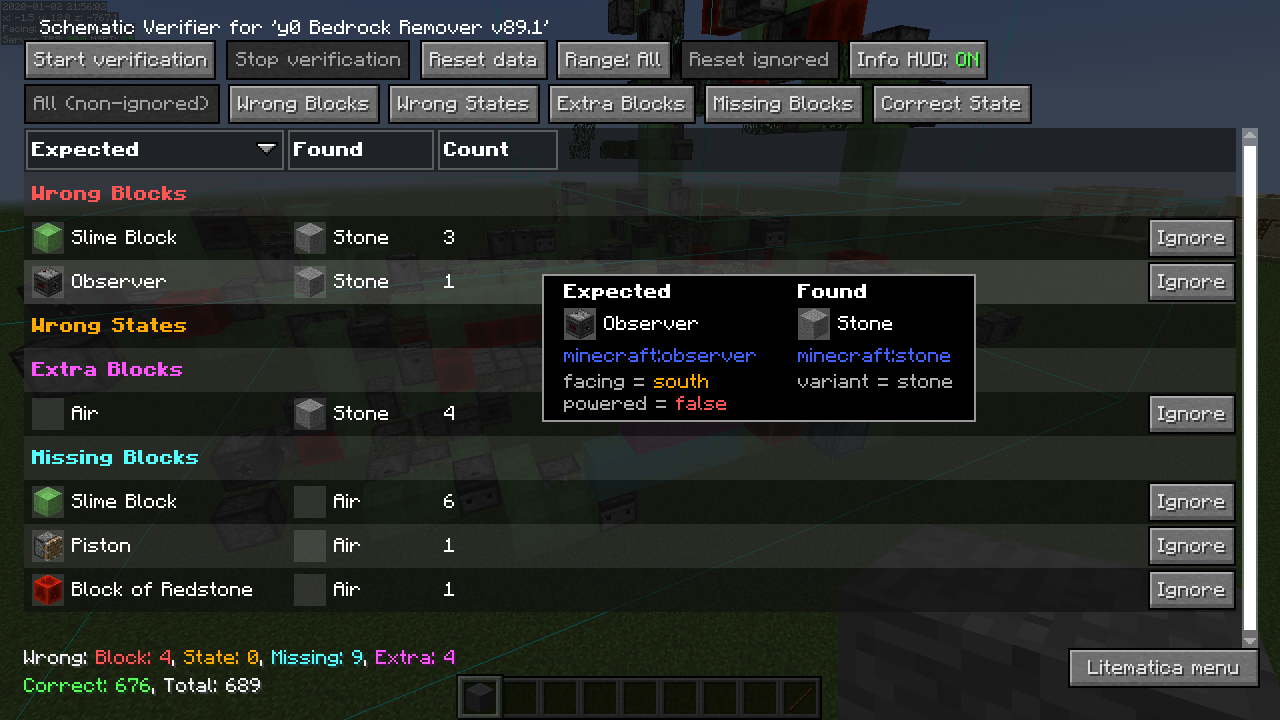
Historical author screenshot: Expected and Found separate what the plan requires from what is actually built. The colored categories make a large error list easier to investigate. Source · Original image.
Select the relevant result to highlight its positions in the world. Fix a small group, then recheck. If the whole building is wrong, inspect the placement coordinates and rotation first; rebuilding everything is not the first step. A verifier match also does not prove that an old farm still works under a newer Minecraft version's mechanics.
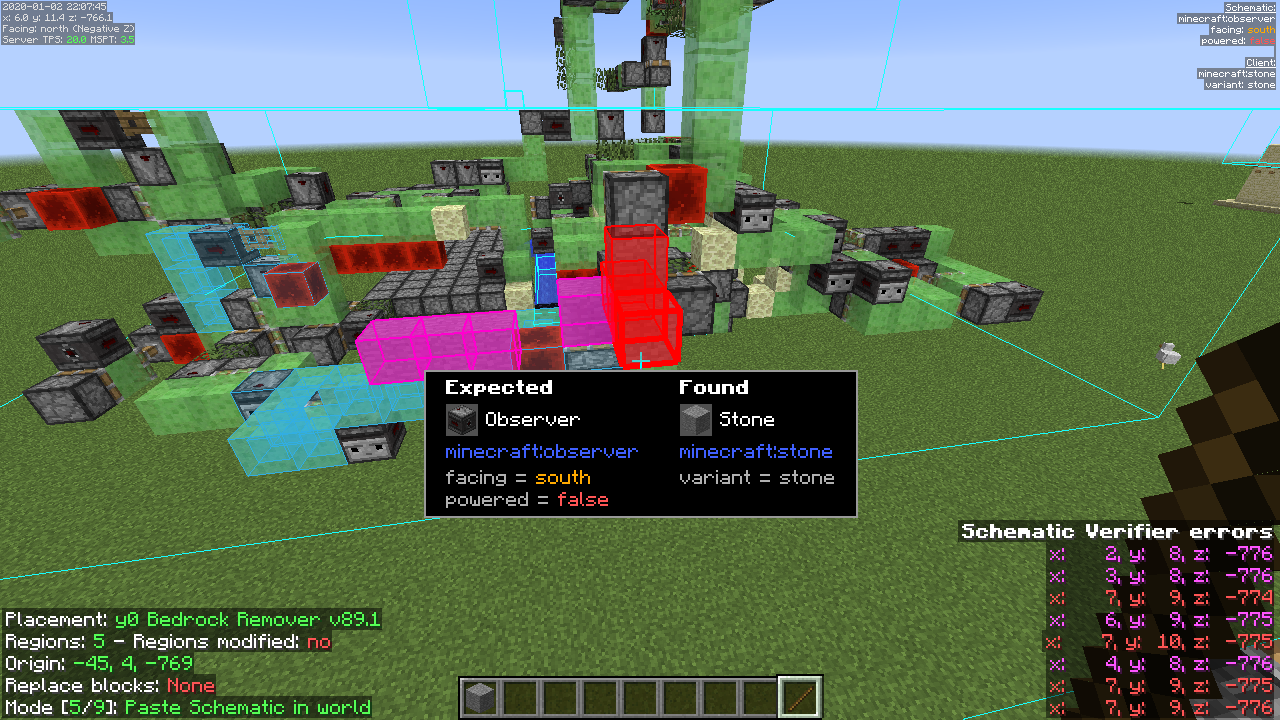
Historical author screenshot: world highlights lead you to a mismatch and show the expected observer versus the stone block found. The Paste mode visible in this example is separate from ordinary Survival building. Source · Original image.
Save a design you built yourself
Choose Area Selection mode with the tool and use a simple selection for your first build. Set the two opposite corners using the enabled stick's left and right clicks. Open the area editor with Numpad Multiply to check the box: include the roof and foundations, and avoid neighboring buildings.
Use Ctrl + Alt + S to save the selected area to a schematic file. Give it a useful name such as river-house-roof-v1. If the mod reports missing chunks, walk around the selected area so all of it loads, then finish saving. For redstone, stop the machine first so you do not capture it halfway through a piston movement.
Keep a world backup as well. A schematic is a building plan, not a replacement for your entire world save. In multiplayer, the information available to your client can also limit saved inventories or entity details; do not assume a captured building includes every stored item.
Easy Place, Creative pasting, and server rules
Easy Place helps place the block you are aiming at in the schematic using your available materials. Enable easyPlaceMode under M + C → Generic; an optional easyPlaceToggle hotkey lets you switch it quickly. It is not a built-in printer that constructs the whole building unattended.
On multiplayer servers, use it only where the rules allow it: the author warns that anti-cheat can reject its actions or penalize players. Leave the placement protocol on Auto unless the server's setup specifically requires another mode. Correct orientation for every block needs suitable server support; forcing a protocol on an unsupported server can cause placements that disappear.
Paste Schematic in World is a separate Creative operation. It requires the appropriate permissions; loading a hologram alone never places the actual building. Try pasting in a copy of a Creative world first, confirm the selected placement and replacement behavior, and bind executeOperation in Hotkeys. Server pasting depends on commands or supported server-side integration, not simply on having the client mod installed.
When the hologram or controls do not work
- No menu: confirm you launched Fabric 26.2 with both JARs. Check keyboard layout and the mod's own Hotkeys menu.
- Loaded but invisible: check the placement is enabled and in the correct location and dimension. M + R toggles all rendering; M + G toggles the schematic. Check Render Layers, too.
- Broken rendering with shaders: disable the shader pack. The project warns that shaders, including Iris shader use, can break schematic rendering on Minecraft 1.21.3 and newer.
- The build moves when you click: disable the stick tool with M + T or change tools after positioning the placement.
- A downloaded plan is missing from the browser: put the actual
.litematicfile in this launcher profile'sschematicsfolder. A ZIP containing the plan needs unpacking; the mod JARs do not. - Missing blocks from another mod: the schematic does not install those mods. Use the creator's required modpack and game version, or choose a vanilla design.
- A crash names MaLiLib or another masa mod: remove duplicate versions and update the affected companion mods for the same Minecraft line. The current Litematica requires a newer library than the archived pair below.
Previous version and source archives
Historical pair for Java 26.2: Litematica 0.28.5 with MaLiLib 0.29.4. Choose this pair only when maintaining or restoring that older profile. Keep copies of your schematics and configuration before switching versions.
Source and license files: these are for inspecting or modifying the projects, not for your mods folder. The current archives are official repository snapshots at the release dates, with project versions 0.28.8 and 0.29.6 and their license notices.
Creators and further help
Litematica is by masa (Matti Ruohonen), with current ports maintained by sakura-ryoko and contributors. MaLiLib is the companion library. The screenshots above come from the project's own gallery; MineBrush's cover is an editorial illustration.
Sources: official project and gallery, Litematica 0.28.8 release, MaLiLib 0.29.6 release, creator's usage wiki, building and saving operations, and current maintained source.
More for your Java setup.
Construct
1.2.0Turn saved designs into building holograms for Bedrock. Follow a build layer by layer, gather the right materials, use Easy Place and spot mistakes before finishing your next survival project.
- Minecraft
- Bedrock 26.40
- Components
- Paired
- Package
- .mcaddon — behavior and resource packs
Beta APIs required. Release targets Bedrock 26.40; 26.50 is not listed.
Bedrock · Add-on
Construct
Turn saved designs into building holograms for Bedrock. Follow a build layer by layer, gather the right materials, use Easy Place and spot mistakes before finishing your next survival project.
Beta APIs required. Release targets Bedrock 26.40; 26.50 is not listed.
- Minecraft version
- Bedrock 26.40
- Game edition
- Bedrock Edition
- Loader / platform
- Bedrock
- License
- MIT
- Platform family
- Bedrock & Mobile
- Supported devices
- Windows · Android · iOS/iPadOS
- Install format
- .mcaddon — behavior and resource packs
- Touch readiness
- Check guide
- Resource type
- Add-on
- Project version
- 1.2.0
- Last verified at
- Sep 15, 2026
- Compatibility confidence
- Source claimed
- Bedrock add-on packs
- Paired
- Bedrock add-on import route
- Open .mcaddon with Minecraft; activate Construct BP and RP, then Beta APIs.
- Required experiments
- Required
- Card evidence statement
- Building holograms, layers, material lists and placement helpers
- Card delivery statement
- Complete addon with behavior and resource packs
- Card limitation note
- Beta APIs required. Release targets Bedrock 26.40; 26.50 is not listed.
- Edition applicability
- Bedrock
- Delivery state
- Direct download
- Lifecycle state
- Current
Bobby
5.2.15Keep visited castles, coastlines, and server builds visible farther away. Learn how Bobby’s saved terrain works, set a comfortable view distance, and download the Fabric mod for Java 26.2.
- Minecraft
- 26.2
- Loader
- Fabric
- Runtime
- Client
Java · Mod
Bobby
Keep visited castles, coastlines, and server builds visible farther away. Learn how Bobby’s saved terrain works, set a comfortable view distance, and download the Fabric mod for Java 26.2.
- Minecraft version
- 26.2
- Game edition
- Java Edition
- Loader / platform
- Fabric
- License
- LGPL-3.0-or-later
- Platform family
- Java PC
- Supported devices
- Minecraft Java 26.2 on Windows, macOS, and Linux
- Install format
- JAR in the Fabric mods folder
- Touch readiness
- Not required
- Resource type
- Mod
- Project version
- 5.2.15
- Secondary guide action
- Setup & fixes
- Compatibility confidence
- Source claimed
- Java mod loader
- Fabric
- Java runtime side
- Client
- Required dependency
- Fabric Loader 0.18.4+
- Card delivery statement
- Java 26.2 Fabric JAR
- Edition applicability
- Java
- Delivery state
- Direct download
- Lifecycle state
- Current

Sodium
0.9.1Make Minecraft Java feel smoother with Sodium. Download the Fabric or NeoForge version for Java 26.2, follow the installation steps, and find help with shaders, resource packs and startup problems.
- Minecraft
- Java 26.2
- Loader
- Fabric
- Runtime
- Client
Java 26.2 · choose Fabric or NeoForge
Java · Mod
Sodium
Make Minecraft Java feel smoother with Sodium. Download the Fabric or NeoForge version for Java 26.2, follow the installation steps, and find help with shaders, resource packs and startup problems.
Java 26.2 · choose Fabric or NeoForge
- Minecraft version
- Java 26.2
- Game edition
- Java Edition
- Loader / platform
- Fabric
- License
- Polyform Shield 1.0.0
- Platform family
- Bedrock & Mobile
- Supported devices
- Windows · macOS · Linux
- Install format
- .jar mod file from the creator
- Touch readiness
- Not required
- Resource type
- Mod
- Project version
- 0.9.1
- Last verified at
- Sep 19, 2026
- Secondary guide action
- Setup & fixes
- Compatibility confidence
- Source claimed
- Java mod loader
- Fabric
- Java runtime side
- Client
- Card evidence statement
- Compatibility information from CaffeineMC
- Card delivery statement
- Download from MineBrush · 2 loader versions
- Card limitation note
- Java 26.2 · choose Fabric or NeoForge
- Edition applicability
- Java
- Delivery state
- Direct download
- Lifecycle state
- Current
Player discussion 0
Questions, discoveries and help from other players.