
MineBrush publication
Minecraft Java Server Version Mismatch: Get Back to Your Friends
Fix outdated-client and incompatible-version errors in Minecraft Java. Choose the right launcher profile, match your modpack, and know when the server owner needs to act.
Your friends are already building, but Minecraft stops you at “Outdated client” or “Incompatible version.” Usually, you do not need to reinstall the game. You need to launch a version the server accepts.
Start with one question: which exact Minecraft Java version does this server support? Ask the owner or check its current joining instructions, then compare that with the version on your game's title screen. “Latest” is not a useful answer when the launcher and server update at different times.
This guide focuses on Java Edition. For a phone, console, Minecraft for Windows, or a Bedrock Realm, use our Bedrock outdated-client guide. A Java server that deliberately supports Bedrock through Geyser is a separate case covered below.
What is the error actually telling you?
The client is the Minecraft game on your device. The server hosts the shared world. A version mismatch means they cannot agree on how to communicate; it does not, by itself, mean the world is damaged.
- Outdated client: your game may be older than the server requires. Check the version requested in the message and choose a supported release.
- Outdated server: your game may be newer than the server accepts. Join with the owner's supported version, or wait for the owner to update.
- Incompatible version: check the full release number on both sides. A snapshot, pre-release, and stable release are different choices.
- Missing mods or an incompatible mod list: matching the base game is only the first step. Use the server's required modpack too.
These are starting points, not a diagnosis for every custom server. Proxies and crossplay software can change the message. “Connection timed out,” “Failed to verify username,” and “You are not whitelisted” need different fixes; repeatedly changing versions will not resolve those causes.
Join with the right Java installation
For a server you do not own, follow its supported version. Do not assume that Latest Release is right: a community may stay on an earlier release while its plugins or modpack catch up.
- Close the running game and open the Minecraft Launcher.
- Select Minecraft: Java Edition → Installations, then New installation (shown as “New” in some launcher layouts).
- Give the profile a name you will recognise, such as “Friends' survival server.” Choose the exact release requested by the owner from Version.
- For a separate server setup, choose its own Game Directory in the installation settings. This keeps its saves and mod files apart from your usual setup.
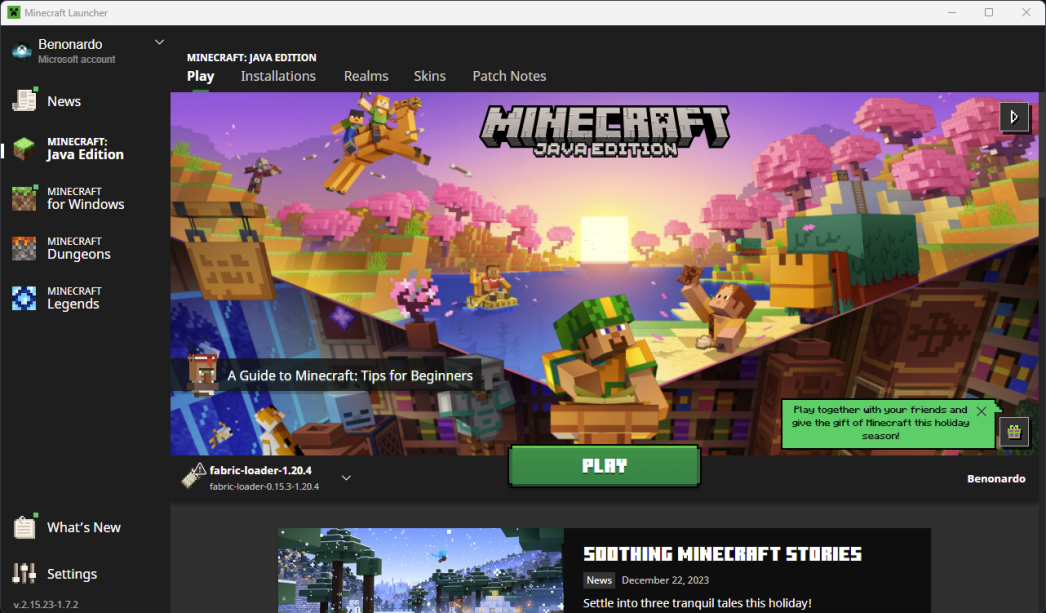
- Create the installation, select it on the Play screen, and launch. Check the title-screen version before opening Multiplayer.
- Join the owner's current server address. Keep this profile for the next session instead of switching back to Latest Release automatically.
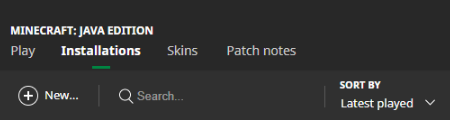
Example: you tried a new release this afternoon, but your friends' server is still on last week's version. Keep your new-release profile, create another for the server, and use each for its own purpose. You do not need to replace your whole installation.
Changing your client profile does not downgrade the remote server world. However, avoid opening a newer single-player save in the older profile. Keep your important worlds backed up and separate.
What if I selected a snapshot?
A snapshot is a test release, not a newer client that automatically joins stable servers. Return to the server's supported stable installation. If your group intentionally runs a snapshot server, everyone needs the specific build the owner names; keep that experiment separate from your normal survival world.
For modded servers, match the pack as well
Two players can both use the same Minecraft release and still have incompatible setups. A Fabric profile is different from a NeoForge profile, and two releases of the same modpack can contain different required mods.
Use the server owner's pack name, pack release, and installation instructions. In a modpack launcher, install the requested pack release into a separate instance. With a manual setup, match the required loader and mods, including dependencies. Our Fabric installation guide explains where those files go.
Do not copy every server file into your client: some mods belong only on the server, while others require both sides. Likewise, do not update every mod independently in an established pack. Follow its client distribution so the versions remain compatible.
If the game closes before reaching the title screen, fix that launch problem first. If it launches but the server names a missing mod, follow that specific requirement. Those are different problems even when they appeared after the same update.
If you own the server, check what actually started
Uploading a new server file is not the same as running it. Check the version reported in the server's startup console and confirm your host panel or start command points to the intended file. A renamed file or old server-list description can be misleading.
First decide whether to keep the current version or upgrade. Staying put temporarily can be sensible when a required plugin or mod has not caught up. Tell players the exact supported release so they can choose the right profile.
When you are ready to upgrade a Paper server:
- Back up the world folders, server settings, plugins, and plugin settings.
- Check that your plugins support the target Minecraft release. Use the host's documented update workflow if it provides one.
- Stop the server before replacing its Paper file. Make sure the startup command uses the new file.
- Start the server and read the startup output for the expected version and plugin errors.
- Join with a matching client before inviting everyone back.
Paper's update instructions cover its file replacement and plugin-update workflow. A modded server needs its pack's upgrade instructions instead.
For a long-running world, try the change on a copy first. After joining, check the things your group actually uses: a chest of shared supplies, a portal, a protected build, and important commands. If you must roll back, restore the matching pre-update world and server setup; simply launching an older server against an upgraded world is not a safe recovery plan.
When only Bedrock friends cannot join
Java and Bedrock do not normally join the same server directly. Geyser can bridge Bedrock clients to a Java server, but that adds another component the owner must keep compatible.
If Java players can join and Bedrock players suddenly cannot after an update, check Geyser's supported versions and update instructions. Both the incoming Bedrock version and the Java version accepted by the server matter. A compatibility plugin may be part of the owner's setup, but installing random client mods is not the player's solution.
Servers that advertise several supported Java releases are also an exception to a simple one-version rule. Choose a release the owner explicitly supports. Being able to connect with a newer client does not upgrade the server's world or add that release's new gameplay.
The versions match, but I still cannot join
Read the new message before changing anything else. You may have solved the version mismatch and reached a second, unrelated problem.
- Wrong saved entry: compare its address with the owner's current invitation. Old test servers and similarly named entries can send you somewhere else.
- Whitelist rejection: ask the owner to add the correct account. A different Minecraft version will not grant access.
- Authentication error: check that you are signed into the intended account and follow the error's account guidance.
- Timeout or connection refused: ask whether the server is online and whether other players can reach it. This is no longer evidence of a version mismatch.
- Lobby works, another game server fails: tell the owner which destination fails. Different parts of a network may need separate updates.
A useful message to the owner can be short: “I'm using Java [version], with [pack and release, if any]. I get ‘[exact error]’ when joining [server or game mode]. Which client version should I use?” That is enough to start a focused conversation without sending an entire log.
Once you can load the shared world and play normally, keep the working server profile. Next time the group updates, change it together—then get back to the build you came to finish.
More from MineBrush.
Get back to your shared world. Fix Outdated Client or Outdated Server in Bedrock and Realms with device-specific update steps, clear host/player checks and help for Preview, LAN and missing updates.
- Edition
- Bedrock Edition
- Difficulty
- Beginner
- Time
- 5–15 min; update time varies
Client, server and Preview checks
MineBrush · Guide
Fix Outdated Client
Get back to your shared world. Fix Outdated Client or Outdated Server in Bedrock and Realms with device-specific update steps, clear host/player checks and help for Preview, LAN and missing updates.
Client, server and Preview checks
- Minecraft version
- Current compatible Bedrock release
- Game edition
- Bedrock Edition
- Platform family
- Bedrock & Mobile
- Supported devices
- Windows · Android · iPhone/iPad · Xbox · PlayStation · Switch
- Install format
- Step-by-step guide
- Touch readiness
- Check guide
- Resource type
- Guide
- Compatibility confidence
- Not applicable
- Card limitation note
- Client, server and Preview checks
- Edition applicability
- Bedrock
- Estimated time
- 5–15 min; update time varies
- Guide difficulty
- Beginner
- Delivery state
- No file
- Lifecycle state
- Current
Build your first Fabric setup for Minecraft Java. Download the installer, choose matching mods, find the right folder and check the feature in-game—with illustrated steps, useful examples and fixes for common errors.
- Edition
- Java Edition
- Difficulty
- Beginner
- Time
- 8 min read; setup time varies
MineBrush · Guide
Install Your First Fabric Mods
Build your first Fabric setup for Minecraft Java. Download the installer, choose matching mods, find the right folder and check the feature in-game—with illustrated steps, useful examples and fixes for common errors.
- Minecraft version
- Choose the version your mods support
- Game edition
- Java Edition
- Platform family
- Bedrock & Mobile
- Supported devices
- Windows · macOS · Linux
- Install format
- Universal installer JAR; Java required
- Touch readiness
- Not required
- Resource type
- Guide
- Compatibility confidence
- Not applicable
- Edition applicability
- Java
- Estimated time
- 8 min read; setup time varies
- Guide difficulty
- Beginner
- Delivery state
- Direct download
- Lifecycle state
- Current
Player discussion 0
Questions, discoveries and help from other players.