
MineBrush publication
Debug Stick for Bedrock: Rotate Blocks, Refine Builds and Inspect States
Rotate logs, refine block details and inspect redstone states with Debug Stick for Bedrock. Learn mouse, touch and controller actions through practical building examples, then choose the matching 26.50 or 26.40 download.

Sometimes the block is right, but its position is wrong: a log’s end grain faces the wrong way, a trapdoor spoils a detail, or a redstone component is pointing somewhere unexpected. Debug Stick gives Bedrock builders a way to inspect and change a block’s existing properties without repeatedly breaking and replacing it.
Created by vytdev, this add-on brings the idea of Java’s debug stick to Bedrock and adds a handy Block Viewer. It is especially useful in a Creative building world, a redstone test area or a mapmaking project. You choose a property, cycle its value and read the result above the hotbar.
The current download is 26.50.0 for Bedrock 26.50. The previous 26.40.0 file remains available below for players keeping a 26.40 setup. Match the first two parts of the add-on version to your game; installing the newest file into an older game will not make it compatible.
Your first edit · Controls · Building ideas · Read the Block Viewer · What can change back · Download and install · Fix common problems
Try your first edit on one oak log
A block’s state is a detail such as its direction, whether a trapdoor is open or which axis a log follows. It is different from the block’s identity: turning an oak log does not turn it into stone. Available properties depend on the block you target.
Use a Creative test world or a copy of your build. There is no general Undo button in this tool, so start with a block you can easily replace.
- Activate the matching Debug Stick behavior pack in the world. You do not need a separate resource pack for these releases.
- Find Debug Stick in the Creative inventory, or use
/give @s vyt:debug_stickwith command permission. It looks like an enchanted stick; an ordinary stick does not work. - Place one oak log and hold the Debug Stick. Use the select-property action described below until the message names
pillar_axis. - Use the change-value action once. Watch the grain rotate and read the new value above the hotbar. The axes
xandzare horizontal;yis vertical. - Sneak and use the stick on the log to inspect its properties. Cycle back to the starting value when you are finished.
This small exercise teaches the whole workflow: select the property, change its value, inspect the result. Use the same sequence on more complicated blocks instead of clicking through values without reading them.
Controls: choosing a property is different from changing it
Keyboard and mouse
- Attack/Destroy, normally left-click: selects the next property of the targeted block. In a Creative test world, the add-on intercepts the break action while you hold its Debug Stick.
- Use/Place, normally right-click: changes the currently selected property to its next allowed value.
- Sneak + Use/Place, normally Shift + right-click: shows the Block Viewer instead of changing a value.
Touchscreen
The author describes the touch workflow as long-press to choose a property, tap to change its value, and sneak + tap to inspect. With a different touch-control layout, use the actions mapped to breaking a block and interacting with a block. Watch the message above the hotbar: “selected” means you changed the property selection; a property followed by a new value means you edited the block.
Controller
Use your mapped Attack/Destroy and Use/Place controls for the same two actions, and hold or toggle Sneak before Use to inspect. Button assignments can differ, so check your controller settings rather than copying a mouse instruction literally.
Keep the distinction from Java in mind: in this add-on, sneaking while using the stick opens information. It is not a shortcut for cycling backward through values. The current selection is tracked for each block type, so read the message again when switching from a log to stairs or a redstone component.
Practical things to try in a building world
1. Turn a log without rebuilding the wall around it
For a timber-framed house, place the log where the beam belongs, select pillar_axis and cycle until the bark and end grain face the way you want. This is useful for exposed ceiling beams, stacked firewood or patterned floors. Keep a second untouched log nearby if you want a quick visual comparison.
The tool edits the states available on that block. Do not expect a wood-species selector on every modern log: changing oak into another block type is a different operation.
2. Refine a trapdoor detail
Place a trapdoor beside a window or under a counter. Select the property controlling its open state, then cycle it and compare the silhouette. Where the block exposes orientation or upper/lower placement states, try those separately. This lets you understand which change affects the hinge, position or direction instead of rebuilding the whole decoration.
Use a disconnected sample first if redstone is involved. A powered trapdoor can respond to the circuit again after your manual edit.
3. Compare stair orientation on a sample roof
Build a short row of the stairs you plan to use. Inspect one to see its available orientation and upside-down state, then change only one property at a time. It is a useful way to compare an overhang, cornice or roof edge before repeating the detail across a building.
Do not assume every visible stair shape is a freely editable property. Some appearances depend on neighboring blocks and can be recalculated when the surroundings change.
4. Understand a redstone component that behaves differently
Put an observer, repeater or other component in a small test circuit. Inspect it before and after operating the circuit, then compare its direction and state values with the correctly working example. The viewer also displays the block’s reported redstone power.
Use a lever or other normal input to test the finished circuit. A manually forced state does not prove that the circuit will create that state itself. Some components receive a full block refresh when edited by this pack, which can also affect their neighbors.
5. Try waterlogging on a suitable block
The add-on exposes waterlogged when the targeted block can contain water. Select it and cycle between false and true on a suitable sample, such as stairs. This can help when planning a submerged detail or checking why one part of a water build looks different.
If that property is missing, the tool is not offering waterlogging for that block. Test away from delicate redstone and builds you do not want water to affect.
Read the Block Viewer without changing the block
Sneak and use the stick on a block. The information appears above the hotbar, not in a separate chest-style inventory menu. In the current release it includes:
- Block ID: which block you are actually looking at.
- Coordinates: the target block’s location, useful when comparing a build with a command or map note.
- Redstone power: the value reported for that block, useful alongside a real circuit test.
- Properties and values: direction, axis and other states the block exposes. An asterisk marks the selected property when one has been selected.
- Tags: additional group labels supplied by the block, when present.
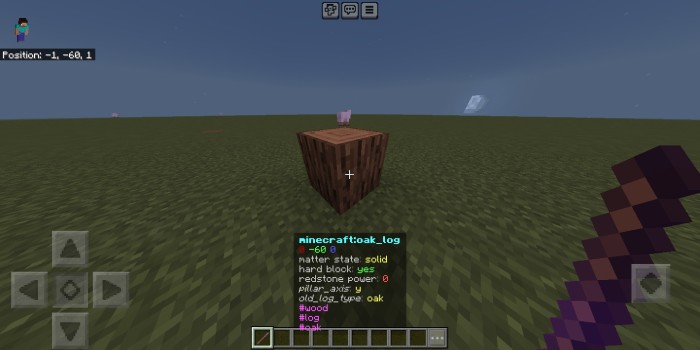
For a useful comparison, inspect two blocks that look similar but behave differently. Compare their IDs first, then their state values. This is often more informative than changing random settings on the one that seems wrong.
There is also a separate project named Debug Stick UI. This download is the regular Debug Stick with action-bar messages; do not expect another project’s menus or controls.
Why an unusual block state can change back
Debug Stick changes the block’s current state; it does not freeze Minecraft’s normal updates. Placing a neighbor, triggering redstone or reloading an area can change what the game considers a valid state. The author has acknowledged that state edits can update nearby blocks.
For a map detail you want to keep, test it in context: place the neighboring blocks, operate nearby mechanisms, leave and reopen the world, and inspect the result again. A floating or otherwise unusual arrangement should not be treated as permanent just because it survives the first click.
There is no bulk selection or general undo history here. To reverse a simple edit, cycle the same property back to its recorded value. If several blocks or a circuit changed and you cannot reconstruct the starting state, restore your world copy. Removing the add-on is not an undo operation for edits already made.
Choose the file for your Bedrock version
Bedrock 26.50: Debug Stick 26.50.0 is the current release. Its update brings support for that game version; it does not work in an older game.
Keeping a Bedrock 26.40 world? Use the previous 26.40.0 build below. These are alternatives, not two packs to activate together.
Install and activate the behavior pack
- Check your Bedrock version on the title screen and download the matching file.
- Open the
.mcpackwith Minecraft and wait for the import-complete message. - Create a Creative test world or copy the world you want to edit.
- In that world’s Behavior Packs → My Packs, activate Debug Stick. These releases do not need a separate resource pack or the old Beta APIs experiment.
- Enter the world and find Debug Stick in Creative, or run
/give @s vyt:debug_stickif you have permission to use commands. - Try the oak-log exercise before editing a finished build.
If your phone does not send the file to Minecraft, use our Android, iPhone and iPad import guide. On a shared world, the owner must activate the behavior pack; carrying a file on your own device does not add it to someone else’s world.
Common questions and quick fixes
The item does not appear, or the give command fails
Check that you are in Bedrock, that the file matches the game version and that the behavior pack is active in this world. Check the spelling vyt:debug_stick and your command permissions. An imported pack that has not been activated will not add its item to that world.
I keep selecting properties instead of changing them
You are using the break/select action. Switch to Use/Place—or the author’s tap interaction on touch—to change the selected value. Read the action-bar message after each action.
I see information instead of an edit
You are sneaking. Release or toggle Sneak off to cycle values. Sneak + Use is deliberately the inspect action.
The message says the block has no properties
That target does not expose anything for this tool to cycle. Try an oak log or another vanilla block with an obvious orientation. Custom add-on blocks may offer a different set of properties, or none.
A block breaks instead of being inspected
Stop editing the finished build. Check that you are holding the add-on’s enchanted Debug Stick, not a normal stick, and that the behavior pack loaded. Try a new Creative test world with only this pack active to rule out another add-on intercepting the same interaction.
Will this give Java debug-stick commands to Bedrock?
No. This is a Bedrock add-on with the custom item vyt:debug_stick. It does not add Java’s full command behavior, and Java-specific state names or tutorials may not match Bedrock blocks.
Can I craft it in normal survival?
These releases provide the item through Creative or the give command; they do not include a crafting recipe. Treat it as a building and inspection tool under the world owner’s rules.
More for your Bedrock world.

Install Bedrock add-ons on Android, iPhone and iPad: find the downloaded file, open it in Minecraft, activate both packs when required and start using the new content. Includes illustrated steps and common fixes.
- Edition
- Bedrock Edition
- Difficulty
- Intermediate
- Time
- None
Import, world activation and first use
MineBrush · Guide
Install Bedrock Add-ons on Mobile
Install Bedrock add-ons on Android, iPhone and iPad: find the downloaded file, open it in Minecraft, activate both packs when required and start using the new content. Includes illustrated steps and common fixes.
Import, world activation and first use
- Game edition
- Bedrock Edition
- Platform family
- Bedrock & Mobile
- Supported devices
- Android · iPhone · iPad
- Install format
- Open in Minecraft; activate in world settings
- Touch readiness
- Check guide
- Resource type
- Guide
- Compatibility confidence
- Source claimed
- Card evidence statement
- Official device and Minecraft guidance
- Card delivery statement
- No file · step-by-step guide
- Card limitation note
- Import, world activation and first use
- Edition applicability
- Bedrock
- Guide difficulty
- Intermediate
- Delivery state
- No file
- Lifecycle state
- Current

SWAILA
6.0Identify blocks and creatures at a glance with SWAILA 6.0 for Bedrock. Learn what its health, tool and drop hints mean, choose a clear HUD position, and install both included packs.
- Minecraft
- Bedrock 26.40; earlier versions in guide
- Components
- Paired
- Package
- .mcaddon — both packs included
Bedrock · Add-on
SWAILA
Identify blocks and creatures at a glance with SWAILA 6.0 for Bedrock. Learn what its health, tool and drop hints mean, choose a clear HUD position, and install both included packs.
- Minecraft version
- Bedrock 26.40; earlier versions in guide
- Game edition
- Bedrock Edition
- Loader / platform
- Bedrock
- License
- All Rights Reserved
- Platform family
- Bedrock & Mobile
- Supported devices
- Minecraft Bedrock on Windows, Android and iOS; local add-on import
- Install format
- .mcaddon — both packs included
- Touch readiness
- Check guide
- Resource type
- Add-on
- Project version
- 6.0
- Compatibility confidence
- Source claimed
- Bedrock add-on packs
- Paired
- Bedrock add-on import route
- Open .mcaddon, activate both packs, choose HUD position
- Required experiments
- None
- Edition applicability
- Bedrock
- Delivery state
- Direct download
- Lifecycle state
- Current
Player discussion 0
Questions, discoveries and help from other players.