 MineBrush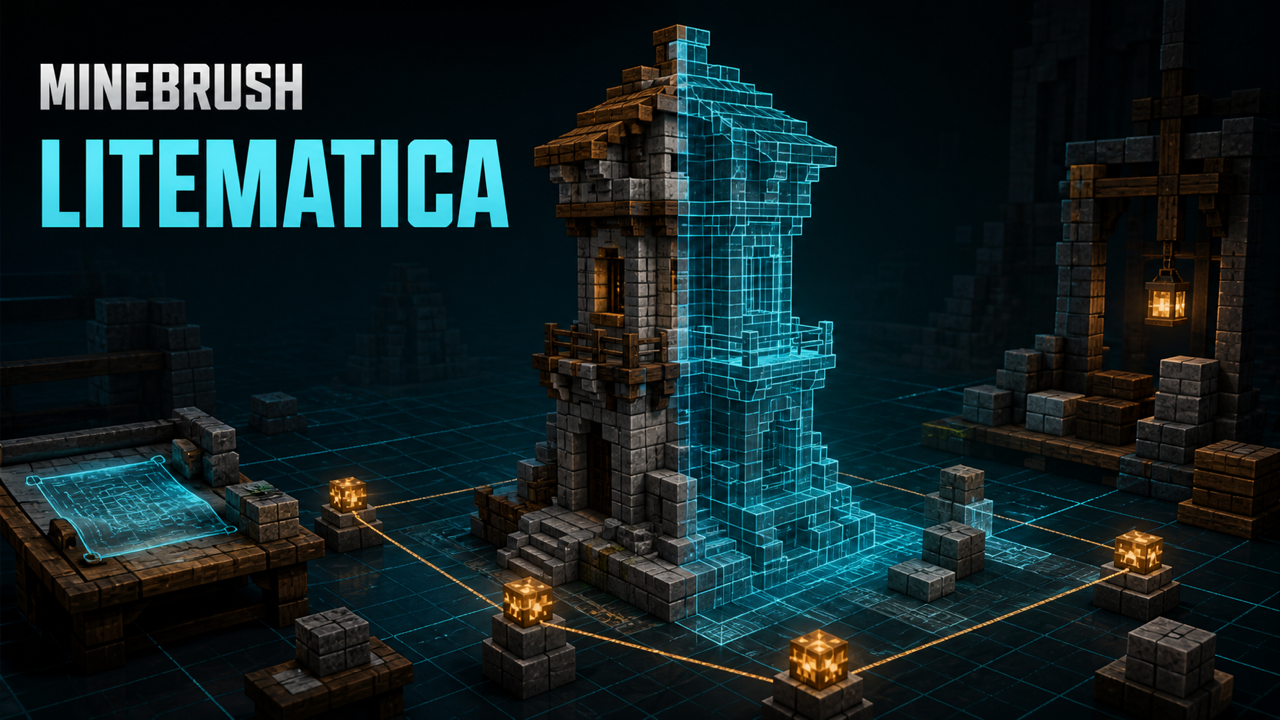
MineBrush local downloads
Choose the file that matches your Minecraft version and mod loader. Each link opens the separate MineBrush download page before DLE serves the attached file.
MineBrush reviewed the official release records and attachment structure. This exact build was not independently launched in a Minecraft runtime; use a backup and match the listed game version, loader, and dependencies.
What Litematica is—and is not
Litematica is a client-side schematic mod maintained by sakura-ryoko and contributors. It lets Minecraft Java players save a region as a schematic, render a hologram-like placement in another location, calculate materials, isolate layers, and compare a real build against the plan. The exact release covered here is Litematica 0.28.5 for Minecraft 26.2 on Fabric.
Litematica does not include a printer that automatically builds for you. “Printer” extensions are separate third-party projects with their own security, compatibility, and server-rule risks. A schematic also does not supply the blocks, permissions, or server access needed to build it.
Exact download and dependency
- Litematica: version ID
Fhq3KCI8,litematica-fabric-26.2-0.28.5.jar, 1,921,299 bytes, Release. - Required MaLiLib: version ID
ZCq1iE1J,malilib-fabric-26.2-0.29.4.jar, 2,024,974 bytes, Release.
Both target Minecraft 26.2 and were published August 20, 2026. Install them together in the same Fabric instance. MaLiLib is not an optional menu add-on; it supplies shared functionality required by Litematica.
Install Litematica on Minecraft 26.2
- Back up the instance and any important worlds.
- Create a Minecraft 26.2 Fabric profile and install a compatible Fabric Loader.
- Add the exact Litematica 0.28.5 and MaLiLib 0.29.4 JARs to that profile's
modsfolder. - Remove older or wrong-Minecraft copies of both mods from the same folder.
- Launch once, open the Litematica menu with M, and confirm the expected versions in the mod list.
If the menu does not open, check that another mod or keyboard layout has not captured the key and confirm MaLiLib loaded successfully.
Essential default controls
- M: main menu.
- M + C: configuration.
- M + R: toggle all rendering.
- M + G: toggle schematic rendering.
- M + T: toggle the tool item.
- M + P: schematic placements.
- M + V: schematic verifier.
- Page Up / Page Down: move the rendered layer.
- M + Page Up / Page Down: change layer mode.
- Numpad minus: selected placement configuration.
- Numpad multiply: area editor.
On keyboards without a numpad or where shortcuts conflict, rebind them in configuration. The official controls also use Ctrl+mouse wheel with the tool to change tool mode, Alt+wheel to nudge a placement or selection, and Ctrl+M for a sub-mode. Review the on-screen mode before clicking; the same tool performs different actions in different modes.
Create and save a schematic
- Open Litematica and choose an area-selection mode suitable for the build.
- Name the selection so it is not confused with a placement.
- Set both corners and verify the bounding box covers the intended blocks—no hidden storage, command blocks, or neighboring build unless deliberately included.
- Open the area editor and inspect dimensions and sub-regions.
- Use the save-schematic action, choose a clear filename, and confirm the saved region.
Schematics can contain block states and block-entity data. Treat files from private worlds as data exports: review what the selection includes before sharing. Never assume a public schematic is safe simply because its extension is .litematic.
Load and place a .litematic file
- Put the file in the Litematica schematic directory for the active instance, or select it through the mod's browser.
- Open M, load the schematic, then create a placement.
- Choose the origin, rotation, and mirror state before building.
- Use placement configuration to nudge or lock coordinates precisely.
- Toggle rendering with M+G and inspect several layers before placing real blocks.
A hologram is a client-side guide. Other players do not automatically see it, and the server does not receive a new structure merely because the schematic was loaded.
Material list
Generate the material list from the loaded schematic or placement. It distinguishes total requirements from currently missing amounts based on the supported inventory context. Use it as a build plan, not a guarantee that every modded block has a correct obtainable equivalent on the server. Recalculate after changing placement regions, ignored blocks, or the schematic.
Build layer by layer
Layer mode hides most of the hologram so a horizontal or directional slice is easier to follow. Page Up and Page Down move the active layer; M plus those keys changes the layer mode. This is especially useful for redstone, interiors, and dense builds where a full hologram becomes unreadable.
Use the schematic verifier
Open the verifier with M+V for the selected placement. It compares the placed world against the schematic and groups correct blocks, missing blocks, wrong blocks, and wrong block states. Use the highlight results to locate errors, then refresh the check after corrections. A mismatch can be a direction, waterlogged state, connection state, or other property—not only a different block ID.
Easy Place and multiplayer safety
Easy Place can streamline manual placement, but servers may treat its interaction pattern as prohibited automation. The creator explicitly warns that Easy Place can trigger anti-cheat and lead to a ban. Read the server's rules and ask staff before enabling it. Disable it if permission is not explicit. MineBrush cannot guarantee that a server will allow a feature because the base mod is client-side.
Pasting and Servux
Pasting a schematic into the world is different from following a hologram. It requires appropriate permissions and a supported single-player/integrated-server or server-side route. Litematica 0.28.5 includes protocol and scheduling changes connected to Servux-assisted operations, but Servux is not listed as the core dependency for ordinary client schematic use. Do not install or promise server pasting without checking the exact server stack and authorization.
Shaders, Sodium, and OptiFine
The creator warns that schematic rendering does not work properly with shaders on Minecraft 1.21.3 and newer, including Iris shader use. For Minecraft 26.2 troubleshooting, disable shaders before diagnosing missing or incorrect holograms. The project also describes OptiFine as problematic and recommends Sodium/Iris for the broader rendering stack, but that recommendation does not cancel the shader-rendering warning. Test schematic rendering with shaders off.
Forge and format boundaries
The official Litematica project says its Forge version is for Minecraft 1.12.2. Later Forge-family ports such as Forgematica are third-party projects, not the official 26.2 artifact covered here. Do not rename or force the Fabric JAR into Forge or NeoForge.
Litematica's native format is .litematic. Sponge schematic, vanilla structure NBT, and other formats have different data capabilities. Version 0.28.5 fixes Sponge/Vanilla Structure NBT loading issues, but conversion still deserves a copy-based test; preserve the original file and verify block states and entities after import.
Fix common problems
- Crash says MaLiLib is missing: install exact MaLiLib 0.29.4 for Minecraft 26.2 Fabric.
- M does nothing: confirm both mods loaded and resolve key conflicts or keyboard-layout differences.
- Schematic is loaded but invisible: press M+R and M+G, check the placement is enabled, confirm dimension and coordinates, then disable shaders.
- Placement is far away: inspect the origin and placement coordinates; nudge or move the placement instead of editing the schematic blindly.
- Wrong blocks highlighted: open verifier details and check block states, not just names.
- File does not appear: confirm extension, active instance directory, file permissions, and that the browser is pointed at the expected folder.
- Server warns or kicks: disable Easy Place or other automated interactions and follow server rules.
Update and rollback
Update Litematica and MaLiLib as a tested pair for the same Minecraft line. Back up schematics, configuration, worlds, and the old JARs. Test loading a copy of an important schematic, material list, verifier, and placement before discarding the old profile. If a regression appears, restore both known-good JARs and their configs together.
Download and LGPL obligations
Litematica and MaLiLib are LGPL-3.0-only. A MineBrush-hosted binary must be untouched and accompanied by the license notices and exact corresponding source. Litematica has exact source tag 26.2-0.28.5; MaLiLib has exact tag 26.2-0.29.4. Both binary/source pairs remain on hold until provenance, archive/security, license, and runtime QA pass. The DLE attachment button must open MineBrush's standard download page rather than a raw file URL.
Quick answer
Install Litematica 0.28.5 and MaLiLib 0.29.4 in the same Minecraft 26.2 Fabric profile. Use M for the menu, create or load a .litematic, position the placement, use layers/materials/verifier to build, and keep shaders off when troubleshooting. Ask server staff before Easy Place, and do not expect a printer or official modern Forge build.
Official and creator sources
- Creator release or project: litematica/version/Fhq3KCI8
- Creator release or project: malilib/version/ZCq1iE1J
- Creator repository: sakura-ryoko/litematica
These links identify the official or creator-controlled evidence checked on August 28, 2026. MineBrush has not treated an unverified runtime result, device outcome, or third-party configuration as guaranteed.
PLAYER QUESTIONS
Discussion
Include the exact edition, version and step when asking for help.