 MineBrush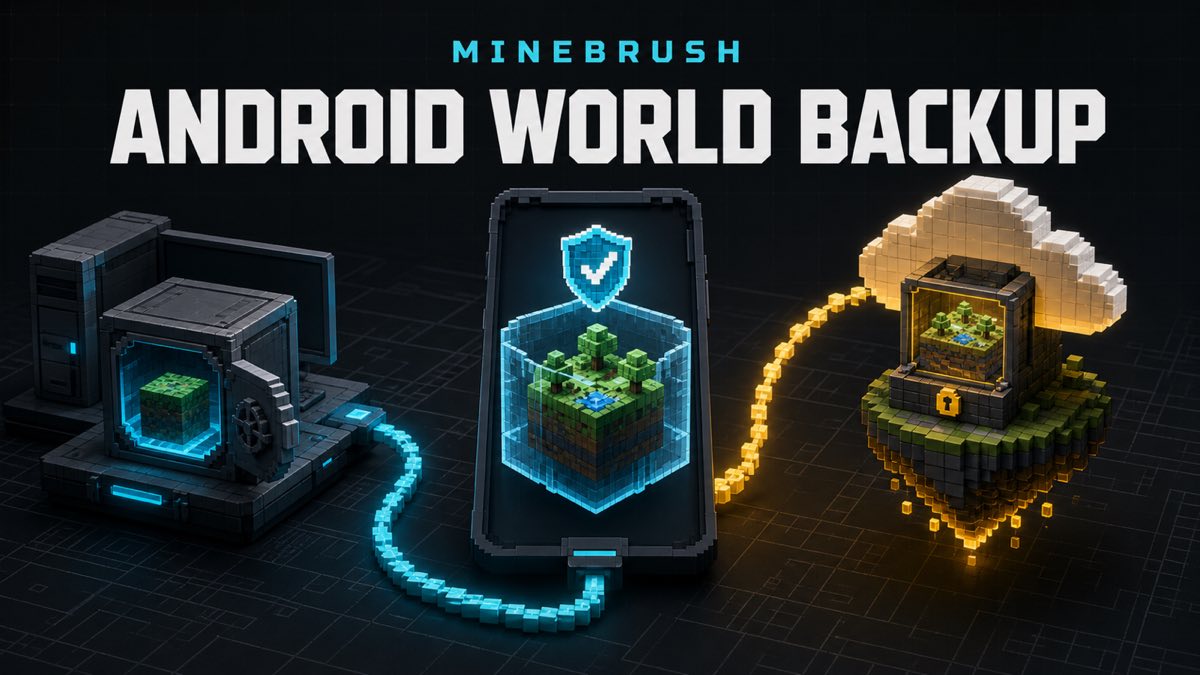
Identify External versus Application world storage, copy the documented Android folder safely, and use the supported Realms route when files are not exposed.
Storage choice controls the route
Minecraft’s current Android backup help distinguishes worlds created while File Storage Location was External from worlds in Application storage. External worlds can follow the documented file-copy route. Application-storage worlds are directed to a Realms transfer flow because ordinary file browsing may not expose them.
Do not assume the setting shown today moved an older world. Record the storage choice that applied when the world was created and whether the documented folder is visible. If uncertain, stop before deleting or reinstalling anything.
Prepare a copy-only backup
Charge the phone, free enough destination space, close Minecraft, and choose a computer folder that will not automatically rewrite files. Keep the world on the phone. A backup starts as a copy, never a move.
Write down the Android version, Minecraft build, device model, approximate world count, date, and destination. This lets you spot a partial copy later without exposing world names publicly.
Use the official USB and MTP path
The official steps connect Android to a computer with USB, select the charging notification, choose File Transfer or MTP, open a file browser, and navigate to Android/data/com.mojang.minecraftpe/files/games/com.mojang/minecraftWorlds. Copy the whole folder or selected world folders.
Type the path exactly. Do not search random com.mojang folders, edit database files, or rename level data. Android vendor UI can label MTP differently, so use the device’s standard file-transfer control.
Recognize the world folders carefully
Folder names may not match the friendly world name. Preserve every file and subfolder inside a selected world directory. If you cannot confidently identify one world, copy the complete minecraftWorlds folder rather than guessing.
Do not publish folder names, player data, or coordinates from private worlds. The backup can stay private while an owner-controlled inventory records total folders, bytes, and a checksum.
Verify the copy before calling it a backup
Compare source and destination folder counts and total bytes. A completed progress bar is not enough if USB disconnected or Android denied one subtree. Safely eject where the platform expects it, then inspect the destination without changing files.
For high-value worlds, make a second copy on another owned storage device. One phone and one computer folder synchronized to the same accidental deletion are not two independent backups.
Use Realms for Application storage
When the world lives in Application storage, follow the official Realms transfer route rather than rooting the phone, using an unknown file manager, or granting broad storage access to a third-party app. Verify the subscription/account and preserve the target Realm slot before upload.
The cited Android backup page does not establish Realm-slot overwrite behavior. This article therefore makes no overwrite claim and does not execute or promise Realm availability on any account or platform. Protect the source world, use the current official Realm controls, and stop if the destination state is unclear.
Do not switch storage settings as a rescue trick
The cited help page does not establish that changing File Storage Location migrates an existing world, exposes an Application-stored world, or controls where later worlds appear. Those behaviors are unknown here. Preserve the source world and follow the documented External-copy or Application-via-Realms boundary.
Reinstalling Minecraft or clearing application data before retrieving the world can be destructive. Stop if a tutorial asks for that as an early step.
Test a restore into a safe destination
A backup is credible only when a copy can be imported or placed through a supported route and opened. Use a duplicate name, verify spawn and inventory, make a small reversible change, save, close, reopen, and confirm persistence.
Never test restore by overwriting the source. Device, game build, and platform policies can change path behavior, so label the result with a date.
Handle add-ons and Marketplace dependencies separately
World folders may reference behavior packs, resource packs, Marketplace content, or account entitlements that are not fully represented by one directory copy. Record active content and confirm rights before moving anything.
A world opening with missing textures does not prove the level backup failed. It may indicate a separate pack or entitlement dependency. Keep that diagnosis separate.
Secure the archive
World backups can expose coordinates, player inventories, chat-adjacent data, and private builds. Store them under the owner’s control, avoid public links, and encrypt portable media when appropriate.
Do not upload raw worlds to a support comment. Share the smallest redacted evidence needed, and get consent from other world owners or server members.
What this guide can and cannot confirm
The confirmed source boundary covers the current External/Application split and documented path. No world file, device screenshot, account data, or tested restore result is presented here.
Android storage policies and help steps can change. Recheck the linked official page before copying or transferring a world, and stop if the documented route differs from the controls on the device.
Recognize the world folders without renaming them
The documented minecraftWorlds directory can contain folders whose names do not resemble the title shown in the Play screen. Treat each folder as an opaque world container. Copy whole folders; do not combine level data, behavior packs, resource packs, or database files from different worlds. If you need to identify a folder, compare the world name through supported metadata or make a copy and inspect it safely rather than renaming internal files in place.
Before copying, count the source folders and note the source device, storage mode, Minecraft build, and date. Do not publish a raw directory listing if it exposes account paths or unrelated app data. The backup goal is a complete private copy, not a public forensic dump.
Verify a backup beyond file existence
A destination folder appearing on a computer proves only that a transfer produced entries. Compare folder counts and sizes, retain the source, and open a copy on the target Minecraft installation when practical. Enter a recognizable location, make one reversible change in the duplicate, save, close, reopen, and confirm the change. That readback checks more than a green progress bar.
Never delete the phone source immediately after the first successful open. Keep at least one untouched copy until the target has survived a reopen and the player has checked important inventory, builds, dimensions, and attached packs. If the world cannot be opened, preserve both copies and the exact game message. Repeating move operations can destroy the cleanest evidence.
Handle Application storage without guessing hidden paths
When the world was created under Application storage, the official help route points to a Realm transfer instead of promising direct file access. Do not root a phone, install an unknown file manager, or change package permissions just to force the External method onto an Application-stored world. Those steps expand risk and are outside this article.
Use the official Realm workflow with the correct account and a disposable slot if available, then download the world through Minecraft on the destination device. Confirm the source world remains present until the transfer is verified. Realm subscription, upload limits, account eligibility, and device behavior can change, so recheck the official page before starting the transfer.
Source and rights boundary
This article links to current primary sources and summarizes only the facts needed for player decisions. External project names and trademarks identify their owners. MineBrush has not copied creator archives, project images, gallery screenshots, logos, or documentation pages. Follow creator and platform terms at the source.
This guide is based on the linked primary sources and includes no creator archive, account data, world file, or third-party image. Unless a hands-on result is stated with an exact device, game build, and repeatable scene, treat compatibility, performance, persistence, and Realm behavior as unverified. Recheck the official or creator page before downloading, updating, or changing a valuable world.
Continue on MineBrush
Browse Bedrock mobile help Open backup and transfer guides Browse Bedrock maps
Official and creator sources
- Official Minecraft source: 4414144725389 How Minecraft Stores World Files on Your Android Device
- Official Minecraft source: 4409165790605 How to Transfer Your World to Another Device in Minecraft Bedrock Edition
- Official Minecraft source: 4408945065357 Transferring Your Minecraft Bedrock Edition or Minecraft Legends License Between Devices
These links identify the official or creator-controlled evidence checked on August 28, 2026. MineBrush has not treated an unverified runtime result, device outcome, or third-party configuration as guaranteed.
PLAYER QUESTIONS
Discussion
Include the exact edition, version and step when asking for help.