 MineBrush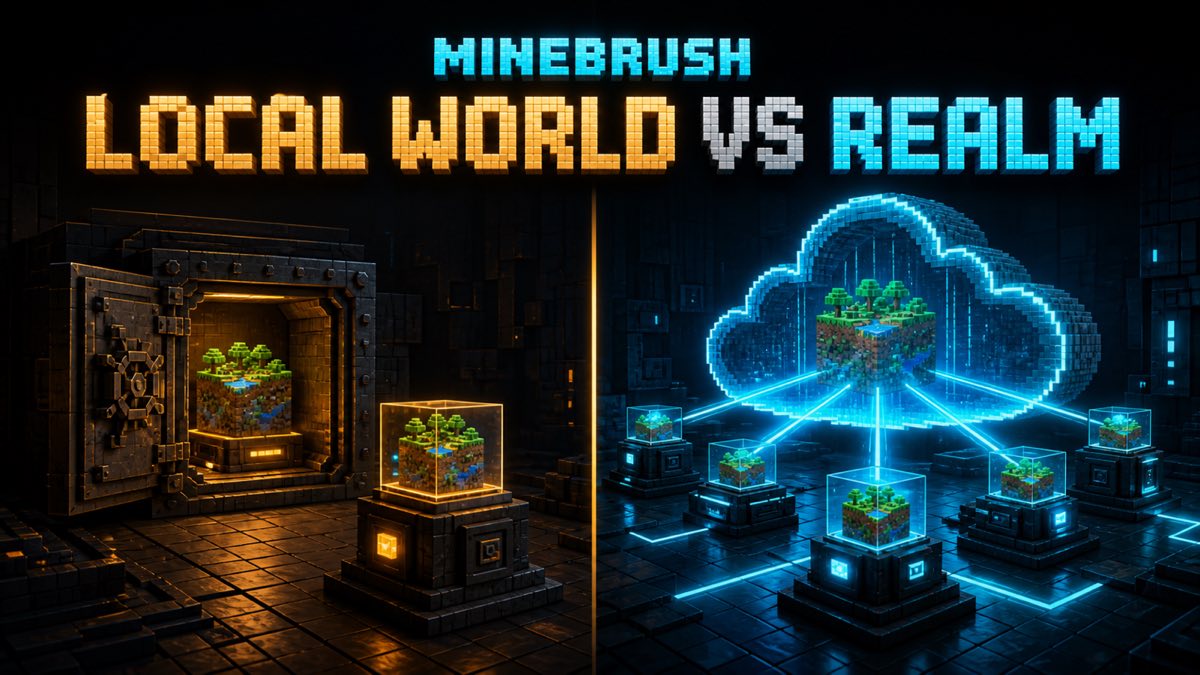
A downloaded Bedrock adventure map can be a great one-night co-op run, but “host it for friends” hides two very different setups. You can keep a local copy on one device and invite players only while that session is running, or place a separate copy on a Bedrock Realm so invited players can reach the active world while the owner is away.
This comparison uses current official Minecraft Realms pages checked on August 25, 2026. MineBrush did not import a creator map, activate its Add-Ons, open a multiplayer session, or upload a world. The included fixture is an original decision model with invented values; it is not a map, Realm slot, or runtime report.
Quick answer: test local, host the approved copy
Use a local world first when you still need to inspect the map, confirm its creator source, identify required packs, and decide whether your group should play it. Use a Realm when you want an invited Bedrock group to reach one active world across supported Bedrock devices without the owner keeping a local session open.
Never make the only imported copy your upload source. Keep three states:
- Original archive: untouched creator download plus source URL and hash.
- Local test copy: disposable world used to confirm import, spawn, packs, and basic play.
- Hosting copy: the exact approved world selected for the local session or Realm slot.
That small separation gives you a clean reset when the group soft-locks a puzzle, breaks a scripted sequence, or simply wants a fresh run.
What a Realm changes
The current Minecraft Realms page describes Realms as private, cloud-hosted servers for invited players. A Bedrock Realm supports cross-platform play among Bedrock players on supported devices, stays available while the owner is offline, and stores multiple world slots while only one world is active at a time.
That makes a Realm useful for an adventure group with different schedules. It does not turn Bedrock content into Java content, remove platform subscription requirements, or guarantee that every custom map and Add-On works. Realms cross-play stays inside the same edition.
The current Bedrock Realm setup guide says an existing local world can be selected for a Realm. It also warns that loading it into a slot that already contains a world replaces that world and its saved progress. Download the current slot before replacing it if you need to preserve the old run.
What a local session preserves
A local copy keeps the working world on the owner’s device. It is the better lane for first inspection, offline solo testing, a small same-time session, and maps that should not be placed in a subscription service before the creator’s terms are understood.
Local does not mean risk-free. Import can succeed while a behavior pack, resource pack, script, experiment, checkpoint, or command sequence fails later. Test the exact hosting copy, not a different archive with the same display name.
Local availability also depends on the owner’s session and the device’s current multiplayer path. This source-first package does not claim LAN discovery, friend-join behavior, platform network subscriptions, maximum players, or background hosting for any device. Those need an exact device and account test.
Realm availability is not creator permission
Uploading a downloaded map for a private invited group is a hosting action, not a transfer of ownership. Before using the world, record:
- creator and project page;
- exact filename, displayed version, date, and hash;
- license or usage terms;
- whether private multiplayer hosting is allowed;
- whether redistribution or a public mirror is prohibited; and
- required resource/behavior packs and any separate licenses.
Do not upload the creator archive to MineBrush, a random file checker, or a public mirror just because your group can access it through a world. Keep the private source archive private and share the creator’s official project link when friends need their own copy.
Back up the slot before you replace it
The current Change Your Realm Worlds guide explicitly warns that replacing a Realm world can lose progress. It recommends downloading the current world first and says Realm backups are not retained indefinitely.
Use that warning as a hard gate:
- identify the exact Realm and slot;
- download the current world or selected backup;
- confirm the downloaded copy appears in the local worlds list;
- record its name, size, date, and a private backup note;
- only then choose Replace World; and
- after upload, reopen the Realm and verify the intended world is active.
A screenshot of the slot name is useful operational evidence, but this package contains no Realm screenshot and does not claim the path was executed.
Check Add-Ons as their own layer
Minecraft’s current Activate Add-Ons in Bedrock Edition guide separates resource and behavior pack activation for local worlds and Realms. For a Realm, the owner edits a world slot, activates packs, waits for the upload, and then joins. The guide says Bedrock clients connecting to that Realm automatically download and apply Add-Ons activated there.
That is the official distribution behavior, not a compatibility guarantee. An adventure map can still depend on a particular Bedrock build, experiment, script API, resource-pack order, or creator update. Verify the current project requirements before upload and test one invited non-owner account after the owner succeeds.
Local versus Realm decision table
- First import and safety inspection: local test copy.
- Solo or offline play: local copy.
- Owner and friends always play together: local may be enough after a device-specific join test.
- Friends need access while owner is offline: Realm is the official always-online path.
- Mixed Bedrock devices: Realm supports Bedrock cross-device play; exact accounts and platform subscriptions still need checking.
- Java plus Bedrock group: Realm does not bridge editions.
- Existing Realm slot has valuable progress: download it before replacement.
- Creator terms are unknown: hold; do not host or redistribute.
Original MineBrush hosting fixture
The private fixture models the original archive, a local test copy, a hosting copy, one Realm slot backup, and the selected hosting mode. It requires a creator-source record, hash, rights review, separate test and hosting states, same-edition Bedrock access, and a verified backup before slot replacement.
The validator rejects using the only archive as the hosting copy, skipping rights review, replacing an unbacked slot, claiming Java/Bedrock cross-edition play, treating Add-On auto-download as runtime proof, adding creator bytes, inventing a player-count result, and promoting without a local verification hold. The fixture proves decision consistency only.
A pre-session checklist
- Verify the source. Reopen the creator page and bind the exact archive hash.
- Read the rights. Confirm private group hosting and any Add-On terms.
- Preserve the original. Never edit or overwrite the source archive.
- Test a copy. Confirm spawn, objectives, checkpoint/reset route, required packs, and save/reopen.
- Choose the host lane. Local for controlled same-time play; Realm for invited always-online access.
- Back up the destination. Download any Realm slot you will replace.
- Upload the exact approved copy. Do not switch files after QA.
- Verify with a member. Join from one invited non-owner Bedrock account and confirm the required packs load.
- Record reset instructions. Keep a clean hosting copy for a new run.
When to stop
Stop before upload if the source is missing, rights are unclear, the world only exists in one place, the destination slot is not backed up, or the map requires a Bedrock version/Add-On combination you cannot verify. Stop after upload if the active slot is wrong, a required pack fails, invited players receive an unresolved error, or save/reopen changes progression.
Do not “fix” a third-party world by deleting unknown packs or rewriting its manifest unless the creator permits modifications and you understand the consequence. Prefer an updated creator release.
Evidence boundary
Official sources support the Realms private/always-online model, Bedrock-only cross-device boundary, world slots, existing-world upload, slot replacement warning, local download, non-permanent backup warning, and Realm Add-On distribution path. They do not prove this map, account, device, network, Add-On stack, or platform subscription works.
MineBrush has not imported, launched, hosted, uploaded, downloaded, replaced, reset, or joined any map for this article. Creator rights, exact Bedrock compatibility, device join behavior, player limit, Realm upload size, network performance, scripts, persistence, and screenshots remain action-time gates. Browse Minecraft Maps for map-specific records and Minecraft Guides for more backup and multiplayer routes.
The safest multiplayer map is the one you can reset, restore, and trace back to its creator without guessing.
PLAYER QUESTIONS
Discussion
Include the exact edition, version and step when asking for help.