 MineBrush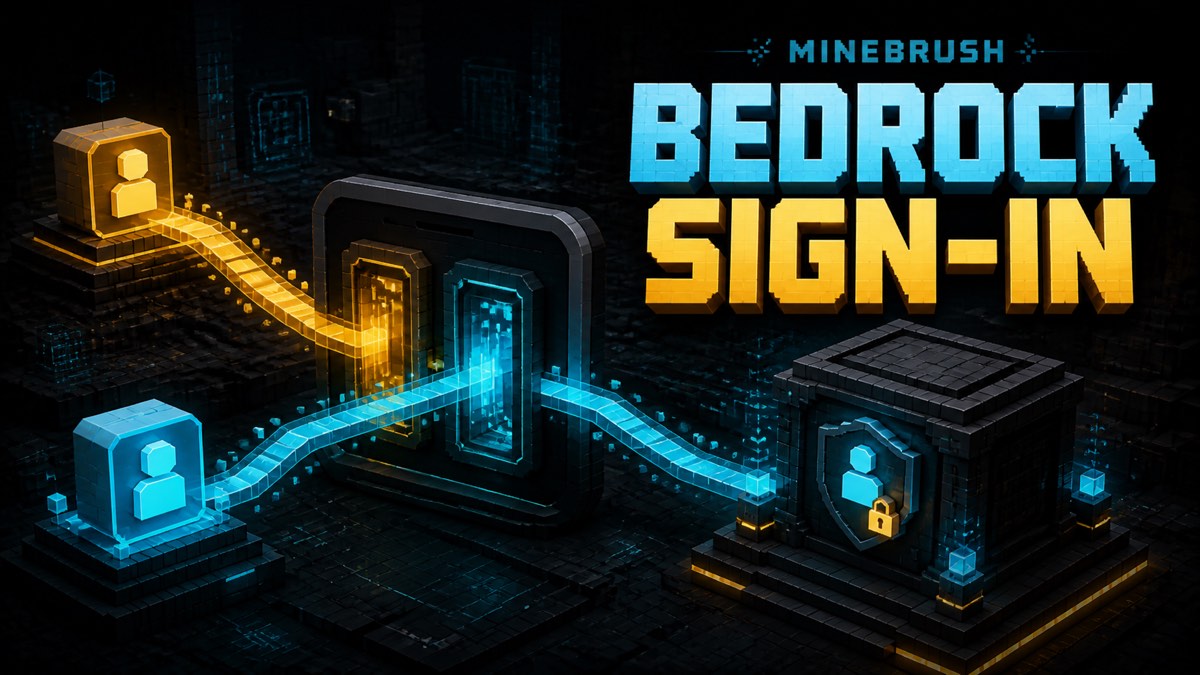
BEDROCK PLAYER GUIDE
Separate your mobile store account from the Microsoft account used inside Minecraft Bedrock, then sign in without losing track of purchases or profiles.
Every factual statement in this guide is bounded to the exact primary sources listed below. MineBrush has not run the game, a server, a world, a datapack or a resource pack for this source-only explainer.
The short answer: mobile Bedrock can involve two account layers
On Android, the current Minecraft Help matrix names a Google Account as the required platform account and a Microsoft Account as the additional account. On iPhone and iPad, it names an Apple ID as the required platform account and a Microsoft Account as the additional account. Those rows explain why two different email addresses can both be relevant without being interchangeable.
The store-side account belongs to the device platform row. The Microsoft account is the sign-in used inside Minecraft for the cross-platform features listed by Minecraft Help. Before troubleshooting, write down which account occupies each layer. Do not paste passwords, recovery codes, purchase receipts, or full email addresses into a public support post.
Label the two accounts before you tap Sign In
Make a private two-line note. Line one is the Android Google Account or Apple ID associated with the device's app-store layer. Line two is the Microsoft account you intend to use inside Minecraft. Use masked identifiers, such as the first letter and email domain, if another person is helping. The Minecraft Help matrix is the source for which account belongs in which row.
This step prevents a common communication failure: saying 'my Minecraft account' when one person means the store account and another means the Microsoft profile. It does not prove ownership or move content. It simply gives every later screenshot, support message, and sign-in choice an unambiguous label.
Follow the current mobile sign-in sequence
Minecraft Help's current Android and Apple sequence is direct: start Minecraft, select Sign In, select Sign In in the window that opens, enter the Microsoft account information or select a pre-saved account, and select Let's Go. The account selected in that window is the Microsoft layer from your note, not a generic instruction to switch the device's store account.
After the sign-in completes, the official page tells players to give the game a few seconds to load the profile and connect to previously purchased Marketplace content. Keep the app open while that documented connection step finishes. If the profile shown is not the one you expected, stop and verify the selected Microsoft account before making purchases or changing family settings.
Know what the Microsoft layer enables
Minecraft Help says Microsoft sign-in on platforms that treat it as an additional account enables cross-platform play and cross-platform access to subscriptions and Marketplace purchases. The broader account matrix also lists parental controls, social features, Realms, and multiplayer games among the Microsoft-enabled features.
That list is useful when describing the problem. 'The app will not open' points to a different layer than 'my Microsoft profile loaded but cross-platform friends are missing.' Name the feature and the account layer visible at the moment. Do not claim a purchase vanished when the screen may simply be showing a different Microsoft profile.
Build a privacy-safe support note
Record the device family, Android or iOS platform row, whether the Microsoft sign-in window appeared, whether a pre-saved account was offered, and which step in the official sequence failed. Record only a masked account identifier and the visible gamertag when needed. Never include a password, one-time code, recovery key, payment data, child account details, or a full order number.
Use exact screen wording in your private note, but crop personal information from any screenshot. A strong support summary says which layer is confirmed, which layer is unknown, and which official step does not complete. That is more actionable than repeatedly reinstalling while the account identity remains uncertain.
What this guide does not claim
This article does not say that an app-store purchase can be transferred between store accounts, that Marketplace content can be moved between Microsoft accounts, or that every sign-in problem has the same fix. Neither cited Minecraft Help page makes those promises. The guide stays inside the published account matrix and mobile sign-in sequence.
It also does not ask for a runtime screenshot to support its public claims. Every factual statement is bounded to the two current official help pages. Before publication, MineBrush must recheck those exact pages, confirm the live Bedrock category route, and render the article with the current non-resource DLE profile.
Quick mobile account checklist
Confirm the Android Google Account or iOS Apple ID layer. Separately confirm the Microsoft account selected inside Minecraft. Follow the official five-step sign-in path. Allow the profile connection step to finish. Then describe any remaining issue by feature and layer without exposing credentials.
If the official account matrix or sign-in instructions change, this article must be reviewed before its next update. The source-day capture is a time-bounded record, not a permanent guarantee that every label and step will remain unchanged.
Choose the next support route by account layer
If the official sign-in window never appears, record that failure before the Microsoft-account selection step. If it appears but displays an unexpected saved profile, record the masked Microsoft identity visible there. If sign-in completes but a cross-platform feature is missing, name that feature and the loaded profile. This sequence follows the two account layers and five-step mobile path in Minecraft Help without inventing a universal fix.
Keep purchase questions equally specific. The official matrix distinguishes the platform account from the additional Microsoft account, while the mobile page describes connection to previously purchased Marketplace content after sign-in. A useful case note identifies the platform, selected Microsoft profile, content type, and last successful official step. It does not conclude that content transferred or disappeared without support evidence.
Source-day review for mobile accounts
At publication time, compare the Android and iOS rows in Accounts Required to Play Minecraft with the sign-in sequence on the dedicated mobile page. Confirm that Google Account, Apple ID, and Microsoft Account still occupy the same columns and that the listed feature set has not changed. If either page redirects or replaces its terminology, stop the release until the article and claim graph match.
Also verify that MineBrush's title does not imply account recovery, purchase migration, or platform ownership transfer. The intended search answer is narrower: explain why two account identities may appear and show which one the current official sign-in window requests. That boundary protects both accuracy and player trust.
Primary sources
- Minecraft Help: Sign in to Minecraft with a Microsoft Account on Mobile (checked 2026-08-25T23:09:40Z)
- Minecraft Help: Accounts Required to Play Minecraft (checked 2026-08-25T23:09:40Z)
Continue on MineBrush
Continue through the Bedrock mobile hub or browse the Minecraft guides hub. Internal routes must pass the live DLE preview check before publication.
PLAYER QUESTIONS
Discussion
Include the exact edition, version and step when asking for help.