 MineBrush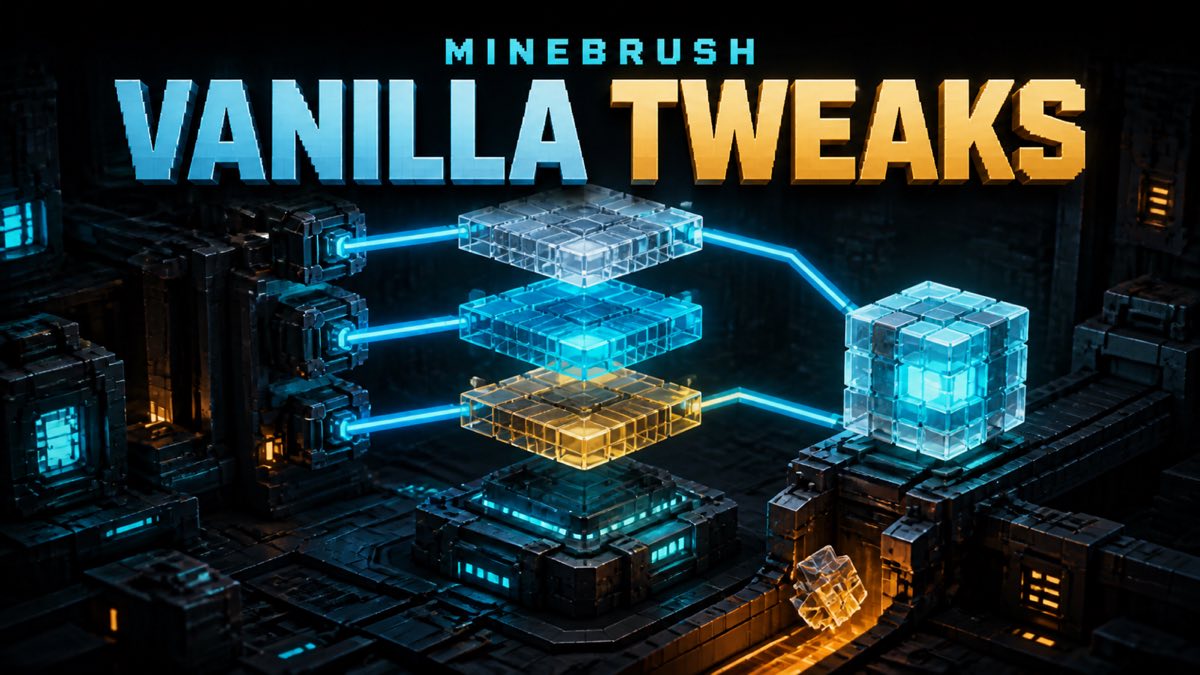
Vanilla Tweaks is useful because it lets you build a small resource pack around the parts of Minecraft Java you actually want to change. The risky way to use a picker is to click dozens of modules, forget their order, and download another mystery ZIP every time something looks wrong. The clean way is to treat the selection like a tiny configuration: choose the exact game version, start with three changes, record their order, and rebuild from that receipt when you update.
This guide is source-day bound to the official Vanilla Tweaks resource-pack picker as it appeared on August 25, 2026. The creator-controlled page displayed Minecraft version 26.2, warned that some modules have overlapping files, and stated that modules at the top override modules below them. Those are current picker facts, not a promise that the same version list, module catalog, credits, or merge behavior will never change.
Start on the creator-controlled picker
Use the official Vanilla Tweaks resource-pack picker. Do not search for a prebuilt “all tweaks” archive or a re-upload on a file mirror. The official page is where you can see the current Minecraft-version selector, module names, credits, overlap note, and download control together.
Before selecting anything, set the Minecraft version to the version you plan to launch. On the source day, 26.2 was available. That does not make a 26.2 build the right choice for 26.1, 1.21, a snapshot, or a future release. If your game version is not listed, stop instead of forcing the nearest-looking pack and hoping the warning is harmless.
If you only need the standard Java resource-pack folder workflow, the MineBrush Java resource-pack installation checklist covers the broader install boundary. This article owns the picker-specific job: version choice, module order, overlap reasoning, a reproducible selection receipt, and a clean rebuild.
Use a three-module starter stack
A minimal stack is easier to understand than a giant wishlist. For the static planning artifact in this guide, MineBrush recorded three module names that were visible in the official 26.2 picker:
- Glass Doors & Trapdoors at the top;
- Accurate Scaffolding in the middle;
- Softer Wool at the bottom.
This is a selection example, not a compatibility result. MineBrush did not download or redistribute the generated pack, inspect its private archive paths, launch Minecraft, compare screenshots, or measure performance. The artifact therefore does not claim that these three modules overlap, do not overlap, improve FPS, cost zero frames, or work on every device. It proves only that the names were present in the current 26.2 picker and that a three-entry order can be recorded deterministically.
Why put the order in writing if these changes sound unrelated? Because names describe player-facing intent, not every file inside a generated archive. Two visually different modules can still touch a shared atlas, shader helper, model, or metadata file. Until you inspect a pack you generated for your own use—or the picker explicitly reports an overlap—exact path interaction remains unknown.
Understand what “top overrides below” means
The current picker says some modules have overlapping files and allows drag-and-drop ordering. It also states that modules at the top override those below. That gives you a clear decision rule for a confirmed shared path: the higher module wins for that path in the picker’s assembled result.
It does not prove that an entire lower module disappears. If two modules share one file but have several unique files, only the shared path needs a winner; the unique files can still survive. It also does not prove an overlap merely because two modules are both in the Aesthetic category. Category and file identity are different facts.
The MineBrush fixture models three safe classifications:
- Distinct synthetic paths: both example files survive.
- One synthetic shared path: the top entry wins that path.
- Real path inventory not inspected: hold the claim, keep the order receipt, and rebuild or inspect locally before saying the stack is conflict-free.
That last state matters most. “Unknown” is not a failure; it is an honest stop condition. A clean guide should never turn an uninspected creator archive into a confident file-level compatibility claim.
Build a reproducible picker receipt
Before pressing Download, record five things in a local note:
- the official picker URL;
- the displayed Minecraft version;
- each selected module name;
- the exact top-to-bottom order;
- the date you built the selection.
A screenshot of your own selection can help, but the text receipt is more useful because you can search, diff, and rebuild it. Do not rely on the generated filename alone to explain what is inside. Do not publish the resulting ZIP as a convenience mirror. Your receipt is documentation; the creator’s picker remains the download route.
For the example above, the receipt is simple: version 26.2, three named modules, Glass Doors & Trapdoors on top, Accurate Scaffolding second, and Softer Wool third. If you later move Softer Wool to the top, write that as a new revision instead of silently replacing the old note. Now a before-and-after comparison has one changed variable.
Download and install without losing the baseline
The official Vanilla Tweaks installation page tells resource-pack users to open Minecraft’s Resource Packs screen, open the resource-pack folder, place the downloaded Vanilla Tweaks ZIP there, and reload the Resource Packs screen so it appears in the list. Keep the ZIP intact unless the creator’s current instructions explicitly change.
Make the first launch boring. Enable the new pack without simultaneously adding a shader, swapping loaders, changing Java, increasing render distance, or updating a mod list. If something looks wrong, one controlled change gives you a much shorter search space.
Keep your previous known-good pack available until the new selection passes your own visual review. A practical rollback is to disable the new entry and re-enable the prior one. That is a resource-pack selection rollback, not proof about world data, every modded renderer, or every cached visual state. If the screen does not return to the expected look, restart the client before drawing a bigger conclusion.
Troubleshoot by rebuilding, not piling on more ZIPs
The pack does not appear: confirm that the ZIP is in the folder opened from Minecraft’s Resource Packs screen, then reload that screen. Verify you did not move only a web download shortcut or place the file in a world datapack folder.
A selected change is missing: compare the active pack with your receipt. Confirm the module was selected in the correct version and check whether another selected module sits above it. If the exact file interaction is still unknown, do not invent a conflict. Rebuild a one-module pack from the official picker, verify that smaller result, then add the next module back.
The result changes after an update: open the current picker, choose the new exact game version if it is available, and rebuild from the old receipt one module at a time. Module names, credits, paths, and implementations can change. An old ZIP plus a new generated ZIP is harder to reason about than one newly documented stack.
You want to compare two orders: create two clearly named local receipts and change only the order. Do not call one “faster” or “compatible” unless you actually run a controlled test. Order evidence can show which selected asset wins; it cannot produce an FPS result.
Respect the creator’s distribution boundary
The current Vanilla Tweaks terms allow certain modified community projects with conditions, including credit, while forbidding simple uncredited redistribution of the tweaks as-is. This MineBrush package takes the narrower route: it links to the creator, quotes no pack files, mirrors no generated archive, includes no creator screenshots, and distributes no Vanilla Tweaks textures, models, sounds, shaders, or code.
If you are building a public project rather than a personal picker selection, read the current terms yourself and follow their required credits. This article is an installation and organization guide, not legal permission for a particular redistribution plan.
What the MineBrush artifact proves
The first-party static artifact contains a three-row 26.2 selection receipt, an original MineBrush order diagram, and a synthetic conflict matrix. Its validator checks the version and names, requires one unique order per module, rejects creator bytes or media, rejects public pack distribution, rejects numeric performance claims, and fails any attempt to convert an uninspected path inventory into “no conflict.”
The baseline passes three rule classes and ten isolated negative mutations are rejected. This is deterministic E0 evidence for the documentation workflow. It is not gameplay, visual-quality, device, loader, memory, VRAM, startup-time, frametime, FPS, archive-content, or long-session evidence. Independent QA still has to decide whether the package closes the R4 artifact gate.
Final clean-stack checklist
- Open the creator-controlled resource-pack picker.
- Select your exact Minecraft version; do not approximate.
- Start with three or fewer modules.
- Record the exact names and top-to-bottom order.
- Treat uninspected file overlap as unknown.
- Download only from the official picker and keep the generated ZIP private.
- Install through Minecraft’s Resource Packs folder and test one change at a time.
- Rebuild from the receipt after a version or module change.
- Keep a known-good pack available for rollback.
- Recheck the picker, installation page, credits, and terms before publishing any update claim.
A clean Vanilla Tweaks stack is not the stack with the most modules. It is the one you can explain, reproduce, reverse, and rebuild without guessing what changed.
PLAYER QUESTIONS
Discussion
Include the exact edition, version and step when asking for help.